
How to Find Negative Keywords in Google Ads & Save Money
How to Find Negative Keywords in Google Ads & Save Money


The first step to finding good negative keywords in Google Ads is pretty simple: dig into your Search Terms Report. This is where you'll see the actual search queries people typed that triggered your ads. You should also take some time to brainstorm a list of terms you absolutely don't want to show up for, like "free," "jobs," or the names of your competitors. A little proactive list-building can save you a ton of cash.
Why Negative Keywords Are Your Secret Weapon for Profitability
Look, let’s be honest. Ignoring your negative keywords is basically like lighting a pile of money on fire. Before we get into the nitty-gritty of how to find them, we need to talk about why this isn't just another task to check off your list. It's one of the quickest ways to stop wasting money and seriously boost your campaign's ROI.

The True Cost of Irrelevant Clicks
Let's say you sell premium, handcrafted leather wallets. Without the right negative keywords, you could easily blow your budget on clicks from people searching for "free wallet patterns" or "how to repair a zipper on a wallet." Those clicks add up fast, and they actively sabotage your campaign's performance.
When your ads get served for the wrong searches, a few really bad things start happening:
- Your Click-Through Rate (CTR) tanks. Someone looking for a DIY sewing pattern isn't going to click your ad for a $150 wallet. This tells Google your ad is a bad match for the search.
- Your Quality Score gets hammered. Google's whole system is built on relevance. When you have a low CTR and people bounce from your landing page, the algorithm penalizes you with a lower Quality Score.
- Your Cost Per Acquisition (CPA) goes through the roof. You're paying for clicks from people who had zero intention of buying from you. This makes every real customer you acquire that much more expensive.
By the time we're done here, you’ll stop seeing negative keywords as a chore. You'll see them for what they are: your best tool for making your campaigns more profitable. It’s all about making every dollar work harder.
The True Cost of Common Irrelevant Search Terms
Here’s a quick look at how different types of irrelevant searches quietly drain your Google Ads budget before you add them as negatives.
These are just a few examples, but you can see how quickly the costs pile up if you're not paying attention.
Plugging the Leaks in Your Budget
The impact of a well-maintained negative keyword list is almost immediate. Just by adding a solid starting list, you can often slash wasted ad spend by 20-30% right out of the gate. I've seen clients who regularly review their search terms report lower their cost per click (CPC) by 15% in the first month alone. At the same time, their CTR often jumps by 25% because their ads are finally being shown to people who actually want what they're selling.
This isn't just about saving cash—it's about reallocating it to what works. Every dollar you don't waste on a bad click is a dollar you can put toward the keywords that are actually bringing in revenue. Getting this right is fundamental to spending your PPC budget wisely. It’s a strategic move that can turn your ad campaigns from a money pit into a reliable profit-driver.
Uncovering Hidden Money Pits in Your Search Terms Report
Your Google Ads Search Terms Report is a goldmine. Seriously. It’s not some boring spreadsheet; it's a direct transcript of what real people are typing into Google right before they see—and maybe click—your ad. This is your number one hunting ground for negative keywords, and it’s packed with clues telling you exactly where your budget is going.
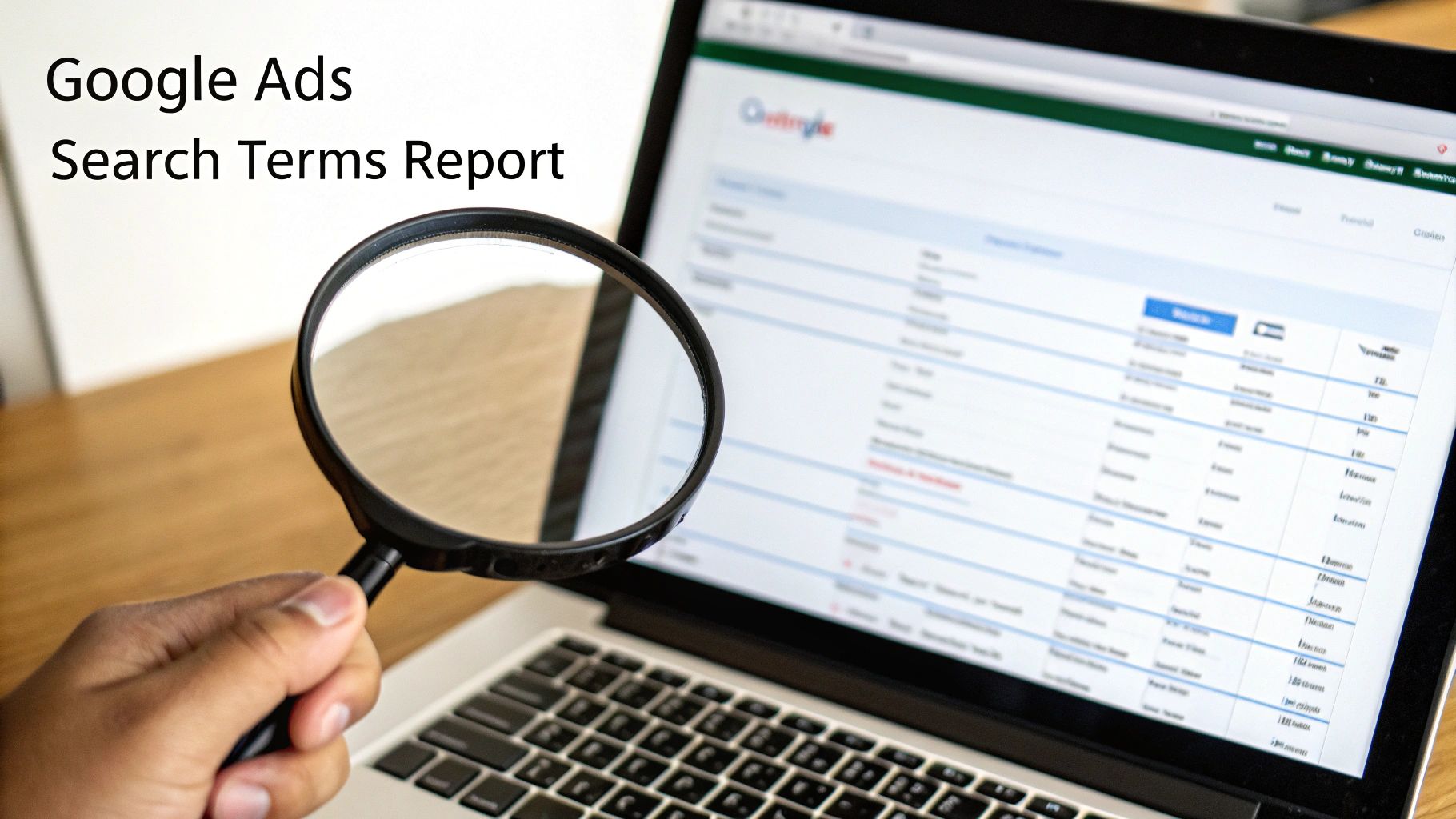
This report shows the raw, unfiltered search queries that triggered your ads, which is often wildly different from the keywords you're actually bidding on. Thanks to Google's ever-broadening match types, even a so-called "exact match" keyword can pull in searches with a similar intent that completely miss the mark. This is where the budget leaks happen.
Getting there is simple. Inside your Google Ads account, just navigate to "Keywords" on the left-hand menu and then click "Search terms." Just like that, you're looking at the raw data that separates profitable campaigns from money pits.
How to Prioritize Your Hunt
Okay, you're in the report. It can feel a bit overwhelming, right? You might be looking at hundreds, or even thousands, of search terms. The secret is to avoid getting lost in the weeds. You need a strategy.
My go-to move is to immediately sort the data by "Cost" in descending order. This pushes the most expensive search terms right to the top. These are the queries eating up the largest slice of your daily budget, so tackling them first gives you the biggest and fastest impact.
After I’ve handled the big spenders, I'll do another sort by "Clicks." This is great for spotting those queries that aren't costly per click but are driving a ton of junk traffic. A term getting dozens of cheap clicks with zero conversions is just as damaging as one expensive, bad click.
What to Look for in the Data
As you scan through the sorted list, you're basically a detective looking for patterns—terms that clearly show a mismatch between what the user wants and what you offer. For a really deep dive into squeezing every bit of insight from this data, you can learn more about mastering the Google Ads search terms report in our guide.
Here are the usual suspects I flag immediately:
- Low-Intent Informational Queries: Keep an eye out for words like "how to," "what is," "free," "examples," or "reviews." Someone searching "how to repair leather shoes" isn't in the market for your brand-new boots just yet.
- Competitor Brand Names: Unless you're running a specific conquesting campaign, paying for clicks on your competitors' brand names is usually a losing game. These searchers already have another brand in mind, and you’re just funding their comparison shopping.
- Completely Irrelevant Terms: This is the most obvious stuff. If you sell enterprise software and see clicks for "kids learning games," you’ve found an easy win. Add it to the negative list and move on.
Don't just look for single words. Analyze the entire search query to understand the context. A term might seem relevant at first glance, but the full phrase can reveal a completely different user intent that's wasting your ad spend.
Building Your Negative Keyword Lists Before You Spend a Dime
Why wait for your ad budget to spring a leak before you start patching the holes? The most successful advertisers I know build a defensive wall of negative keywords before their campaigns ever see the light of day. It's all about stopping bad clicks before they have a chance to happen.
This isn't just about plugging obvious budget drains. It’s about giving Google's algorithm a crystal-clear picture of your ideal customer from the get-go. When you explicitly tell Google who you don't want, it can zero in on who you do want much faster.
Think of it this way: launching a campaign with a solid negative keyword list is like starting a road trip with a GPS. Without it, you're just driving blind and hoping you end up in the right state.
Brainstorming Your Defensive Lines
First things first, get your team together, grab a whiteboard (or open a fresh Google Doc), and start thinking about who you absolutely, positively do not want clicking your ads. This is a simple but incredibly powerful exercise.
The goal is to list out entire categories of searchers who will never convert.
Start with common search modifiers that signal someone isn't looking to buy what you're selling. Here are the usual suspects I see all the time:
- Job Seekers: If you sell project management software, you don’t want to pay for clicks from people searching for "project manager jobs." Your list should include terms like "jobs," "careers," "hiring," "salary," and "internship."
- The DIY Crowd: Offering a professional service? Keywords like "how to," "DIY," "tutorial," "guide," and "free template" are absolute budget killers. A search for "DIY kitchen remodel" is worlds away from someone looking to hire a contractor.
- Information Gatherers: These folks are just kicking tires. Look for words like "reviews," "what is," "statistics," "examples," and "study." They’re in the early research phase, not pulling out their credit card.
- Bargain Hunters: Unless you’re the cheapest option on the market, you'll want to block terms like "free," "cheap," "discount," "torrent," and "download." These attract clicks that rarely, if ever, turn into profitable customers.
Don't stop there. Be ruthless. Add competitor brand names (unless you're running a specific conquesting campaign), irrelevant locations, and any product or service models you don't offer. Every term you add is another dollar saved.
Using Google Keyword Planner in Reverse
Most people think of the Google Keyword Planner as a tool for finding keywords to bid on. But it’s also a goldmine for finding things to exclude.
Here’s a little trick I use all the time.
Take one of your main keywords—let's say "leather hiking boots"—and pop it into the Keyword Planner. Now, instead of looking for good ideas, scan the results for everything that doesn't fit your business.
You'll probably see things like "used hiking boots," "hiking boot repair," or "waterproof spray for boots." If you don't sell used gear, offer repairs, or stock waterproofing products, then "used," "repair," and "spray" immediately go onto your negative keyword list.
This "reverse" research approach turns a keyword discovery tool into a powerful budget protection tool. It helps you uncover those related-but-totally-irrelevant search paths you would've never thought of on your own, letting you build a much stronger defense right from the start.
Choosing the Right Negative Keyword Match Types
Just tossing a bunch of negative keywords into a list and calling it a day isn't going to cut it. The real skill—and where I see so many advertisers trip up—is picking the right match type for each keyword. It’s the difference between surgically removing wasteful clicks and accidentally taking a hatchet to your best-performing campaigns.
Think of it this way: negative keywords are your shield, but the match types decide the size and shape of that shield. Too small, and you're left wide open to irrelevant traffic. Too big, and you end up blocking perfectly good customers from finding you. Nailing this balance is a massive part of mastering your Google Ads account.
This decision tree gives you a simple framework for how to think about this proactively. You can apply negatives at the account level for universal no-gos or get more granular at the campaign level.
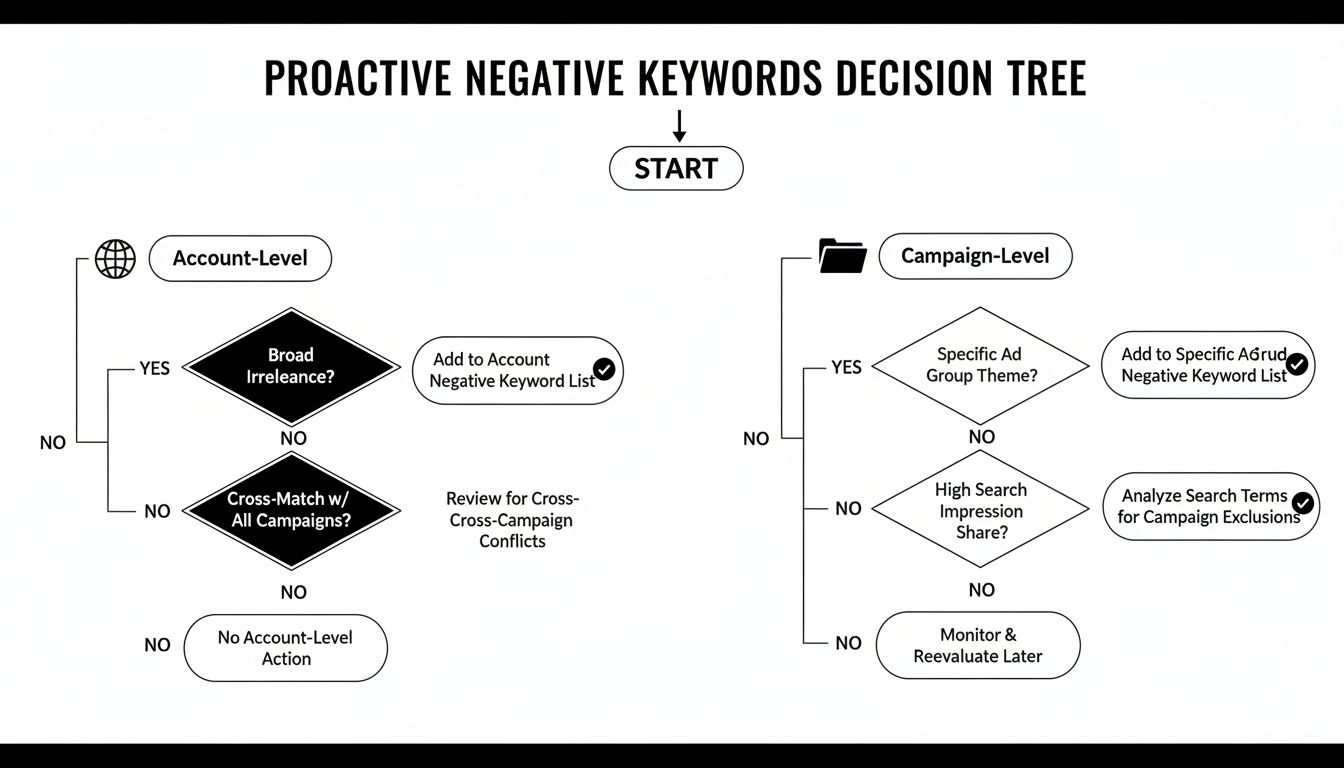
This visual really gets to the heart of good campaign hygiene. You start broad with account-level exclusions (like "jobs" or "free") and then sharpen your strategy with more targeted, campaign-specific negatives as you gather data.
A Practical Guide to Negative Keyword Match Types
Choosing the right negative match type can feel a bit confusing at first, but it gets easier once you see them in action. This table breaks down what each type actually does and gives you some real-world situations where you'd want to use it.
Each match type has its place, and a healthy account uses a mix of all three. You'll find yourself relying on phrase and exact match for day-to-day optimizations, while broad match is more for setting foundational, account-wide rules. For a deeper look at the technical side, you can explore this detailed guide on how negative keyword match types work.
The single biggest mistake I see people make is overusing negative broad match. They sell premium hiking boots, see a click for "cheap trail shoes," and add
-shoesas a broad match. They don't realize they just blocked themselves from showing up for valuable searches like "best waterproof hiking shoes." Always think through the collateral damage before going broad.
How to Automate Your Workflow with Tools
Let’s be honest, nobody enjoys manually digging through endless search term reports. It’s a huge time-sink, especially as your campaigns grow, and frankly, you have bigger things to worry about. It’s time to work smarter, not harder, by using tools and automation to handle your negative keyword management.
This isn’t about being lazy or cutting corners. It's about shifting your focus from tedious spreadsheet tasks to high-level strategy that actually moves the needle. The great thing is, Google Ads already has some handy features built-in, and a few dedicated tools can push your efficiency to a whole new level.
Mastering Shared Negative Keyword Lists
One of the most powerful—and surprisingly overlooked—features right inside your Google Ads account is the shared negative keyword list. Just think of it as a universal "do not show" list that you can apply to multiple campaigns with just a click.
This simple feature is an absolute game-changer for efficiency. Instead of manually adding the same obvious negatives like "free," "jobs," or "DIY" to every single campaign you launch, you can build one master list and apply it everywhere.
Here’s where shared lists really shine:
- Account-Wide Negatives: Perfect for terms you never want to show up for, no matter the campaign. Think "torrent," "hiring," or brand names of your direct competitors.
- Preventing Keyword Cannibalization: Got multiple campaigns for different product lines? A shared list can stop them from competing against each other for the same traffic.
- Cleaning Up Location Targeting: Running ads just in Texas? A shared list of other states and major cities can keep your targeting squeaky clean across all your Texas-focused campaigns.
Speed Things Up with Dedicated Tools
Shared lists are a fantastic start, but if you want real speed, you need a dedicated Google Ads PPC tool. This is where you can put the whole process of finding and adding new negative keywords into overdrive.
Take something like the Keywordme Chrome plugin, which bolts directly into your existing workflow. While you're looking at your search term report, you can spot irrelevant queries, choose the right match type, and add them as negatives in a couple of clicks. No more soul-crushing copy-and-paste sessions between tabs.
What used to be an hour-long chore can become a quick five-minute review. This kind of consistent optimization really adds up. We've seen that well-optimized campaigns can achieve 35% higher conversion rates after diligent negative keyword management. On top of that, regular cleanups can prevent up to 40% of junk clicks, which improves your Quality Scores and lowers your ad costs. You can read more about the impact of negatives on campaign performance on storegrowers.com.
Automation isn't just about speed; it's about consistency. Tools help ensure you never skip a weekly search term review, making your campaigns stronger and more profitable in the long run.
By combining Google’s own features with specialized tools, you can build a powerful, semi-automated system. This approach keeps you in the driver's seat while killing off the manual grunt work, freeing you up to focus on what actually grows the business.
Got Questions About Negative Keywords?
Even when you feel like you have a handle on your negative keyword strategy, questions are bound to pop up. That’s perfectly normal. Let's dig into some of the most common things people ask about managing negative keywords in their Google Ads accounts.
How Often Should I Be Looking for New Negative Keywords?
When you first launch a campaign, you need to be living in your search terms report. I mean it—check it daily for the first week or two. This is your golden window to slash the most obvious budget-draining terms right out of the gate. Think of it as battlefield triage for your ad spend.
After that initial sprint, once things have settled down and you've pruned the easy-to-spot junk, dropping into a weekly check-in is a great rhythm. For massive, older accounts that have been running for years, you can probably get away with a bi-weekly or even monthly review.
The key isn't how often you check, but that you check consistently. Don't just set it and forget it. People's search habits are always shifting, and your negative keyword lists have to keep up if you want to stay profitable.
Is It Possible to Add Too Many Negative Keywords?
Oh, absolutely. It's a classic rookie mistake to get a little too happy with the "add negative" button and accidentally block traffic you actually want. This usually happens when someone gets spooked by a bad search term and adds a really broad negative keyword without thinking through the consequences.
I once saw an account for a high-end shoe brand that sold "men's dress shoes." They saw a click for "cheap running shoes" and, in a panic, added -shoes as a negative broad match. They didn't realize they'd just told Google to stop showing their ads for amazing searches like "best leather dress shoes for men." Yikes.
Always be careful and double-check what you're adding. The goal here is precision surgery with a scalpel, not a wild swing with a chainsaw.
Ad Group vs. Campaign Negatives: What’s the Difference?
This all boils down to how much control you need and where you need it.
- Ad Group Negatives: These are your specialists. A negative here only applies to one specific ad group. It’s the perfect tool for sculpting traffic within a campaign, especially to stop your own ad groups from competing with each other for the same clicks.
- Campaign Negatives: This is a wider net. Any negative keyword you add at the campaign level applies to all the ad groups inside it. This is your go-to for terms you know are irrelevant for an entire product line or service.
- Account-Level Negatives (Shared Lists): This is your ultimate firewall. For words you never, ever want to pay for—think "free," "jobs," "DIY," or "torrent"—a shared negative list applied to your whole account is the only way to go. It’s efficient and saves you from adding the same 100 words to every new campaign.
Do Negative Keywords Even Work with Performance Max Campaigns?
They do, but it’s a little different. You can (and should!) apply your account-level negative lists to Performance Max (PMax) campaigns to block those universal junk terms. For a while, that was it, but thankfully Google now lets you add campaign-specific negatives directly within the PMax campaign settings.
This is a huge deal for preventing PMax from cannibalizing your brand traffic or spending money on terms you’d rather target with a dedicated Search campaign. Since PMax gives you very little data on what it’s actually doing, being proactive with your negative lists is more critical than ever.
Trying to manage all these lists, levels, and match types can feel like a full-time job in itself. That’s exactly why we built Keywordme. Our tool plugs right into your Google Ads account, helping you find and add the right negative keywords in seconds, not hours. It's time to ditch the spreadsheets and start optimizing like a pro. Give Keywordme a try with a free 7-day trial and see how much time you can get back.
.svg)