
How to Delete Keywords in Google Search: A Clear Guide
How to Delete Keywords in Google Search: A Clear Guide


Let's cut right to the chase: you can't just delete a keyword from Google’s public search index. There’s no magic "erase" button that removes a term from the internet for everyone.
What you can do, and what this guide is all about, is take control of how those keywords show up in your personal search history and autocomplete suggestions.
Why You Can't Erase Keywords from Google Itself
Think of Google as a massive, ever-expanding library of the public internet. Its entire purpose is to crawl, index, and organize all that information so anyone can find it. The goal is universal access, not on-demand censorship.
When you search, Google is holding up a mirror to the content that already exists on billions of websites. Trying to remove a keyword from its index would be like trying to tear the word "marketing" out of every book in that library. It’s just not how the system was built.
Even if you could temporarily hide a term, Google’s bots are constantly re-scanning the web. The moment they find that word on a webpage again, it's back in the index.
The Indexing and Ranking Process
Google's job is to take your search query and find the most relevant pages out of its gigantic index. It’s a reflection of what’s already out there—an automatic and impartial process.
- Crawling: Google's web spiders (Googlebots) are constantly on the move, discovering new and updated pages.
- Indexing: They analyze this content and store it in a huge database, which is the Google index.
- Ranking: When you type in a search, complex algorithms sift through that index to deliver the most helpful results in a split second.
The whole system is built for information retrieval, not information deletion. It's meant to show the web as it is, not edit it.
That said, Google's changes have already made many keywords much harder to see. For example, back in September 2025, Google removed a key search parameter. This single change meant 77.6% of tracked websites lost unique keyword visibility because it became incredibly difficult to see results past the first page.
The reality is, while you can't delete a public keyword, you can completely control your own search data. That includes removing specific searches from your account history and cleaning up those pesky autocomplete suggestions that follow you around.
This is a critical distinction. Your power isn't in changing the public search engine, but in managing your own digital footprint. Knowing what you can and can't control is the first step. For a deeper dive into how search data gets handled, check out our guide on the “(keyword not provided)” issue in analytics.
Clearing Specific Searches from Your Google History
While you can’t make Google forget that a term exists on the public internet, you have absolute control over your own search history. And let's be honest, that’s what really matters. Maybe you were deep into research for a surprise birthday gift, looking up a sensitive health question, or just fell down a weird internet rabbit hole at 2 AM. We've all been there.
The good news is that erasing those specific searches from your Google account is incredibly easy. I'll show you how to find and delete any search term from your history, whether you’re on a laptop or your phone. This keeps your past searches exactly where they should be: private.
This simple breakdown shows you the difference between what you can and can't control.
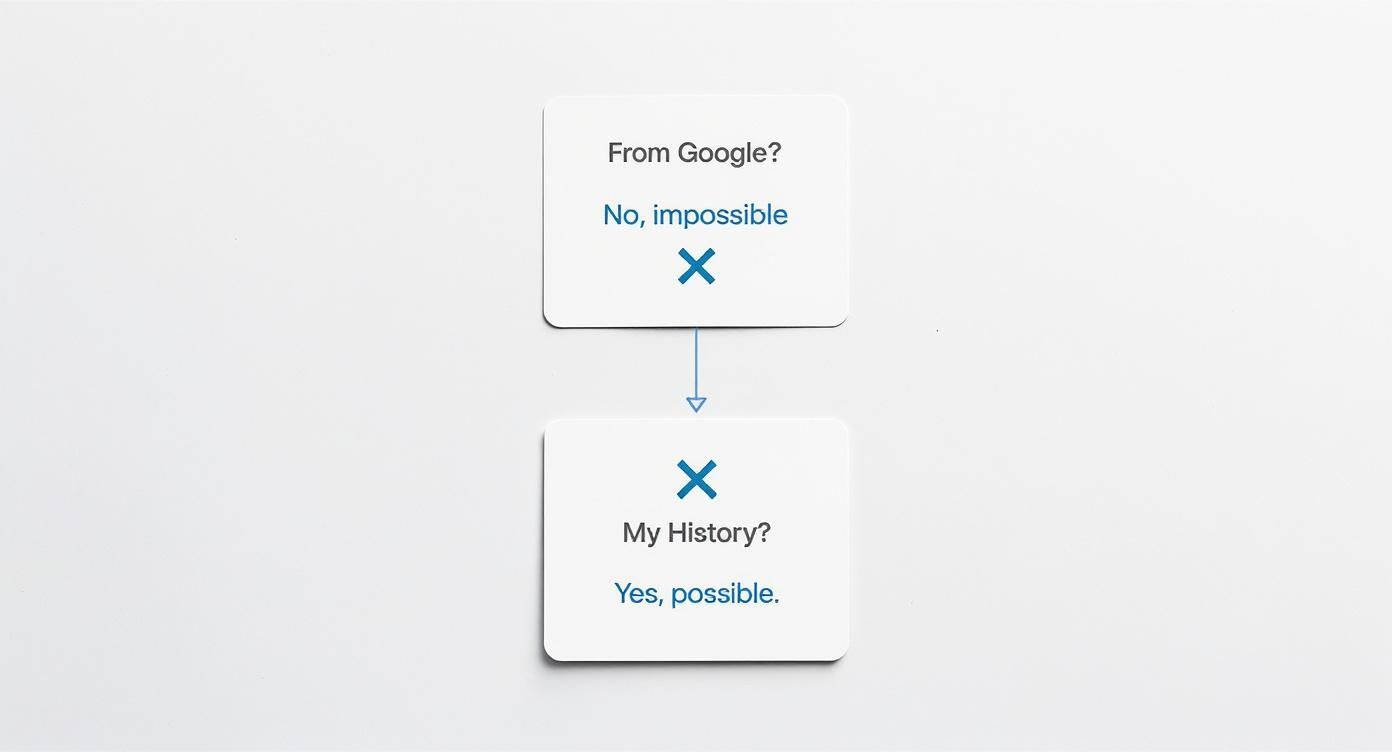
As you can see, you can’t just delete a keyword from the public Google index, but clearing it from your personal history? Absolutely.
Before we dive into the specific steps, it helps to see the process side-by-side. The core actions are the same, but getting there is slightly different depending on your device.
Device Comparison for Deleting Search History
A quick look at the steps to delete individual keywords on different devices to help you find the right instructions fast.
This table gives you a bird's-eye view, making it easier to jump right to the method you need.
Managing Searches on a Desktop
When you’re on a computer, everything happens on Google's "My Activity" page. The quickest way to get there is just to search for "Google My Activity," but you can also navigate to it through your main Google Account settings. Once you land on that page, you’ll see a running list of your recent actions.
From here, you’ve got a couple of choices:
- To zap a single search: Just find the specific thing you searched for in the list. To the right of it, you'll see three vertical dots. Click those and hit "Delete."
- To clear a whole chunk of time: Look for the option to delete by date. This lets you wipe out everything from the last hour, the last day, or even set a custom date range. It's perfect for a quick clean-up.
Cleaning up your search history is a great first step. If you're serious about managing your online presence, it’s worth learning how to remove personal information from Google on a broader scale.
Tidying Up on Mobile Devices
Doing this on the go is just as simple, though the buttons are in slightly different places. Open up the Google app on your phone or tablet and tap your profile picture in the top-right corner. From the menu that pops up, tap "Search history."
This takes you to a screen that’s basically the mobile version of the "My Activity" page. You can scroll through your recent searches and just tap the little "X" next to any term you want to get rid of. Poof, it’s gone. You also have the same options to set up auto-delete, which is a fantastic "set it and forget it" feature to keep your history tidy over time.
For those who manage websites and want to see what others are searching for to find them, you might be interested in tracking your https://www.keywordme.io/blog/google-analytics-organic-search, which is a whole different side of search data.
Getting Rid of Unwanted Autocomplete Suggestions
We’ve all been there. You start typing in Google, and an old, irrelevant, or just plain embarrassing suggestion pops up. It's not magic—it's just Google's autocomplete feature trying to be helpful by guessing what you're looking for. These predictions are a mix of what’s popular around the world and what you’ve searched for before.
The good news is you have some control over this. While you can't just delete a search term from Google's global brain, you can definitely clean up the predictions tied to your own account. It’s easier than you think.

Removing Your Personal Search Suggestions
For those suggestions that pop up because you've searched for them before, Google gives you a simple out.
Just start typing in the search bar like you normally would. When that unwanted suggestion appears in the dropdown list, you should see a "Remove" button or an "X" icon right next to it. Give that a click. Poof. Google now knows you don't want to see that specific prediction anymore.
Keep in mind, this only cleans things up on your end. You're not changing Google for everyone else. Think of it as a personal clean-up tool that only affects your device and your account.
It's a quick and effective way to manage your search experience. You're essentially telling Google, "Hey, that's not what I'm looking for anymore," which helps it serve up better, more relevant suggestions next time.
What About Suggestions You Can’t Remove?
So what happens when you see a suggestion without a "Remove" option? Those are usually trending searches or just incredibly common queries that have nothing to do with your personal history. For instance, if you type "how to bake," you’ll probably see "how to bake salmon" or "how to bake a cake" pop up simply because millions of other people search for those things.
You can't delete these global suggestions, but you can influence them over time. Here’s how:
- Wipe your search history. Clearing your search history gives the prediction algorithm a clean slate. As you start searching again, your new queries will begin to shape the suggestions you see.
- Go incognito. Using a private browsing window is a great trick. It prevents your searches from being saved to your account in the first place, so they won't come back to haunt you as a suggestion later on.
Understanding which keywords people are actually using is a huge part of marketing and SEO. If you want to dive deeper into this, you can learn more about effective search query analysis in our detailed guide.
Let Google Do the Tidying Up for You
Let's be honest, nobody has time to manually clear out their search history every single day. It's one of those digital chores that's easy to put off and even easier to forget. The good news is, you don't have to. Google has a handy "set it and forget it" feature that automatically deletes your activity for you.
This tool is part of your Web & App Activity controls and it's a lifesaver for anyone who wants to keep their search history from turning into a massive, years-long archive.

You can tell Google exactly how long to hang onto your data before it gets wiped for good. This is perfect for keeping things clean without needing to constantly micromanage your account.
How to Set Up Auto-Delete
Getting this automation running is pretty simple. It just takes a few clicks inside your Google Account settings.
Here’s how to get it done:
- First, head over to your Google Account management page.
- On the left, you'll see a menu. Click on "Data & privacy."
- Look for the "History settings" box and click on "Web & App Activity."
- Inside, find the auto-delete option. You can set it to automatically clear out your history after 3, 18, or 36 months.
Once you’ve picked a timeframe, Google takes over. Any activity older than the limit you set will be continuously and permanently erased from your account. No more manual clean-up sessions.
It's a fantastic privacy feature, but there is a trade-off. Google uses your past activity to tailor your experience. Wiping your history means things like YouTube recommendations, your Google Discover feed, and even search suggestions might feel a bit less dialed in to what you actually like.
Finding the Right Balance: Privacy vs. Personalization
So, what's more important to you? A super-personalized online experience where Google seems to know what you want before you do? Or a tighter grip on your data with a minimal digital footprint?
There's no single right answer—it's all about your personal comfort level.
Setting your auto-delete schedule to 18 or 36 months is a great middle-of-the-road option. It gives Google enough data to keep things relevant while still clearing out the old stuff. If you're aiming for maximum privacy, the 3-month option is the way to go.
How AI Is Making Keywords Disappear
If you've been in the search game for a while, the whole idea of "deleting" specific keywords feels a bit… old-school. And there's a good reason for that: AI is fundamentally changing the rules. We're seeing it happen in real-time with features like Google’s AI Overviews, which aim to give you the answer right on the results page.
Think about it. If an AI summary gives a user everything they need without them ever having to click on your website, what happens to the value of the keywords that got them there? It’s a huge shift. The traffic you once counted on from those terms might simply evaporate.
The Rise of Zero-Click Searches
We are rapidly moving away from the classic "ten blue links" model and into something that feels more like a conversation. You ask a question, and Google gives you a direct answer. It's a massive change for anyone who relies on search to be found.
The data is already starting to tell the story. By 2025, AI Overviews were showing up in as many as 18% of searches in the U.S. Some studies have even reported a jaw-dropping 34-35% drop in organic clicks for some of those queries.
This is exactly why marketers and content creators are scrambling to understand new concepts like Generative Engine Optimization (GEO). It’s a whole new playbook because AI isn't just looking for keywords; it's trying to understand context, authority, and the actual meaning behind your content.
The bottom line? AI isn't just another feature tacked onto search. It’s a complete overhaul of how search works. The focus is shifting from simply matching keywords to pages to providing the most direct, trustworthy answer possible.
As this technology continues to evolve, the old strategy of just stuffing your pages with the right terms will become less effective by the day. What really matters now is the quality and authority of your content.
Got Questions? We've Got Answers
Still have a few things you're wondering about? Let's clear up some of the most common questions people have when it comes to managing their Google search data.
If I Delete a Search from My History, Is It Gone Forever?
Pretty much, yes. When you delete a search from your "My Activity" page, Google gets rid of it from your account for good. But keep in mind, this is just your personal history. The keyword itself doesn't vanish from Google's system—it might still pop up as a suggestion for other people based on general search trends.
It's kind of like tearing a page out of your own private journal. The entry is gone from your book, but the event you wrote about still happened.
Can I Just Stop Google from Saving My Search History Altogether?
You absolutely can. Just head into your Google Account settings and find the option to pause Web & App Activity. Once you flick that switch, Google will stop saving your searches, the websites you visit, and other related activity.
There's a trade-off, though. Doing this can make other Google services, like your Discover feed or Maps recommendations, feel a lot less personal. You have to decide what's more important to you: maximum privacy or a more tailored experience.
Pausing your activity is the only real way to stop future searches from being saved. It's the best move if you'd rather not leave a digital trail tied to your account.
Why Do I See Suggestions for Things I've Never Searched For?
This is a super common question. Google's autocomplete suggestions are a mix of two things: your own search history and what’s popular with everyone else.
If you see a suggestion for something you know you've never looked up, it's almost definitely a trending search. For instance, if you type "how to," Google might suggest "how to tie a tie" even if you've never searched for it. That's just because millions of other people have. You can't really get rid of those general, popular suggestions.
Does Deleting My History Affect My SEO Rankings?
Nope, not one bit. This is a big one for marketers and business owners. Deleting your personal search history has zero impact on how your website—or any other website—ranks in Google's search results.
Your private activity and the massive, complex algorithms that rank websites are two completely separate things. They don't interact. Clearing your history is a personal privacy move, not an SEO tactic. It won't help your site, and it won't hurt it.
Ready to stop wasting ad spend and find the keywords that actually convert? Keywordme gives you the power to clean up junk terms, expand winning ad groups, and optimize your Google Ads campaigns up to ten times faster. Start your free trial and see the difference at https://www.keywordme.io.
.svg)