
7 Google Ads Spreadsheet Alternatives That Actually Save Time
Managing Google Ads through spreadsheets is slow and error-prone, but several tools now automate keyword cleanup, bid adjustments, and reporting without CSV exports. This guide covers seven practical Google Ads spreadsheet alternatives that eliminate manual data entry and save PPC managers hours each week through visual dashboards, automated workflows, and direct platform integrations.


If you're still exporting search terms to spreadsheets, manually copying keywords into new ad groups, and cross-referencing tabs to find negatives, you already know the problem: it's slow, it's tedious, and one wrong paste can mess up an entire campaign. Most PPC managers didn't choose spreadsheets because they loved them—they chose them because there wasn't a better option.
That's changed.
Today, there are multiple ways to manage Google Ads data without ever opening a CSV file. Some work directly inside the Google Ads interface. Others automate repetitive tasks in the background. A few replace spreadsheets entirely with visual dashboards or custom integrations.
This guide walks through seven practical alternatives to the spreadsheet workflow. Each one solves a different bottleneck—whether that's slow keyword cleanup, repetitive bid adjustments, or clunky reporting. We'll cover what each approach does best, when it makes sense to use it, and how to actually implement it in your day-to-day workflow.
If you're managing one account or fifty, there's a faster way to work. Let's break it down.
1. In-Interface Browser Extensions
The Challenge It Solves
The biggest time-killer in Google Ads optimization isn't analysis—it's the back-and-forth. You open the search terms report, spot junk queries, export them to a spreadsheet, sort through the data, copy negatives, switch back to Google Ads, paste them into the negative keyword list, then repeat the process for new keywords you want to add. By the time you're done, you've switched tabs a dozen times and lost your train of thought.
In-interface browser extensions eliminate that entire workflow by letting you take action without leaving the Google Ads UI.
The Strategy Explained
These tools are Chrome extensions that integrate directly into your Google Ads account. When you're reviewing the search terms report, you can click to add negatives, create new keyword groups, or apply match types—all without exporting anything. The extension sits on top of the native interface, adding buttons and shortcuts that turn multi-step processes into single clicks.
What makes this approach powerful is that it keeps you in the optimization mindset. Instead of breaking your workflow to manipulate data in a spreadsheet, you make decisions and execute them immediately. You're working faster because you're not context-switching.
Implementation Steps
1. Install a browser extension designed for Google Ads optimization (look for tools that offer one-click negative keyword additions and bulk keyword actions).
2. Open your Google Ads search terms report and review your queries as usual.
3. Use the extension's interface to add negatives, create keyword groups, or apply match types directly—no export required.
4. Build a habit of optimizing in real-time rather than batching work into weekly spreadsheet sessions.
Pro Tips
In most accounts I audit, the search terms report is checked weekly but only optimized monthly—because the spreadsheet process is such a pain. With an in-interface tool, you can optimize as you review, which means you catch bad spend faster and capitalize on new opportunities before they get buried in the data.
2. Google Ads Scripts
The Challenge It Solves
Spreadsheets are often used for repetitive tasks: pausing keywords below a certain quality score, adjusting bids based on performance thresholds, or generating alerts when spend hits a limit. The problem is that these tasks require you to manually pull data, apply formulas, and then act on the results. It's time-consuming, and it only happens when you remember to do it.
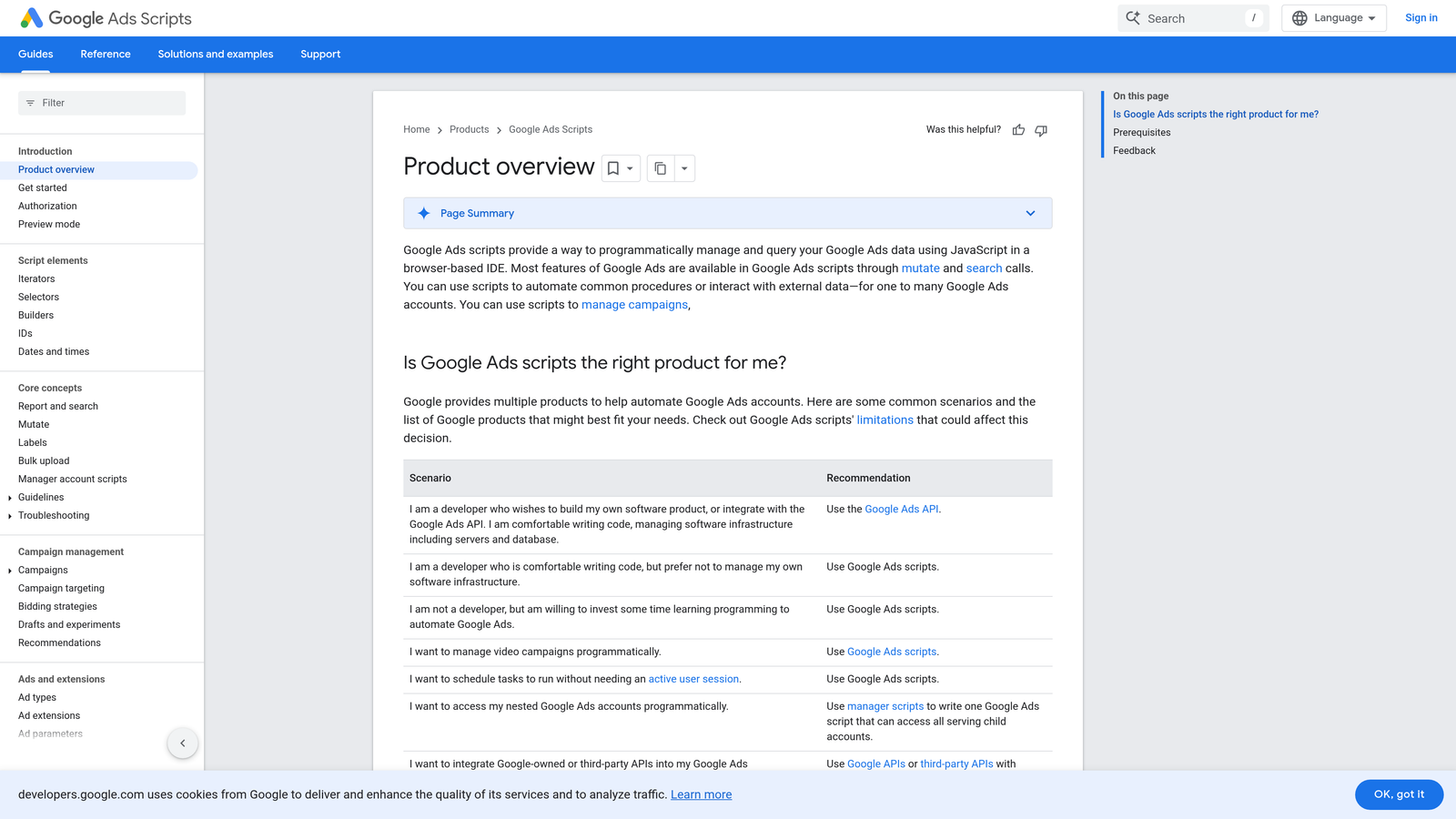
Google Ads Scripts automate these repetitive actions so they run in the background without your involvement.
The Strategy Explained
Scripts are JavaScript-based automations that run directly inside your Google Ads account. You can write custom scripts or use pre-built templates from the Google Ads Scripts library. Once set up, a script can check your account hourly, daily, or weekly and execute actions based on conditions you define—like pausing underperforming keywords, adjusting bids, or sending you an email alert when something unusual happens.
This approach is particularly useful for tasks that follow a clear logic. If you find yourself doing the same spreadsheet analysis every week, there's probably a script that can handle it for you.
Implementation Steps
1. Navigate to Tools & Settings in Google Ads, then click on Scripts under the Bulk Actions section.
2. Browse the Google Ads Scripts library for pre-built scripts that match your use case, or write a custom script if you have JavaScript experience.
3. Authorize the script to access your account data and set a schedule for how often it should run.
4. Test the script on a small campaign first to ensure it behaves as expected before rolling it out account-wide.
Pro Tips
What usually happens here is that people get intimidated by the JavaScript aspect and skip scripts entirely. You don't need to be a developer to use them—start with simple pre-built scripts like "pause keywords with no conversions after X clicks" or "alert me when daily spend exceeds budget." Once you see the time savings, you'll find more use cases.
3. Google Ads Editor
The Challenge It Solves
Bulk editing in the Google Ads web interface is clunky. If you need to update bids across 200 keywords or change match types in multiple ad groups, you're either clicking through dozens of screens or exporting to a spreadsheet, making changes, and re-uploading. Both options are slow, and the upload process often throws errors that force you to troubleshoot formatting issues.
Google Ads Editor gives you a desktop environment designed specifically for bulk changes, with offline editing and error-checking built in.

The Strategy Explained
Google Ads Editor is a free desktop application that downloads your account data locally. You can make bulk edits offline—changing bids, updating ad copy, reorganizing campaigns—and then upload everything at once when you're ready. The interface is faster than the web version, and it includes features like find-and-replace, bulk copy-paste, and advanced filtering that make large-scale changes manageable.
It's especially useful when you're restructuring campaigns or making systematic changes across multiple ad groups. Instead of navigating through the web UI, you can see your entire account structure in a spreadsheet-like view and edit it directly.
Implementation Steps
1. Download Google Ads Editor from the official Google Ads website and install it on your computer.
2. Open the application and sign in to download your account data.
3. Use the filtering and search tools to isolate the campaigns, ad groups, or keywords you want to edit.
4. Make your changes in bulk using the built-in editing tools, then review the changes in the "Review Changes" tab.
5. Upload your changes back to Google Ads and monitor for any errors or warnings.
Pro Tips
The mistake most agencies make is treating Google Ads Editor like a one-time migration tool. It's actually most powerful as a regular workflow tool—download your account weekly, make systematic updates offline, and upload in batches. This keeps your campaigns cleaner and reduces the risk of accidental changes in the live interface.
4. Third-Party PPC Management Platforms
The Challenge It Solves
Managing multiple Google Ads accounts from the native interface means logging in and out, switching between dashboards, and manually tracking performance across clients or brands. Spreadsheets become the default aggregation layer, but they require constant manual updates and don't offer any automation or collaboration features.
Third-party PPC platforms centralize management, add automation rules, and provide team collaboration tools that spreadsheets can't match.
The Strategy Explained
These platforms connect to your Google Ads accounts via API and provide a unified dashboard for managing multiple campaigns. They typically offer features like cross-account reporting, automated bid adjustments, anomaly detection, and team workflows. Some platforms also integrate with other ad channels like Microsoft Ads or Facebook Ads, giving you a single place to manage all paid media.
The value here isn't just convenience—it's the automation and intelligence layer. Instead of manually checking each account for performance issues, the platform surfaces problems automatically and can even apply fixes based on rules you configure.
Implementation Steps
1. Choose a PPC management platform that fits your account size and budget (options range from lightweight tools for freelancers to enterprise platforms for large agencies).
2. Connect your Google Ads accounts through the platform's API integration.
3. Set up automation rules for common tasks like pausing low-performing keywords or adjusting bids based on ROAS targets.
4. Configure reporting dashboards to track the metrics that matter most to your business or clients.
5. Train your team on the platform's collaboration features so everyone can work from the same data source.
Pro Tips
In most accounts I audit, the biggest benefit of a third-party platform isn't the features—it's the discipline it forces. When you're working in a structured environment with automated alerts and shared dashboards, you catch issues faster and make more consistent optimizations. For agencies specifically, these Google Ads alternatives for agencies can transform how you scale client management.
5. Google Looker Studio
The Challenge It Solves
Reporting is where spreadsheets really break down. You export data from Google Ads, paste it into a template, update formulas, create charts, and send it to stakeholders. By the time the report is ready, the data is already outdated. If someone asks a follow-up question, you have to go back to Google Ads, pull new data, and rebuild the analysis.
Looker Studio eliminates the export-paste-update cycle by connecting directly to your Google Ads account and displaying live data in visual dashboards.

The Strategy Explained
Looker Studio is a free reporting tool that pulls data directly from Google Ads (and other sources) to create interactive dashboards. Once you build a report template, it updates automatically with fresh data—no manual exports required. You can share dashboards with clients or team members, and they'll always see current performance without you needing to regenerate anything.
This approach is particularly powerful for recurring reports. Instead of spending hours each month rebuilding the same spreadsheet, you build the dashboard once and let it update itself.
Implementation Steps
1. Go to Looker Studio and create a new report.
2. Add Google Ads as a data source by connecting your account through the built-in connector.
3. Select the metrics and dimensions you want to track (impressions, clicks, conversions, cost, etc.).
4. Build your dashboard using charts, tables, and filters—arrange them to tell the story your stakeholders need to see.
5. Share the dashboard link with clients or team members so they can access live data anytime.
Pro Tips
What usually happens here is that people build overly complex dashboards with every possible metric. Start simple—pick the 5-7 KPIs that actually drive decisions and build around those. You can always add more detail later, but a clean, focused dashboard gets used. A cluttered one gets ignored.
6. Rules-Based Automation
The Challenge It Solves
Many spreadsheet workflows exist because you need to monitor conditions and take action when thresholds are met—like pausing keywords that haven't converted after a certain spend level or increasing bids on high-performing ad groups. The problem is that this requires constant monitoring, and by the time you notice an issue in your weekly review, you've already wasted budget or missed opportunities.
Rules-based automation in Google Ads lets you define conditions and actions that execute automatically, without any manual intervention.
The Strategy Explained
Google Ads includes a native automation feature called Automated Rules. You can set up rules that monitor specific metrics and trigger actions when conditions are met. For example, you can create a rule that pauses any keyword with more than 50 clicks and zero conversions, or a rule that increases budgets by 20% when ROAS exceeds your target.
These rules run on a schedule you define—hourly, daily, or weekly—and they apply changes automatically. It's like having a virtual assistant watching your account and making tactical adjustments based on your criteria. Understanding automated optimization in Google Ads can help you leverage these features more effectively.
Implementation Steps
1. Navigate to Tools & Settings in Google Ads and click on Rules under the Bulk Actions section.
2. Click the plus button to create a new rule and select what you want to apply it to (campaigns, ad groups, keywords, or ads).
3. Define the conditions that will trigger the rule (e.g., "Cost is greater than $50 and Conversions equals 0").
4. Choose the action to take when conditions are met (pause, enable, change bid, adjust budget, etc.).
5. Set a schedule for how often the rule should run and enable email notifications so you're alerted when actions are taken.
Pro Tips
The mistake most agencies make is setting rules too aggressively. Start conservative—test your conditions on a small subset of campaigns first to make sure the logic works as intended. I've seen accounts where an overly aggressive pause rule killed profitable keywords just because they hit a temporary conversion dip. Monitor your rules for the first few weeks and adjust thresholds as needed.
7. API Integrations
The Challenge It Solves
Sometimes the problem isn't Google Ads itself—it's that your Google Ads data needs to connect with other business systems. Maybe you need to sync conversion data from your CRM, pull Google Ads metrics into a custom internal dashboard, or trigger bid adjustments based on inventory levels in your e-commerce platform. Spreadsheets become the manual bridge between systems, requiring constant exports, imports, and data reconciliation.
API integrations create direct connections between Google Ads and your other tools, automating data flows that would otherwise require manual spreadsheet work.
The Strategy Explained
The Google Ads API allows developers to build custom integrations that pull data from Google Ads or push changes back to it programmatically. This is the most technical approach on this list, but it's also the most flexible. You can build exactly the workflow you need—whether that's syncing Google Ads spend data into your financial reporting system, automating bid adjustments based on external signals, or creating custom alerts that integrate with your team's communication tools.
This approach typically requires developer resources or a technical partner, but for businesses with unique workflows or complex data requirements, it's often the only way to eliminate spreadsheets entirely.
Implementation Steps
1. Identify the specific data flow or automation you need that can't be solved with native tools or third-party platforms.
2. Work with a developer or technical partner to design the integration using the Google Ads API.
3. Set up API access in your Google Ads account by creating a developer token and configuring OAuth credentials.
4. Build and test the integration in a sandbox environment before deploying it to your live account.
5. Monitor the integration regularly to ensure data flows remain accurate and automated actions behave as expected.
Pro Tips
In most accounts I audit, API integrations are overkill—there's usually a simpler solution using scripts or third-party tools. But if you're running a high-volume operation with custom reporting needs or complex bid strategies, the API unlocks workflows that aren't possible any other way. Just make sure you have ongoing technical support, because API integrations require maintenance when Google updates their platform.
Picking the Right Google Ads Spreadsheet Alternative for Your Workflow
The best alternative to spreadsheets isn't the most powerful tool—it's the one that fits how you actually work.
If you're a solo freelancer or small team managing a handful of accounts, start with in-interface browser extensions and native automation rules. These give you immediate productivity gains without learning a new platform or paying for enterprise software. You'll optimize faster, catch issues sooner, and spend less time wrestling with CSV files.
If you're managing multiple clients or running an agency, add Google Ads Editor for bulk changes and Looker Studio for automated reporting. These tools scale well and eliminate the repetitive work that eats up hours each week. Once you're comfortable with those, explore third-party PPC platforms if you need cross-account management or advanced automation.
For businesses with unique workflows or complex data requirements, API integrations offer the most flexibility—but they also require technical resources. Most accounts don't need this level of customization, so start simple and only move to custom integrations if you've exhausted the other options.
The key is to pick one tool and actually use it consistently. A simple in-interface extension you use every day will save you more time than a sophisticated platform you only open once a month.
If you're ready to ditch the spreadsheet workflow entirely, start your free 7-day trial of Keywordme. It's a Chrome extension that lets you remove junk search terms, build high-intent keyword lists, and apply match types instantly—right inside Google Ads. No spreadsheets, no switching tabs, just quick, seamless optimization. After your trial, it's just $12/month. Try it and see how much faster you can work when you're not fighting with CSV files.
.svg)