
Google Ads Form Extension: Setup, Fields and Follow-Up
Google Ads Form Extension: Setup, Fields and Follow-Up


You've got leads showing in Google Ads, sales says the inbox feels quiet, and nobody can tell you if the gap is bad luck or a broken handoff. That mismatch is exactly where a Google Ads form extension gets risky. The form itself is easy. Getting every submission to the right person, fast enough to matter, is the hard part.
Most managers set this up backwards. They launch the form, celebrate a cheap cost per lead, then scramble to figure out where the records went. Flip that order. Pick your fields, wire up delivery, test it with your own submission, and only then spend real money behind it.
What a Google Ads Form Extension Does
A Google Ads form extension is a lead form attached to your ad, so a searcher can ask for a call, a quote, or a demo without landing on your website. They tap the ad, a Google hosted form opens, and they submit right there. No slow page load in between.
Say someone searches for an emergency plumber late on a Tuesday night. For signed in users, Google can pre fill contact details it already has, so the person checks the phone number and submits with a single tap instead of typing on a small screen.

Where It Runs and How It Reports
You can attach lead forms to Search and Performance Max campaigns. Submissions show up in Google Ads tied to the customer, campaign, ad group, ad, and lead form asset, so you can trace which ad produced each lead instead of lumping everything together.
If you're weighing channels first, this breakdown of SEO versus paid search for tradespeople is useful context before you decide paid form leads deserve budget at all. Google introduced the format in beta for Search campaigns on October 30, 2019, to cut drop off from a separate mobile page, according to Google's lead form announcement.
Treat it as a direct response asset, not a vanity counter. A high form count means little if the names are curious, underqualified, or lost on the way to your team.
When a Form Extension Beats a Landing Page
Use this rule. A form extension fits when your ask is short, the searcher wants quick contact, and your account can run it. If you need a long story before anyone should trust you, send the click to a page instead.
A landing page still wins when the offer needs proof, pricing context, comparisons, or a longer intake. It also gives you room to qualify properly. The trade off is friction, especially on mobile, where a slow or cluttered page kills leads you already paid to reach.
Campaign Situations and Whether a Form Extension Fits
| Campaign situation | Form extension fit | Why it matters |
|---|---|---|
| Mobile searchers asking for a quote | Strong fit | Single tap submit beats a slow landing page |
| Quick callback or appointment request | Strong fit | Few fields keep completion high |
| Intake needing more than five screening questions | Weak fit | Lead forms cap qualifying questions at five |
| Offer that needs explaining before a visitor commits | Test against a landing page | Curious visitors may submit without intent |
| Account not yet eligible in its country | Hold off | Lead forms need eligibility and supported market status |
| Account with a weak policy compliance history | Hold off | Google generally expects a good compliance record |
| Sales team with no routing for new leads | Hold off | Leads can sit unseen without a delivery method |
Say a plumber takes late night quote requests mostly from phones. That's a clean fit. The searcher wants help now, the details are simple, and speed matters more than a polished page.
Now flip it. A SaaS company selling to operations teams may need company size, current tools, timeline, budget owner, and use case before a call makes sense. Cramming that into an in ad form invites half finished answers and sales calls that go nowhere.
A form extension lowers friction for the searcher. It also lowers friction for people who were never serious.
Before you plan a test, confirm eligibility in your country and check your policy history. Don't build the whole workflow, then discover the account can't serve the asset. That order sounds obvious, but teams skip it all the time.
I would test it narrow. Pick one ad group, run the form version alongside a landing page version for two to four weeks, and compare qualified leads, not raw submissions. Our guide to building PPC landing pages that convert helps you make the page side a fair competitor.
If your page is the weak link, fix that too. This resource on testing and speed for conversion pages covers the page side well, and it matters because some searchers will always prefer to read before they commit.
The winner isn't the option with the most forms. It's the option that produces real conversations at a cost your margins can handle.
Form Fields and Follow-Up That Keep Leads Warm
Stop trying to ask everything. Google's lead form documentation specifies a limit of 5 qualifying questions per lead form, so your job is picking the five answers that change how you work the lead.
That cap is healthy. Every extra field gives someone another reason to bail. But two or three sharp screening questions can filter out tire kickers and save your team hours of pointless dialing.
Split Contact Fields From Screening Questions
Keep the form in two parts. First, contact fields that establish identity and give you a way to respond. Second, a short set of questions on budget, timing, or location, whichever decides whether this lead belongs in your pipeline today.
- Contact basics: Ask for the name and one reliable contact route your team will use, not every route you can imagine.
- Budget ranges: Use a dropdown with clear ranges instead of an open text box, because typed answers arrive messy and hard to sort.
- Timing: Offer choices like this week, this month, or just researching, so your rep knows who gets called first.
- Location: Ask only when service area decides eligibility, and keep it to the level you need, such as city or postcode.
Don't copy your website intake into the ad. A long form on your site might collect project history, preferences, and documents. Inside an ad, that same list reads like homework, and completion falls off a cliff.
Say a roofing company asks for property type and project timeline. A homeowner replacing a leaking roof this month gets a call within the hour during business hours. Someone researching for next year gets a slower nurture email, not the same urgent script.
Work the Lead Before It Cools
Fast first contact matters more than a clever form. Give whoever calls a short script tied to the answers submitted, so the lead hears their own details played back and knows this isn't a cold call.
Plan the second and third touches before launch. If nobody picks up, call again later, then send an email the next morning with a clear next step. A single attempt wastes the speed advantage you built the form for.
For teams without a nurture sequence yet, lead nurturing services can show you how structured follow up is usually packaged, even if you end up building your own version in house. The principle is simple. Every unanswered lead should have a next action and an owner, not a hopeful note in a spreadsheet.
Practical rule: If a question wouldn't change how you call, route, or price the lead, cut it.
That rule keeps the form honest. It also keeps your data clean, because every field you keep has a job waiting for it in the CRM.
How to Set Up a Form Extension Step by Step
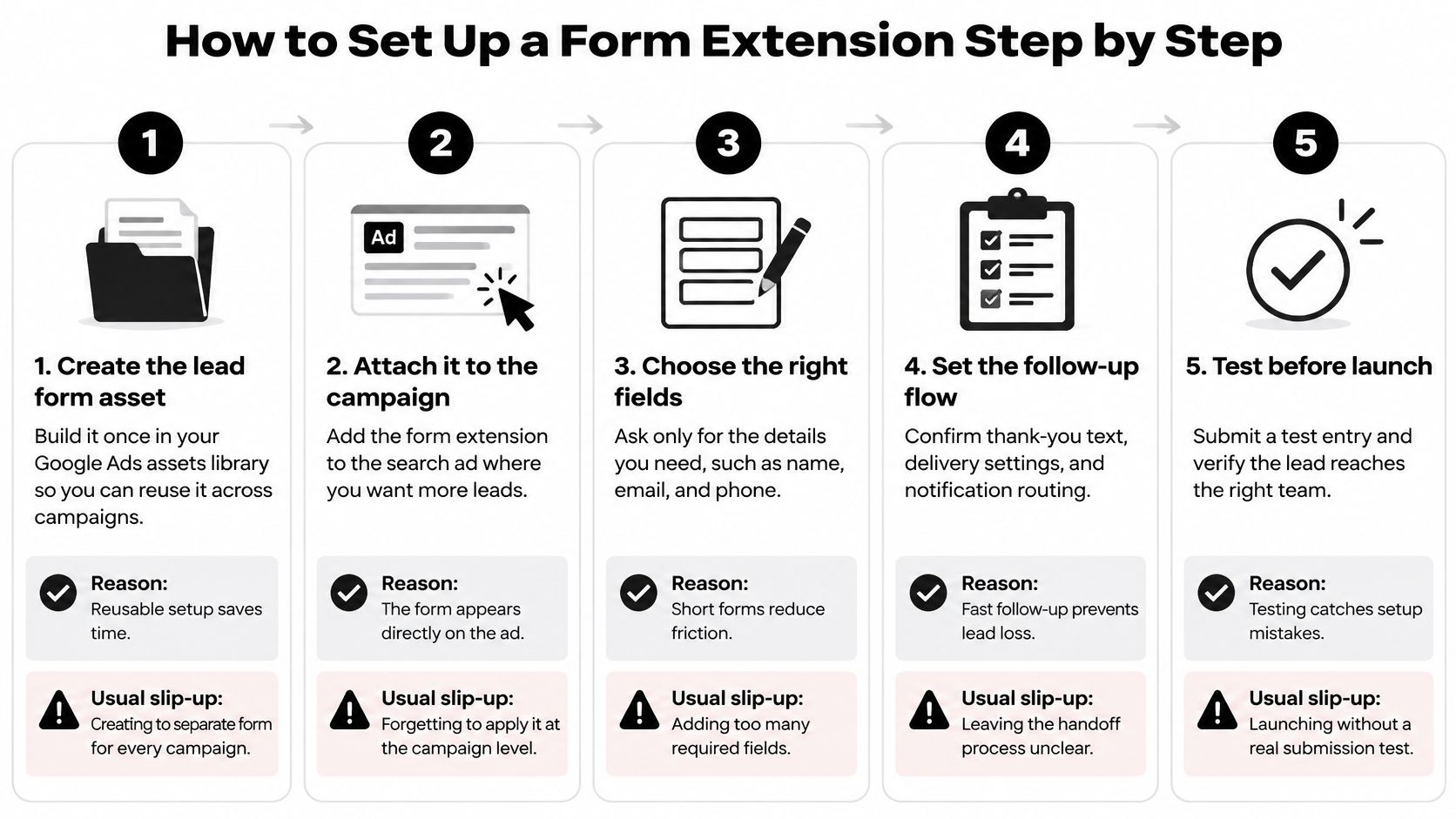
Build the form once, deliver it properly, and test it like a suspicious person. Most setup problems aren't exotic. They're small mismatches between the ad promise, the form copy, and where the lead lands afterward.
The graphic below shows the build sequence at a glance before you work through each step in detail.
Build the Asset and Write the Copy
Create the lead form asset in your Google Ads assets library. You build it once and reuse it across campaigns, which keeps naming and version control sane. The common slip up is creating near duplicate forms for every campaign until nobody knows which one is current.
Write a headline and intro that match the ad promise word for word where it counts. If the ad offers a free quote, the form shouldn't suddenly talk about a consultation. That mismatch makes people pause, and paused people abandon forms.
Add contact fields and qualifying questions from the field plan you already made. Don't improvise new questions at this stage just because the editor shows empty slots. Empty slots are not a to do list.
Link your privacy policy and add clear consent wording that explains how you'll use the submitted details. A missing or broken policy link is an easy compliance miss, and it erodes trust right at the moment someone hands over a phone number.
Finish the Journey After Submit
Write a thank you message that says what happens next and roughly when. Tell the person you'll call during business hours, or that a quote lands by email shortly. Silence after submit makes leads ignore your first call because they've already moved on.
Attach the asset at the campaign or ad group level, depending on how tightly the offer matches each group. Confirm whether it sits on a Search or Performance Max campaign before you save. Attaching a strong form to the wrong campaign produces confusing data for weeks.
Pick your delivery method now, whether that's CSV, API, or webhook. Don't launch with a vague plan to sort delivery later. Later usually means a salesperson asking why last week's leads just surfaced.
Submit a test lead yourself using details your team will recognize. Confirm it arrives where your team looks, with the right campaign label and a sensible timestamp. If the test needs three people and a shared drive to find, your routing isn't ready.
Generate an HTTPS endpoint that can accept the POST and return a clean success response. Don't point Google at a test URL you plan to replace later without retesting.
Define a schema for every possible form field, including optional answers and campaign identifiers. If a field exists on the form but has nowhere to land, that answer disappears or breaks the import.
Configure the URL and key in the asset, then use Google's Send test data function. Keep the key treated like a password, because it supports source validation for incoming records.
Verify the full record by checking authentication, field mapping, deduplication, timestamps, campaign IDs, and CRM ownership. A lead that arrives without an owner is functionally lost even if your delivery log calls it a success.
- Delivery success rate: The share of Google Ads submissions that arrive in your CRM as usable records.
- Median lead to CRM latency: How long a typical submission takes to travel from form to an assigned record your team can act on.
- Duplicate rate: The share of records that describe the same person arriving more than once, which inflates your lead count.
- Contact rate: The share of delivered leads your team reaches by phone or email.
- Qualified lead rate: The share of reached leads that match your budget, timing, and service criteria.
- Revenue per qualified lead: Closed revenue divided by qualified leads, which tells you what a good lead is worth before you chase cheaper ones.
The walkthrough below shows the setup screens in motion, which helps if the asset library layout is new to you.
Confirm It in Reporting
Once the test clears, find the submission in reporting and verify the campaign, ad group, and ad credited for it. This sounds tedious. It's also how you catch a form attached at the wrong level before it pollutes a month of results.
A setup isn't done when the form saves. It's done when your own test lead reaches a named person who knows what to do with it.
Save screenshots of your final field list and settings somewhere your team can find. When someone edits the form later, that record tells you exactly what changed and when the data started looking different.
Getting Leads Into Your CRM Without Losing Them
Form extensions often fail without drawing attention. The campaign reports submissions, the chart looks healthy, and sales never sees a chunk of the records. Nobody notices because each team trusts its own screen.
Start with retention, because it sets your deadline. Google's lead download guidance says manually downloaded leads are available only for the previous 30 days, while Google stores lead data for 60 days. Download rarely, and you can lose records that Google counted as wins.
How Leads Reach Your Team and What Can Go Wrong
| Delivery method | How leads reach you | Retention or risk |
|---|---|---|
| Manual CSV download | You export leads from Google Ads yourself | Only leads from the previous 30 days stay downloadable after a form is removed |
| Google Ads API export | Your system pulls submissions programmatically | Can retrieve up to 60 days of stored leads, but needs OAuth 2.0 setup |
| Webhook | Google sends each submission as an HTTP POST to your endpoint | Breaks if authentication or field mapping changes without testing |
| Third-party automation | A tool uses the API to move leads near real time | Depends on the provider's setup, credentials and monitoring |
I would not rely on manual downloads beyond a tiny test. The first holiday, sick day, or forgotten Friday export turns a working campaign into a leaky bucket. Automation isn't polish here. It's the product.
Build the Webhook in Order
Google's webhook delivery guide requires a destination URL and webhook key, with lead data sent through an HTTP POST after submission. Work through it in this order so testing means something.
Watch the shared webhook trap. When one webhook serves multiple forms, the receiving system must map every field used by any connected form. Version your schema, document each change, and retest after any form edit, even a small wording tweak that creates a new field value.
API and Failure Handling
The Google Ads API is the solid alternative when your team prefers pulling records on a schedule. It requires Cloud project access and OAuth 2.0 credentials, so budget developer time for setup and credential maintenance. Many third party tools use this route to move leads near real time, which is fine if you monitor their error reporting instead of assuming silence means success.
Either way, plan for failure out loud. Log failed responses, set retry rules, alert a named owner when deliveries error, and export a backup of records before the storage window closes. If you're also sending outcomes back, our guide on importing offline conversions from a CRM into Google Ads covers the return trip that closes the loop.
Treat every form edit, CRM field change, and credential update as a delivery risk until a fresh test lead proves otherwise.
Measure and Confirm Your Form Extension Before You Scale
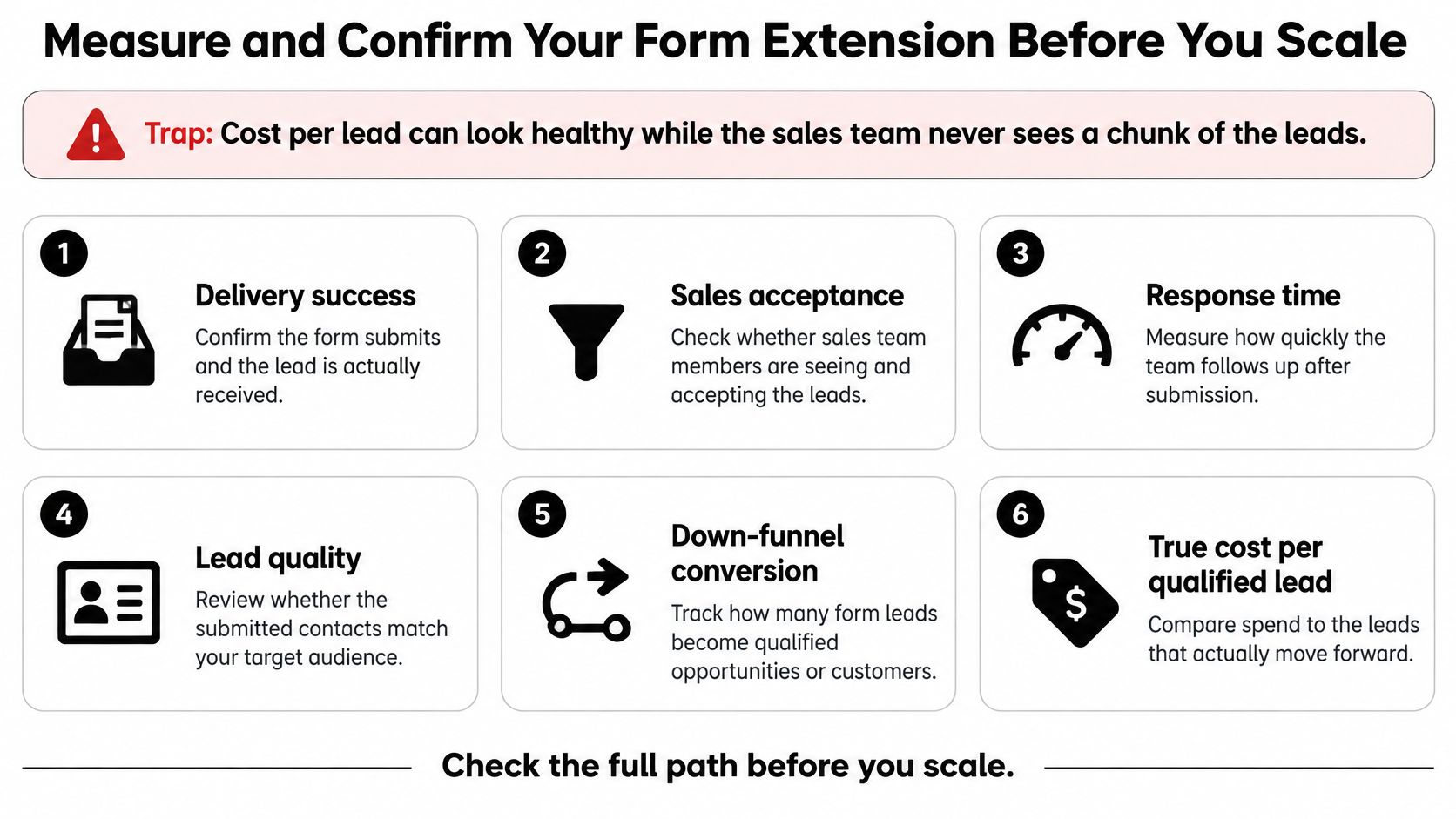
Don't trust cost per lead on its own. It can look healthy while the sales team never sees a chunk of the leads, which means you're scaling a number, not a pipeline. Confirm the full path first, then add budget.
The checklist below sums up the path each lead has to survive before it counts as a result.
Six Metrics That Tell the Truth
Track these alongside spend, and give each one a plain owner who reviews it weekly.
These numbers change decisions. A campaign with pricey leads and a strong qualified rate beats a cheap campaign full of duplicates your team can't reach. Without the downstream view, you'd cut the wrong one.
Reconcile Counts Every Day
Compare Google Ads submission counts with CRM records for the same window, every day while the campaign matters. Align timezones first, because a mismatch there makes healthy data look broken and wastes an afternoon. Once windows match, treat any real gap as a broken pipe, not rounding.
Add simple guardrails around that check. Alert someone when a normal weekday produces no submissions at all. Send a test submission after every form or CRM edit. Recheck that your consent and privacy wording are still live, since page updates break links more often than anyone admits.
If your totals look off, our troubleshooting guide for Google Ads conversion tracking not recording form submissions walks through the recording side step by step. Work the problem from submission to CRM record, in order, instead of guessing at the middle.
Fix Search Terms Before Budget
Form volume follows query quality. Use query level reporting to see which search terms produce forms and which bring in contacts who never qualify, then negate the weak ones fast. A form can't rescue traffic that wanted something else.
Tight keyword work pays off here. High converting keywords can be added straight from the search terms report, and ad groups can be expanded by building high intent keyword lists pulled from Keyword Planner or ad group level keyword suggestions. The Keywordme plugin works inside Google Ads, so you don't have to leave Google Ads while you clean terms and grow the winners.
Before scaling, I want three things confirmed. A test lead lands with the right campaign label. Daily counts reconcile within a few leads. You have one full sales cycle of qualified lead data, so you're judging outcomes, not first week excitement.
If reconciliation fails two days running, pause scaling and fix the pipe. Otherwise, tighten your search terms before you add a single dollar of budget.
That sequence protects you twice. You stop paying for leads nobody receives, and you stop feeding good delivery with bad intent traffic that's cheap for a reason.
Your form extension only pays off when clean search terms feed it and every lead survives the trip to sales, and Keywordme helps with the first half by letting you negate junk terms and expand proven keywords without leaving Google Ads. Visit Keywordme to tighten the traffic behind your forms before your next budget increase.
