
Google Ads Conversion Tracking Not Recording Form Submissions: Find the Gap
Google Ads Conversion Tracking Not Recording Form Submissions: Find the Gap


Your inbox says leads are coming in. Your CRM agrees. Google Ads says nothing happened. That gap is where budgets get cut for the wrong reason, and it's usually fixable once you stop treating it as one problem. A broken trigger, a secondary conversion action, consent blocking storage, and weak matching data all look identical in the Conversions column. They need different fixes.
Diagnose Where Form Submissions Get Lost
A missing conversion usually means the lead took a valid path to the CRM while the Ads signal took a different one. The lead can be real in the CRM while Ads still records nothing because the tag fired on a click instead of the successful submit, consent blocked storage, or the matching fields were too weak to count. A success message on screen only proves the form completed; the Google Ads troubleshooting guidance ties counting to the conversion tag firing on the actual successful submission and surfaces "Unverified," "Tag inactive," and "Needs attention" when expected activity or configuration looks wrong.
Start by fixing the yardstick. Write down your CRM lead count for a fixed date range and keep it beside the Ads Conversions column, because the size and shape of that gap points to different causes before you touch a tag.
| Symptom | Likely failure point | First test |
|---|---|---|
| Zero conversions while leads arrive | Trigger never fires or fires on the wrong event | Watch the GTM Preview event timeline during a test submit |
| Fewer conversions than CRM leads | Consent restriction or weak matching data | Compare consent state and enhanced conversion diagnostics |
| Status shows Unverified or Tag inactive | Tag missing on the page where the submission ends | Run Tag Assistant on the success state, not just the landing page |
| Status shows Needs attention | Configuration problem flagged by Google Ads | Open the conversion action and fix the flagged item |
| Double counts after each lead | Thank-you conversion and submit conversion both firing | Count tag executions per single submission |
| Clicks counted but few submissions | Button click or broad page trigger | Replace with a form submit or success event trigger |
If the form also feeds a sales CRM and you are trying to find conversion tracking software for brokerages, check how each system defines a recorded lead, because mismatched definitions create gaps that look like tag failures. Match the symptom to one row, run that single test, and only then change the setup. Guessing wastes days.
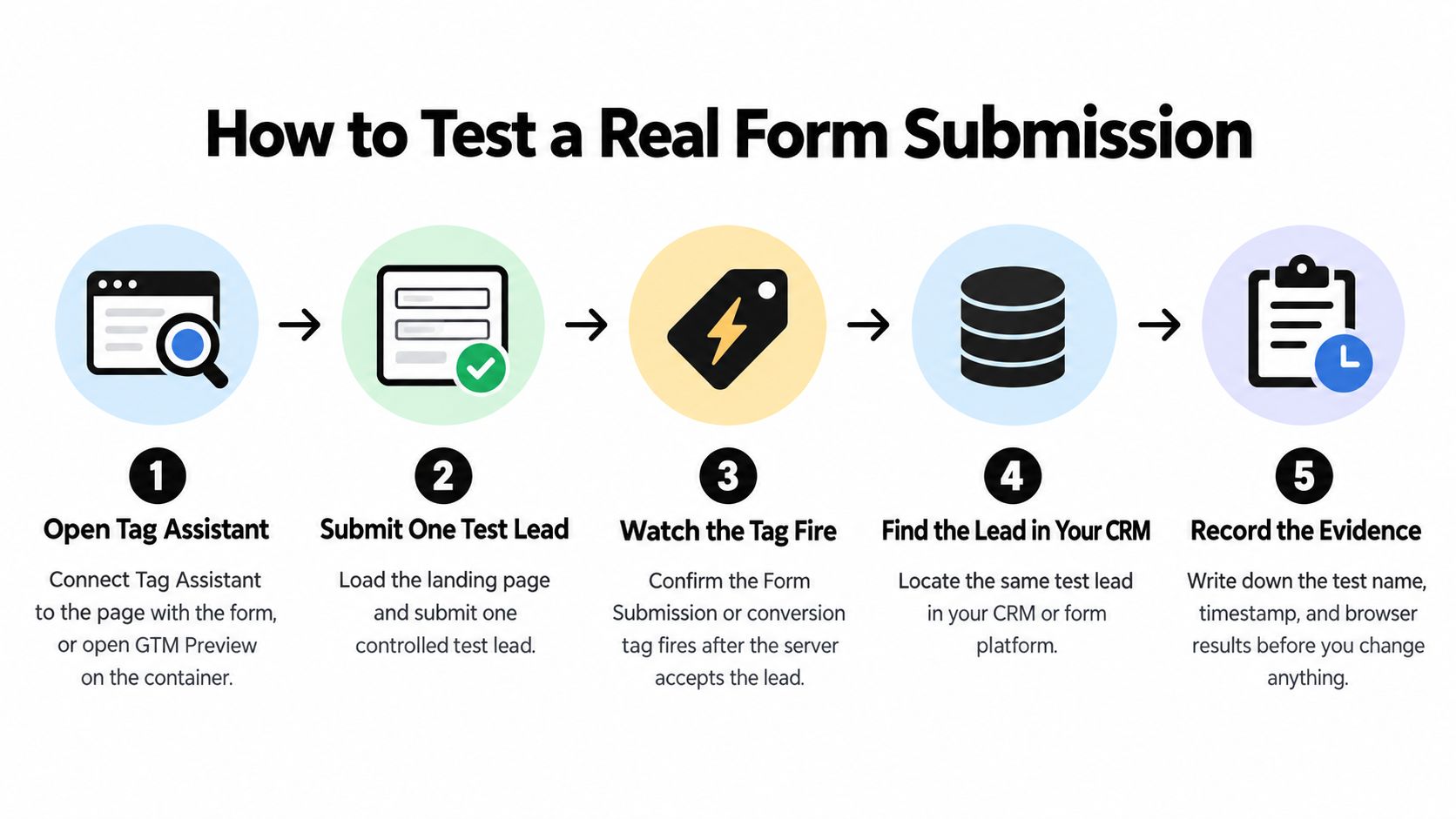
How to Test a Real Form Submission Step by Step
One controlled test lead tells you more than an hour of staring at settings. The Google Ads diagnostic guidance stresses that enhanced conversions need valid first-party data, with emails containing an '@' symbol and phone numbers including a country code. Use realistic test data or you'll create a matching failure that doesn't exist for real leads.
Run the Test in Order
- Open your debugger first. Connect Tag Assistant to the form page, or open GTM Preview on the container, before you load anything else.
- Load the landing page. Confirm the Google tag or GTM container shows up. If it's missing here, stop and fix installation.
- Submit one test lead. Use a distinct test name, a real-looking email, and a phone number with a country code so you can find it in the CRM later.
- Watch the event timeline. You want a form submit or a custom success event. No event means the trigger is wrong, no matter what the tag settings say.
- Count tag executions. The Google Ads conversion tag should fire exactly once on that event. Twice means double counting. Zero means the trigger conditions didn't match.
- Inspect the network request. Open the Network tab, filter for googleadservices, doubleclick, or google.com/pagead, and check the request carries your AW- conversion ID and label. A missing or wrong ID means the hit goes nowhere useful.
- Repeat on mobile and a second browser. Selectors that grab email and phone fields often break on responsive layouts, so a desktop pass isn't enough.
Practical rule: Trust the browser evidence first, because Google Ads reporting lags behind it. A clean single firing today may not show in the account until tomorrow.
Write down the test name, timestamp, and result. You'll need that record when you compare against the CRM at the end, and memory is unreliable after three rounds of changes.
Check Tag Installation, Conversion Linker and Primary Status
Start with the setting that causes the most confusion. A tag can fire perfectly and still never appear in campaign reporting if the conversion action isn't set for optimization. The Google Ads troubleshooting guidance on missing conversions tells you to check Goals > Conversions > Summary and confirm the action is set to "Primary" if you want it in the main Conversions column and used for bidding. Secondary actions get tracked but sidelined.
While you're in there, check the Count setting too. For form leads, pick One, so a lead that somehow triggers the tag twice doesn't count twice. That one setting prevents a common inflation problem without any code changes.
| Setting | Where to check | Correct state |
|---|---|---|
| Google tag or GTM container | Page source, head section or GTM installed on every page | Present sitewide, gtag.js right after the opening head tag |
| Conversion Linker | GTM tags list or gtag config | Configured and firing on every page |
| Conversion action status | Goals > Conversions > Summary | Primary for bidding and the main Conversions column |
| Conversion ID and label | Conversion tag in GTM vs the Ads conversion action | Exact match of AW ID and label |
| Trigger scope | GTM trigger conditions for the Form Submission trigger | Limited to the form page URL or form ID |
| Check Validation | Form Submission trigger settings | Enabled so invalid attempts are excluded |
| Wait for Tags | Form Submission trigger settings | Enabled with a sensible timeout for redirects |
| Tag executions per lead | GTM Preview during one submission | Exactly one execution |
Copy the conversion ID and label straight from Google Ads instead of retyping them. For a broader walkthrough of the whole setup sequence, this guide to Google Ads conversion tracking covers the order of operations, and examples like mattress ad measurement with BEDHEAD show how the same checks play out in a retail context.
New conversion actions also take a processing delay before they show in reports. Don't judge a fresh setup in the first hour.
Set Up Triggers for AJAX and Single-Page Forms
AJAX and single-page forms break the standard approach for a simple reason. The page never reloads, so a thank-you URL never loads, and native submit detection can fire before the server has accepted anything. When Google Ads conversion tracking is not recording form submissions on a modern site, this is the first place I would look.
The fix is a dataLayer push in the success callback, after the app confirms the lead was accepted. Something like window.dataLayer.push({event: 'form_success', form_id: 'contact-main'}) placed where the success banner renders works well. The Google Tag Manager form trigger documentation supports this split, recommending you separate form validation, trigger detection, tag execution, and Google Ads receipt, enable Check Validation so failed attempts are excluded, and enable Wait for Tags so a fast redirect doesn't kill the request before it sends.

Build the GTM Side
- Create a Custom Event trigger named form_success, matching the event name in your dataLayer push character for character.
- Scope it tightly. Add a condition on the page URL or the form_id value so a newsletter signup in the footer doesn't fire your demo conversion.
- Attach the Google Ads conversion tag to that trigger, with Check Validation and Wait for Tags enabled where the trigger type allows it.
Two failure points catch people out here. Another JavaScript handler returning false can interrupt the submit path before your trigger ever runs, which looks like a GTM problem but lives in the site code. And a broad trigger on a page with three forms will happily count all three as the same conversion.
If the conversion only matters after the server says yes, fire it after the server says yes. Anything earlier is optimism, not measurement.
Say a SaaS company runs a demo form that shows an inline success banner. The submit trigger fires on attempts, including ones that fail validation, and misses others entirely. Moving the conversion to a form_success event pushed after the CRM accepts the lead aligns the Ads count with the CRM because both systems now key off the same confirmed moment. Test it with one controlled submission and count executions before you publish.
Thank-You Pages, Redirects and Double Counting
Firing the conversion on a thank-you page load is the oldest setup in PPC, and it still works, with one condition. That URL has to be unique and unreachable without a successful submission. Open a private window and type the URL directly. If the page loads, anyone can load it, share it, or revisit it from browser history, and every visit inflates your count.
Design helps here too. Looking at confirmation screen templates from ServeApps is a useful reminder that the confirmation state is a distinct screen with its own URL or state, and your tracking needs to key off that exact state, not a guess.
Where Redirects Break Things
When a form redirects somewhere unexpected, a trigger watching the old URL never sees the event. Match your trigger to the final URL after all redirects settle, or drop the URL approach and fire on a success event instead. Also check the boring failure. The Google Ads tag setup guidance says the Google tag should be installed on every page, with gtag.js placed immediately after the opening head tag, and a GTM container installed sitewide. A thank-you page built on a different template without the container goes unnoticed without any error appearing.
Double counting is the other classic. If a thank-you page conversion and a submit event conversion are both live, every lead counts twice and your cost per lead looks half of reality. Pick one method. If both genuinely must stay, pass a unique lead or transaction ID so the platform can deduplicate.
Do a quick audit. List every trigger that can fire the conversion tag, submit one lead, and confirm only one execution appears. That takes ten minutes and catches most duplicates.
Consent and Matching Data That Quietly Cut Conversions
This is the sneaky one. The tag fires, Preview looks clean, no errors anywhere, and the numbers still run low. When a visitor denies ad storage, consent-aware tags skip cookies but can still send consent-aware signals, so Google models some conversions instead of recording each one directly. Your count drops without anything being broken.
Matching data creates the same effect. The Google Ads API developer documentation requires consent settings on conversion payloads and explains that enhanced conversions for leads rely on hashed first-party data such as email addresses and phone numbers, matched against website and signed-in customer interactions. If restricted consent or incomplete user-provided data blocks that match, you get fewer reported conversions rather than an obvious browser error.

Three Checks That Separate the Causes
- Compare the banner choice with the Consent Mode state. Accept consent in a test session and confirm ad_storage and ad_user_data flip to granted. If they stay denied, your consent setup is the problem. This overview of how consent mode affects conversion tracking walks through the states in more depth.
- Verify the user-provided data selectors. Confirm they return real email and phone values on desktop and mobile. A field that's hidden, renamed, or moved in the mobile layout quietly starves matching.
- Check enhanced conversion diagnostics in Ads. Look for missing or malformed data flags, and confirm phone numbers carry a country code.
Then compare four numbers side by side: form-platform totals, browser events from your test, Google Ads diagnostics, and CRM import diagnostics if you upload offline leads. Zero reported conversions is not proof the trigger is absent. It might mean consent or matching trimmed the count after a perfectly good firing.
One caution. Google's setup screens change over time. When a screen in your account doesn't match an older guide, follow the current help page for your setup path instead of forcing old screenshots to fit.
Verify the Fix Against Your CRM Before You Trust It
A fix isn't done when the tag fires in Preview. It's done when the numbers reconcile. Pull the CRM or form-platform lead count for the same date range you recorded at the start, run one fresh test submission for browser evidence, and then check the Google Ads status after the normal processing delay.
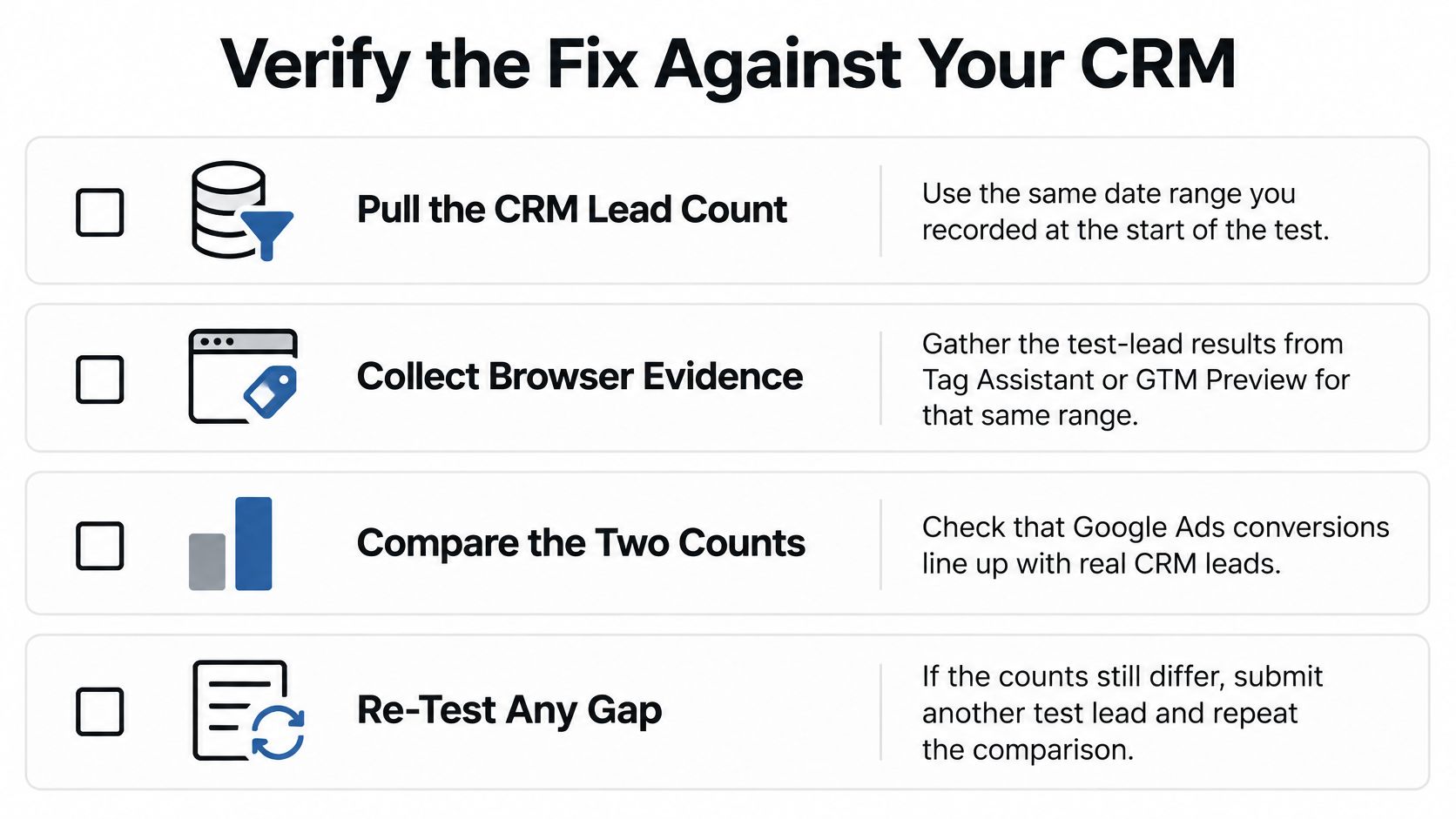
Use a simple decision rule. If the browser shows one clean execution per lead and the conversion status moves to Recording, the trigger is fixed. If the browser is clean but reported counts stay low, go back to consent and matching data before you rebuild anything. If the CRM grows and the browser shows nothing, you're back to the trigger.
Give it a day or two before you judge. Ads reporting lags, and calling a fix failed after two hours leads to unnecessary changes piled on top of a working setup. Test on desktop, mobile, and a second browser, then log the date, test lead ID, and result. That log pays off when someone asks next month when tracking changed. If a persistent gap remains between real leads and attributed conversions, importing the leads back is worth considering, and this walkthrough on how to import offline conversions from a CRM into Google Ads covers that route.
Monthly Recheck List
- Primary status. Confirm the conversion action is still Primary after any account edits.
- Tag count per lead. Submit one test lead and confirm a single execution.
- Consent banner. Retest after any site redesign, since form and consent changes ship together more often than teams admit.
Once your form conversions record cleanly, the keyword data behind those leads becomes worth acting on, and that's where Keywordme fits. It helps you clean junk search terms, build negative keyword lists, and expand ad groups with converting terms in one place, so the conversions you just fixed turn into less wasted spend. Try it on your account and see which search terms your newly tracked leads came from.
.svg)