
How to Import Offline Conversions from a CRM Into Google Ads
How to Import Offline Conversions from a CRM Into Google Ads


You're staring at a CRM full of qualified leads and a Google Ads account that only sees form fills. Sales swears the good deals came from search. The platform keeps bidding harder for the cheapest clicks because that's the last signal it ever got.
That gap is exactly what you close when you learn How to Import Offline Conversions from a CRM Into Google Ads. Do it once, badly, and you get rejected rows. Do it around your real sales-cycle length, and bidding finally learns from revenue, not volume.
The Six Stages Every CRM Import Goes Through
Pull CRM outcomes like qualified leads, closed deals, and in-office payments, match each one to the ad click that produced it, and upload them as conversions in Google Ads. That's the whole job in one line, and Google's overview of offline conversion imports describes that same connection from CRM outcome back to click.
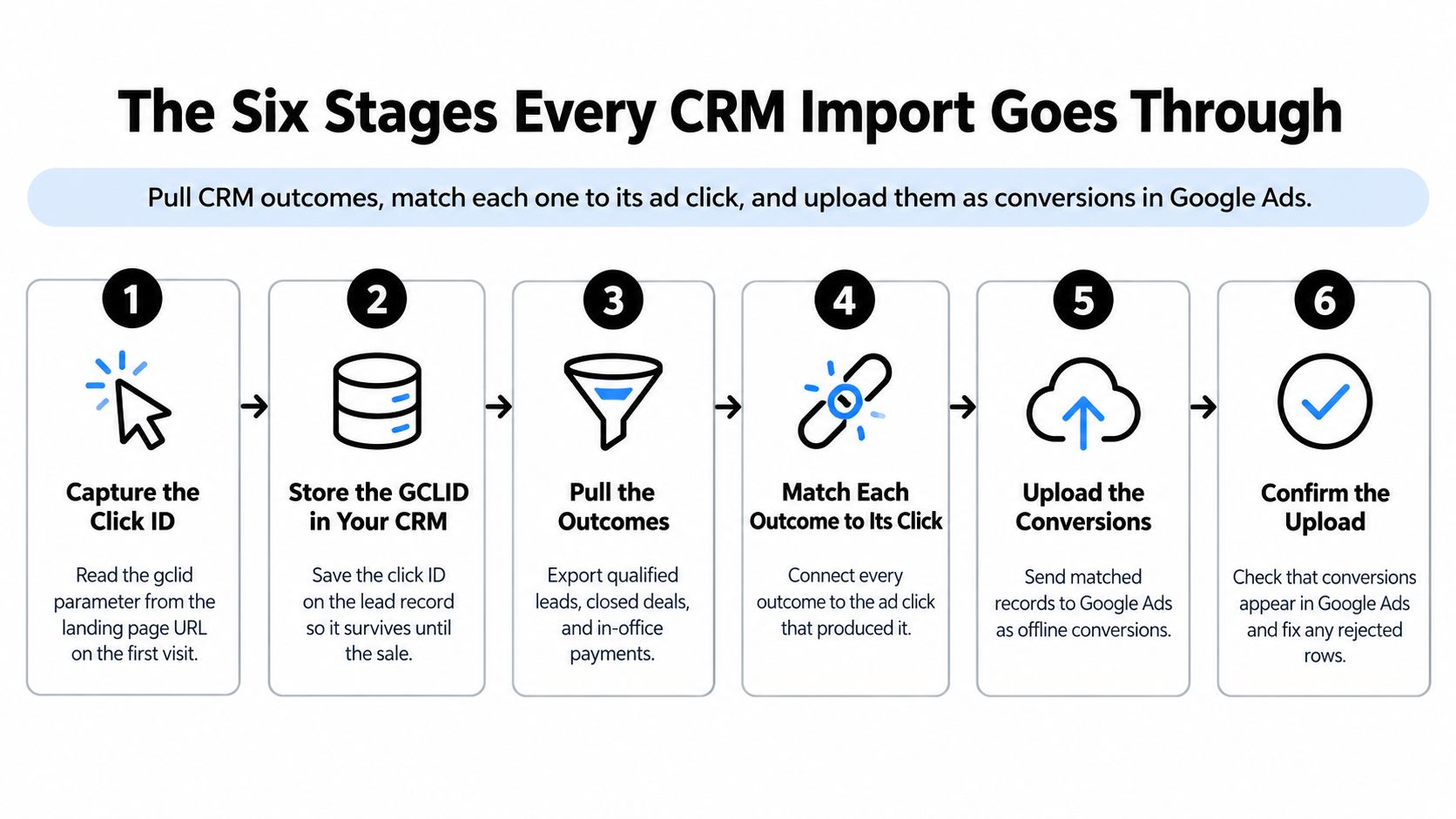
A B2B team with a 60 day cycle often starts by importing only closed-won deals. Google Ads then looks idle for weeks, even when the pipeline is filling. The fix isn't a fancier file. It's choosing milestones that land early enough to attribute.
The Six Stages at a Glance
| Stage | What you do | Where it happens | Done when |
|---|---|---|---|
| 1. Capture | Store the GCLID on every lead at form submit | Landing page and web form | The GCLID appears on the CRM record |
| 2. Map | Line up CRM fields with upload columns | CRM and a spreadsheet | A test row maps with no blank required fields |
| 3. Format | Build the CSV or API payload with event timestamps | Spreadsheet or script | Timestamps include a timezone offset |
| 4. Create action | Set up a CRM import conversion action | Google Ads Goals section | The action exists, is named clearly and is enabled |
| 5. Upload | Send the file or payload | Google Ads or Data Manager | Diagnostics show no blocking errors |
| 6. Verify | Compare imported counts with CRM counts | Conversions reporting | Counts roughly match over the same date range |
The payoff is a feedback loop. Google can optimize toward downstream lead quality and revenue instead of forms or calls alone. That only works if you preserve one conversion record per business event, keep the original conversion time and timezone, map each event to a specific conversion action, and upload consistently instead of once in a while at reporting time.
Google also recommends Enhanced Conversions for Leads as an upgrade, because hashed email addresses and phone numbers supplement GCLID-based matching. If a record has no GCLID, that's not an automatic reason to drop it.
Most teams aren't stuck on the upload button. They're stuck on stage one or two, and they keep trying to fix it at stage five.
Find your stage before you touch anything else. No GCLID on the CRM record means capture is broken. Rows rejected for time means formatting is broken. Accepted rows with no attributed conversions means matching, timing, or your milestone choice needs work.
How to Capture GCLIDs and Keep Them in Your CRM
A deal closes three weeks after the click. The rep logs it, finance books it, and Google knows nothing, because nothing on the CRM record ties that revenue back to the ad. Capture is unglamorous plumbing, and it's the part most broken imports never survived.
Timing belongs in this conversation too. Google attributes imported conversions only within 90 days of the click, and connector lookbacks of 14 or 90 days decide which CRM events get picked up at all. If your sales cycle regularly runs long, that ceiling shapes which milestones you'll import later, so the decision happens here, before any file exists. Capture the GCLID regardless. A stored ID you don't end up sending costs nothing; a missing one can't be recovered.

The Five Capture Steps
Read the parameter on first visit. When someone lands from an ad, read the gclid value from the landing page URL and save it in a first-party cookie. If you wait until the thank you page, you've usually lost it. Keep your Google tracking URL setup clean so the parameter survives to the page that reads it.
Put it in a hidden form field. Copy the cookie value into a hidden field on every form. Every form, not just the main demo form. Webinar, ebook, chat handoffs, the lot.
Write it to a dedicated CRM field. On lead creation, store it somewhere obvious, like a custom GCLID field on Lead in Salesforce or a contact property in HubSpot. Don't bury it in notes or a description field. You'll need to export it cleanly later.
Protect it through conversion. Make sure lead conversion, qualification, and dedupe rules don't overwrite or blank the field. In the setups I've untangled, the lead-to-contact conversion step is often where the value disappears. Map the field across objects, then lock down anything that overwrites it with a later, empty value.
Run a real test. Click your own ad, submit the form, and find the value on the CRM record. Not in the browser console. On the record, after all the automation has run.
This short walkthrough shows the kind of click to form check you should repeat until it's routine.
Where GCLIDs Go Missing
Redirects strip query strings. Consent banners and tag setups sometimes block or rewrite them. Third-party form builders drop hidden fields on submit, or they pass them only if you tick a box buried in settings.
Some leads never had a GCLID at all. Organic and direct leads land without one, and that's normal. Don't treat a blank rate as a failure by itself. Treat a blank rate on traffic you know came from ads as the problem.
Click-ID matching remains the primary method whenever a GCLID is available, and it improves match rates. Enhanced Conversions for Leads works alongside it rather than instead of it: hashed email and phone are a supplement and a fallback for records that never stored a click ID. Neither is a reason to stop capturing GCLIDs where you can.
You're not boxed into a big CRM to start, either. Google says any system capturing lead information can be adapted, and Google's notes on systems and supported file formats list Google Sheets, CSV, TSV, XLS, and XLSX for file-based workflows.
Warning: If your test record shows no GCLID, stop. Nothing downstream, no mapping, no upload schedule, no bidding change, will make that record attribute.
Build a CSV File Google Ads Will Accept
Every row needs a timestamp plus at least one identifier: a GCLID, user-provided data, or a BRAID. Without that pair, Google can't associate the CRM event with the right conversion action and ad interaction, as Google's required fields for CRM conversion uploads set out.
Use the time the qualifying event occurred. Not when you exported the file, not when the rep remembered to update the stage, and not when you built the sheet at 11 p.m.
Headers and Two Sample Rows
Start with this header line: Google Click ID, Conversion Name, Conversion Time, Conversion Value, Conversion Currency.
A qualified lead row might carry the stored click ID, the name CRM Qualified Lead, a time like 2026-01-12 09:14:00+01:00, a value of 0, and EUR. A closed deal row might carry its click ID, CRM Closed Won, a time like 2026-02-03 16:40:00+01:00, a value of 1500, and USD.
Both examples are illustrative values for formatting, not benchmarks. What matters is the shape. The offset is present, the value has no currency symbol, and the conversion name matches the action exactly.
| Column | Format | Example | Required? |
|---|---|---|---|
| Google Click ID | Text, copied exactly with no spaces | Value copied from the CRM record | Yes, unless matching on email or phone |
| Conversion Name | Exact name of the Google Ads conversion action | CRM Qualified Lead | Yes |
| Conversion Time | Date and time with a +hh:mm or -hh:mm offset | 2026-01-12 09:14:00+01:00 | Yes |
| Conversion Value | Plain number, no currency symbol | 1500 | When you pass a value |
| Conversion Currency | Three-letter ISO code | USD | With every value |
| Order ID | Unique, stable text per business event | CRM record ID for that event | Recommended for deduplication |
Traps That Catch People Most
- UTC confusion: Many CRMs store times in UTC. Convert them to one consistent offset across the file, and don't mix formats row to row. The timestamp must occur after the click.
- Excel helpfully breaks it: Excel reformats timestamps and strips leading zeros from IDs. Format ID and time columns as text where needed, then save as CSV in UTF-8.
- Loose deduplication: If you include an Order ID, use the stable CRM record ID for that business event. Re-runs then have something to dedupe against instead of creating a second conversion.
- Value without currency: When you supply a value, supply the currency code too. A bare number leaves Google guessing, and it shouldn't have to.
Build one dull habit. Hand-check five rows against the CRM before every upload. Open the records, compare stage, time, value, and click ID. Five rows won't catch everything, but they'll catch a shifted column before it corrupts a whole file.
Map CRM Fields and Check Your Lookback Window
Take a SaaS team whose deals take around 60 days to close. They switch on a native connector, assume it will backfill the quarter, and watch a trickle arrive. Nothing is broken. They just never checked how far back that connection looks on its first run.
Connection type decides your reach. Imports from Google Cloud Storage, Amazon S3, HTTP, SFTP, and Google Sheets can retrieve conversions from as far back as 90 days on each run, while Salesforce and HubSpot initially import the previous 14 days and then process changes since the last successful run, according to Google's Data Manager lookback windows by connection type.
That means a native Salesforce or HubSpot connector may miss older closed deals without warning unless you plan a file-based backfill. It also means early synchronization matters. If you connect late, valuable history may never enter Google Ads.
Mapping Salesforce and HubSpot Fields
| CRM field | Google Ads column | Salesforce example | HubSpot example |
|---|---|---|---|
| Click ID | Google Click ID | Custom GCLID field on Lead or Opportunity | Contact or deal property holding the gclid |
| Event time | Conversion Time | Date the stage field was last changed | Date entered stage property for the deal |
| Pipeline stage | Conversion Name | Status or StageName mapped to one action | Deal stage mapped to one action |
| Deal amount | Conversion Value | Amount on the Opportunity | Amount on the deal |
| Currency | Conversion Currency | CurrencyIsoCode in multi-currency orgs | Deal currency property |
| Hashed user data for Enhanced Conversions | Email on Lead or Contact | Email on the contact record | |
| Phone | Hashed user data for Enhanced Conversions | Phone on Lead or Contact, with country code | Phone number on the contact, with country code |
| Record ID | Order ID | Lead or Opportunity ID | Deal or contact record ID |
Three rules keep this mapping honest. Use the date the stage changed as the conversion time, not a date a rep typed into a free field. Map each pipeline stage to its own conversion action, such as Qualified Lead and Converted Lead, instead of cramming stages into one bucket. Decide which amount and currency field is the source of truth when a deal changes after closing, before finance and marketing start arguing about it.
Plan Around the 90 Day Window First
A click ID only attributes for 90 days, which is the same practical constraint behind the Google Ads attribution window settings you choose in the account. So the latest milestone you can rely on through GCLID is one that lands inside that window.
Pull the median days from lead to close from your CRM and set your cutoff against reality. If qualified lead or opportunity lands inside the window but closed-won often doesn't, import the earlier milestone through GCLID. Move anything that routinely falls outside to an Enhanced Conversions for Leads job built on hashed email or phone, and import all conversions for the tracked event, including ones not attributed to Google Ads, so matching calculates correctly.
Upload discipline sits on top of all of it. Google strongly recommends daily uploads for optimal performance. Daily, boring, unglamorous sync beats a heroic monthly backfill every time.
Choose Your Import Method and Automate the Sync
Two lookbacks decide what your automation can pull, and you want both checked before any file or connector gets configured. A GCLID attributes for 90 days, while connectors apply their own lookback to each sync, commonly 14 or 90 days depending on the tool. A closed-won deal from last quarter can carry a perfectly valid click ID and still sit outside a 14-day connector lookback. Compare both numbers against your median sales cycle first, then pick the method that reaches the milestones you need.
Google has also retired its legacy Salesforce integration and routes advertisers through Data Manager now, so a setup still pointing at the old connection is on borrowed time.

Pick by Setup, Not Habit
- Small team, spreadsheet reality: Start with a CSV or Google Sheet. It's limited, but it's live this week.
- Agency with several CRMs: A third-party connector usually earns its keep, because you're normalizing different schemas repeatedly.
- Salesforce or HubSpot with a long cycle: Use the native connector through Data Manager and plan the backfill for anything older than its first lookback.
- Custom stack needing full control: Use the Google Ads API and own your retries, logging, and deduplication.
The hybrid part matters more than the connector brand. Keep capturing GCLIDs where you can, then add normalized, hashed email or phone as a fallback signal. Hashed matching does not universally replace click capture.
Before the first upload, turn on enhanced conversions for leads in the conversion action settings, confirm the customer data terms, and map the email and phone columns. Normalize first. Trim and lowercase email addresses, clean them, and format phone numbers in international E.164 format with the country code. Handle consent and hashing under Google's customer-data policies, and write that procedure down.
Four Ways to Automate It
- Scheduled file drops. A nightly script queries the CRM, writes a CSV to Drive or Sheets, and the scheduled import in Google Ads picks it up. Cheap and dependable, though every renamed CRM field means another re-mapping job.
- Native connectors. Data Manager links Salesforce or HubSpot directly and pulls conversions on a recurring schedule. Confirm the lookback applied to the first sync, since anything older needs a one-time CSV backfill.
- Third-party connectors. These sit between the CRM and Google Ads, watching a deal object for stage changes and posting conversions with retries built in. Compare their lookback limits, not their feature lists.
- Google Ads API. You control upload timing, deduplication, and error logging. You also own every failure, so budget for monitoring, not just the build.
Let the feed run a couple of weeks, then compare match rates and conversion counts against the CRM before any new action influences bidding. Once imported conversions show which search terms produce qualified leads, Keywordme can help you separate those winners from the junk terms, which is a different job from moving the CRM data itself.
How to Upload the File and Confirm It Landed
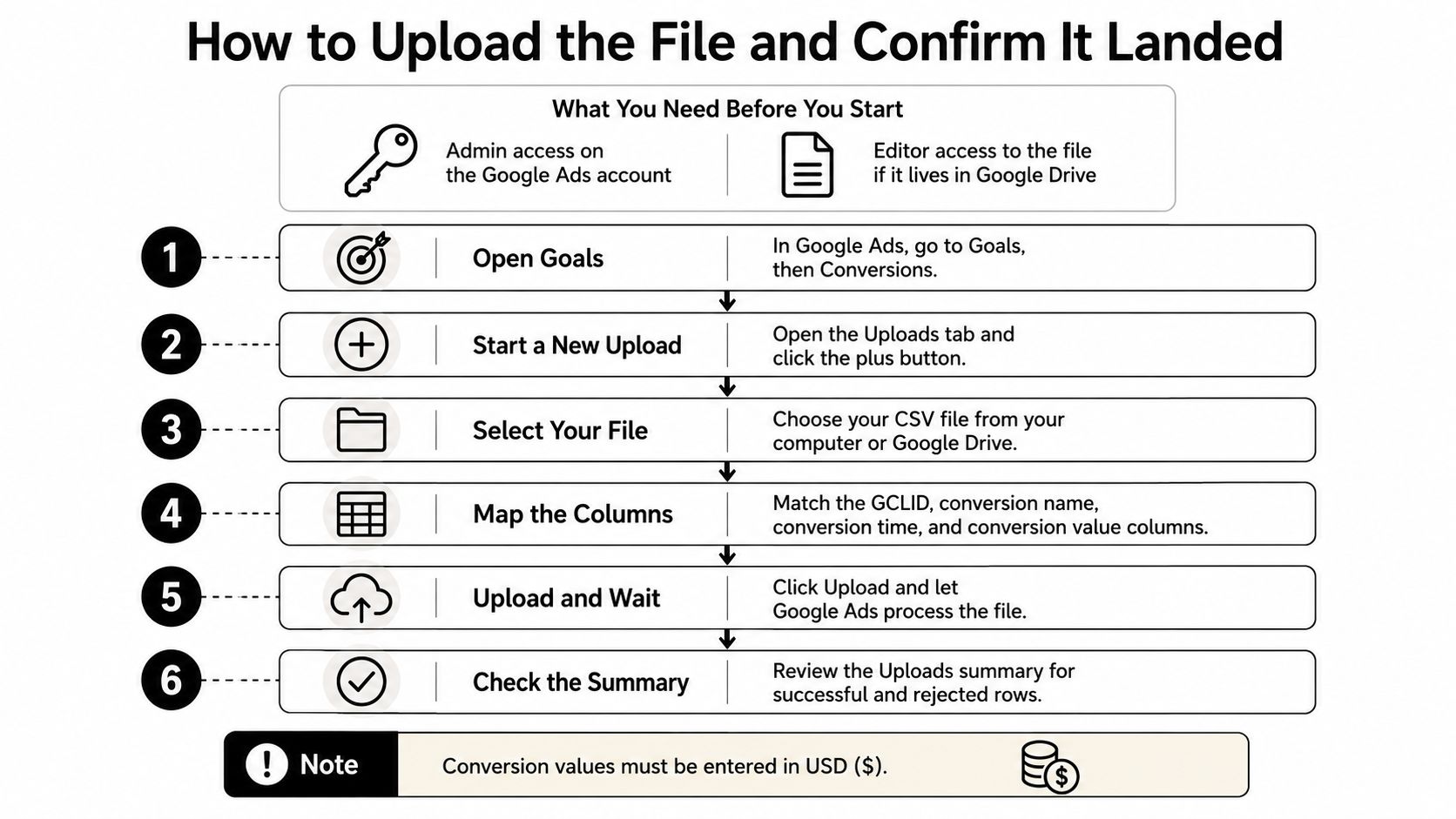
Check access before you schedule the client call. The person configuring the import needs Admin access to the Google Ads account, and a Google Drive file requires Editor access for whoever connects it. Finding that out mid-upload is a special kind of avoidable pain.
Create the Action, Then Upload
- In Google Ads, go to Goals, then Conversions, then New conversion action.
- Choose Import, then CRM, files, or other data sources, and pick the click-based route if your file carries GCLIDs. This sits alongside the rest of your Google Ads conversion tracking, not outside it.
- Name the action something a human can read, like CRM Qualified Lead. Set the counting setting on purpose, because counting every conversion is materially different from counting one conversion per ad interaction.
- Set value and currency handling to match what your file sends. If the file passes deal values, the action needs to accept them consistently.
- Upload the CSV, or point Google Ads at the Sheet or Drive file. Supported file-based sources include Google Sheets, CSV, TSV, XLS, and XLSX, so a spreadsheet is a legitimate starting point.
- Open the upload status and read every diagnostic before touching anything else. This is the check people skip most, usually because the top-line message looked fine.
- Compare the imported count with your CRM count for the same date range. Expect a gap. Not every lead came from an ad click, some records have no usable identifier, and some events fall outside an attribution window.
- Hold the action out of bidding until counts look steady for several days. A new action influencing bidding on day one is optimism, not a plan.
Upload accepted doesn't mean conversions attributed. Diagnostics first, reconciliation second, bidding last.
Cadence and a Sensible First Test
Daily, or more often, is the cadence Google recommends for optimal performance. Batch exports should run that frequently, and a one-off upload should be labeled so you can trace where it came from six weeks later when someone asks why March looks odd.
Run a contained test run first. Choose one conversion stage, import the last 14 days, and confirm the counts line up with the CRM for the same dates. Reconcile by stage and by day, not just in total, because a timezone shift can move conversions across a date boundary while the total still looks plausible.
Only then load the fuller history your connection type allows. Only then consider including the action in account-level goals. Steady beats fast when you're about to hand bidding a new definition of success.
Upload Errors and Attribution Gaps to Fix
The most frequent failure is timing. Rows get rejected because the timestamp has no offset, or because someone stamped every row with the upload time. Fix the export at the source. Don't hand-edit times in the CSV and hope nobody notices.
| Symptom | Likely cause | Fix |
|---|---|---|
| Rows rejected for invalid time | Timestamp missing its offset, or stamped with the upload time | Re-export with the event time and a +hh:mm offset |
| Conversions imported but none attributed | GCLID truncated or containing spaces | Trim whitespace and recheck the capture setup |
| Import count far below CRM count | Leads with no GCLID and no hashed data, or export window too short | Add email or phone, widen the export window, backfill |
| Duplicate conversions in reports | Same event re-sent on every run with no stable ID | Add a stable Order ID and send only new or changed events |
| Dates look wrong in the file | Excel reformatted timestamps or dropped leading zeros | Format columns as text, save as UTF-8 CSV, recheck five rows |
| Late deals missing from reports | Deals closed after the 90-day GCLID window | Import qualified lead or opportunity milestones within 90 days |
| Enhanced match rate stays low | Emails not lowercased or phones missing a country code | Trim and lowercase emails and add country codes before hashing |
The Post-90-Day Problem
The trickiest gap isn't a rejected row. It's a clean upload that attributes to nothing because the deal closed long after the click. Google states that it keeps GCLIDs for only 90 days, so a conversion uploaded after that window may not be attributable through the original click, per Google's guidance on GCLIDs kept for 90 days.
Google's recommendation is practical. Upload more frequently, or send an earlier qualifying offline event that occurs within 90 days. For long-cycle advertisers, that means importing staged milestones, qualified lead, opportunity, and closed-won, instead of waiting exclusively for revenue.
This hits SaaS, financial services, education, healthcare, and enterprise services hardest. Those teams can report misleadingly low Google Ads performance when only closed deals arrive after the window has shut. The channel didn't fail. The conversion architecture did.
Keep Bidding From Chasing Cheap Milestones
Staged milestones solve attribution and create a new risk. If you hand bidding a plentiful early event, it'll happily optimize toward low-value early events. Volume is easy to learn from. Quality takes discipline.
Use separate conversion actions per stage. Assign values that reflect real worth, not placeholder numbers nobody believes. Choose deliberately which actions are included in account-level goals, and keep non-bidding milestones as secondary until you've validated them. Validate CRM timestamps and timezone handling consistently, because a milestone architecture multiplies every small time error.
Keep a plain log of every error you fix and the date you fixed it. Connector change, field remap, timestamp repair, backfill, all of it. Then, when counts drop in six weeks, you can tell whether you're looking at a data problem or a real performance change, instead of relitigating the whole setup from memory.
Once your CRM conversions are landing cleanly, you'll finally see which search terms produce qualified leads and which ones just burn budget, and that's where Keywordme helps you clean up junk terms, build negative keyword lists, and expand the winners from your real search term data. Visit Keywordme to start your trial and put that offline signal to work on the keyword side of the account too.
.svg)