
Workflow Automation for Small Business: A 2026 Guide
Workflow Automation for Small Business: A 2026 Guide


You've got a new lead sitting in your inbox, an overdue invoice to chase, and a spreadsheet that still needs yesterday's numbers. Meanwhile, someone's copying search terms out of Google Ads so they can clean up another keyword list. None of this work is especially difficult. It just keeps interrupting everything else.
That's where workflow automation for small business can help. But connecting apps isn't the hard part. Choosing a task that deserves automation, then keeping it reliable after launch, takes more thought than the setup screen suggests.
What Workflow Automation Means for a Small Team
Think of a smoke alarm rather than a robot. It stays quiet until a specific condition appears, then takes a predefined action. A business workflow follows the same basic pattern.
Say a customer submits your website contact form. Your automation checks whether they're making a sales inquiry, adds their details to your CRM, sends an acknowledgment, and alerts the sales channel in Slack.
The moving parts are straightforward:
- Trigger: The customer submits the form.
- Condition: The inquiry matches your sales criteria.
- Actions: Create or update the contact, send the email, and notify the team.
A workflow is a repeatable sequence of steps. Automation means software runs those steps when the trigger occurs, without someone manually moving each piece along.

This sits within a broader digital shift. The OECD's 2021 analysis of SME digital transformation found that, after the pandemic began, as many as 70% of SMEs increased their use of digital technologies, although adoption varied substantially by country, while digital-technology uptake remained about half the level observed among larger firms.
You don't need AI for a contact-form workflow. Explicit rules are enough. For a small team, the useful outcome is fewer interruptions and more capacity for sales, customer service, or product work.
Everyday Workflows Small Businesses Can Automate
| Workflow | Trigger | Automated actions | Fit |
|---|---|---|---|
| New lead from a web form | Form submitted | Add to CRM, send welcome email, alert sales | High |
| Invoice reminders | Invoice 3 days past due | Send reminder email, log the contact | High |
| Form responses to spreadsheet | Form submitted | Copy answers into a sheet, tag the row | High |
| Appointment reminders | Booking made | Send text 24 hours before, follow up on no-show | High |
| Monthly sales report | First day of the month | Pull data, build summary, email owner | Medium |
| Customer support triage | New support email | Tag by topic, route to the right person | Medium |
| Search-term cleanup for Google Ads | Weekly schedule | Flag junk terms, draft negative list for review | Medium |
These are example configurations, not universal timing rules. Set reminder schedules around your payment terms, customer expectations, and booking process.
The high-fit workflows have predictable inputs and repeatable outputs. A form supplies named fields. An invoice has a due date and payment status. A booking has a start time and contact details.
Still, add sensible safeguards. An invoice reminder should check that the balance remains unpaid immediately before sending. An appointment reminder should stop when the customer cancels. Otherwise, you're automating an avoidable customer-service problem.
Where a human review earns its place
Medium-fit workflows need more interpretation. A sales report can pull the correct numbers but compare incomplete periods. A support message can mention both billing and a product fault. A search query can look irrelevant until you understand the buyer's intent.
For Google Ads, let the workflow prepare the decision. It can flag questionable queries and draft a negative keyword list, but someone should check whether a proposed negative would block valuable traffic.
Practical rule: Automate collection and preparation before you automate a customer-facing or revenue-changing decision.
Automation also belongs in a growth conversation, not just an admin conversation. The OECD's 2024 D4SME survey found that 40% of surveyed businesses identified automation as a key objective when adopting digital tools.
For finance work that extends beyond reminders, Snyp's step-by-step receipt reconciliation system is a useful companion when you're mapping how receipts should match transaction records. Keep document capture separate from approval so an extracted amount doesn't automatically become an accepted expense.
Marketing teams should also establish suppression rules and approval boundaries before connecting customer communications. Our marketing automation best practices provide a useful starting point for that work.
Circle the rows that resemble your actual week. Don't choose the most impressive-looking workflow. Choose the recurring nuisance you can describe clearly.
How to Tell If a Task Is Worth Automating
Start with relevance, not software. In a U.S. Small Business Administration research brief, nearly 82% of businesses with fewer than five employees that weren't planning to use AI said it wasn't applicable to their business.
That finding concerns AI, not every kind of automation. Still, it's a good reminder that buying a capability isn't the same as solving a problem.
Use this checklist to examine the work before opening a tool.
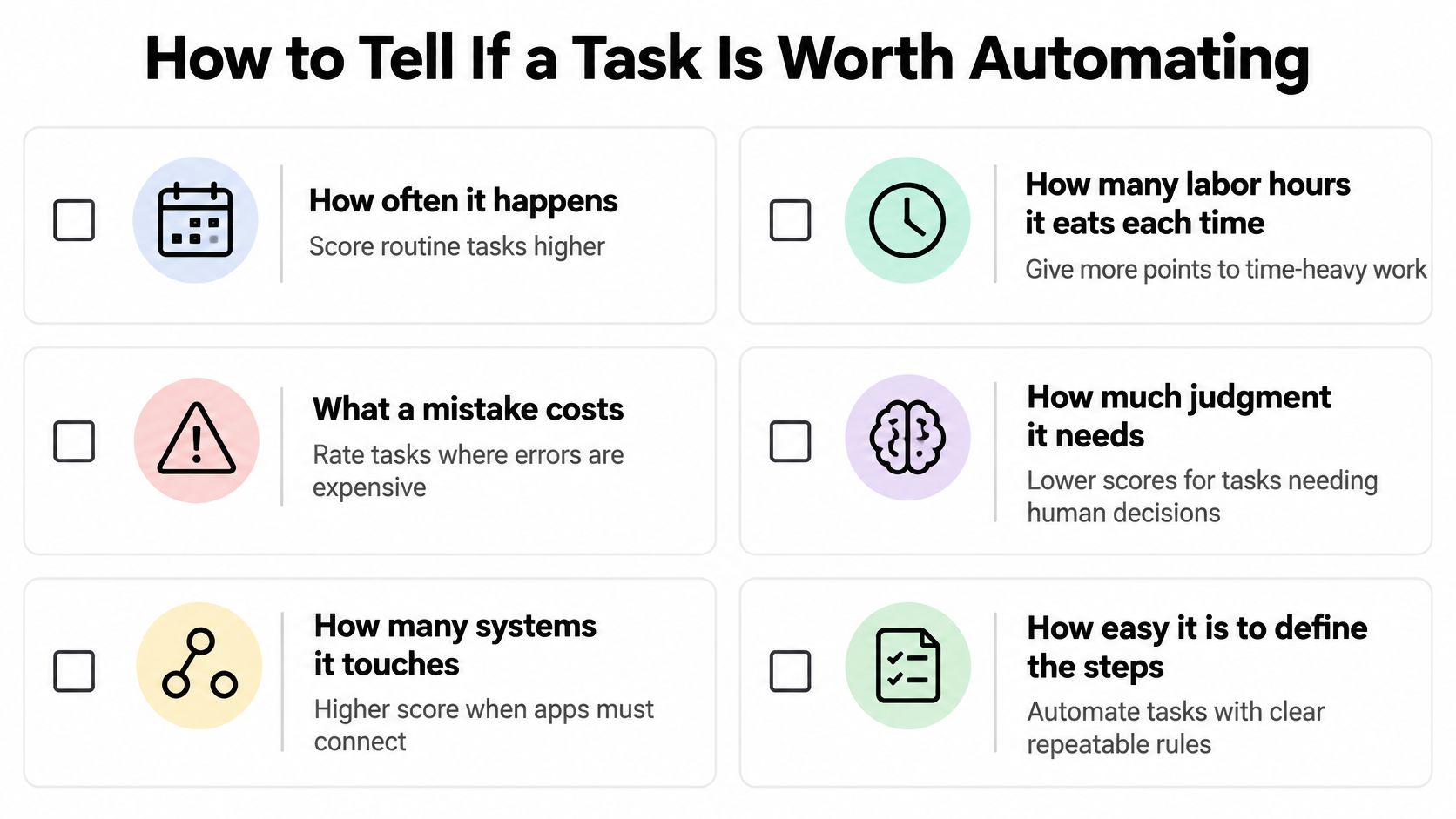
Score the value and the friction
As a practical worksheet, rate each criterion from 1 to 5, with a higher score meaning a better automation candidate. The thresholds below are suggested sorting rules, not research benchmarks.
| Criterion | Scores high when | Scores low when |
|---|---|---|
| How often it happens | Daily or weekly | Once or twice a year |
| Labor time per run | 15 minutes or more | Under 2 minutes |
| Cost of a mistake | Cash, data or customer trust at risk | Trivial and quick to fix |
| Customer impact | Customers feel every delay | Only staff notice |
| Data sensitivity | Low-risk fields only | Payment or health details |
| Exception rate | Almost never needs judgment | Frequent judgment calls |
Don't blindly total the scores. Sensitive information and frequent judgment calls are reasons to redesign or restrict a workflow, even when its potential time savings look attractive.
Say invoice chasing takes about twenty minutes each week. Missed follow-ups delay payment, and the normal path is clear: check the balance, check for a dispute, then send an approved reminder. That's a strong candidate if disputed accounts go to a person.
Custom pricing scores differently. Scope, capacity, negotiation history, and commercial priorities all affect the decision. Automate assembling the quote information, not deciding the price.
The same distinction applies to PPC: flagging search terms is suitable; choosing budgets or judging a landing page needs context. For broader capacity planning, use this alongside our guide to improving team productivity.
Make the decision explicit
Copy this short checklist into your task notes:
- Value: What recurring delay or manual effort will disappear?
- Rules: Can someone else follow the written steps without guessing?
- Risk: What happens if the output is wrong?
- Boundary: Which cases must stay with a person?
For an additional walkthrough, use the video alongside your own process notes.
Choosing Tools Without Overbuying
Start with what you already pay for. Check the workflow settings in your CRM, email platform, booking tool, or invoicing software before adding another subscription.
A native invoice reminder is usually a cleaner choice than exporting payment data into a connector just to send an email. If you're comparing billing systems, the AurenWell estimate and invoice guide can help you consider estimates and invoices together rather than buying around an isolated reminder feature.
Match the tool to the missing capability
Use a no-code connector, such as Zapier or Make, when the job crosses applications and native integrations don't cover it. Consider AI-assisted steps when the input requires interpretation, such as categorizing an unstructured support email.
Compare finalists against these checks:
- Job fit: Can it complete your exact process, including exceptions?
- Usage pricing: Do runs, actions, retries, or polling consume your allowance?
- Permissions: Can you restrict access to the required records?
- Visibility: Can you inspect inputs, outputs, and failures?
- Exit options: Can you export your records and document the configuration?
Pick the simplest option that clears those checks. A visual builder isn't automatically easy to maintain, and a self-hosted tool isn't free once someone has to manage updates, backups, and failures.
Metrics That Show Your Automation Is Paying Off
| Metric | What it tells you | How to calculate it |
|---|---|---|
| Time saved per run | Time returned to your team | Manual minutes minus automated handling minutes per run; multiply by monthly runs for the monthly total |
| Error rate | How often the output is wrong | Runs with incorrect output divided by total runs |
| Exception rate | Share of cases needing a human | Exceptions divided by total runs |
| Straight-through rate | Share finished with no human touch | Runs completed without human intervention divided by total runs |
| Cost per workflow | Whether the workflow pays off | Tool cost plus review labor cost, compared with the value of hours saved |
Keep these in a spreadsheet. Define what counts as an error before launch, and distinguish a technical success from a business success: an email can send successfully to the wrong recipient.
Also separate exceptions from errors. Routing an incomplete record to a review queue is correct behavior. Creating an incomplete customer record isn't.
Put a realistic value on the time
A 2024 Thryv survey of 530 small-business decision-makers, summarized by CompanySage, found that more than half of small-business AI users expected repetitive-task automation to save as much as 20 hours per month, with potential monthly savings of $500 to $2,000. Those were reported expectations, not audited before-and-after results.
Use your own arithmetic rather than adopting those figures as a promise. For a hypothetical task taking 20 minutes, repeated 60 times a month, the manual workload is 20 hours; valuing that time at an illustrative $30 an hour gives $600 in monthly labor capacity before costs.
That isn't automatically cash saved. If nobody's paid hours change, the return is available capacity. Decide what the team will do with it, such as responding to leads or completing account reviews.
Count the time spent checking and repairing the automation, not just the time the software takes to run.
Decide whether to keep, fix, or stop
Schedule a review for 30 days after launch as a practical checkpoint. Compare the live workflow with your baseline using equivalent case types, then subtract subscription costs, review labor, and time spent fixing failures.
Keep it if the net benefit is useful and outputs remain trustworthy. Fix it if a specific mapping or rule causes avoidable exceptions. Switch it off if maintaining it costs more effort than doing the task manually.
A rising exception rate deserves attention even when the workflow hasn't technically failed. People may be feeding it cases it was never designed to handle.
How to Build Your First Automated Workflow
Use a form-to-CRM workflow as your first build: a sales inquiry arrives, the contact is created or updated, and the relevant person receives a notification. Keep the scope limited to that handoff rather than attaching an entire sales sequence immediately.
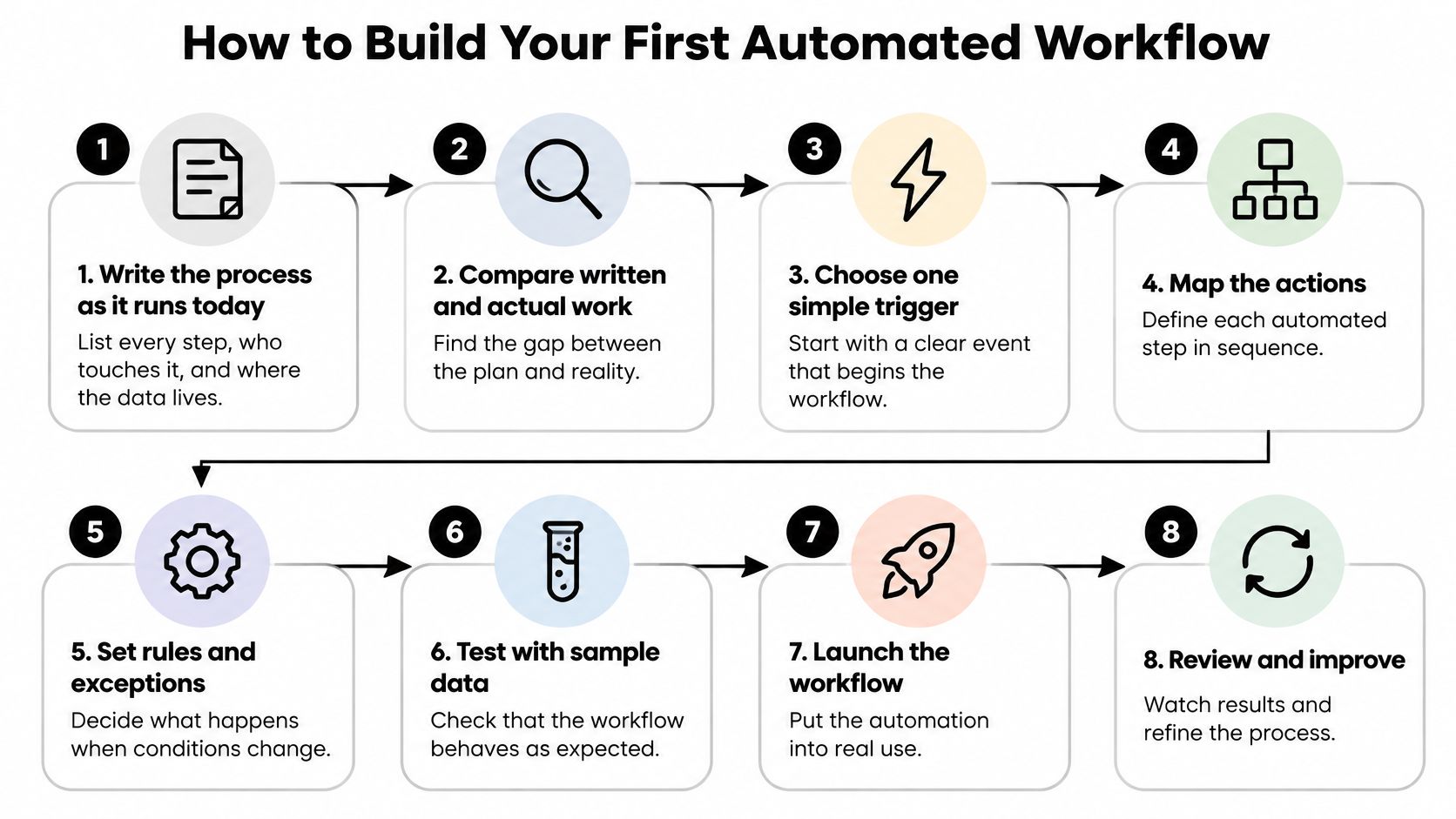
The following visual provides a process overview. Use the implementation steps underneath to define the checks and controls.
Build and test the normal path
Write the process as it runs today. List where the inquiry arrives, who checks it, which CRM fields they fill, and how they notify sales. Compare that description with actual records, because an undocumented workaround can be essential to the process.
Record the baseline. Measure handling time and note cases that need corrections or additional information. Don't time only a perfectly completed form, or you'll compare ordinary automated work with unusually easy manual work.
Define a narrow trigger and condition. For example, use submissions from your sales contact form where the inquiry category is a sales request. Exclude job applications, supplier messages, and existing-customer support requests rather than sending everything into the pipeline.
Map actions and exception paths. Match each form field to its destination, decide whether to update or create a record, and define the duplicate-checking key. Send missing required fields to review instead of inventing placeholder information that staff might mistake for valid data.
Prove it's safe to switch over
Test representative records by hand. Start with a small set of real records you're authorized to use, then add cases with missing fields, existing contacts, and unusual characters. Keep external messages disabled or redirected during testing so a successful test doesn't accidentally contact a customer.
Connect apps with least privilege. Grant only the read and write access the workflow needs, and use a managed service connection where your tools support it. Avoid tying a business-critical connection to an employee's personal login without a documented transfer plan.
Run a controlled comparison. As a suggested rollout, compare automated results with manual handling over a working week, but allow only one version to send messages or create final records. Running both versions fully live is how you end up with duplicate contacts and repeated welcome emails.
Switch over with ownership recorded. Write down the owner, the stop procedure, and a review date about thirty days out before enabling production actions. Preserve enough information to undo an incorrect update, and make sure the team knows where exceptions will appear.
Before enabling external actions: Check the recipient, the content, and what prevents the same event from being processed twice.
Keep a concise workflow record beside the configuration. Include field mappings, excluded cases, connection details without secrets, and the location of execution logs.
The useful end state isn't a diagram full of connected boxes. It's a workflow that handles its defined cases, puts unresolved records in a visible queue, and produces output your team can trust without rechecking every row.
Who Owns a Workflow After It Goes Live
Setup gets the attention because you can see it happen. Maintenance is less interesting: someone checks a failed connection, updates a field mapping, or notices that a new form option no longer matches the routing rules.
That work still needs a name beside it. A shared team responsibility isn't a substitute for a named owner who can pause the workflow and decide what happens next.
The OECD's 2025 report on AI adoption by SMEs found that over half of SMEs reported that employees lacked generative-AI skills, while AI use remained isolated by function rather than integrated across the company. Training someone to activate a feature doesn't necessarily prepare them to evaluate its output or maintain its dependencies.
Give the owner an operating checklist
- Approval boundaries: Formatting and labeling can run within defined rules. Bid changes, budget changes, broad-match additions, and consequential keyword exclusions should wait for approval.
- Fallback procedure: Explain how staff resume manual handling when a connection fails, including where they find unprocessed records.
- Traceable changes: Log what ran, what it changed, and who approved consequential actions.
- Access limits: Review connected accounts and remove permissions the workflow no longer needs.
- Backup coverage: Name someone who can respond when the owner is unavailable.
Our guide to documenting processes can help turn that checklist into instructions another person can follow.
Review the work, not just the dashboard
A green execution history won't tell you that sales staff are correcting contact records every morning. Ask the people receiving the output whether they trust it, what they still repair, and which cases arrive in the wrong queue.
Set aside a suggested twenty-minute monthly review for what ran, what broke, and what useful capacity the workflow returned. Include connection changes, unresolved exceptions, and any new business rules.
When nobody owns those decisions, employees become the hidden repair layer. The automation still runs, but the team does extra work around it.
Pick One Workflow and Automate It This Week
Choose a high-fit task with a visible result: a form reaching the CRM correctly, or an unpaid invoice receiving the right reminder. Keep the first version small enough that you can inspect its output and undo a mistake without disrupting the business.
Before switching it on, write down the expected benefit, the owner, and the review date. If you can't describe the expected benefit plainly, leave the tool closed and clarify the process.
A practical starting point for paid search
For Google Ads teams, preparing search-term cleanup is a useful candidate because the list work repeats and a person can approve exclusions before they're applied. Keywordme is one practical option: our Pro plan includes one-click negative keyword list building, instant keyword match type configuration, negative and positive keyword management, search term-based campaign expansion, help center access, and chat support; the plugin applies exact, phrase, or broad match types with one click.
Keep the distinction clear: faster list preparation doesn't replace campaign judgment. Review the scope of an exclusion before applying it, because removing it later won't recover opportunities blocked while it was active.
Write down the process you'll automate by Friday, the hours you expect it to return, and a date thirty days after launch to check the result. Make that appointment before buying anything.
Keywordme helps you reduce repetitive Google Ads keyword work with negative keyword list building and one-click match type configuration. Visit Keywordme to see whether it fits your search-term cleanup workflow, while keeping approval of campaign changes with your team.
