
Why Is My Google Guaranteed Badge Not Showing?
Why Is My Google Guaranteed Badge Not Showing?


You've opened a regular Google search, checked your Google Ads campaign, and maybe even refreshed your Google Business Profile. The badge still isn't there. Before changing another keyword or uploading the same paperwork again, open your Local Services Ads dashboard. That's where to check whether your business is verified and which badge it currently qualifies to display.
The answer to “why is my Google Guaranteed badge not showing?” may be simpler than a failed review: Google retired the old badge. If that's not the issue, the dashboard can point you toward an outstanding verification task or an ad setting that's limiting visibility.
Start in the Right Dashboard
You've opened Google Ads, checked your Business Profile, and still can't find the badge. Open the Local Services Ads dashboard first. Google Ads and Google Business Profile don't show your LSA verification status or control your Local Services badge.
Google Guarantee and Google Screened apply to Local Services Ads, not standard search campaigns or your company website. Google's Local Services Ads help hub explains the product and what eligible advertisers can see today. Check the LSA account before treating a missing badge as a failed verification.
Practical rule: If you're checking the badge in the wrong Google product, you're checking the wrong status.
Know what each screen can tell you
- Local Services Ads dashboard: Review the LSA profile, verification status, outstanding tasks, and ad eligibility. Start here for the account's current status.
- Google Ads: Check standard search campaign settings, keywords, and search terms. Changes here won't complete Local Services verification.
- Google Business Profile: Confirm the profile is claimed, managed, and connected to the matching LSA account. An active profile alone doesn't confirm that LSA checks are complete.
- Your website or a screenshot: Neither confirms current LSA verification. A screenshot may show an old badge or search result that no longer reflects the account.
Sign in to the Local Services Ads account associated with the business. Open its business profile or verification area and read each status and task. A profile that exists, or ads that ran previously, does not prove the account is approved now.
Google requires a public, verified Business Profile connected to the matching Local Services Ads account. The person completing the business checks must own or manage that profile. If nobody manages it, claim it. If the LSA account is connected to a different profile, fix that connection before investigating the badge.
Confirm the Badge You're Looking For
You open your Local Services Ads dashboard and see no green Google Guaranteed badge. Before treating that as a verification failure, check which badge Google currently uses. Google announced that on October 20, 2025, it would discontinue Google Guarantee, Google Screened, and License Verified by Google, replacing them with a single Google Verified badge for Local Services Ads advertisers, as described in its badge transition announcement.

An old screenshot, marketing deck, or saved search result may show a badge Google no longer uses. In your LSA dashboard, check for Google Verified and read the account's current status. Don't resubmit documents just because the older green badge is missing.
Don't treat every Google surface as the same
The badge applies to Local Services listings, not every Google product or business touchpoint. Google may display it dynamically on other surfaces, so its appearance can vary by searcher, location, device, query, and eligibility context. A standard search result or Business Profile cannot confirm the status shown in your LSA account.
That distinction also matters when reviewing a provider's credentials. Safe Contractor Approved for Dublin projects can help readers assess a local contractor, but it does not confirm that the business holds Google Verified status in Local Services Ads.
New to the product? Read this guide to Local Services Ads to understand how LSAs differ from standard Google Ads. For this check, trust the badge name and status displayed in the LSA dashboard.
Pass the Verification and Document Checks
Once you've confirmed you're checking the right product and badge, inspect the verification tasks. A Local Services profile can exist, and ads may even be allowed to run, while screening is still underway. Advertising eligibility and completed badge verification aren't always the same thing.
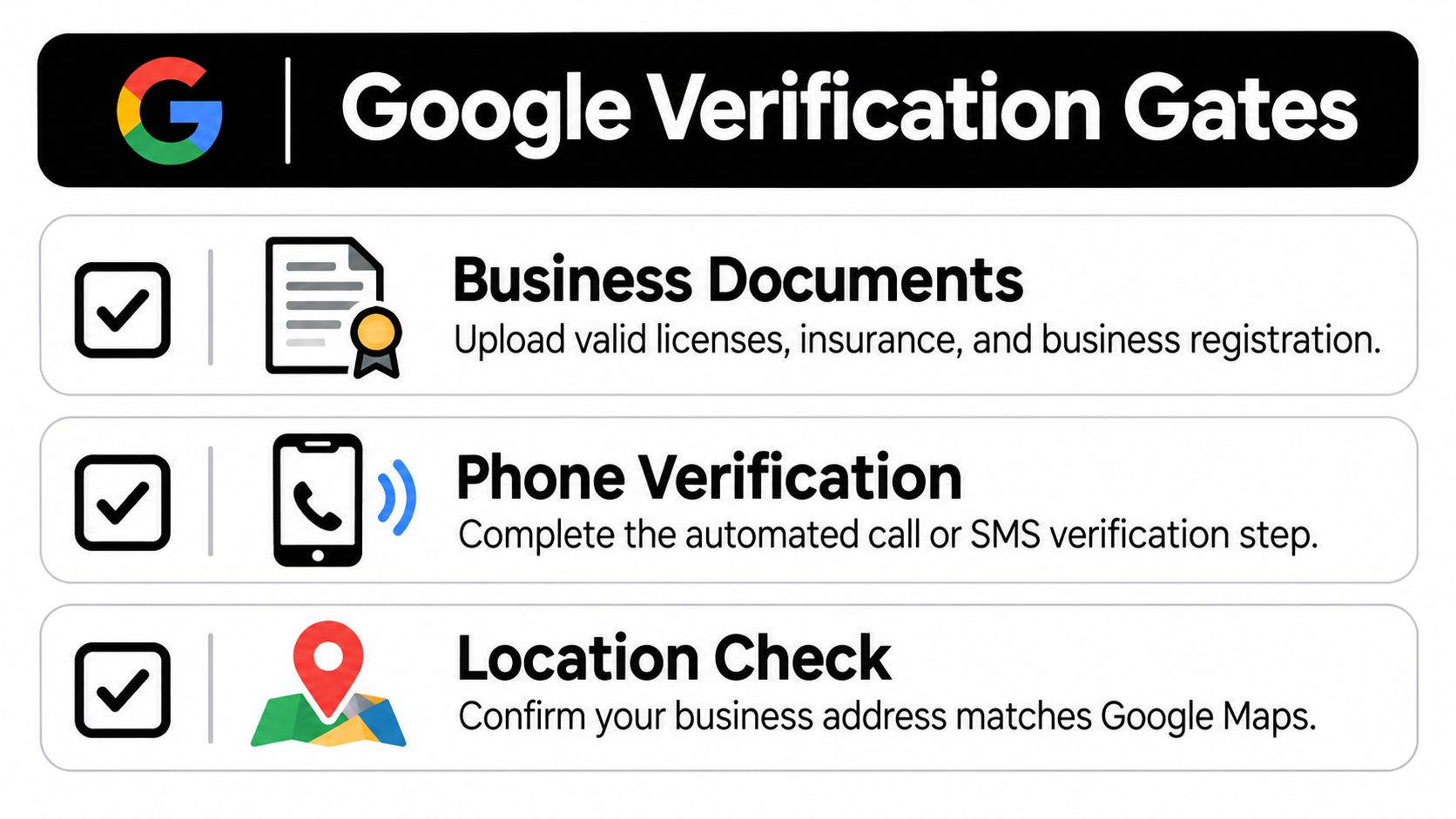
Google's screening may include business-registration checks, professional-license checks, insurance verification, background checks, and minimum review requirements. The exact requirements depend on the business category and country, according to Google's Local Services screening guidance.
Audit identity and documents, not campaign settings
Open each outstanding task and compare what Google has on file with the business's current records. A document can stall a review if it's expired, belongs to a different legal entity, covers a different service area, or conflicts with the business details in the application.
Check these items before resubmitting:
- Business identity: Make sure the legal business name and address align across the application, Business Profile, licenses, and insurance records.
- Licenses and insurance: Confirm required documents are current and that the named entity and service area match the business seeking verification.
- Owners and workers: Review any requested owner or worker checks. Depending on the category, screening may apply to employees, contractors, or other workers who serve customers.
- Business headshot and reviews: Complete any requirements shown in the dashboard, including applicable headshot or minimum review tasks.
Requirements differ by market. Google's documentation describes background and license checks for relevant providers in the United States. In Europe, checks may include licenses, business registration, and insurance. Don't assume another business's checklist applies to your category or location.
Upload clear, current evidence with all relevant pages visible, and correct the underlying mismatch before sending it again. Repeatedly changing ad copy or keywords won't fix a business-identity problem. For broader context on policy requirements, use this Google Ads policies guide, but follow the specific Local Services tasks shown in your account.
Check That Your Ads Are Actually Eligible to Run
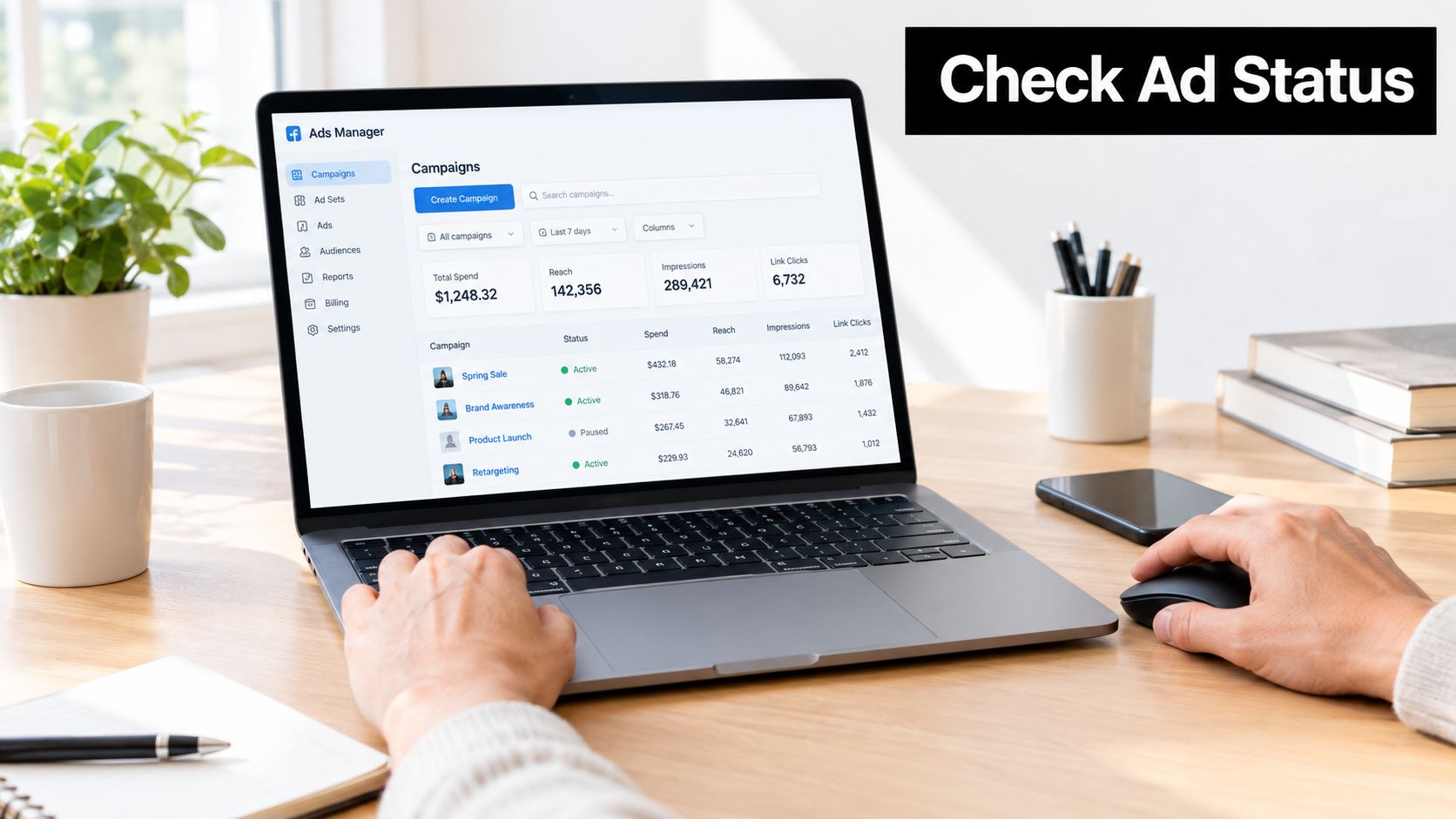
A complete verification file doesn't guarantee that your ad will show in every search. Ad delivery has its own checks. If an account is paused or disapproved, the schedule is off, the search happens outside business hours, or location targeting is too restrictive, Local Services ads may not show. Google outlines these delivery limitations in its Local Services advertising policy guidance.
Review delivery settings in the LSA account
Check the Local Services Ads account itself rather than assuming a standard Google Ads campaign controls LSA delivery. Confirm the account and ad status, review any disapproval notices, and make sure the schedule reflects when the business can take work.
Then verify that the service area covers the market you're testing. If targeting is too narrow, a listing may not be eligible for a searcher in a nearby location. That can make visibility appear inconsistent even when the business is looking within the same broader city.
A useful diagnostic is to compare the dashboard status with the conditions of the search you're checking. Is the ad active? Is the search within the selected service area and scheduled hours? If not, the absence of a listing in that particular search doesn't prove the verification failed.
Don't use your website as a badge checker, either. Google says advertisers may not claim or advertise Google Guarantee or Screened status on their website or promotional materials. The badge is tied to Local Services Ads, so a logo on a landing page isn't evidence that your LSA profile currently qualifies.
Verify Visibility and Know When to Escalate
A badge that isn't visible in one search isn't automatically a missing verification. Google says the badge is associated with Local Services listings and may appear dynamically elsewhere, so visibility can differ by searcher, location, device, query, and eligibility context. Use the LSA profile's displayed status to diagnose the account, not a single search result.
Build a useful support case
First, confirm that every verification task in the dashboard is complete and that your ad status and targeting are in order. Then capture the current LSA profile status and any unresolved task or error message. Include the business identity and the affected market when contacting support, so the issue is clear and specific.
If your concern is a lead rather than the badge, keep that separate from verification troubleshooting. This guide to disputing a Local Services Ads lead covers the lead issue without confusing it with badge eligibility.
Don't escalate based on an old screenshot. Confirm the current badge name, account status, and outstanding tasks first.
The right workflow is straightforward: check the Local Services Ads dashboard, look for Google Verified rather than the retired Google Guaranteed label, clear any verification requirements, and confirm the ad can run in the market you're testing. If all of that checks out but the dashboard still shows a specific unresolved problem, contact Google support with the status and evidence attached.
Keywordme helps PPC teams research keywords, manage search terms, and build negative keyword lists without repetitive manual formatting. Those tools won't restore an LSA badge, but they can make the separate Google Ads cleanup work easier, so visit Keywordme to see how it fits your workflow.
.svg)