
Why Are My Ads Showing in the Wrong City? a Practical Guide
Why Are My Ads Showing in the Wrong City? a Practical Guide


You open your Google Ads report expecting to see your service area, then spot clicks from a city you never targeted. Maybe the campaign is set to one location, the search looked local, and yet the dashboard appears to disagree. That's enough to trigger a budget panic.
The problem is that “wrong city” can describe two different situations. Your campaign may be eligible for people outside the area because of a location-targeting setting. Or Google may be assigning a city based on imperfect location signals, even though the person was physically nearby. Those problems look similar in a report, but they require different responses.
The Frustrating Moment You Spot a Stranger City in Your Report
A local advertiser usually discovers the issue in the geographic report. The campaign targets one city, but the report lists nearby towns, a distant metro area, or somewhere that seems completely unrelated. The natural reaction is to assume Google ignored the targeting instruction.
Sometimes it did, in a practical sense. More often, the report is combining targeting eligibility with location estimation. One tells Google who can qualify for an impression. The other tries to describe where that person was, or what place their search behavior indicated. Neither is a guaranteed GPS record.
The first diagnostic question: Did Google show the ad to someone outside the area, or did Google misclassify where the person was?
That distinction matters for a plumber, estate agent, removal company, or any business with a strict service radius. A person searching for a local service while traveling may be valuable. A person with no connection to the service area may be wasted spend. Treating both cases as identical leads to bad exclusions and weaker reach.
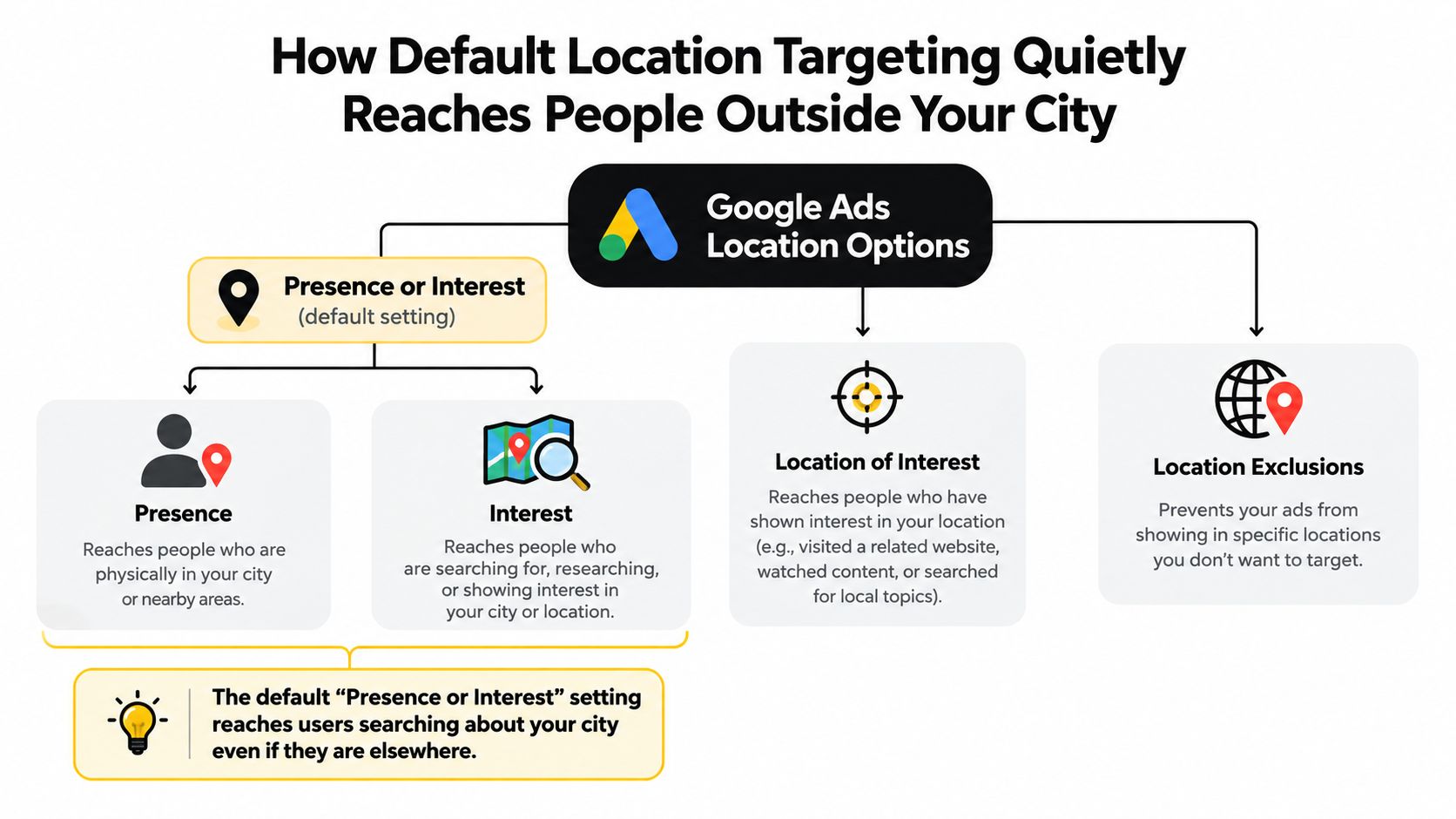
Google's key setting is the difference between Presence or Interest and Presence. Presence or Interest is the default positive targeting type, and it can reach people likely to be in, regularly in, or interested in a selected location. Presence is narrower, targeting people likely to be physically located or regularly present there. Google updated this behavior across Search, Shopping, Display, and Performance Max campaigns on April 14, 2023. Google's location-targeting documentation explains the distinction.
The same confusion appears outside advertising. Someone researching a move may search cities they don't currently live in, while location systems interpret that interest as a useful geographic signal. Resources such as quality-of-life guides for movers can help explain why search interest and physical residence often diverge.
The rest of the diagnosis comes down to evidence. Check the campaign option, inspect matched locations, review the search context, and compare the click with the lead's actual address. Don't blacklist a city until you know which side of the fork you're looking at.
How Default Location Targeting Quietly Reaches People Outside Your City
The setting responsible for many “wrong city” complaints is usually found inside the campaign's location options. Google Ads commonly starts with Presence or Interest, which allows an ad to reach people who may be physically in the location or who have shown interest in it.
That interest can come from a search term, a recent visit, or content viewed about the place. A person physically located in Manchester who searches for “plumbers in London” may qualify for an advertiser targeting London. The query signals interest in London, even though the searcher isn't currently there.
Find the setting before changing the target
Open the campaign, go to Campaign settings, then open Locations and expand the advanced location options. The wording and navigation can vary by campaign type, but you're looking for the option controlling whether Google uses presence, interest, or both.
If the business serves customers who must physically be in one city, select Presence, meaning people likely to be in or regularly in the selected location. This removes the interest-based eligibility that lets an out-of-area searcher qualify because they searched about your city.
That change won't make every city report perfectly clean. It addresses a genuine targeting problem, not every attribution error. Google's reporting can still assign a nearby user to a different recognized city, especially when the connection is routed through a carrier, company network, or other shared gateway.
For broader planning, geo targeting strategies for growth are useful when deciding whether your business needs city targeting, radius targeting, regional coverage, or a combination. The right choice depends on how customers travel and where the service can be delivered.
You can also review Keywordme's explanation of Google Ads presence versus interest location targeting if you want a focused comparison before editing multiple campaigns. The practical rule is simple: use Presence when physical location is a qualification requirement. Keep Presence or Interest when people outside the area may legitimately be researching, planning, booking, or moving there.
Why Google Often Does Not Know the User's True City
A location report can show a city that the person never entered. Switching to Presence does not turn Google Ads into a GPS verification system. Google estimates location through several signals, including IP address, Wi-Fi information, mobile-carrier proxy servers, GPS where available, device settings, and behavioral signals. Their reliability varies, and perfect accuracy is not guaranteed, as explained in Google's location-signal documentation.

The city label may describe the network, not the person
An IP address may identify a mobile-carrier gateway, corporate network, VPN, proxy, broadband provider, or centralized data center. Its registered location can sit several kilometers away, or point to a metropolitan area that differs from the user's actual position.
Wi-Fi introduces a similar limitation. Shared networks connect many devices to one recognized location, so a commuter, hotel guest, remote worker, or public-internet user may appear in the network's city rather than the city where they are standing.
City-level IP geolocation varies sharply between databases. An IEEE benchmarking study found that none of the examined databases exceeded 70% city-level accuracy, with some below 10%. A separate 2022 study reached 87% by combining geographic search-click data with conventional IP databases. An IEEE study of IP geolocation accuracy illustrates why combined signals can outperform one database while still producing wrong city labels.
A city in a report is a useful clue, not proof of physical presence.
Treat city-level attribution as directional evidence. Keywordme's guide to geo-targeting optimization offers further context for choosing location controls that reflect how a business serves customers.
The practical distinction is clear: targeting controls and measurement labels answer different questions. Presence can reduce interest-based eligibility. It cannot guarantee that every reported city matches the user's physical position. Use lead details, call conversations, and service addresses to decide whether a strange city reflects genuine out-of-area demand or ordinary geolocation noise.
A Practical Verification Routine You Can Run in Ten Minutes
Start with the campaign settings, not the city list. If the campaign still uses Presence or Interest, you've found a plausible configuration issue. Change the setting only after recording the original state and identifying whether other campaigns use different location rules.

Check the report's meaning
Open the campaign's Locations report and inspect the Matched locations view. Don't assume the displayed city is a confirmed physical location. Google states that the matched location may represent the user's physical location or a location they showed interest in through searches or viewed content. Google also documents cases where it can't determine a location at all. The matched-locations documentation explains why a city row needs context.
Look for clues in the search terms report:
- Search context: Did the query name your city, or was it a generic service query?
- Lead evidence: Does the form submission contain a service address or postcode?
- Call evidence: Did the caller mention the target city, a suburb, or a different region?
- Campaign overlap: Could another campaign with broader locations have received the interaction?
The Ad Preview and Diagnosis tool is useful for controlled checks. Select the relevant campaign, enter a known city or postal code, choose the device and language, and review whether the ad is eligible. This tests delivery eligibility under a chosen location. It does not prove that every live user will be classified the same way.
Use this walkthrough as a visual reminder of the checks involved:
Finally, compare the suspicious click with your CRM record, call-tracking data, form fields, and landing-page behavior. A city is probably a genuine targeting concern when several leads from that location fail qualification. It's more likely measurement noise when the reported city looks wrong but the customer's confirmed address falls inside your service area.
Concrete Fixes You Can Apply Today
Apply changes in order of confidence. The highest-impact adjustment for a city-restricted business is usually changing the campaign from Presence or Interest to Presence. That removes interest-based eligibility, which is the setting most likely to allow someone outside the city to qualify through their search behavior.
Next, review the geographic target itself. An entire metropolitan area may be wider than the actual service territory. A smaller radius around a verified business address can reduce exposure to ambiguous edges, although radius targeting still relies on Google's location estimates.
Google's documentation notes that a large accuracy radius can indicate IP-based geolocation. Carrier networks and shared Wi-Fi may associate many users with a gateway that sits several kilometers from the user. The geolocation error documentation is a useful reminder that tighter targeting reduces exposure, but doesn't create perfect boundaries.
Choose exclusions from validated evidence
Exclude an adjacent city or region when it repeatedly produces irrelevant clicks, poor-quality leads, or calls outside the service area. Don't exclude it because one report row looks unfamiliar. Compare the location with lead addresses, call notes, search terms, and conversion quality first.
If you need a practical walkthrough, use this guide to exclude cities from a Google Ads campaign. Keep exclusions narrow enough to protect legitimate suburbs and commuter areas.
| Symptom in report | Likely cause | First setting to change |
|---|---|---|
| People outside the city search for the city and qualify | Interest-based location eligibility | Change to Presence |
| Nearby users appear under a neighboring city | Network or IP estimation | Validate leads before excluding |
| One adjacent area spends without qualified leads | Genuine service-area mismatch | Add a targeted exclusion |
| Several campaigns show conflicting location data | Campaign overlap or different settings | Audit campaign locations together |
Review campaign overlap before making structural changes. A broad campaign, Performance Max campaign, or older duplicate may be responsible for the traffic you're attributing to the local campaign. Also check location exclusions separately. Google treats exclusions as a different control, and they don't automatically remove every form of location-interest traffic when the positive targeting option remains broad.
Keywordme can help with the adjacent search-term and negative-keyword work by cleaning irrelevant queries, building negative keyword lists, applying match types, and handling campaign expansion from search-term data. It won't replace location validation, but it can sit alongside the geographic audit when irrelevant queries are part of the waste.
Why Blanket Exclusions Usually Make Things Worse
An unfamiliar city in a report can trigger a quick reaction: select the row and exclude it. That feels decisive, but a location label is not proof that the visitor lives outside your service area.
An exclusion can block legitimate demand from a suburb, commuter town, or nearby area that Google grouped through a shared network. It may also leave the underlying problem untouched. Mobile traffic can later appear through another carrier gateway, while corporate users may be associated with a central office or VPN.
Exclusions are a separate control from positive location targeting. In Performance Max, a broad campaign can continue finding demand across its available inventory, so an exclusion list should reflect a confirmed business boundary rather than every unexpected report label. Google's guidance on location exclusions is useful when checking how those settings apply to the campaign type.
Use a decision threshold, not a panic list
Before excluding a city, look for evidence from more than one source:
- The lead record: Is the customer's address outside the service territory?
- The call: Did the caller confirm they are outside the area?
- The query: Does the search show interest in your city, or in another service location?
- The pattern: Does the issue recur across qualified interactions, rather than appearing only in impressions?
If the report alone names a strange city, leave the location unchanged and monitor qualified activity. If leads and calls repeatedly confirm that the traffic falls outside your service area, an exclusion is a defensible business decision.
Don't optimize the map label. Optimize the qualified customer.
This process protects legitimate reach while addressing confirmed waste. It also gives clients or finance teams a clear record: targeting was checked, the matched location was interpreted, and exclusions followed customer evidence rather than a single noisy row.
A Troubleshooting Checklist for the Next Time It Happens
Save this checklist with your account audit template. It's designed to stop a single city row from triggering a rushed exclusion.
- Confirm the targeting type. Check whether the campaign uses Presence or Interest or Presence only.
- Review matched locations. Treat each city as a geographic match or interest signal, not guaranteed physical proof.
- Inspect search terms. Look for city names, travel intent, service-area wording, and clearly irrelevant locations.
- Run Ad Preview and Diagnosis. Test from a known city or postal code without treating the preview as a live-user guarantee.
- Validate the interaction. Compare the CRM address, form details, call recording, and conversion status.
- Classify the problem. Decide whether you're seeing a targeting miss or a measurement artifact.
- Choose the smallest effective change. Switch to Presence, tighten the radius, or add a validated exclusion.
- Document the evidence. Save the campaign setting, report view, search term, lead location, and date before escalating.

Escalate when the campaign continues producing clearly unqualified traffic after the settings are correct, or when substantial spend repeatedly comes from locations that fail lead validation. Give Google Ads support specific examples rather than a general complaint: campaign name, location option, matched-location row, search term, click date, and confirmed customer address.
The answer to why are my ads showing in the wrong city is rarely one mysterious bug. It's usually a setting that permits location interest, a report that reflects inferred geography, or both. Diagnose the mechanism first, then change the lever that matches the evidence.
Keywordme helps PPC teams clean irrelevant search terms, build negative keyword lists, apply match types, and expand campaigns from real search-term data while they validate geographic performance. Visit Keywordme to see how it can fit into your Google Ads optimization workflow.
.svg)