
How to Exclude Cities from a Google Ads Campaign
How to Exclude Cities from a Google Ads Campaign


You've excluded the cities where your business doesn't operate, yet the campaign still attracts clicks from outside the service area. That usually isn't a failed exclusion. It's a location-setting problem, an ambiguous geographic match, or an exclusion list that has grown without proper quality control.
Learning how to exclude cities from a Google Ads campaign takes more than adding names to a list. You need to select the correct geographic entity, understand Google's location behavior, manage scale safely, and check whether your exclusions are blocking waste without removing valuable nearby demand.
Excluding a Single City in the Google Ads Interface
Google Ads lets you target a broad area, such as a country or state, and exclude a specific city within it. That's useful when a service area covers most of a region but not every municipality.

Follow the exact click path
- Open Campaigns in Google Ads and select the campaign you want to edit.
- Open Settings.
- Expand Locations.
- Search for the city you want to block.
- Review the suggested geographic locations.
- Select the correct city and choose Exclude.
- Save the change.
This is the standard interface workflow described in Google's location targeting documentation. The important detail is the geographic entity you select, not the text you type into the search field.
A city name can exist in multiple states or countries. Search with enough context to identify the correct result, then inspect the hierarchy shown by Google Ads. If you mean one city, don't select a state, region, or country with a similar name. An accidental state exclusion can remove eligible customers far beyond the area you intended to block.
Practical rule: Treat every location suggestion as a separate geographic object. Confirm the country, state, and city hierarchy before saving.
Check the relationship between targets and exclusions
Suppose a campaign targets an entire country and excludes one city. That structure is straightforward. A more complicated setup might target a state, exclude one city, and separately include a neighborhood or nearby service area. Review those relationships carefully before publishing.
Google notes that geographic targeting doesn't define legal or administrative borders with perfect precision. Review the matched location before applying the exclusion, especially when the campaign serves customers near a city boundary. An exclusion may also interact with higher-level locations. If a state is excluded while a city inside that state is separately targeted, the city is excluded because it sits inside the blocked state.
For larger lists, Google allows advertisers to paste or type up to 1,000 locations at once, with locations entered one country at a time. That's useful for a controlled batch, but it doesn't remove the need to validate every location.
Fixing the Default Location Settings That Cause Bleed
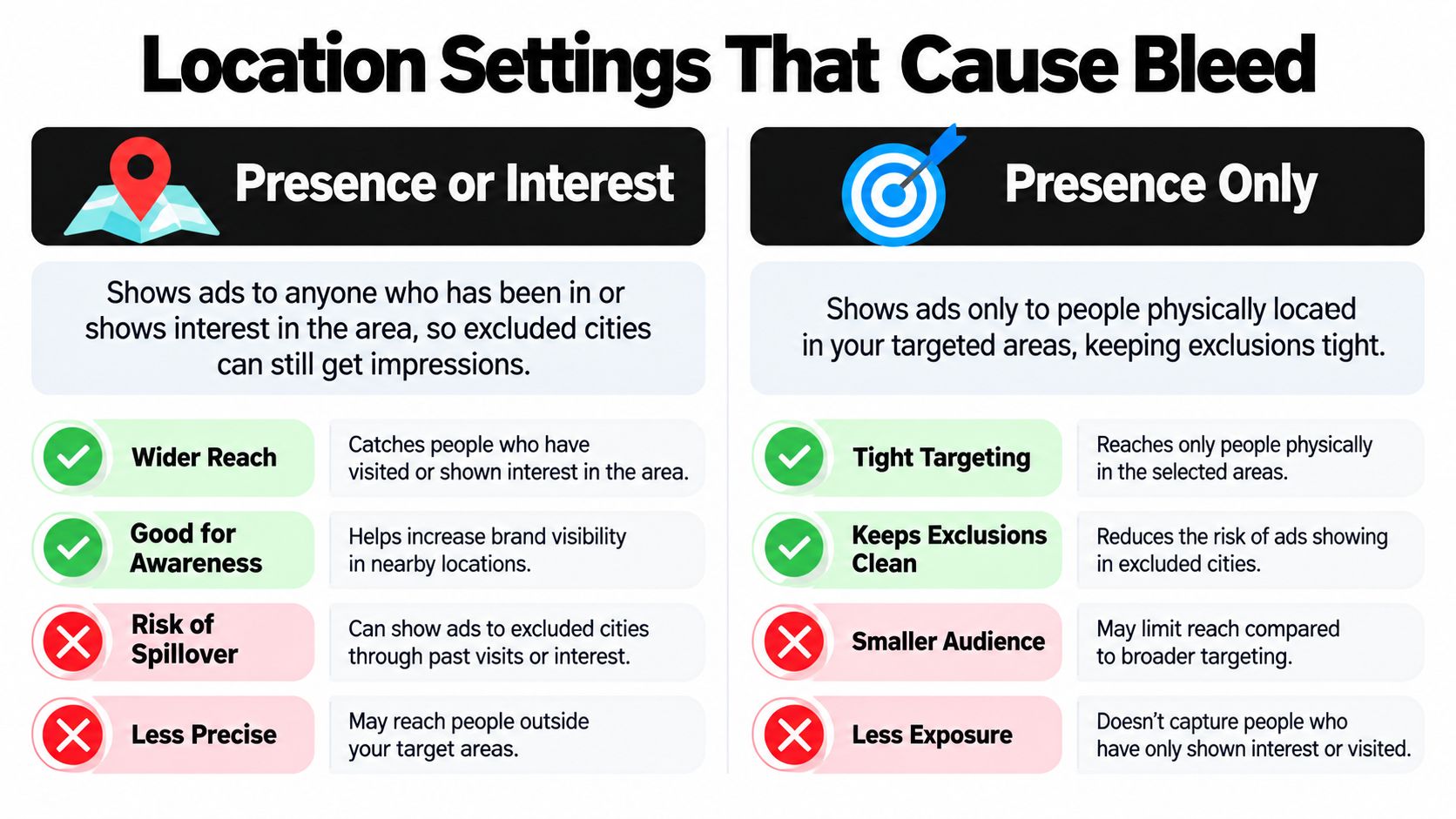
Adding a city to the excluded list doesn't automatically prevent every person associated with that city from seeing your ad. The setting that controls this behavior is Google Ads' advanced location option.
By default, Google Ads can consider both where a person is likely to be located and places they've shown interest in. Someone physically outside an excluded city may still qualify if their search behavior or other platform signals indicate interest in that city. Google documents this distinction in its guidance on advanced location options.
Choose the setting that matches the business model
For a national retailer, interest-based reach may be useful. People outside a city might be planning a move, researching a service, or preparing to visit. For a local business that can only serve people within a defined area, that behavior can produce irrelevant impressions and clicks.
Select the option that limits delivery to people located in or regularly located in the targeted areas, commonly shown as Presence. This is the tighter choice when you want the campaign to focus on people physically present in the service area rather than people merely interested in it.
Changing this option won't make Google's geographic identification perfect. Google uses multiple signals, including user settings, devices, and platform behavior, and states that location accuracy isn't guaranteed. Still, leaving the broader default in place can undermine the purpose of a city exclusion.
A useful setup check looks like this:
- Campaign scope: Confirm the included state, country, or region.
- Excluded entities: Check that each blocked city is the intended geographic result.
- Advanced location option: Select Presence when strict physical-location control matters.
- Boundary review: Inspect nearby cities and suburbs before saving.
- Reporting setup: Plan to review geographic performance after the change.
For broader campaign planning, building profitable Google Ads campaigns also requires matching targeting settings to the actual service model. A business that serves visitors may want a different structure from one that only accepts customers who are currently nearby.
Google Ads' location settings can be easy to overlook during an audit. Keep a record of the selected option alongside each campaign's service-area rules, and use this guide to optimizing Google Ads by location when you're reviewing location performance and campaign structure.
Managing Bulk Exclusions Across Multiple Campaigns
Manual editing works for one city. It becomes fragile when an agency manages separate campaigns for multiple services, territories, or clients. A reliable bulk process starts with a clean source list, not with repeated copy and paste inside the interface.
Build the exclusion file before opening Google Ads
Keep each location in a structured list with at least the country, state or region, city, and the reason for exclusion. The reason matters because an exclusion created for poor performance shouldn't be treated the same way as one created because the business can't serve that area.
Before import, clean the list:
- Normalize names: Use consistent spelling and formatting.
- Separate countries: Google requires bulk location entries to be entered one country at a time.
- Remove duplicates: The same city shouldn't appear repeatedly within a campaign.
- Resolve ambiguity: Add state or country context where city names repeat.
- Protect serviceable suburbs: Check whether a broad boundary would remove an area the business still serves.
Google supports pasting or typing up to 1,000 locations at one time. That's a practical threshold for controlled batches, but a large account may still need multiple imports. Split the work deliberately rather than pushing one unverified list into a campaign.
Apply, review, and document each batch
Start with a small sample from the final list. Search for every location, verify the result, and check the campaign's excluded locations after saving. If the sample looks correct, process the remaining locations in manageable groups.
Campaign-level structure matters. Two campaigns serving different products may need different exclusion lists even when they share a market. Copying one universal list across every campaign can create gaps, especially when one service has a wider delivery area than another.
For teams that work in Google Ads Editor, this walkthrough on using Google Ads Editor for bulk changes can help organize edits before they reach the live account. Agencies that need broader operational support can also see how Leaping Lemur Media helps with campaign management workflows.
Maintain a change log with the campaign name, location, date, reason, and reviewer. That record makes rollback easier and prevents a recurring problem: nobody knows why a city was excluded, so nobody feels safe removing it.
Automating Exclusions With Scripts and the API
At enterprise scale, the main risk isn't the first exclusion. It's inconsistency. One campaign gets updated, another is missed, and a third receives the wrong city because an automation process matched text instead of a specific geographic entity.
Google Ads Scripts supports programmatic city exclusion through excludeLocation(locationId), allowing teams to repeat the action across account portfolios and keep an audit trail. Google documents this approach in its guidance on automating location exclusions with Google Ads Scripts.
Use location IDs, not city names alone
Text matching is dangerous because identical city names can exist across countries and states. A script that searches for “Springfield” without validating its country and region can apply the exclusion to the wrong place.
A safer workflow looks like this:
- Import the approved city list into a controlled source.
- Resolve each city to a stable Google location ID.
- Validate the country and regional hierarchy.
- Deduplicate the resolved IDs.
- Test the script against a limited campaign set.
- Apply exclusions only after the validation output is reviewed.
- Write every change to a log.
The same principle applies when using the Google Ads API. Represent excluded geographic targets as negative location criteria, then maintain the relationship between campaign ID and location ID in your internal data.
Automation should also check for unintended removals. A script that only adds exclusions may be safe initially, but service areas change. Build a comparison between the approved list and the live campaign configuration so the team can identify additions, removals, and mismatches before publishing.
A scalable exclusion system needs two controls: reliable identifiers and a human review step before deployment.
For agencies building repeatable PPC operations, Sup Growth for agencies offers context on structuring service delivery as account volume grows. And when the same operational discipline is applied to search-term cleanup, this guide to using scripts for negative keywords provides a related workflow.
Avoiding the Hidden Limits and Over-Blocking Traps
More exclusions don't automatically mean better performance. A city may look weak in a short reporting window but still contain valuable customers, while an exclusion at a broad geographic level can remove profitable suburbs along with the unwanted area.
Google Ads imposes a campaign-level limit of 10,500 location targets, including included and excluded locations. Within that total, up to 10,000 may be individual location targets and up to 500 may be proximity targets, as described in Google's location target limits.
Balance waste reduction against market coverage
Count both sides of the campaign. Included cities consume the same overall location-target capacity as excluded cities, so a nationwide campaign with a long exclusion list can approach the limit faster than expected.
Use performance data to decide whether an exclusion is justified. Look for repeated evidence across an appropriate reporting window, then compare clicks, conversions, lead quality, and actual serviceability. A low conversion count alone doesn't prove a city should be blocked, especially when the location has limited volume.
A practical decision table helps:
| Situation | Better response |
|---|---|
| The city is outside the service area | Exclude the city or relevant higher-level location |
| The city is serviceable but underperforming | Review bids, messaging, landing pages, and search intent first |
| Nearby suburbs are profitable | Avoid broad exclusions that remove the surrounding area |
| Many cities need ongoing updates | Use validated bulk or scripted management |
| The campaign is approaching the location limit | Simplify the structure before adding more exclusions |
Exclude locations because the business can't serve them or because consistent evidence supports the decision, not because a single report looks disappointing.
Verifying Your Exclusions Are Actually Working
A saved exclusion is a configuration change, not proof of delivery control. I audit the result in layers because each report answers a different question: where Google believes the user was, which location triggered the ad, and whether the traffic is commercially useful.

Run a practical QA sequence
Start with the campaign settings. Confirm that the intended city appears under exclusions, the included locations are still correct, and the advanced location option matches the business requirement. If the campaign serves a restricted area, verify the Presence setting before drawing conclusions from the data.
Then inspect geographic performance:
- User location: Look for traffic from excluded cities or unexpected regions.
- Matched location: Check which targeted location was associated with ad delivery.
- Adjacent areas: Review nearby suburbs separately, because they may be legitimate service territory.
- Unknown locations: Monitor them as their own category rather than folding them into an assumption.
- Search terms: Look for city names and location modifiers that reveal unwanted intent.
Google states that location targeting uses multiple signals and doesn't guarantee complete geographic accuracy. That means QA should identify patterns rather than promise perfect isolation. A small amount of edge-case traffic deserves investigation, while a repeated concentration from an excluded area points to a configuration or account-structure problem.
Connect location checks with search-term cleanup
Location exclusions and negative keywords solve different problems. An exclusion controls geographic eligibility. A negative keyword can prevent queries that mention an irrelevant city, competitor market, or service area the business doesn't support.
Use Keywordme once in this workflow to organize junk search terms, build negative keyword lists, apply match types, and handle bulk keyword changes from real query data. The tool is useful alongside geographic reporting, not as a substitute for checking campaign location settings.
Finish each audit with a written outcome: keep the exclusion, narrow it, remove it, or investigate further. That simple record prevents teams from making the same geographic change repeatedly without learning whether it helped.
If city exclusions are costing you profitable traffic or failing to stop irrelevant clicks, Keywordme helps organize the search-term and negative-keyword work that supports cleaner Google Ads campaigns. Visit Keywordme to streamline bulk PPC cleanup and make your next location audit easier to verify.
.svg)