
Master Negative Keywords Google Ads in 2026
Master Negative Keywords Google Ads in 2026


Let's be honest for a second—you're probably burning money on Google Ads. It happens to the best of us. The most common culprit? Paying for clicks from people who are searching for something you don't even sell. That's where negative keywords in Google Ads come in. Think of them as a bouncer for your ad campaigns, turning away the wrong traffic and protecting your budget.
Why Negative Keywords Are Your Secret Weapon In Google Ads
Here’s a simple way to look at it: if you sell brand-new running shoes, you definitely don't want to pay for a click from someone searching for 'used running shoe repair'. Negative keywords are what stop that from happening. They are hands-down the most powerful tool you have for plugging budget leaks, letting you tell Google exactly which search terms you don't want your ads showing up for.
Getting a handle on this is an absolute must if you want to seriously optimize PPC campaigns and see a real return on your ad spend. Without them, you’re just letting your budget drip away on irrelevant clicks, one search at a time. If you want to go a bit deeper on this, check out our guide on why negative keywords are important.
Having a clean dashboard where you can see everything clearly makes managing these terms a whole lot easier.
An organized view like this helps you quickly spot and add negative keywords, which is key to keeping your campaigns sharp and focused.
The Direct Impact On Your Wallet
Adding negative keywords isn't just about cleaning house; it's about making your ads more profitable. When you filter out all that unqualified traffic, you directly boost your campaign's performance in a few huge ways:
- Improved Ad Relevance: Your ads start showing up only for people who are actually looking for what you sell. This makes your ads way more relevant to what they're searching for.
- Higher Click-Through Rates (CTR): When your ads are more relevant, a higher percentage of the people who see them will actually click on them. Simple as that.
- Better Return On Investment (ROI): You stop wasting money on clicks that were never going to convert anyway. This means every dollar you spend has a much better shot at turning into a sale.
Here's the bottom line: Negative keywords aren't just a "nice-to-have." They've been proven to slash wasted ad spend by up to 25% just by making sure your ads match what the user is looking for. That makes the clicks you do pay for 4x more likely to convert.
If you're using a tool like Keywordme, this whole process becomes a lot simpler. You can build out bulk negative keyword lists from junk terms, assign the right match types, and push them to your campaigns in a few clicks. It's a lifesaver whether you're a freelancer juggling a few small accounts or an agency trying to scale bigger operations. You can learn more about how this all works by exploring the negative keyword impact on BrightBid.com.
Understanding The Three Negative Keyword Match Types
Alright, let's get one thing straight about negative keywords in Google Ads: they aren't all the same. Far from it. Picking the wrong match type can be just as damaging to your budget as using no negatives at all. It's like trying to do delicate surgery with a sledgehammer—you’ll just make a bigger mess.
The real skill is knowing which tool to grab for which job. This isn't about memorizing dry definitions; it's about building an intuition for how each match type behaves in the wild. This is your playbook for taking back control and plugging the holes in your ad spend.
Think about it this way: every time someone clicks your ad for the wrong reason, it's a little leak in your budget. Get enough of those leaks, and your whole campaign sinks. Negative keywords are what you use to patch those holes.
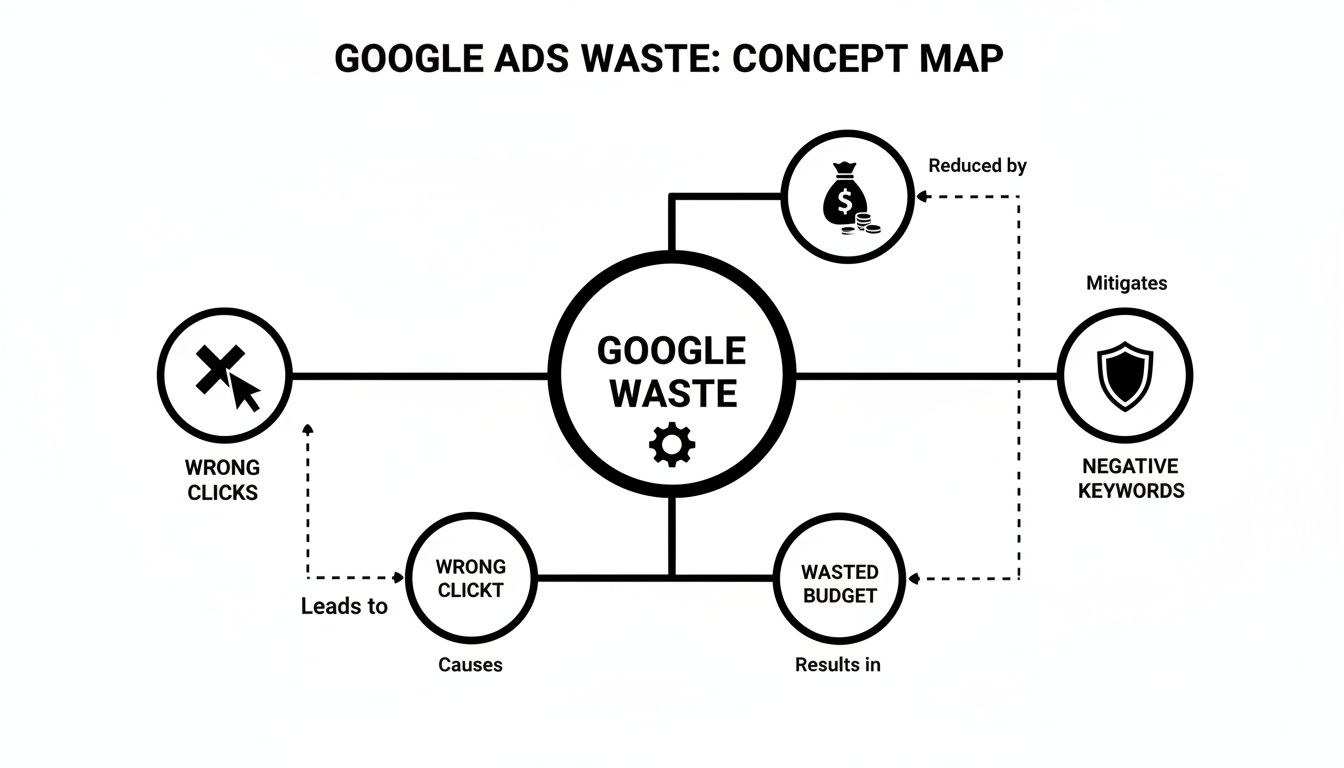
The more irrelevant clicks you get, the faster that budget drains. Your negative keyword strategy is the most powerful shield you have against this kind of waste.
Negative Broad Match
First up is negative broad match, which is your widest-reaching option. When you add a negative broad match keyword, say -running shoes, you're telling Google to block your ad if a search includes both of those words. The order doesn't matter, and other words can be mixed in.
But here’s the catch: it's a bit of a blunt instrument. If the search only contains "shoes" but not "running," your ad might still slip through. It's powerful for casting a wide net, but you have to be careful you're not blocking good traffic or letting bad traffic sneak by.
For example: Imagine you sell fancy leather loafers and want to avoid athletic queries. You add
-running shoesas a negative broad match.
- Search that gets blocked: "best shoes for running"
- Search that still shows: "best running socks" (This is because the word 'shoes' is missing from the search.)
Negative Phrase Match
This is where you get a bit more control. With negative phrase match, you wrap the term in quotes, like -"running shoes". This tells Google to block your ad only when that exact phrase appears in the search, in that specific order.
This is my go-to for filtering out entire concepts without accidentally killing off valuable, related searches. Other words can come before or after the phrase, but the core "running shoes" part has to be there, together, for the ad to be blocked.
For a really deep dive on how this works in practice, check out our complete guide on negative keyword match types. It breaks down all the nuances.
Negative Exact Match
Finally, you have negative exact match, your surgical tool. When you put a term in brackets, like -[running shoes], you block your ad only when the search query is a perfect match for those words and nothing else.
This is for when you're absolutely certain a specific search is worthless, but you don't want to touch any of its variations. It offers pinpoint accuracy.
For example: You sell every kind of athletic shoe except for the basic, generic "running shoes."
- Search that gets blocked: "running shoes"
- Search that still shows: "blue running shoes" (because it includes an extra word and isn't an exact match).
To make this crystal clear, here’s a simple table showing how each match type would treat the same set of searches.
Negative Match Types Explained
| Search Query | Negative Broad: -running shoes | Negative Phrase: -"running shoes" | Negative Exact: -[running shoes] |
|---|---|---|---|
| running shoes | Blocked | Blocked | Blocked |
| shoes for running | Blocked | Shows | Shows |
| best running shoes | Blocked | Blocked | Shows |
| running gear | Shows | Shows | Shows |
See the difference? Broad match is aggressive, exact match is super specific, and phrase match sits comfortably in the middle. Mastering these three tools is the first real step toward running smarter, more profitable campaigns.
How To Find And Organize Your Negative Keywords
Alright, so where do you actually find these terms that are secretly eating your budget? The good news is they aren't buried in some obscure report. They’re hiding in plain sight.
Your number one source, and frankly the only place you need to start, is your Google Ads Search Terms Report.
This report shows you the exact search queries people typed into Google right before they clicked on your ad. It’s a direct window into your customers' minds, revealing what’s working and, more importantly, what’s draining your wallet. Your job is to dive into this raw data and spot any search term that has zero relevance to what you’re actually selling.
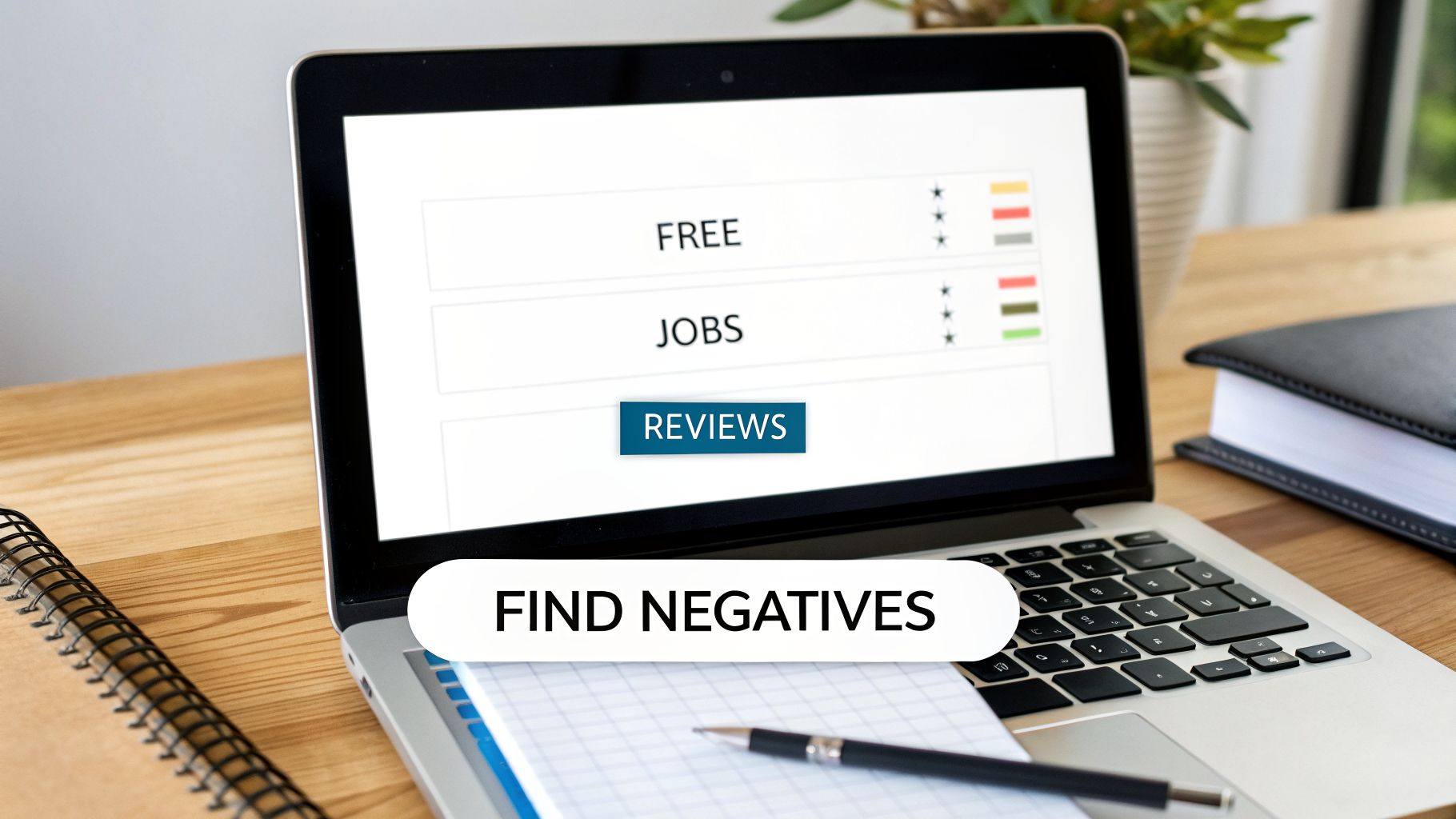
This is where the real work—and the real savings—begin.
Mining The Search Terms Report
Opening the Search Terms Report for the first time can feel like looking at a wall of text. It's easy to get overwhelmed. Don't be. You’re simply looking for patterns and outliers. Scan the list for queries that make you go, "Wait, we don't sell that," or "That's definitely not our ideal customer."
Some of the most common offenders you’ll find are related to:
- Information Seeking: Think terms like "how to," "reviews," "free," or "what is." These people are researching, not buying.
- Employment: If your report is full of searches with "jobs," "careers," or "salary," you’re paying for job seekers, not customers.
- DIY or Repair: Words like "fix," "DIY," or "instructions" are red flags if you only sell brand-new products.
- Competitor Brands: Unless you’re running a specific competitor conquesting campaign, you probably don’t want to pay for clicks from people who are explicitly looking for another company.
Think of yourself as a detective dusting for fingerprints. Each irrelevant search term is a clue pointing to a leak in your budget. The more clues you uncover, the more money you plug back into your campaigns.
A common mistake is only focusing on the terms with high clicks or costs. Don't ignore the low-impression queries. Catching these "small" leaks early prevents them from becoming major budget drains down the road.
This process has gotten even more powerful recently. For instance, Google's June 2024 misspelling block update means a single negative keyword now automatically blocks its close variants and misspellings, which is a huge help for simplifying management. The impact is staggering: data shows adding intent-based negatives can boost ROAS by over 200% in just 60 days. We've seen campaigns where CPCs dropped by 55% while clicks skyrocketed 522%.
Considering that wasted spend can easily hit 25% without a solid negative keyword strategy, this isn't just a "best practice"—it's essential for survival. You can learn more about how to adapt your strategy for Google's latest algorithm updates on Negator.io.
Smart Ways To Organize Your Lists
Once you start finding negative keywords, your next thought will be, "Where do I put all these?" Just dumping them into one giant, messy list is a recipe for chaos. A little organization here will save you a ton of headaches later.
You really have two main ways to structure your lists:
Campaign-Level or Ad Group-Level Negatives: Use these for terms that are only irrelevant to a specific part of your account. For example, if you have a campaign for "men's dress shoes," you'd add "sneakers" as a negative there. This stops you from blocking the word "sneakers" in a different campaign where you're actually selling athletic shoes.
Shared Negative Keyword Lists: This is your account's master "do not show" list. It’s for universal negatives—the terms you never want to show up for, no matter the campaign. Think "free," "jobs," "torrent," or "pictures." You build this list once under "Tools & Settings" and then apply it across multiple campaigns. It's an incredibly efficient way to keep your entire account clean.
This is exactly where a tool like Keywordme becomes a game-changer. Instead of the old, tedious routine of exporting reports, sorting in spreadsheets, and manually uploading lists back into Google Ads, you can do it all in one place. It lets you analyze your Search Terms Report and add negatives to the right lists in just a few clicks, turning hours of mind-numbing work into a quick, simple task.
PMax and Account-Level Negatives: The New Rules of the Game
Let's be real—for a while there, running a Performance Max campaign felt like tossing your car keys to a robot and just hoping it didn't drive off a cliff. PMax offered incredible automation, but the trade-off was a serious lack of control that made most experienced advertisers nervous.
Thankfully, Google has started to pull back the curtain on these automated campaigns. The black box is becoming more of a tinted window, especially when it comes to blocking junk traffic with negative keywords.
The PMax Negative Keyword Limit Just Exploded
The biggest news came in March 2025, and it was a genuine game-changer. Before this, you were hamstrung by a ridiculous limit of only 100 negative keywords per PMax campaign. It was barely enough to plug the most obvious leaks, let alone implement a real strategy.
Then, Google threw us a lifeline. They blew that cap up from a tiny 100 to a massive 10,000 per campaign. That's a 100x increase, and it completely changes how we can protect our PMax budgets. This is especially huge for anyone trying to shield their Shopping and Search inventory from irrelevant searches within PMax. You can read more about this PMax update and what it means for your strategy on groas.ai.
This update means you can finally stop being so cautious. You can now apply your comprehensive, account-wide negative lists directly to PMax, giving you a proper defense against wasted ad spend.
Putting It All Together: Account-Level and Shared Lists
While the PMax update is fantastic, it's just one piece of the puzzle. You still have to think about your entire account structure and the other tools at your disposal.
Here’s a quick rundown of your other layers of defense as of 2026:
- Account-Level Negatives: Your whole account can have a list of up to 1,000 negative keywords. Think of this as your "never-ever" list. It’s perfect for universal terms you know you never want to show up for, like "free," "jobs," "how to," or "pictures of."
- Shared Negative Keyword Lists: These are the custom lists you build under "Tools & Settings." Their real power is in their flexibility. You can create different lists for different needs—like a "Competitors" list to block brand-vs-brand searches or a "Low-Intent Terms" list—and apply them to specific campaigns.
The best approach now is to layer these tools. Start with your account-level list for the absolute, no-brainer exclusions. Then, use the newly expanded PMax limit to apply your more detailed, curated shared lists to those automated campaigns.
It’s no longer a guessing game. It’s about building a smart, layered defense that gives you broad protection and targeted control, letting you run PMax with confidence.
Common Mistakes That Cost Advertisers A Fortune
Knowing how to use negative keywords is a great start. But honestly, it's knowing what not to do that separates the profitable accounts from the ones that are constantly leaking money.
Getting just one of these wrong can sabotage all your hard work, either by burning through your budget on junk clicks or by accidentally cutting off your best customers. Think of this as your personal audit checklist—a way to spot the quiet leaks draining your PPC budget.

Let's walk through the most common—and costly—blunders people make with their negative keywords in Google Ads.
Mistake 1: The "Set It And Forget It" Error
This one is huge. So many advertisers treat negative keywords like a one-and-done task. They'll build a list when they launch a campaign and then never look at it again. That's a surefire recipe for a failing account.
The way real people search is always changing. New slang, different phrasing, and totally random irrelevant terms will pop up in your Search Terms Report every single week. Not checking in on that report is like leaving the back door of your shop wide open overnight. You’re just asking for trouble.
You don't need to spend hours on it. Just a quick, 15-minute review each week is usually enough to spot the new, wasteful search terms before they've had a chance to burn through hundreds of dollars.
Mistake 2: Being Too Aggressive With Broad Match
Using a negative broad match keyword feels powerful, but it’s a sledgehammer when you often need a scalpel. Let’s say you sell hiking boots. Adding -shoes as a negative broad match might seem logical at first glance. But you just blocked tons of high-intent searches like “waterproof trail shoes” or “best shoes for trekking.”
A single, overly aggressive negative broad match can accidentally vaporize a huge chunk of your qualified traffic.
Before you add one, stop and ask yourself: "Is there any scenario where my ideal customer might include this word in their search?" If the answer is even a maybe, you're much safer using a more precise negative phrase or exact match.
Cautionary Tale: I once saw a company selling high-end "digital pianos" add
-keyboardsas a broad match negative. Their goal was to avoid searches for computer keyboards. What actually happened? They blocked every search containing the word "keyboards," including "88-key digital piano keyboards" and "weighted keyboards for professional players," killing a massive portion of their best traffic overnight.
Mistake 3: Forgetting About Keyword Conflicts
This mistake is sneaky, but it can be incredibly destructive. A keyword conflict is when a negative keyword you’ve added directly blocks a positive keyword you’re actively paying for. You're literally telling Google to bid on a term while simultaneously telling it not to show your ad for that exact same term.
It sounds silly, but it happens all the time, especially in large accounts with multiple managers or when using shared negative lists across campaigns. For instance, adding "running shoes" as a negative phrase match to an ad group where you're bidding on the keyword [blue running shoes] will prevent that ad from ever showing up.
Always use Google's built-in "Negative Keyword Conflict" script or just do a quick manual check before applying new negatives. This one simple step can save you the headache of figuring out why your best keywords suddenly flatlined.
How To Automate Your Workflow With Keywordme
If all that talk about manually sifting through search term reports made your head spin, don't worry. It’s a tedious job, and frankly, one of the biggest time-sucks for any PPC manager. It’s an absolute grind, but it really doesn't have to be.
This is where you can ditch the spreadsheets and start working smarter. Instead of burning hours on manual data entry, you can lean on a tool that does all the heavy lifting for you.
Turn Hours of Work Into a Single Click
Imagine this: you open a messy, overwhelming Search Terms Report. Instead of groaning, you click a button and, bam, it’s all cleaned up and organized into perfect negative keyword lists. That's not a fantasy; it's what automation does.
A tool like the Keywordme Chrome plugin completely changes how you handle this task. It plugs right into your Google Ads account, letting you process thousands of search terms instantly without ever having to leave the page.
Here’s a quick look at how it works:
- Spot the Junk Instantly: The tool helps you quickly find and select all the irrelevant search queries that are torching your budget.
- Apply Match Types on the Fly: You can assign broad, phrase, or exact match types to your new negatives in bulk, giving you total control.
- Add to Lists Seamlessly: Push your new negatives straight to your campaign or shared lists. No more copying and pasting.
This isn't just about moving faster—it's about getting a level of accuracy and consistency that’s nearly impossible to hit by hand, especially when you’re managing multiple accounts.
You can literally turn a full day's work into a task that takes less than five minutes. That frees you up to focus on actual strategy and growth instead of getting bogged down in the weeds.
It's About More Than Just Saving Time
Automating your negative keyword workflow is about building a much stronger defense for your ad spend. When the process is this easy, you're way more likely to do it consistently. And consistency is the real secret to long-term success.
It also eliminates the small (but costly) human errors, like adding a term to the wrong list or forgetting a match type. If you're curious about what's out there, you can explore some of the different automated negative keyword tools available.
By taking the manual labor out of the equation, you can finally manage your negative keywords in Google Ads proactively, not just reactively.
Alright, let's tackle some of the common questions that always pop up when you're wrestling with negative keywords. We'll clear up the confusion so you can get back to managing your campaigns like a pro.
How Often Should I Update My Negative Keywords?
This is a great question, and the answer really depends on the age of your campaign.
When you first launch a campaign, I'm in that search terms report daily for at least the first week. You'll be amazed at the weird and wonderful (and totally irrelevant) searches that can trigger your ads. Once things settle down, you can shift to a weekly review.
For mature, stable campaigns, a bi-weekly or even monthly check-in is usually enough to catch any new, weird search trends and stop budget leaks before they get serious. The real key here is just staying consistent.
Can A Negative Keyword Block My Positive Keywords?
Yes, absolutely. This is called a keyword conflict, and it’s a classic rookie mistake that even pros make from time to time if they're not careful.
If you add a negative keyword that’s too broad—or happens to contain one of your targeted keywords—Google will follow your instructions and block your ad from showing. Always double-check for conflicts before you hit "save," especially when you're working with broad match negatives.
Where Do I Add Negative Keywords In Google Ads?
You have a few places you can add negatives, and choosing the right one is all about how specific you need to be.
- Ad Group Level: This is your scalpel. Use it for super-specific negatives that only apply to one particular ad group and not the rest of the campaign.
- Campaign Level: This is for broader terms that are a bad fit for an entire campaign. Think of terms that are related, but not what you sell.
- Shared Lists: This is your secret weapon for efficiency. Head to 'Tools & Settings' to create lists of universal negatives (like 'free,' 'jobs,' 'DIY,' 'hiring') and apply them to multiple campaigns at once. It saves a ton of time.
Tired of spending hours buried in spreadsheets just to manage your negatives? That's exactly why we built Keywordme. It turns all that tedious work into a simple, one-click process.
See how much time and money you can get back. Start your free trial at https://www.keywordme.io and see for yourself.
.svg)