
How to Set a Weekly Budget in Local Services Ads (2026)
How to Set a Weekly Budget in Local Services Ads (2026)


You're staring at a single empty field in your Local Services dashboard, credit card live, and Google's asking for a weekly budget like that's a number you just carry around. It isn't. Most owners think in months, most crews think in jobs per week, and neither number translates cleanly. Guess too low and you're invisible. Guess too high and your ad burns through its allowance, then goes quiet when you still need work. Learning how to set a weekly budget in Local Services Ads starts with understanding what that field controls.
Turning a Monthly Allowance Into a Weekly Number
Start with the month, because that's how rent, payroll, and your marketing allowance already work. The formula runs like this: Weekly budget = monthly allowance × 7 ÷ 30.4. That 30.4 is the average number of days in a month, and it's the same figure Google uses in reverse to work out your monthly maximum, which is weekly budget × 30.4 ÷ 7. Google treats the weekly figure as a lead-volume target rather than a rigid cap under its budget rules, so the monthly maximum is the number that protects you.
The $2,000 Example
Take a business that can afford $2,000 a month for Local Services Ads. Run it through the formula and you get roughly $460.50, so you'd enter $460 a week. That setting produces a monthly maximum of about $1,998, a hair under the allowance. That's the kind of hair you want to be under.
Round down, not up. Rounding up feels harmless in the moment. It isn't, because that small weekly bump gets multiplied across the whole month and adds exposure you never approved. Rounding down costs you almost nothing in lead volume and keeps the ceiling where you promised yourself, or your client, it would stay. If you're juggling LSAs alongside search campaigns, our guide to structuring Google Ads budgets alongside other spend covers how to keep the pools separate in your planning.
Quick Conversions Worth Memorizing
Two anchor points cover most small businesses. A $350 weekly budget creates a $1,520 monthly maximum, and a $700 weekly budget creates a $3,040 monthly maximum, both using that same formula. Notice these aren't four neat weekly payments. They're monthly ceilings wearing a weekly disguise.
| Monthly allowance | Weekly budget | Monthly maximum |
|---|---|---|
| $1,520 | $350 | $1,520 |
| $3,040 | $700 | $3,040 |
Practical rule: Pick the monthly figure first, convert it, then sanity check whether the weekly number buys enough leads to justify the spend.
That last check matters more than people admit. You're paying for valid leads, not clicks, and lead prices shift by location, job type, lead type, and bidding mode. A weekly number that looks tidy on paper can still be wrong if it doesn't match what leads cost in your market, or how many jobs you can physically run. The conversion gives you a safe ceiling. Lead economics tell you whether that ceiling is worth setting.
Working Backward From Cost Per Lead and Lead Goals
Weekly budget = cost per valid lead × target leads. That is the whole equation. The hard part is refusing to feed it hopeful numbers.
The weekly figure is the dial you touch. The monthly maximum it creates is the wall you hit. Solve for the wall first, then check whether the weekly input buys enough calls to matter.
Google recommends a minimum budget equivalent to 10 leads per week when using Maximize Leads bidding, so treat 10 as your floor unless capacity cannot absorb that many. At $40 per valid lead, that floor implies about $400 a week. At $75, roughly $750 for the same volume. Those are planning figures, not guaranteed charges, because lead prices and delivery move.
Where Your Cost Per Lead Should Come From
Pull it from your own dashboard history, not from a blog post, including this one. Filter by job type, because a drain cleaning lead and a water heater install rarely cost the same, and blending them gives you an average that describes neither job. Look for at least four weeks of data before you trust the number. Less than that and one weird week, a storm, a holiday, a competitor pausing their ads, can skew your whole budget.
Take a two-truck shop that can book six jobs a week. If it multiplies an optimistic lead price by an ambitious target and buys fifteen leads, the extra nine leads do not make it aggressive. They make it slower to call back, and responsiveness problems follow you around in this product. If you have never connected lead cost to booked margin, our guide to what a lead is actually worth to your business is the place to do that before you touch the budget.
The Math at Common Price Points
| Cost per valid lead | Weekly lead target | Weekly budget |
|---|---|---|
| $40 | 10 | $400 |
| $55 | 10 | $550 |
| $75 | 10 | $750 |
| $60 | 15 | $900 |
| $90 | 10 | $900 |
| $120 | 6 | $720 |
Notice the last row. A higher lead price with a lower target can still produce a sane budget, as long as those jobs carry the margin to justify it.
If the weekly budget is bigger than the margin you earn from the jobs you can actually book, lower the lead target. Don't just hope the lead price drops.
That discipline matters because the budget field does not spend in a vacuum. Bidding mode, lead categories, service area, and how leads are counted all change what your weekly input turns into once the monthly ceiling is in force. If the account gives you a per-lead cap, you trade some volume for cost control. If you run Maximize Leads, you are telling Google to chase volume inside that ceiling. Set the ceiling, choose the mode deliberately, then let the lead math decide whether the number earns its place.
How to Find and Set Your Weekly Budget
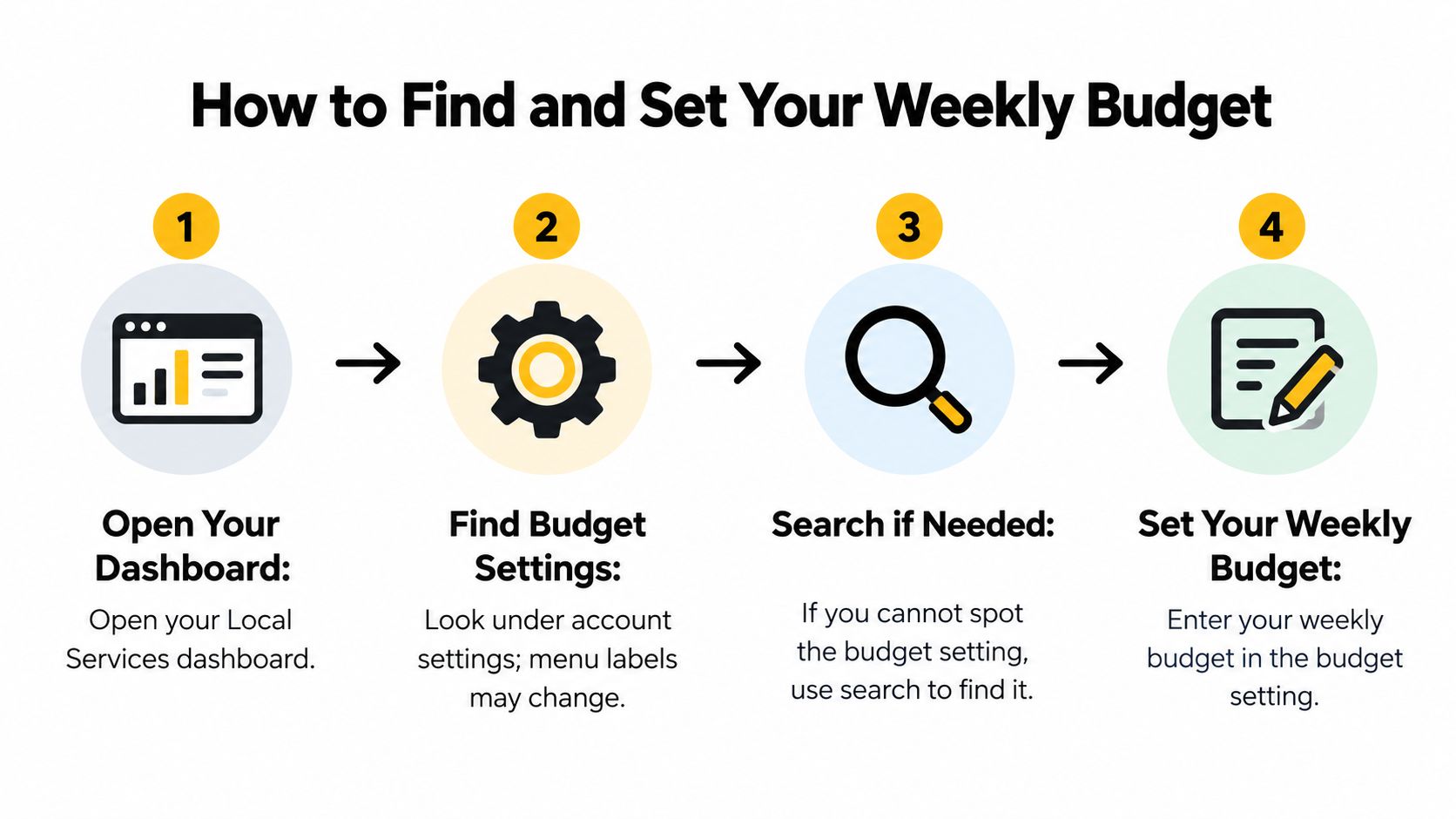
The weekly budget lives in your Local Services dashboard, usually under account settings. Google shuffles menu labels often enough that if you can't spot it, just search the dashboard for the word budget.
The infographic below maps the four core moves before you touch anything.
The Step by Step
- Sign in to the right account: Confirm you're in the correct business account first. Agencies juggling several clients have absolutely edited the wrong one.
- Open Settings: Find the budget section. If the label's moved since your last visit, the search trick above saves you the hunting.
- Click edit: It's usually beside the current weekly figure. Click it, don't just hover and assume the number shown is editable in place.
- Enter the new amount: Type your figure in whole dollars. Use the number you derived from your monthly allowance or your lead math, not a round guess.
- Check the monthly maximum: Read the ceiling shown alongside it, or work it out using the formula covered in the section above. If that monthly number makes you flinch, don't save yet.
- Save and log the change: Note the date and time. Sounds fussy, but a mid-month change recalculates what's left of the current month, and you'll want that timestamp later.
- Verify it stuck: Reload the dashboard the next day and confirm the new number is live. Don't assume the save worked.
What Done Looks Like
You should walk away with a saved weekly figure and a monthly ceiling you've consciously accepted, not just a number that felt reasonable in the moment. If you can't state both figures out loud without checking, you're not finished.
The short video below walks the dashboard so you can match what you're seeing to the steps.
One caution before you close the tab. That step where you check the monthly maximum is not optional decoration. Most budget surprises in LSAs trace back to someone skipping it, saving a weekly number that looked fine, and discovering the monthly consequence three weeks later when the ad stopped showing or the invoice landed bigger than expected. Thirty seconds of checking up front beats that particular phone call with a client every time.
Why the Weekly Number Is Not a Hard Ceiling
Four equal weekly payments is the mental model many advertisers bring to this setting, and it causes real confusion. Google defines the weekly budget as an average target, not a hard weekly spending ceiling, so a busy week can run above your figure while a slow week runs below it. The constraint with teeth is the monthly maximum the weekly number sets. Plenty of setup guides skip that link, which is why the weekly figure gets blamed when ads stop.

A Worked Example That Bites People
Say you are on $700 a week, which carries the $3,040 monthly maximum covered earlier. Demand runs hot during a cold snap, and by day 21 you have spent $2,300. That leaves $740 for the final nine days. You raise the weekly budget to $900 on day 21 expecting a fresh $900 of weekly coverage.
The change raises the ceiling instead. At $900 a week, the monthly maximum becomes about $3,909. Google still subtracts the same $2,300 already spent, leaving about $1,609 for the rest of the month. No fresh $900 arrives each week. Compared with staying at $700, the raise adds roughly $869 of room, enough to keep serving if demand holds, while also approving more total spend in a month already running hot.
| Day-21 position | Weekly setting | Spend to date | Monthly maximum | Room left |
|---|---|---|---|---|
| Before the change | $700 | $2,300 | $3,040 | $740 |
| After the change | $900 | $2,300 | about $3,909 | about $1,609 |
Build a Pacing Worksheet
Keep five columns: proposed weekly setting, resulting monthly maximum, spend to date, days left, and room left. Run it before every mid-month change, while there is still time to choose differently. If a raise only buys two extra days of coverage, the better move may be accepting the shutdown or tightening job types rather than feeding a ceiling you will hit anyway.
An ad that vanishes on day 26 usually isn't broken. It's hit the monthly ceiling.
Once the maximum is reached, the ad stops appearing for the rest of the month unless you change the budget. For seasonal or capacity-constrained businesses, that concentration of spend during strong demand is the key trade-off. Google spends when search demand is high, which is useful right up until the ceiling ends the month early.
Monitoring Changes and Checking Before You Raise the Budget
Pick one day a week and make it boring. Same day, same report, same five numbers. Pull spend, total leads, valid leads, cost per valid lead, and booked jobs, then compare against the last four weeks, not against yesterday. Yesterday lies to you constantly in this product. A slow Tuesday means nothing. Three soft weeks in a row mean something.
The Weekly Check Routine
- Pull the five numbers: Spend, total leads, valid leads, cost per valid lead, and booked jobs, every week on the same day.
- Compare against four weeks: Trend beats daily noise. You're looking for direction, not drama.
- Wait for agreement: Change the budget only when two or three weeks of data point the same way.
- Segment by job type: A blended cost per lead can hide one category getting expensive while another stays profitable.
That last point matters because a steady account average can mask a real problem. One job category can climb in price for weeks while another gets cheaper, and the blended figure sits there looking innocent. Split it out before you conclude the account is healthy.
Matching Symptoms to Fixes
Most dashboard problems look like budget problems and aren't. Use this table before you touch the number.
| Symptom | Likely cause | Fix |
|---|---|---|
| Spend stays well under budget for two or more weeks | Low demand, narrow service area or few job categories | Widen the areas or categories you can serve before adding money |
| One week spends far above budget | Demand surge, such as a storm or cold snap | Normal; judge it against the monthly total |
| Cost per valid lead keeps climbing | Local competition or a bidding mode mismatch | Compare by job type and review the bidding setting |
| Many leads marked invalid | Wrong job types or out-of-area requests | Dispute invalid leads and tighten job categories |
| Leads arrive but calls don't book | Slow response or pricing mismatch | Fix response time before touching the budget |
Add one more symptom from the section above to your mental list. An ad that disappears late in the month has likely hit its monthly ceiling, which is a pacing issue, not a demand issue. Different fix entirely.
On invalid leads specifically, don't just eat the irritation. Google doesn't charge for invalid or low-quality leads, but you still need to work the process. Our walkthrough on how to dispute a Local Services Ad lead properly covers what to submit and what to expect. Tightening job categories afterward stops the same junk arriving next week.
Four Checks Before Any Increase
- Confirm the new monthly maximum fits: The raised weekly figure creates a raised ceiling. Make sure your client, or your own cash flow, approved that ceiling and not just the weekly number.
- Compare recent lead costs: Put the last four weeks' cost per valid lead next to the figure your current budget was built on. If costs drifted up, the same budget buys fewer leads than you think.
- Confirm you can answer: Extra leads inside your response window are revenue. Extra leads sitting unreturned are money spent training homeowners to call your competitor.
- Log the change: Write down the date and the reason. When pacing looks strange in three weeks, that note explains it in ten seconds.
One structural reminder. LSA budgets live in their own dashboard and their own pool, separate from your regular search campaigns, even though both draw from the same overall marketing spend. Plan them side by side in your spreadsheet, but never assume a change in one touches the other.
Budgeting Habits That Work Across Client Accounts
Build one budget worksheet per client and stop keeping these numbers in your head. It needs five fields: monthly allowance, weekly figure, monthly maximum, target leads, and cost per valid lead. When something looks off in an account, you open one row instead of reconstructing your reasoning from three email threads.
Give the monthly maximum field the most attention. Clients fixate on the weekly number because it is the one Google asks for at setup, but the ceiling it creates is what decides when the phone goes quiet. Record that ceiling first and defend it hardest.
The checklist graphic below sums up the same six habits covered here.

Habits That Save Headaches
- Ask for the monthly allowance first: The lead count the client would love comes later. Desire isn't a budget, and starting there produces a number nobody can fund.
- Hold a buffer: I reserve roughly 10 percent of the monthly allowance as surge room for a storm spike or a holiday push. Treat that as a starting point you adjust per account, since a storm-season roofer needs more headroom than a locksmith with steady call volume.
- Never copy budgets across clients: A plumber in a dense metro and a rural septic company face completely different lead prices. A budget that works for one is a guess for the other.
- Budget per location: For multi-location clients, set figures location by location where the account setup allows, then roll them up against one monthly allowance.
- Report in monthly maximum language: Telling a client you can spend up to $3,040 this month lands clearly. Weekly averages confuse people, then the invoice confuses them more.
- Pace against the ceiling: Check spend against the monthly maximum each week, because an untouched weekly figure can still leave you pacing toward a ceiling that stops leads earlier than anyone expected.
Keep a short change log too, dates and reasons only. When a client asks why July paced differently than June, you answer from the log instead of from memory, and that small habit makes you look like the most organized person they work with.
If you're setting LSA budgets across several client accounts, the same discipline applies to the search campaigns running beside them, and that's where Keywordme earns its keep by cleaning junk search terms, building negative keyword lists, and expanding ad groups from real search term data without the copy and paste grind. Bring your worksheets, keep your monthly ceilings honest, and visit Keywordme to try the keyword workflow free for seven days.
.svg)