
How to Install Chrome Extensions the Right Way
How to Install Chrome Extensions the Right Way


You've probably been there, looking for a password manager, an ad blocker, or a marketing tool, and the browser hands you a wall of options with no obvious clue about which install path you're supposed to use. That's why how to install Chrome extensions matters more than it looks. The click itself is simple, but the route you take affects what the extension can access, how trustworthy the install is, and whether it'll keep working when you need it most.
Chrome's ecosystem is crowded enough to make installation a real decision. An independent 2024 analysis counted 111,933 Chrome extensions in the Chrome Web Store, so you're not choosing from a neat little shelf, you're sorting through a giant marketplace of tools and tradeoffs DebugBear's Chrome extension statistics analysis. That's also why a solid install habit helps, whether you're adding a one-off utility, something like a PPC helper, or a broader stack of productivity tools. If you're collecting ideas for useful browser add-ons, must-have marketing extensions is a handy place to compare options without guessing.
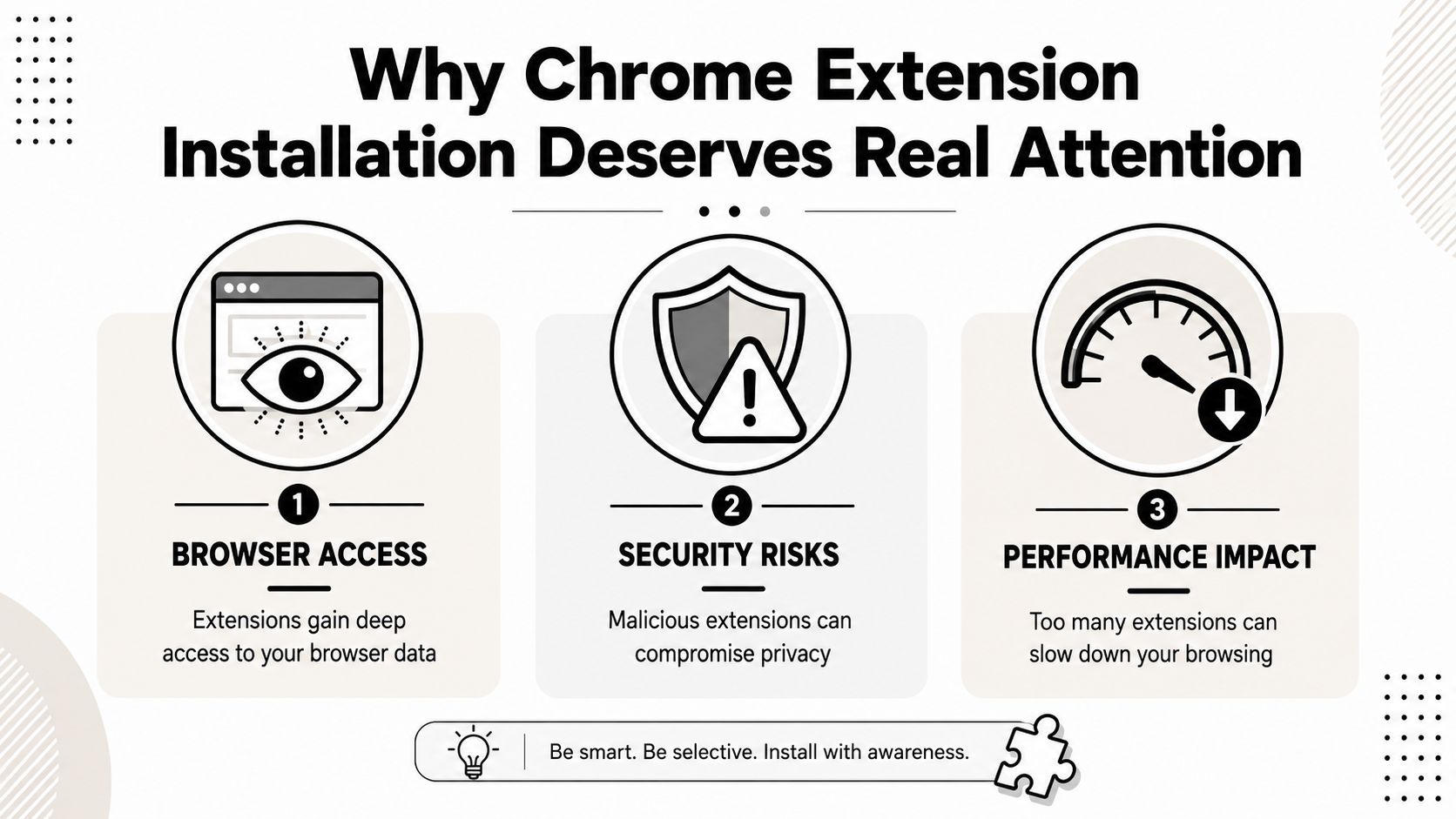
A browser extension is never just a small add-on. It can sit close to your tabs, your searches, and the data you enter every day, which is why the install path deserves the same attention you'd give to any tool that touches sensitive work. For marketers managing browser-based workflows, why a Chrome extension can help with PPC is a useful companion read, because it shows why install habits matter when the extension becomes part of your daily ad work.
Why Chrome Extension Installation Deserves Real Attention
A lot of people only think about an extension when they need it fast. A teammate says, “Install this,” you click around, and suddenly your browser has new powers you didn't plan for. That feels convenient in the moment, but it also means you are trusting code with access to your tabs, your searches, and sometimes the data you type into sites every day.
What the install actually changes
Chrome's own help treats extension installation as a trust decision, not a casual tap. The standard consumer flow is simple, open the Chrome Web Store, choose the extension, click Add to Chrome, then approve it with Add extension if Chrome asks for permissions Google's Chrome Web Store help. That two-step approval gives you a clear checkpoint before the extension lands in your browser.
Practical rule: if you do not know what the extension does, do not treat the install prompt like a speed bump. Treat it as the last clear chance to stop.
The reason that pause matters is plain enough. Chrome supports both ordinary consumer installs and more advanced distribution methods for managed devices and local development Google's extension distribution documentation. That means the browser can host everything from a one-click productivity add-on to a tool your IT team pushed through policy, or a local build that is not published yet.
Why the path matters for different users
A casual user usually wants the Web Store path because it is the cleanest and most recognizable. A marketer might need a tool that helps inside Google Ads workflows, while a developer may need a local build that is not published yet. Someone on a managed laptop may not be able to install anything the usual way at all, because admin policy changes the rules.
That is also why must-have marketing extensions are worth comparing with care if you use browser add-ons in daily work. A tool that only changes one page behaves differently from one that can read and modify browsing data across sites, and that difference should shape how you judge the install prompt.
If you work in PPC workflows, why a Chrome extension can help with PPC is a useful companion read, because it shows how a browser add-on can become part of everyday ad work. A team environment makes that even clearer, since the same extension that feels harmless on a personal laptop can run into workplace controls on a managed device.
Installing From the Chrome Web Store
Open a browser extension listing from the Chrome Web Store and you get the version Chrome is built to handle first. That path gives you the clearest check on who made the extension, what it asks to do, and what will change before it reaches your browser. For a first install, the flow is simple, find the official listing, click Add to Chrome, then confirm with Add extension when Chrome shows the permission prompt.
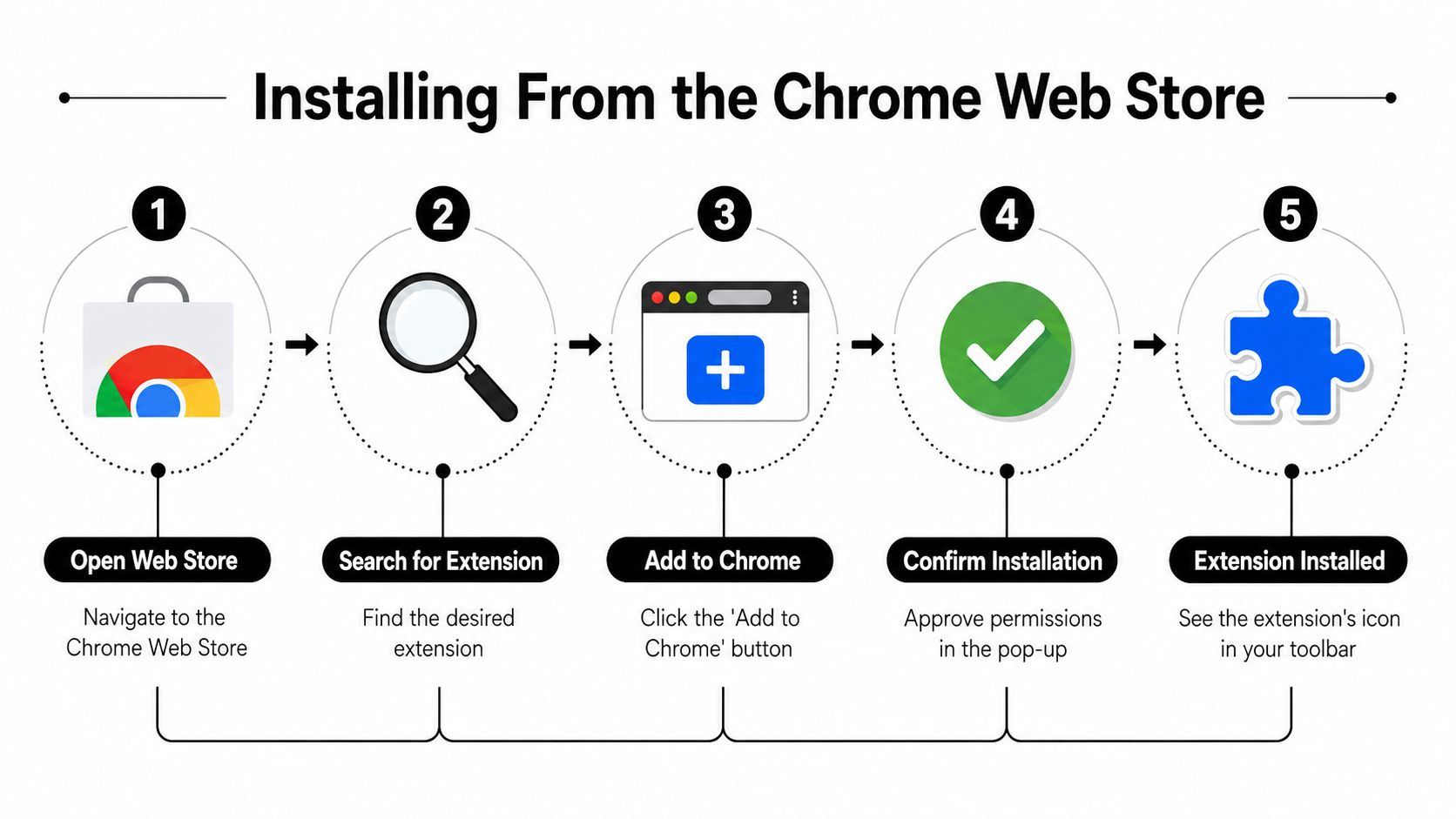
The clean Web Store flow
Start in the Chrome Web Store, not a random download page. Search for the extension by name, then open the listing and check the publisher, the description, and the permissions it asks for. Once you click Add to Chrome, Chrome may show a permission review before the install finishes, and that is the point to slow down.
What the install changes is usually tied to the extension's job. A tool that reads and changes website data is taking on a deeper role than a simple visual tweak, and a small utility that only changes the page you are viewing is different from something that can interact with browsing data across sites. Chrome's help explains that some extensions ask for additional permissions before installation completes, which is why the approval screen deserves attention Google's Chrome Web Store help.
After the install succeeds, Chrome usually places the extension in your toolbar or hides it behind the puzzle-piece menu, depending on your setup. If you are adding a marketing tool, a productivity add-on, or something like the Keywordme Chrome plugin for PPC workflows, the steps stay the same, but the permission request can look very different because each extension needs a different level of access.
The small habit that helps most is checking the publisher name before you click through. A familiar icon can still come from the wrong place, and the install prompt is your last clear chance to pause before the extension starts working in your browser.
Keep your eye on the publisher name and the permission prompt, not just the button label. A familiar-looking icon can still come from the wrong place.
Loading Unpacked Extensions and CRX Files Manually
Some extensions never go through the Web Store. A developer may send you a test build, a team may store an internal tool in a shared folder, or you may be working with a package that has not been published yet. In those cases, Chrome uses a different path, and that is often where first-time installs go wrong.
Developer mode and the folder Chrome expects
Open chrome://extensions and turn on Developer mode. Then choose Load unpacked and point Chrome to the extension's unzipped folder, not a zip archive and not a .crx file sitting on its own. Chrome's local install flow expects the unpacked files to stay in a permanent folder path, because the browser keeps returning to that location whenever it runs CNET's manual install guide.
That detail causes more confusion than almost anything else. If you move the folder later, Chrome can lose track of the extension. If you pick the wrong file type, the install will not behave like a Web Store install. Google's extension distribution documentation separates local and enterprise-style methods from the standard store-based flow, which is why manual installs feel more technical by design Google's extension distribution documentation.
When a CRX file needs extra handling
A .crx package is not the same thing as a folder Chrome can read directly in the unpacked workflow. If all you have is the packaged file, sources recommend extracting or unpacking it first, then loading the folder version instead GeeksforGeeks installation guide. That is the difference between having the file and having the extension in the format Chrome expects.
This route is normal for developers and testers, but it is not the one to use for everyday consumer installs. If you are adding a public tool, the Web Store path is cleaner. If you are testing a local build, unpacked installation is the right fit.
Practical rule: if Chrome says the extension cannot load, check the folder type first, then check whether you moved the files after install.
Understanding and Managing Extension Permissions
Extension permissions are where the main risk shows up. Many users click past them because the wording feels abstract, but those lines are Chrome telling you exactly what the extension can touch. A permission is not decoration. It is the browser saying, “This tool is about to get access to something important.”
Reading the prompt without glazing over
Some prompts stay narrow, and some reach much further. A clipboard permission is very different from a permission that lets an extension read and change data on websites you visit. The wording can sound technical, but the meaning is simple, more access usually means more reach, and more reach means more reason to pause.
| Permission Phrase | What It Actually Does | Risk Level |
|---|---|---|
| Read and change all your data on websites you visit | Lets the extension inspect and modify content across sites | High |
| Read your clipboard | Lets the extension access copied text | Medium |
| Access tabs | Lets the extension see and interact with open tabs | Medium |
| Read and change website content on a specific site | Limits access to one domain or a narrow set of pages | Lower |
| Run in the background | Lets the extension keep working without a visible tab | Varies |
A marketing tool may need some site access to work inside ad platforms or search pages. That does not make the permission bad by itself. It does mean you should compare the requested access with the job the extension is supposed to do. If the tool only needs one site, a request for broad access deserves a closer look.
Auditing what's already installed
Open chrome://extensions and look at what is already in your browser. If an extension no longer has a clear purpose, disable it. If you do not trust the publisher or you cannot remember why it is installed, remove it. The point is not to keep your browser perfect, it is to keep it intentional.
A small browser setup can become cluttered the same way a desk does. One stray tool is easy to ignore, then another appears, and soon you are leaving sensitive access in place just because it is still there. Checking the list forces a simple question, does this extension still earn the access it has?
For teams that manage browser-based permissions more broadly, user permission management follows the same mindset at a wider level. Know what access is needed, reduce what is not, and revisit those decisions after updates.
An extension can look harmless and still ask for broader access later. Recheck permissions after updates, especially if the tool starts asking for more than it used to.
Enabling, Disabling, and Removing Extensions
Installing an extension is only the beginning. A messy browser usually isn't full because someone installed too few tools, it's full because nobody cleaned up the ones they stopped using. The good news is that Chrome makes the daily management side pretty straightforward once you know where to look.
Turning something off without deleting it
Go to chrome://extensions and use the toggle to disable an extension when it's misbehaving. That's the fastest way to test whether an extension is causing a layout issue, a page conflict, or a weird slowdown. If the problem disappears when the toggle is off, you've found the likely culprit.
Disabling keeps the extension available for later. Removing it is different, because uninstallation clears it out of the browser entirely. If you're not ready to delete something yet, disabling gives you a cleaner test without making a permanent decision.
Removing and tidying your toolbar
When you're done with an extension, click Remove from the same page. Chrome will ask for confirmation, then delete it from your browser. If the extension stored settings inside your account or on the service's own servers, those may still exist outside Chrome, so the uninstall only handles the browser side.
Pinning is a separate choice. A pinned extension stays visible in the toolbar, while an unpinned one can still live in the extensions menu. For a lot of people, the smarter setup is to pin only the tools you use every day and leave the rest tucked away. That keeps your toolbar readable instead of turning it into a cluttered row of icons you ignore.
If you work with a few core browser tools, keep the shelf small. It's easier to spot a problem, easier to trust what's there, and easier to avoid clicking the wrong thing in a hurry.
Common Installation Problems and How to Fix Them
Extension errors are often vague, and that is what makes them frustrating. A failed install can look like a broken download, a policy block, a permissions issue, or the wrong file format. Start by narrowing the cause before you remove half your browser settings.
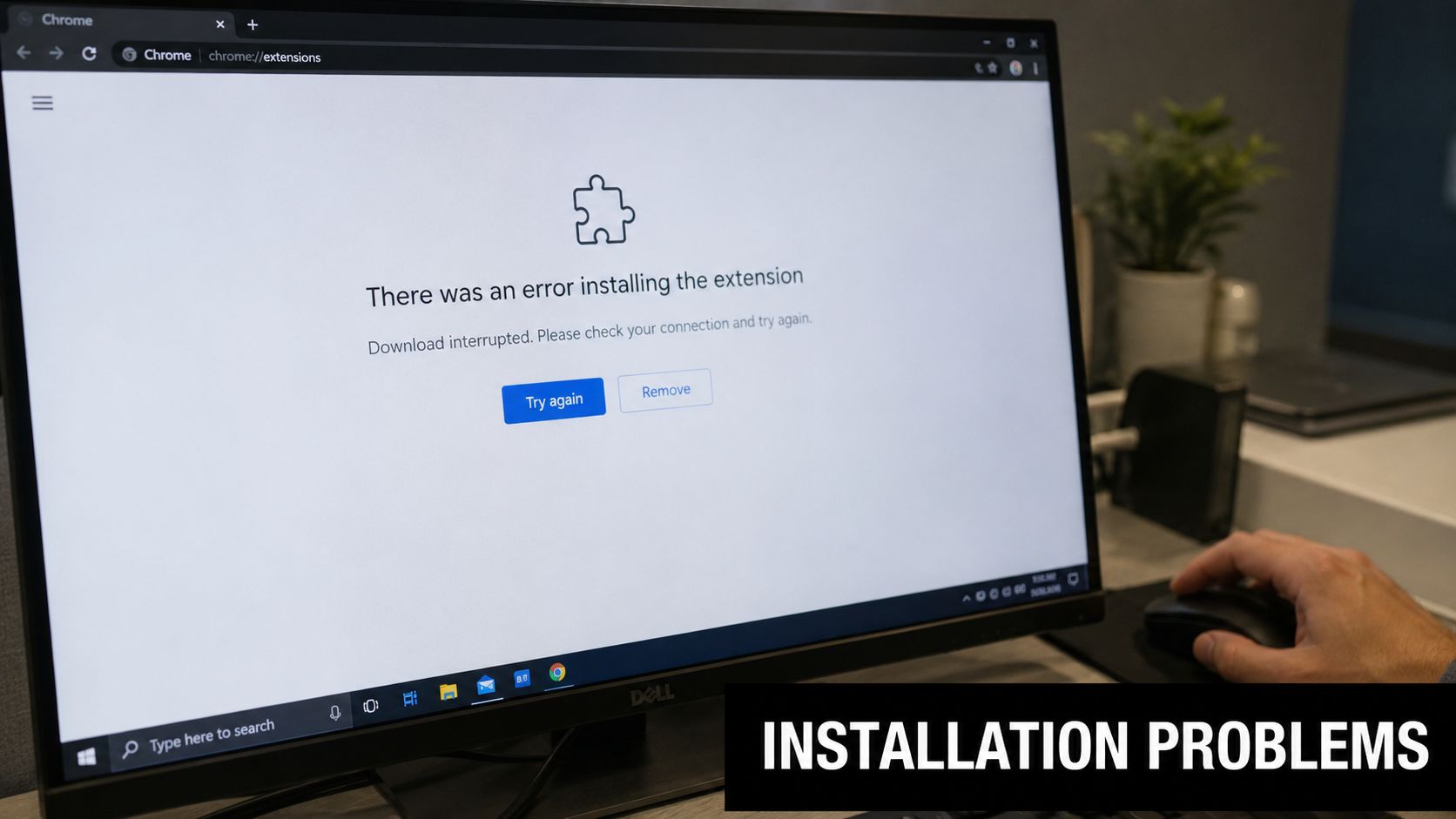
The usual culprits
If Chrome says Could not load extension, check the file type first. For unpacked installs, Chrome wants a folder that contains the extension files, not a zip archive or a single packaged file. If you are working from a .crx, unpack it before you try again.
A bad source can cause the same kind of failure. Manual installs depend on the files being in the right shape and in the right place, so a missing folder, a renamed file, or a half-copied package can stop the process before it starts. CNET's manual install guide walks through that file structure clearly.
If the extension vanishes after an update, check whether the local files moved or whether Chrome disabled it during a compatibility check. If the browser says the extension is not trusted, that usually points to a manually loaded file or a source Chrome does not accept in that install path. Reinstalling from a safer source or loading the unpacked folder again can fix it.
When the browser isn't the problem
Sometimes the install fails because the device is managed. Chrome's distribution rules treat standard Web Store installs differently from installations controlled through policy settings, so a button that seems dead on a work laptop can be the browser obeying company rules Google's extension distribution documentation.
That is why extension clutter can turn into a quiet problem too. Even when everything installs without errors, every extra extension adds another place where permissions, trust, and browser behavior can go sideways. A practical cleanup is to review the ones you have not used in a while, then keep only the tools that still earn their spot.
If an install looks broken on a managed device, do not blame Chrome first. Check whether the browser is following company policy.
Security Tips and Enterprise and Mobile Considerations
The safest extension habit is the boring one, and that's a compliment. Verify the publisher, check the permissions, and watch what changed after an update. If an extension suddenly asks for broader access than it used to, pause before you approve it.
A short security routine that sticks
Do a quick scan before every install. Read the publisher name, look for clone listings with nearly identical icons, and compare the requested access against the job you expect the extension to do. For anyone who gets links by email, chat, or social posts, that pause matters, because social engineering often starts with something that looks convenient and familiar, which is why resources like social engineering attacks for Australian families are worth skimming even outside a home context.
Enterprise installs follow a different path. Managed Chrome setups often use policy files or registry entries to control which extensions appear, so a button that looks unresponsive on a work laptop may be the browser following company rules. IT teams usually handle those installs through approved deployment settings, while users stay inside the limits set for the device.
Mobile and team environments
Chrome extensions are a desktop-first story, so mobile is not where most extension workflows live. If your work depends on browser add-ons, plan around desktop Chrome, not a phone browser. That matters for teams that rely on browser-based tools to handle routine keyword work, ad platform tasks, or quick workflow changes.
If you manage this at a team level, permission management for browser tools is the bigger picture. The same habit that keeps a personal browser clean also helps a company keep installs intentional, reviewed, and easy to explain.
Pick one extension you need today, install it through the right path, and check the permissions before you approve anything. If you want a browser-based tool for Google Ads work, Keywordme gives you a Chrome plugin for keyword cleanup and match-type handling inside the browser, and you can see how it fits your workflow by visiting Keywordme.
.svg)