
How to Add Negative Keywords and Slash Wasted Ad Spend
How to Add Negative Keywords and Slash Wasted Ad Spend


If you're sinking money into paid ads, figuring out how to add negative keywords is one of the quickest ways to patch up a leaky budget. Think of them as your ad campaign's bouncer—they stop your ads from showing up for irrelevant searches that eat up your cash without ever leading to a sale. It’s the critical difference between paying for genuine customers and paying for digital window-shoppers.
Why Negative Keywords Are Your PPC Secret Weapon

Let's be real for a second. Running Google Ads without a smart negative keyword strategy is basically like leaving your front door wide open. You’re just inviting wasted spend to walk right in. Every single dollar you put into your campaigns needs to work towards a goal, but those irrelevant clicks slowly drain your budget with absolutely nothing to show for it.
This is exactly where negative keywords come in to save the day.
Imagine you sell premium, handcrafted leather shoes. You’re bidding on "men's leather shoes," but your search terms report shows clicks from people looking for "cheap shoe repair" or "DIY leather cleaning." Every one of those clicks costs you money, yet none of those people were ever going to buy your high-end product.
By simply adding "repair," "cheap," and "DIY" as negatives, you immediately stop that financial bleed. It’s a small tweak that forces your budget to work harder, reserving it only for people who are actually in the market for what you're selling. This isn’t just about trimming the fat; it's about making your entire campaign fundamentally more efficient.
Boosting Your Quality Score and Lowering Costs
The perks don't stop at just saving money on bad clicks. Google's Quality Score is all about relevance. When your ads pop up for the wrong searches and get ignored—or worse, clicked and then immediately abandoned—Google notices. This can tank your Quality Score, which directly inflates your cost-per-click (CPC).
Using negative keywords tightens everything up. You improve the alignment between what people search for, the keywords you bid on, and the ads you show them. This creates a positive feedback loop:
- Higher Click-Through Rates (CTR): Your ads are shown to people who actually care, so they get clicked more often.
- Improved Ad Relevance: Google sees a clear, strong connection between the searcher's intent and your offer.
- Better Landing Page Experience: You're sending high-intent traffic to your site, which means lower bounce rates.
All these signals tell Google your ads are top-notch. The reward? A better Quality Score, which almost always leads to lower CPCs. If you want to get back to basics on this, it's worth reading up on what are negative keywords in Google Ads and how they shield your ad budget.
The Financial Impact Is Real
The amount of money at stake here is no joke. Campaigns without solid negative keyword lists often have costs that spiral out of control. A well-targeted ad might cost you $1-2 per click, but a mismatched one can easily jump to $5 or more.
When Google expanded the negative keyword limits in late 2022, smart advertisers who got more aggressive with their exclusions reported cutting their wasted ad spend by up to 30%. That's a huge chunk of change that can be reinvested into what's actually working.
Digging for Gold (and Junk) in Your Search Terms Report
If you want to find out where your ad budget is really going, forget about fancy third-party tools for a minute. The most powerful weapon you have is already sitting inside your Google Ads account: the Search Terms Report.
This report is a direct, unfiltered look at the actual phrases people are typing into Google right before they see and click your ad. It’s like having a direct line into your audience's brain.
Think of it as a treasure map. Buried in all that data are the "X's" that mark the spots where your budget is leaking. Your mission is to find those leaks and plug them. This isn't just about finding obviously bad keywords; it's about spotting patterns that show a clear mismatch between what someone is looking for and what you're selling.
For instance, a B2B company selling high-end software might find they're getting clicks from searches like "free project management tools for students." Sure, "project management tools" is in there, but the words "free" and "students" are huge red flags. That searcher is definitely not their ideal customer. Every one of those clicks is a tiny papercut to their budget, and trust me, they add up fast. Getting comfortable with the Google Ads Search Terms Report is the first, most crucial step to stop the bleeding.
How to Spot the Culprits
Jumping into the report for the first time can feel like drinking from a firehose. There's just so much data. The trick is knowing what to look for and how to sort it. I always start by looking for the biggest, most obvious offenders first.
Here are the two main red flags I hunt for immediately:
- High Clicks, No Conversions: This one is a no-brainer. If you have a search term that's getting a ton of clicks (and costing you money) but has never resulted in a single lead or sale, it’s a problem. The traffic is a bad fit. Period. It's an easy win to add this to your negative list.
- Wrong Intent: Look for terms that signal the searcher is in a completely different phase of their journey. Words like "how to," "ideas," "reviews," or "vs" usually mean they're still in research mode, not ready to pull out their credit card. If you're paying for those clicks, you're essentially funding someone else's education, not your own sales pipeline.
And this isn't some minor issue that affects a few accounts. For advertisers who aren't on top of this, it's a massive financial drain.
I once did an audit for a company that was brand new to managing negative keywords. They had wasted an incredible $10,625 in just 60 days. That was 40% of their entire ad budget, gone, with zero sales to show for it. If you want to see how profitable campaigns often have 3 to 5 times more negative keywords than targeting keywords, check out the full findings on PPC ad spend.
Looking Beyond the Obvious Drains
Once you've handled the most obvious budget-wasters, it's time to dig a little deeper for the more subtle problems.
Start looking for patterns. Are competitor brand names popping up? What about specific product models or part numbers for things you don't even carry? A quick filter for terms containing words like "jobs," "careers," or "salary" can instantly clean up your traffic if you aren't trying to hire people through your ads.
Every single irrelevant term you add to your negative list is another step toward a leaner, more profitable campaign.
Choosing the Right Negative Match Type
Alright, so you’ve hunted down the junk search terms that are bleeding your budget dry. Now what? You can't just dump them into a list and hope for the best. You need to decide how to block them, and that's where negative match types come in.
Picking the right one is absolutely critical. Get it wrong, and you'll either fail to block the bad traffic or, even worse, accidentally kill off traffic you actually want. It's a classic case of using the right tool for the job.
Think of it this way: a broad match negative is a sledgehammer, a phrase match is a chisel, and an exact match is a scalpel. You wouldn't use a sledgehammer for delicate surgery, right? The same logic applies here. Learning to tell them apart isn't just a "nice-to-have" skill; it's a non-negotiable part of managing a successful campaign.
The Three Flavors of Negative Keywords
Google gives us three negative match types, and each offers a different level of control. Getting a handle on when and where to use each one will make your optimization efforts ten times more effective. It's truly a foundational skill for anyone serious about PPC.
If you want to get really deep into how these negatives play with your regular keywords, we've got a full breakdown of Google Ads keyword match types in our detailed guide.
This little decision tree shows the basic logic I run through when I'm analyzing search terms. If a keyword is racking up clicks but has zero conversions, it’s an immediate candidate for my negative list.
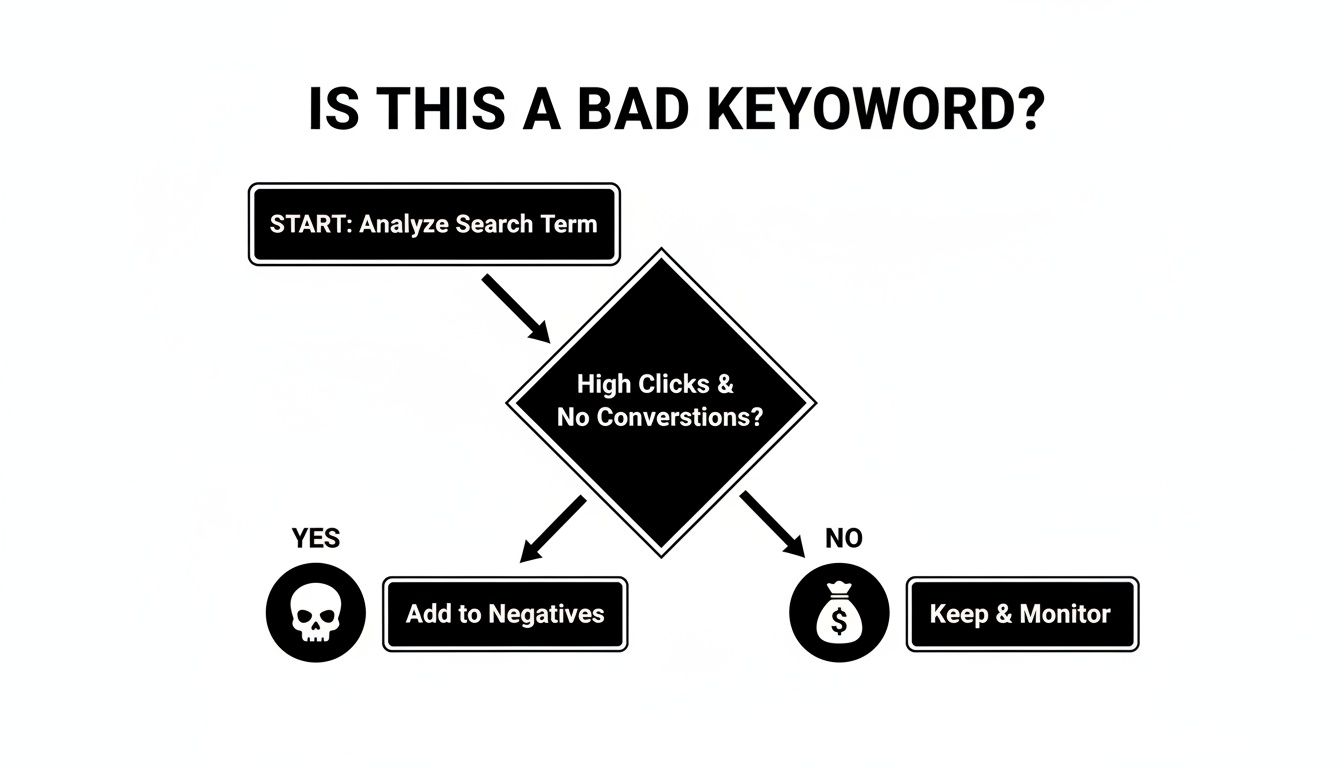
The big takeaway? Let the data drive your decisions. Stop guessing what to exclude and start protecting your budget while letting the profitable terms do their thing.
Here’s a quick rundown of each type with some real-world examples.
Negative Broad Match: This is your widest net. If you add
freeas a broad match negative, your ad won't show if the search query contains that word, no matter the order. This is perfect for blocking general concepts you never, ever want to show up for, likejobs,reviews, orDIY.Negative Phrase Match: This gives you a lot more precision. It blocks searches that contain your exact negative keyword phrase, in that specific order. Let's say you sell high-end "running shoes" but not the kind for trails. Adding
"trail running shoes"as a negative phrase match will stop your ads from showing for "best trail running shoes for women" but will still allow them for "best shoes for running." See the difference?Negative Exact Match: This is your most surgical option. It only blocks searches that are an exact match to your keyword, with no extra words before or after. Adding
[men's loafers]as an exact match negative will only stop your ad for that precise query. It would still show up for something like "brown men's loafers."
The real power comes from knowing which tool to grab for which job. Using a broad match negative for "size 10 shoes" could accidentally block a paying customer searching for "best running shoes size 10." That's a classic mistake that costs you a sale, and it’s a job for a more precise match type.
This table gives you a quick-glance comparison of when to use each negative keyword match type for maximum control over your ad traffic.
Negative Keyword Match Types Compared
Once you master these distinctions, you can add negative keywords with confidence, knowing you aren't about to torpedo your own campaign performance. It turns a risky guess into a smart, strategic decision.
Getting Your Negative Keywords into Google Ads
Alright, you’ve done the detective work—you’ve dug through your search terms reports, built a solid list of junk to block, and picked the right match types. Now for the easy part: actually plugging them into your Google Ads account. This is less about high-level strategy and more about the simple, practical clicks to get the job done.
Don't sweat this part; it's pretty straightforward once you get the hang of it. The main thing to understand is where you should add your negatives. You've got three choices: the ad group level, the campaign level, or a shared list. Each one has a different job, and picking the right one is like choosing between a scalpel for precision work or a shield for broad protection.
Ad Group Level: For Surgical Precision
This is your most granular, focused option. When you add a negative keyword at the ad group level, it only blocks ads for that specific ad group. This is incredibly useful when you have a campaign with multiple ad groups that could otherwise steal traffic from each other.
Here’s a classic example: imagine you sell running shoes and have a single campaign with two ad groups—one for "leather running shoes" and another for "vegan running shoes." You’d want to add "vegan" as a negative to your leather ad group, and "leather" as a negative to your vegan one. This little bit of housekeeping ensures the right ads show for the right searches, leading to a much better user experience.
Here’s the quick path to get there:
- First, navigate to the specific Campaign and then click into the Ad Group you want to fine-tune.
- Look for the left-hand menu and go to Audiences, keywords, and content, then select Search keywords.
- You'll see a tab at the top for Negative keywords. Give that a click.
- Hit the big blue “+” button. A box will pop up where you can paste your keywords. Just make sure you use the right syntax for your match types (
keywordfor broad,"keyword phrase"for phrase, and[exact keyword]for exact).
Campaign Level: For Broader Exclusions
Sometimes you find a search term that’s just plain wrong for an entire campaign. In that case, adding it at the campaign level is the way to go. This applies the exclusion across every single ad group within that campaign, saving you the hassle of adding it to each one individually.
This is my go-to for universal junk terms like "free," "jobs," "reviews," or "how to" that are totally irrelevant to any product or service I'm advertising in that campaign. It’s a simple, effective way to apply wide-ranging filters without a ton of manual entry. The process is almost identical to the ad group method; you just stop one level higher in the account structure.
Shared Negative Keyword Lists: The Ultimate Time-Saver
Now this is my personal favorite, especially for staying organized across large accounts. A shared negative keyword list is basically a master list that you can apply to multiple campaigns at once. The real magic is that any change you make to the list—adding or removing a keyword—automatically updates across every single campaign it’s attached to.
Think of it as your universal "do not show" list for the entire account. I always create a master list called something like "Account-Wide Exclusions." This is where I dump terms like competitor brand names (unless I'm actively running conquesting campaigns), internal employee searches, and other garbage that should never trigger an ad, regardless of the campaign.
Here’s how to set one up:
- Head to Tools & Settings (the little wrench icon) in the top menu.
- Under Shared Library, you’ll find Negative keyword lists.
- Click to create a new list, give it a memorable name, and start adding your keywords.
- Once it’s built, you can apply that list to as many campaigns as you need. It's the ultimate "set it and forget it" tool for maintaining clean traffic.
Building Proactive Lists and Automating Your Workflow

Sure, reacting to bad search terms after they've already eaten up your budget is part of the game. But what if you could stop the bleeding before it even starts?
The real pros shift from a reactive mindset to a proactive one. Instead of waiting for wasteful clicks to pop up in your reports, you get ahead of them from day one. This is all about building "starter" negative keyword lists before you even launch a new campaign.
Creating Your Starter Negative Keyword List
Every business has a set of no-brainer exclusions. These are the words that scream "I'm just browsing" but will happily cost you money with a click. Brainstorming a solid list of these terms is one of the quickest wins you can get.
A good starter list usually weeds out searchers like these:
- Information Seekers: Think "how to," "what is," "DIY," and "examples." These folks want free knowledge, not your product.
- Job Hunters: Unless you’re running a recruitment campaign, terms like "jobs," "careers," "hiring," and "salary" are pure waste.
- Bargain Shoppers: If you don't compete on price, words like "free," "cheap," "discount," and "used" will only attract the wrong crowd.
Building out a comprehensive list ahead of time is one of the smartest things you can do for your account's health. For a running start, check out our guide on creating a foundational negative keyword list to protect your campaigns from the get-go.
When you get aggressive with this kind of filtering, the impact is huge. We've seen campaigns increase their conversions per dollar by 25-40%. It’s not magic; it’s just making sure every single dollar is spent on traffic that actually has a chance of converting.
Putting It All on Autopilot with Keywordme
Brainstorming these lists is a great first step, but who has time to manually dig through search term reports every single week? It’s a tedious time-sink. This is where automation becomes your new best friend.
Instead of spending hours sifting through spreadsheets, you can let a smart tool like Keywordme do the heavy lifting. It works in the background, constantly monitoring your search terms and flagging the ones that are costing you money without bringing in any conversions. Then, you can add them to your negative lists with a single click.
It’s a simple, streamlined workflow that takes the manual labor out of the equation. You get a clear view of which terms are burning your budget and can block them instantly.
Automation isn't about replacing your strategic mind. It’s about freeing you from the repetitive, soul-crushing tasks so you can focus on what really matters—high-level strategy, creative testing, and growing your campaigns.
This kind of system basically puts your budget on lockdown, protecting it 24/7 from irrelevant clicks. It's the difference between frantically plugging leaks in a dam and building a structure that prevents them from ever happening in the first place. You get all the benefits of a squeaky-clean campaign without the weekly grind.
Got Questions About Negative Keywords? We've Got Answers.
Even with a solid game plan, a few questions always pop up once you start digging into negative keywords. Let's clear up some of the most common things we hear from other marketers in the trenches.
Think of this as your go-to guide for those moments when you're staring at your screen wondering, "Am I doing this right?" Getting these details ironed out can have a massive impact on your campaign's health and, more importantly, its profitability.
How Often Should I Be Updating My Negative Keyword List?
This is the big one, and the honest-to-goodness answer is: it depends, but you have to be consistent. If you're launching a new campaign or running one with a serious budget, you should be living in your search terms report at least once a week. This is non-negotiable. It lets you spot the budget-sucking terms before they do real damage.
For campaigns that are more established and running smoothly, you can probably dial it back to every couple of weeks or even once a month. The main thing is to never let it become a "set it and forget it" task. Search habits change, new weird queries pop up, and you need to stay on top of it all.
Is It Possible to Get Too Aggressive with Negative Keywords?
Oh, absolutely. It's a classic mistake, and even seasoned pros fall into this trap. While it feels incredibly satisfying to slash all the junk from your reports, going overboard can accidentally block traffic you actually want—people with money in hand, ready to buy.
Picture this: you sell "wood picture frames" but add "wood" as a broad match negative keyword to an ad group where you also sell metal or plastic frames. You just shut down your most qualified traffic source for that specific product. Whoops.
The golden rule here is to be surgical, not reckless. Before adding a negative, always ask, "Could this possibly block a real customer?" If there's even a shadow of a doubt, use a more restrictive match type like phrase or exact instead of going broad.
Do Negative Keywords Actually Affect My Quality Score?
They do, and it's one of the best "indirect" ways to improve it. While you won't see a specific metric in Google Ads called "Negative Keyword Impact," they are one of your most powerful allies for boosting your Quality Score.
Here’s how it works:
- They Skyrocket Your Click-Through Rate (CTR): By preventing your ads from showing up for garbage searches, you make sure that the people who do see them are way more likely to be interested and click. Higher relevance almost always equals a higher CTR.
- They Sharpen Your Ad Relevance: Google’s whole system is built to reward ads that nail the searcher's intent. Negative keywords are your primary tool for making sure that match is razor-sharp.
A better Quality Score means a lower cost-per-click (CPC) and better ad positions. It's a beautiful chain reaction: you use negatives for better targeting, which leads to a higher Quality Score, which saves you cold, hard cash.
Ready to get out of spreadsheet hell and start protecting your ad budget proactively? Keywordme basically puts your negative keyword management on autopilot. It finds and flags those junk terms for you, so all you have to do is add them with a click. See how much faster you can get your campaigns in shape.
.svg)