
Google Ads Chrome Extension Keyword: Maximize Your Workflow
Google Ads Chrome Extension Keyword: Maximize Your Workflow


SEO Title: Google Ads Chrome Extension Keyword Workflow
Meta Description: Master Google Ads Chrome extension keyword workflows to cut junk terms, add winners faster, and manage negatives without spreadsheets.
You're probably staring at the Google Ads Search Terms report again. A few terms look useful, a bunch look questionable, and the rest are the kind of clicks you never wanted to pay for in the first place.
That's the part nobody misses when they move away from spreadsheets. Exporting, sorting, tagging, pasting negatives back into Google Ads, then repeating the same routine tomorrow is slow work. It also creates lag between what you learn and what you fix.
A good Google Ads Chrome extension keyword workflow closes that gap. Instead of treating keyword management like an admin task, you handle it where the problem shows up. Inside the account. In the moment. Before junk traffic gets another chance to eat budget.
Why Your Google Ads Workflow Is Leaking Money
The leak usually starts with a simple habit. You review search terms too late, clean them up in batches, and trust automation to catch the rest. That sounds efficient until irrelevant queries keep slipping through.
The hard truth is that 76% of the average Google Ads budget is wasted on irrelevant clicks, and AI tools often identify negative keywords only after you've already paid for bad traffic, according to this breakdown of AI-powered keyword research and wasted spend. That's why manual control still matters, even in accounts running smart bidding, broad match, or so-called keywordless setups.
Where the waste actually happens
The mess rarely comes from one dramatic mistake. It comes from small misses that pile up:
- Loose intent matching: You bid on a commercial term, then show for research-heavy or freebie searches.
- Slow negative management: You spot junk terms, but they sit in a spreadsheet until someone has time to upload them.
- Overconfidence in AI: Automated systems optimize after traffic arrives. They don't always stop irrelevant variations before the click.
Practical rule: If a search term is obviously wrong for the offer, it should become a negative immediately, not at the end of the week.
That's where browser-based PPC tools earn their keep. The Chrome extension model has already proven itself with marketers. The Chrome Web Store listing for Keywords Everywhere states that it has served more than 1.6 million users globally and supports 10,000+ keywords across 15+ platforms. The takeaway isn't just popularity. It's that marketers want keyword data and actions inside the browser, not buried in another export.
Why AI alone doesn't solve this
AI is useful for discovery, clustering, and drafting. It is not a substitute for account hygiene. If your campaign keeps matching to “free,” “DIY,” “tutorial,” or job-seeker intent, someone still has to block that traffic cleanly and consistently.
That's the gap. A smart Google Ads Chrome extension keyword setup becomes the manual-control layer AI lacks. It gives you a fast way to act on live search behavior instead of reviewing losses after the fact.
If you also manage marketplaces, the same principle applies there too. Tight keyword control matters well beyond paid search, and a resource on how to fix my Amazon listings is a useful reminder that relevance work is often won in the details.
Getting Started in Under Two Minutes
Users often overthink extension setup. You don't need a technical background, and you don't need to rebuild your account structure first. If you can install a Chrome add-on and log into Google Ads, you can get moving.
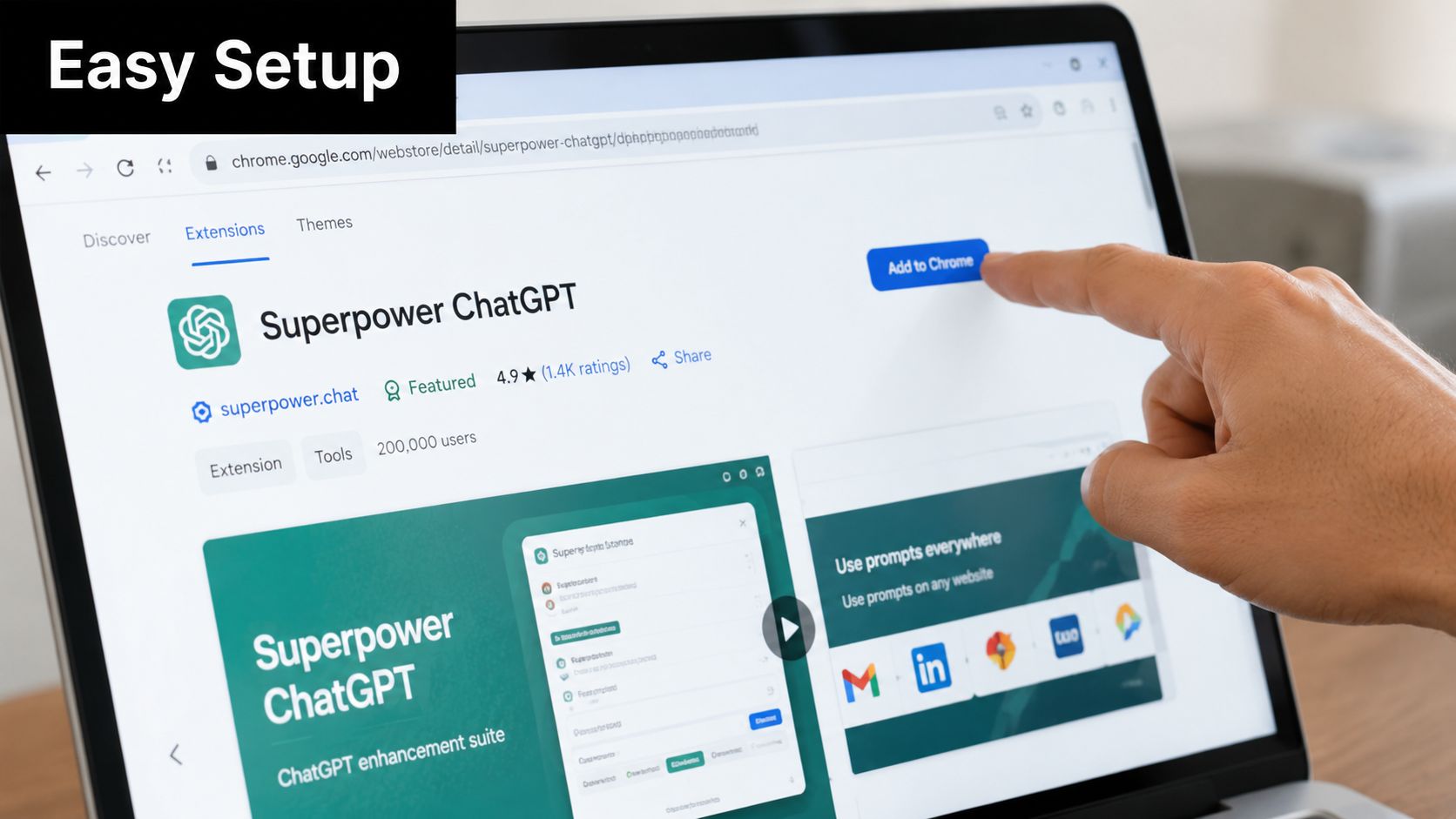
The quick install flow
Use this checklist and keep it simple:
- Open the Chrome Web Store: Search for the extension by name and confirm you're on the official listing.
- Click Add to Chrome: Chrome will show the permission prompt.
- Review the permissions: Extensions that work inside Google Ads need access to the pages you're using so they can add interface controls and process your selections.
- Pin the extension: This saves time later when you're switching accounts or checking whether it's active.
- Open Google Ads and refresh the page: Most tools load their controls directly into the Search Terms interface after a refresh.
The permission step is the one that makes people hesitate, but in practice it's normal. If a tool modifies your in-browser workflow, it needs visibility into the page you're working on. That's how it can turn selected terms into negatives, keywords, or match-type changes without forcing another copy-paste cycle.
What to look for after installation
Once it's live, your Google Ads interface should feel less static. Good extensions usually add action buttons, bulk controls, or side-panel options directly where you review search terms.
A few signs you're set up correctly:
- The Search Terms report shows new actions: You should be able to work on selected terms without exporting.
- Match type options appear in context: Exact, Phrase, or Broad should be available where decisions are made.
- Bulk actions are visible: Even if you're only cleaning up a few terms today, this matters later.
If you want a broader look at what these tools change operationally, this guide on the benefits of using a Chrome extension for PPC is worth bookmarking.
Permissions feel scarier than they are. In most cases, they're simply what allows the extension to work where you already work.
Your First Cleanup Killing Junk Search Terms
The fastest win in any account is cleaning up bad search terms before they keep spending. This is the task that used to send people into Excel. It doesn't need to anymore.
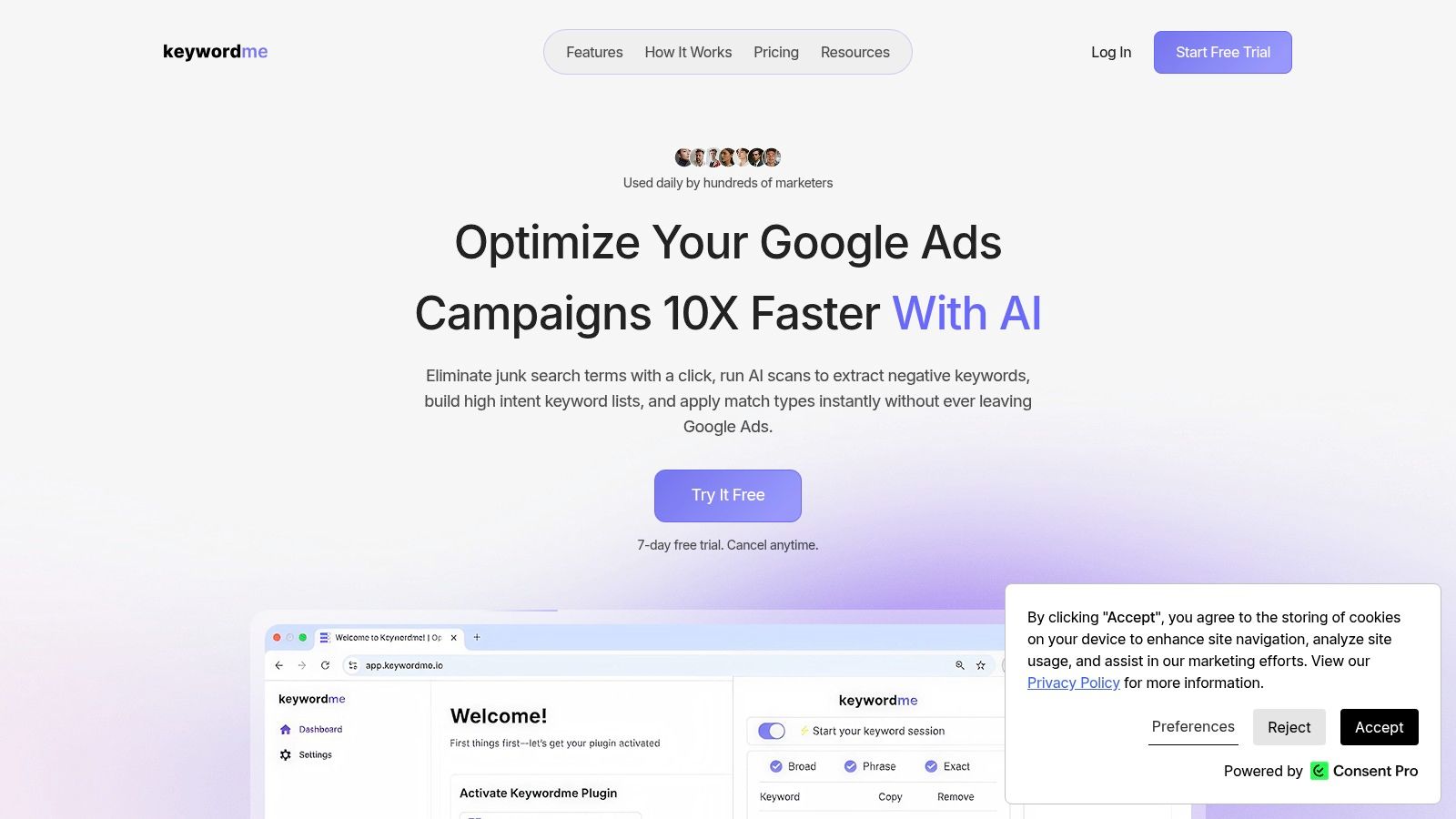
Say you run ads for paid accounting software. In the Search Terms report, you see queries like “free bookkeeping template,” “accounting tutorial,” and “how to do taxes myself.” Those aren't edge cases. They're direct signals that Google found semantic overlap, but the searcher's intent doesn't match your offer.
The old workflow is painful. Copy term. Open another tab. Find the right campaign or ad group. Paste the negative. Set scope. Save. Repeat. After the fifth round, people start postponing cleanup.
A cleaner way to handle the report
Inside a proper extension-led workflow, the job looks more like this:
- Scan for obvious misalignment: Free, DIY, jobs, definitions, support queries, student intent, and unrelated product categories.
- Select the offenders in bulk: Don't treat each term like a separate project.
- Choose the right level: Add negatives at the ad group level when the issue is local. Use campaign-level negatives when the term is wrong everywhere.
- Save and move on: The key is speed without losing judgment.
Google Ads performance gets better when accounts start tight. A proven methodology is to begin with Phrase and Exact match keywords, then aggressively build negative keyword lists. That approach has been shown to reduce wasted spend by 25% and accelerate optimization by 10x, according to this practical guide to Google Ads keyword research.
Use intent, not just wording
A junior PPC manager often looks for identical bad words. A stronger operator looks for patterns of intent.
Here's a simple decision table:
| Search term pattern | What it usually means | Action |
|---|---|---|
| “free” | Low commercial intent | Add as negative if your offer is paid |
| “how to” or “tutorial” | Learning intent | Exclude unless education is the product |
| “jobs” or “salary” | Career intent | Negative for lead gen or ecommerce |
| Irrelevant brand/product category | Bad match expansion | Block at campaign level if consistent |
That's how you stop reacting term by term and start shaping traffic quality.
For a deeper walkthrough on structuring exclusions, this guide on how to add negative keywords is a useful reference to keep nearby.
A short demo helps if you want to see the cleanup rhythm in action:
Bad search terms aren't just noise. They teach you how Google is interpreting your account, and where your controls are too loose.
Once you get used to killing junk terms directly inside the interface, spreadsheets start feeling like a delay you chose, not a requirement.
Expand Your Reach with Smart Keyword Curation
Most search term reports contain two things at once. Waste and opportunity. If you only use the report for cleanup, you're leaving useful demand on the table.
The better move is to treat strong search terms as promotion candidates. If a live query keeps showing up, matches your offer, and reflects how customers actually talk, it may deserve a permanent place in the account.
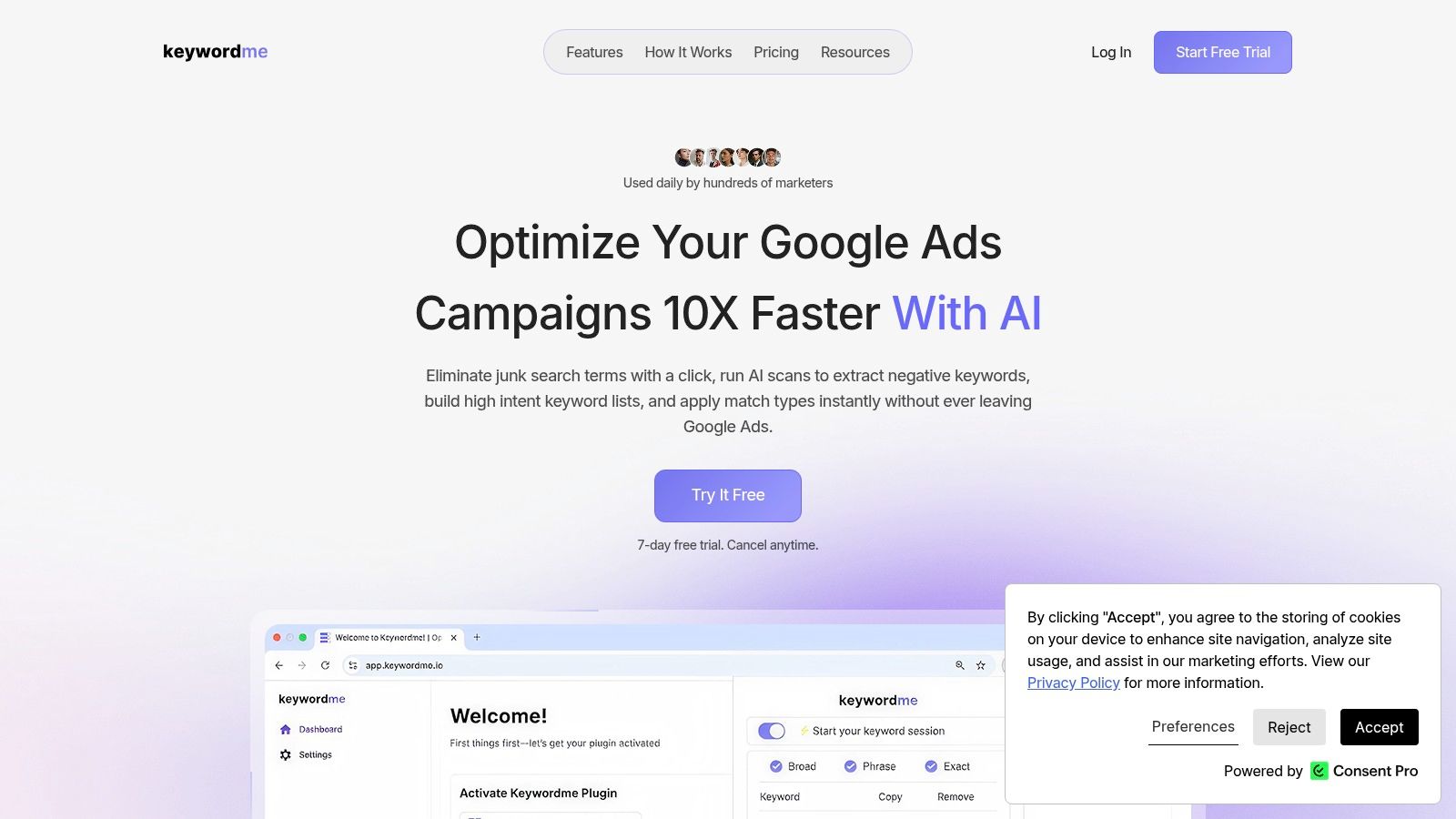
What a winner looks like
A good positive keyword usually checks three boxes:
- It reflects buyer intent: The query sounds like someone comparing options, pricing, booking, or purchasing.
- It fits one ad group clearly: If you can't place it confidently, your structure may need work first.
- It deserves its own match control: Strong terms often perform better when you stop leaving them to loose matching.
Say you sell managed IT support. Your ad group targets “business IT services,” but the report shows “outsourced IT support for small business.” That's not a term to admire and forget. That's a term to add deliberately, with the right match type, in the right place.
Why match type handling matters so much
Adding a keyword isn't hard. Adding it properly, over and over, is what slows people down.
That's why niche tools exist just for this problem. The Chrome Web Store listing for the Google Ads Keyword Match Types extension shows there are specialized tools built to bulk-apply Exact, Phrase, or Broad match types directly in Google Ads. That tells you something important. Match type assignment is not a tiny detail. It's one of the most repetitive parts of manual PPC work.
If you find a strong live query, don't leave it floating in the search terms report. Graduate it into the account.
A practical way to consider this:
- Add Exact when the term is highly valuable and you want tighter control.
- Use Phrase when the core intent is solid but variants could still help.
- Keep Broad for controlled testing, not because you're too rushed to choose.
Google also supports keyword insertion in ads, which can dynamically update ad text with the keyword that triggered the ad. That feature can improve message alignment, but it works best when your underlying keyword set is curated carefully instead of dumped in carelessly.
Strong keyword curation also improves the rest of your marketing. If you're trying to align paid traffic with landing pages, offers, and editorial planning, a resource on content strategy for conversions can help you think beyond just adding terms and toward building tighter intent paths.
Advanced Tactics and Bulk Operation Workflows
Once you manage more than a handful of campaigns, keyword work stops being about single decisions. It becomes a systems problem. The accounts that stay clean are the ones with a repeatable routine.
That's why bulk operations matter so much. Not because clicking one row at a time is impossible, but because it doesn't scale when you're reviewing multiple campaigns, multiple geos, or multiple client accounts every week.
Build a negative structure that lasts
A lot of accounts fail here. They add negatives constantly, but they add them randomly. Six weeks later, nobody knows what lives at campaign level, what sits in ad groups, and what should really be in shared lists.
A better structure looks like this:
- Shared negatives for universal junk: Terms like free, jobs, definitions, PDF, or tutorial often belong in a broader exclusion layer if they're irrelevant account-wide.
- Campaign-level negatives for category conflict: Use these when one campaign shouldn't cannibalize another or when a term is wrong for that service line.
- Ad-group negatives for precision: Apply these when the term is only wrong inside a specific theme.
Why bulk actions change account hygiene
Bulk work is not just about speed. It improves consistency.
If you review a report and spot twenty job-seeker terms, the worst thing you can do is clean up seven, get interrupted, and forget the other thirteen. Bulk selection lets you act on the pattern while it's still obvious. That reduces half-finished optimizations and duplicate review work later.
Here's where the browser extension model earns its place. The Google Ads interface wasn't built to make every repetitive keyword action painless. Extensions bridge that gap by turning review and action into one motion.
For a broader rundown of tools that help with this kind of workflow, this list of the best Google Ads Chrome extensions for PPC is a solid starting point.
Large accounts don't become efficient because the manager works harder. They become efficient because routine actions are standardized.
A weekly rhythm that works
Try a cadence like this:
- Review search terms by campaign theme: Don't mix branded, non-branded, and competitor traffic in one pass.
- Tag patterns first: Jobs, support, research intent, unrelated categories.
- Bulk-apply negatives: Use the right level, then move on.
- Promote strong terms: Add clear winners into the most relevant ad groups.
- Document your exclusion logic: A short naming convention for lists saves headaches later.
If you're managing accounts for clients, this matters even more. Clean negative structures make handoffs easier, reduce accidental overlap, and give junior team members clearer guardrails. Bulk workflows aren't a nice upgrade. They're how mature PPC teams keep control without drowning in maintenance.
Keywordme Versus Google's Keyword Planner
People ask this all the time: if Google gives you Keyword Planner for free, why bother with anything else?
The short answer is that these tools solve different problems. They're not direct substitutes. One helps you plan keyword targets before launch. The other helps you manage what's occurring after launch.
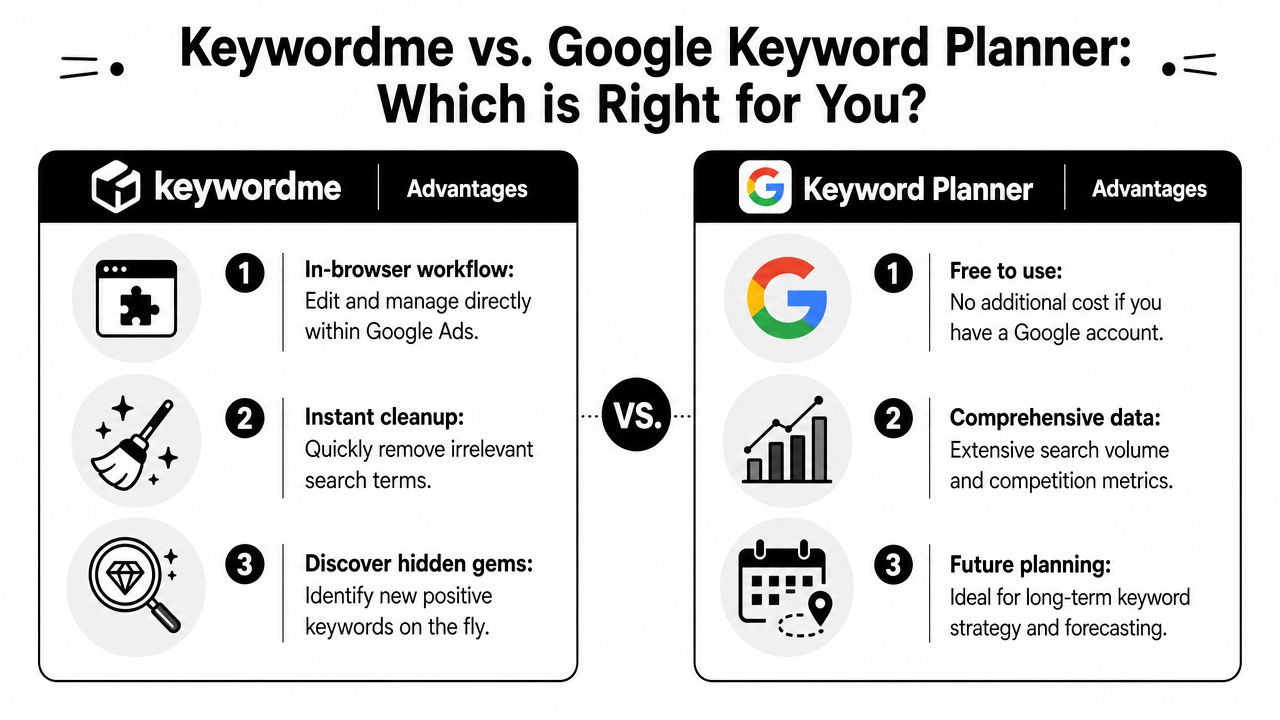
Where Keyword Planner is strong
Google's own Keyword Planner is useful for generating keyword ideas, reviewing search volume, and estimating CPC before a campaign goes live. It's a solid research and forecasting tool.
Google's support documentation also shows that Keyword Planner lets advertisers discover keyword ideas, build plans, choose match types, and upload CSV files for planning. That's all valuable when you're shaping campaigns, building seed lists, or estimating how a theme might behave.
Where the workflow breaks down
What Keyword Planner does not do is operate on live search term data inside an active campaign. That is the key distinction, and it's the reason in-browser optimization extensions exist in the first place.
Here's the side-by-side view:
| Need | Keyword Planner | In-browser extension workflow |
|---|---|---|
| Discover ideas before launch | Strong fit | Secondary use |
| Estimate search volume and CPC | Strong fit | Limited or external |
| Clean junk terms inside live campaigns | Not its role | Strong fit |
| Add winners directly from search terms | Not its role | Strong fit |
| Reduce interface hopping | Partial | Strong fit |
If you want a rough analogy, Keyword Planner helps you map the route. An optimization extension helps you steer when traffic changes.
That distinction matters more in real accounts than in theory. Planning tools are excellent for research, but they don't remove the daily maintenance work that keeps campaigns healthy. If you run bigger programs across channels, you probably already compare software categories this way. Teams doing broader evaluation work may also want to compare enterprise keyword tracking tools to see how planning, monitoring, and execution tools differ by use case.
The practical answer is simple. Use Keyword Planner to start smart. Use an in-browser keyword management workflow to stay smart after launch.
Keyword work gets easier when you stop treating cleanup, expansion, and match type control as separate chores. Keywordme brings those actions into the Google Ads interface so you can cut junk traffic, promote strong search terms, and manage negatives without living in spreadsheets.
.svg)