
A Practical Guide to Add Negative Keywords in Google Ads
A Practical Guide to Add Negative Keywords in Google Ads


Watching your ad budget get eaten alive by irrelevant clicks is probably one of the most maddening things about managing a Google Ads account. You pour hours into setting up campaigns, crafting killer ad copy, and bidding on what you think are the perfect keywords, only to check your search terms report and see your money was wasted on tire-kickers.
It's a universal frustration, but there’s a powerful, often underused, tool that puts you back in the driver's seat.
Your Secret Weapon for a Profitable Google Ads Account
This guide is all about mastering that tool: negative keywords. Don't think of it as a tedious chore. Think of it as your primary strategy for plugging budget leaks and making sure every single dollar you spend is working to attract the right kind of customer. It’s the difference between a leaky bucket and a well-oiled machine.
Why Negatives Matter More Than Ever
The PPC game isn't what it used to be. A few years ago, you had a lot more control over what search terms your keywords would trigger. Now? Not so much.
Google has fundamentally changed how keyword matching works. An "exact match" keyword is no longer exact—it now pulls in synonyms, close variants, and searches Google thinks have the same intent. This means the lines between match types have blurred, and your ads are at a much higher risk of showing up for completely irrelevant searches. You can get a deeper dive into how Google's keyword matching has changed on karooya.com.
This "semantic matching" means Google is making judgment calls about a searcher's intent, and frankly, it often gets it wrong. Your ad for "designer running shoes" could easily pop up for someone searching "free running shoe templates," costing you a click with zero chance of a sale.
By proactively telling Google what you don't want, you're essentially putting up guardrails for its AI. This is how you protect your budget, sharpen your targeting, and seriously improve your campaign's health and profitability.
The Real-World Impact of Smart Exclusions
Adding negative keywords isn't just some box-ticking exercise; it's a strategic move with very real, very tangible benefits. A few well-placed exclusions can completely turn your account performance around.
Here's what happens when you get it right:
- Slash Wasted Spend: This one’s the no-brainer. Every irrelevant click you block is money saved—money you can then push toward the keywords that are actually making you money.
- Improve Click-Through Rate (CTR): When your ads are only shown to people who are actually looking for what you sell, a higher percentage of them will click. A better CTR signals relevance to Google, which can boost your Ad Rank.
- Boost Conversion Rates: Better targeting means more qualified traffic. More qualified traffic naturally leads to more sales and a higher return on ad spend (ROAS). It's that simple.
- Enhance Quality Score: Google rewards advertisers who give users a good experience. Using negatives to tighten up your ad relevance and CTR is a surefire way to improve your Quality Score, which often translates to a lower cost-per-click (CPC).
Ultimately, getting good at negative keywords is about taking command. It’s how you steer Google's powerful automation in the right direction, shield your ad spend from pointless clicks, and build a truly efficient advertising engine.
Choosing the Right Negative Keyword Match Type
Getting your negative keywords right isn't just about what you block; it's about how you block it. If you get this wrong, you're in for a world of hurt. You could either fail to stop irrelevant clicks from draining your budget or, even worse, accidentally block people who are ready to buy.
This is where you need to get smart about the three tools in your negative keyword toolbox: broad, phrase, and exact match.
Forget the dry, official definitions for a second. Think of them like this:
- A negative broad match is a sledgehammer. It’s for big, universal concepts you want to obliterate from your campaigns.
- A negative phrase match is like a scalpel. It gives you precision to cut out specific, ordered phrases that signal the wrong intent.
- A negative exact match is a pair of tweezers. It’s for plucking out one very specific, problematic search query without touching anything else around it.
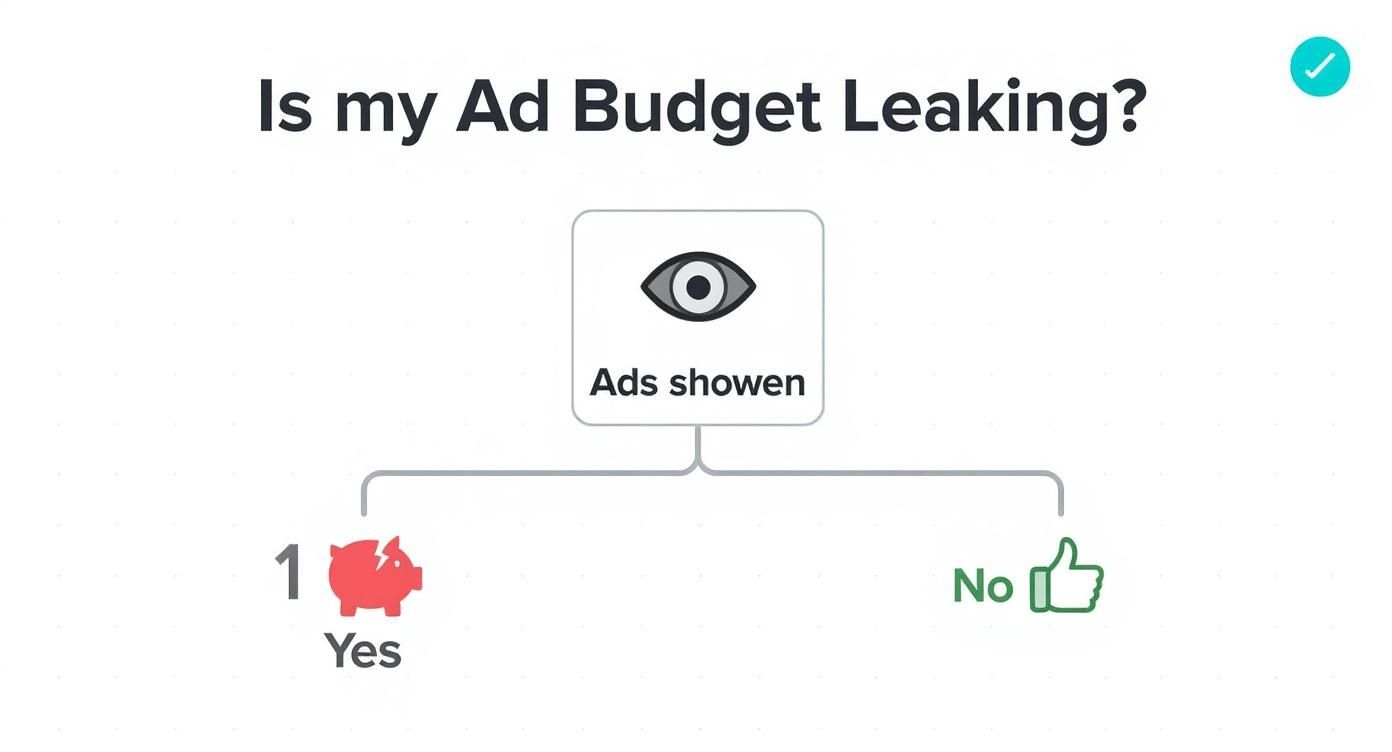
The difference is huge. You might use a broad match negative for a term like free because you never want to show up for "free stuff" searches. But if you see a search for "running shoe reviews," you can't just broad-match "reviews." Doing that could block a fantastic query like "reviews of the best Hoka running shoes," which is exactly who you want to reach.
The Three Flavors of Exclusion
Each match type has a job to do. Your job is to pick the right one for the situation. It all comes down to the search term you've identified and how much collateral damage you're willing to risk.
Let's look at the lineup:
- Negative Broad Match: This is the most aggressive option. Your ad won't show if the search contains all the words from your negative keyword, but they can be in any order. Be careful with this one—it’s powerful but can easily block good traffic if you’re not 100% sure.
- Negative Phrase Match: This is my go-to for most situations. It blocks searches that include your exact negative keyword phrase, in the correct order. It’s perfect for weeding out queries with specific modifiers like "how to" or "near me" when you don't offer that.
- Negative Exact Match: The most precise tool you have. It only blocks searches that are an identical match to your negative keyword, word for word. It's ideal for killing off a single, high-volume, irrelevant search term without affecting any variations.
Understanding these nuances is a core skill for any serious PPC manager. For a deeper dive on how these work for your positive keywords, check out our complete guide to Google Ads keyword match types.
Negative Match Type Cheat Sheet
To make this super clear, here’s a quick-reference table. Imagine you sell high-end, brand-new "leather hiking boots" and want to avoid tire-kickers and DIYers.
This table shows just how much control you have. You can surgically remove problem terms without nuking your entire campaign.
My best advice? Start with precision. Use phrase and exact match for almost all of your daily and weekly search term cleanups. Only use broad match for those universal no-go terms you are absolutely certain you never want to appear for, like "jobs," "free," or "pictures."
This disciplined approach is how you effectively add negative keywords without strangling your campaign's reach. You’re not just blocking words; you're sculpting your traffic to attract only the most qualified, high-intent searchers. It's about making every dollar of your ad spend count.
Finding and Adding Negative Keywords in Your Account
Alright, time to roll up our sleeves and get our hands dirty inside the Google Ads platform. Theory is great, but putting it into practice is what actually saves you money. This is where we get into the nitty-gritty of finding and zapping the search terms that are quietly draining your budget.
We'll start with the single most valuable tool in your arsenal for this job: the Search Terms Report. Think of this report as a direct line into the minds of your potential customers. It shows you the exact queries people typed into Google right before they saw—and maybe clicked—your ad.
Uncovering Hidden Waste in the Search Terms Report
This report is where the magic happens. Seriously, it's a goldmine of data that reveals the good, the bad, and the downright weird searches triggering your ads. My process here is simple but ruthlessly effective: I scan this report with one goal in mind—spotting queries that scream "wrong audience!"
To get there, just head into your Google Ads account and follow this path:
Campaigns > Insights & reports > Search terms
Once you're in, you’ll see a list of actual search queries. Your job is to play detective. Look for patterns of irrelevance that are costing you cash.
For example, are you selling premium software but see clicks from searches like "free accounting software template"? That's a negative keyword waiting to happen. Do you offer B2B consulting but get clicks for "marketing jobs in Austin"? Add "jobs" as a negative right away. For a deeper dive, our guide to the Google Ads Search Terms Report breaks down exactly how to pull actionable insights from this data.
The search terms report doesn't lie. It’s the unfiltered truth about where your ad spend is going. Making a weekly review of this report a habit is probably the single most effective thing you can do to keep your account healthy and profitable.
Adding Negatives Directly from the Report
The good news is that Google makes it incredibly easy to act on these insights. As you're scanning the report, you don't need to juggle spreadsheets or manually copy and paste every term. You can add negative keywords with just a couple of clicks.

The process is refreshingly straightforward. Just tick the checkbox next to any search term that’s a poor fit, then hit the "Add as negative keyword" button that appears at the top.
From there, you'll be asked where you want to add it: to the Ad Group, the Campaign, or a Negative Keyword List. For most of this quick, reactive cleanup, adding them at the campaign level is perfectly fine.
Building a Proactive Starter List
Here's a pro tip: don't wait for your budget to start bleeding out before you take action. Smart advertisers build a "pre-launch" negative keyword list to block obvious junk from day one. It’s just common sense. After all, you know your business and your non-ideal customers way better than Google's algorithm ever will.
Before launching any new campaign, take a few minutes to brainstorm a list of terms you know you don't want. Here are some universal categories to get you started:
- Job Seekers: Think "jobs," "hiring," "careers," "salary," and "resume." Unless you're recruiting, these are pure waste.
- Bargain Hunters (if you're a premium brand): Words like "free," "cheap," "discount," "coupon," or even "torrent" are red flags.
- Informational Intent: People searching for "how to," "what is," "tutorial," "guide," or "examples" are usually looking for information, not to buy.
- The DIY Crowd: Modifiers like "DIY," "template," "repair," or "make your own" signal a user who doesn't want to pay for a service.
- Academic/Research: Clicks from searches including "university," "course," "statistics," or "research" are rarely going to convert.
This proactive approach sets your campaign up for success by building a defensive wall before you even spend your first dollar. It means your initial data is cleaner and your budget goes toward finding real customers, not chasing obvious dead ends. This is how you add negative keywords strategically, not just reactively.
Work Smarter with Negative Keyword Lists
Don't get me wrong, adding negative keywords straight from the search terms report is a great habit to get into. But let's be honest, it's not the most efficient way to manage your account, especially as it grows. Trawling through campaign after campaign to add the same old negatives like "free" or "jobs" is a soul-crushing time-suck.
It’s time to work smarter.
This is where Negative Keyword Lists come in and save the day. Think of a list as a single, powerful template of exclusions you can apply to multiple campaigns at once. It’s a complete game-changer for keeping your account tidy and saving you from endless repetitive tasks.
Instead of adding "reviews" to your new campaign, then remembering to add it to your old one, and then again to the one you're launching next week, you just add it once to a master list. Now, every single campaign linked to that list is instantly protected.
The next time you spot a new junk term, you just pop it into the list. Boom. Protection rolled out everywhere.
Building Your Go-To Negative Lists
A well-organized account usually has a few different types of negative keyword lists running. This approach keeps things clean and gives you surgical control over where your exclusions are applied. It's the only way to add negative keywords that actually scales with your business.
Here are a few essential lists I think every advertiser should have from day one:
- The "Account-Wide" List: This is your bread and butter. It’s for all the universal terms you never want to pay for, no matter the campaign. Think "free," "jobs," "cheap," "download," "YouTube," and "DIY."
- The "Competitor" List: Unless you’re specifically running a conquesting campaign to steal their customers, you probably don’t want to pay for clicks from people searching for your competitors. Make a dedicated list with all their brand names and common variations.
- The "Brand Safety" List: This one is non-negotiable for protecting your brand's reputation. It should be full of any controversial, adult, or otherwise sketchy terms you don't want your ads showing up next to.
Building these lists from the start creates a powerful shield around your entire account. It sets a baseline for quality control and budget protection for any campaign you launch from here on out. If you want a deeper dive, check out our in-depth guide to building negative keyword lists that can save you a ton of time.
Campaign-Level Negatives vs. Shared Lists
Okay, so when should you add a negative directly to a campaign versus adding it to a shared list? This is a strategic decision that really just comes down to scope.
A campaign-level negative is a scalpel for a specific problem. A shared negative keyword list is a shield for universal threats.
Here’s a simple way to think about it. Say you sell "men's leather boots" and see a search for "vegan leather boots." That term, "vegan," is a perfect candidate for a campaign-level negative. It's super specific to that campaign's product. You definitely wouldn't add "vegan" to your account-wide list, because you might launch a vegan-friendly product line down the road.
On the flip side, if you see a click for "men's leather boots jobs," the problem word is "jobs." That’s a universal negative. It has zero to do with boots and everything to do with irrelevant search intent. That term belongs on your account-wide shared list so it's blocked across every campaign you ever run.
Using this two-pronged approach gives you both precise, campaign-specific control and broad, efficient protection for the whole account.
How Keywordme Speeds Up Your Entire Workflow
Let’s be honest, sifting through search term reports is a soul-crushing task. It's the kind of repetitive grunt work that eats up hours every week—time you should be spending on strategy, not endless copying and pasting. This is exactly where the pros find their edge.
What if you could ditch the spreadsheets and turn that multi-hour slog into a few decisive clicks? That's precisely what Keywordme was built for. It doesn't replace your brain; it just puts it in the fast lane, giving you the speed to optimize your campaigns like never before.
From Hours of Drudgery to Minutes of Action
The Keywordme Chrome plugin works right inside your Google Ads account, completely overhauling how you handle negative keywords. You can scan through search term data in bulk, spot the money-wasters at a glance, and add negatives with shocking efficiency.
Think about the old way of doing things. You spot a dozen junk queries, all with tiny variations. Your workflow probably looked something like this:
- Tediously check the box next to each term.
- Click "Add as negative keyword."
- Choose the right match type for every single one.
- Apply them to the correct campaign or ad group.
With Keywordme, you just highlight the problem words or phrases across hundreds of search terms at once. In one click, you can add negative keywords as exact, phrase, or broad match to any campaign or negative list you want. The tool takes care of all the formatting and applies them instantly.
Bulk Analysis for Smarter Decisions
A big part of campaign optimization, similar to what you'd find in detailed ad analysis examples, is understanding performance drivers at scale. Keywordme gives you that power directly in your search term reports. You can quickly see which terms are burning through your budget without bringing in conversions and neutralize them in bulk.
This has become more crucial than ever. Google recently blew the doors off the negative keyword limits for Performance Max (PMax) campaigns, raising the cap from a measly 100 to a massive 10,000 per campaign.
This 100-fold increase is a game-changer for controlling your ad targeting. We're already seeing the impact: clients using advanced negative keyword strategies with these higher limits are cutting wasted ad spend by an average of 31%.
Manually managing thousands of negatives is next to impossible. Keywordme makes it not just possible, but practical to take full advantage of these new, higher limits without losing your mind.
By automating the most tedious parts of the job, Keywordme frees you up to focus on the strategic decisions that actually move the needle. You'll spend less time clicking and more time analyzing, leading to cleaner, more profitable ad accounts in a fraction of the time. It’s the smarter, faster way to protect your ad spend and get better results.
Got Questions About Negative Keywords? We've Got Answers
If you're digging into negative keywords, you're bound to have some questions. It's one of the most hands-on parts of managing a Google Ads account, and it's totally normal to wonder if you're doing it right.
Let's walk through some of the most common questions I hear from fellow advertisers. Getting these concepts down will make your efforts to add negative keywords so much more effective.
How Often Should I Be Checking My Search Terms Report?
This is a big one, and the honest answer is: it depends on the age of your campaign.
For a brand-new campaign, you need to be on it like a hawk. I'm talking daily checks for the first week. This is your chance to immediately cut out the most obvious, money-draining junk traffic before it does any real damage.
After that initial blitz, you can usually settle into a nice weekly rhythm. This is the sweet spot for most accounts—it's frequent enough to catch new, wasteful search terms before they rack up a huge bill, but not so often that it becomes a massive chore.
Once your campaigns are mature and running like well-oiled machines, you can probably relax a bit and check every two weeks, or maybe even monthly. Just never, ever "set it and forget it."
Think of regular check-ins as health insurance for your ad spend. A quick 15-minute scan can prevent tiny budget leaks from becoming a flood, easily saving you hundreds of dollars over time.
Is It Possible to Add Too Many Negatives and Hurt My Campaign?
Oh, absolutely. It's a very real danger. While we think of negative keywords as a shield, getting too aggressive can cause your campaign to completely flatline.
This happens most often when people get a little too enthusiastic with broad match negatives. You might add a seemingly harmless negative keyword, only to find out it's blocking a whole category of high-intent, money-making searches. You've essentially choked off your own traffic.
For example, say you sell high-end running shoes and want to avoid people looking for general information. You might add "reviews" as a broad match negative. But in doing so, you could accidentally block someone searching for "brooks adrenaline vs hoka clifton reviews," a person who is clearly deep in the buying cycle! This is why I almost always stick to phrase and exact match negatives unless I'm 100% certain a broad match negative won't have unintended consequences.
Campaign Negatives vs. Negative Keyword Lists: What's the Difference?
Think of it like this: a campaign-level negative is a sniper's shot, while a Negative Keyword List is a fortress wall.
Campaign-Level Negatives: These are for surgical, one-off exclusions. You have a campaign for "engagement rings" and you see a click for "pawn shop engagement rings." Adding
pawn shopas a negative just for that campaign is the perfect move.Negative Keyword Lists: This is where you build your universal, account-wide "do not show" list. It’s the home for terms you never want to pay for, no matter the campaign. Think
free,jobs,how to,pictures,YouTube, and any competitor brand names you don't want to bid on.
Using lists is a massive time-saver. It keeps you from having to manually add the same 50+ negative keywords to every single campaign you build.
Do Negative Keywords Even Work With Performance Max?
Yes, they do, and they're one of the few levers we have to guide that black box. With Performance Max (PMax), you can't target keywords, but you absolutely can—and should—use negatives to tell the AI what not to target.
These negatives act as guardrails for the algorithm. By adding them at the account level, they'll apply to your PMax campaigns and stop them from wasting your budget on searches that are obviously a bad fit.
Thankfully, Google recently increased the number of negative keyword lists we can apply to PMax, giving us back some much-needed control. It's your best tool for reining in PMax's tendency to explore irrelevant audiences and focusing its power on people more likely to convert.
Ready to stop wasting time and start optimizing like a pro? Keywordme turns hours of tedious work into minutes of decisive action. Clean up your search terms, build powerful negative lists, and slash wasted ad spend—all from one intuitive tool. Start your free 7-day trial and see the difference for yourself.
.svg)