
Chrome Plugin Keywords Everywhere: The 2026 Walkthrough
Chrome Plugin Keywords Everywhere: The 2026 Walkthrough


You're in Google Ads, it's 9:47 a.m., and the search-terms report is filling up with queries that have nothing to do with the offer. You open three tabs to check whether those terms are genuine opportunities or obvious negatives, then return to the account to clean them up. The research happens beside the search results and the auction data, not in a separate dashboard.
That's why a Chrome plugin for Keywords Everywhere still has a place in a modern PPC workflow. AI suggestions and integrated ad-platform tools can generate plenty of ideas, but they don't remove the need for a quick human check of intent, competition, CPC, and search context. The useful question in 2026 isn't whether the extension replaces a full SEO or PPC platform. It's where an in-browser metric layer saves time, where its credit model creates friction, and when a workflow tool such as Keywordme becomes the more practical downstream system.
Why a Chrome Keyword Plugin Still Matters in 2026
A search-term report can tell you what people searched. It can't always tell you whether a query belongs in the account, deserves a negative, or points to a new ad group. That judgment often requires a fast visit to Google, a look at the results, and a comparison between commercial intent and the page the query produces.
Keywords Everywhere is useful in that moment because it puts keyword information beside the place where the decision starts. The extension adds keyword data directly to search and content workflows, and its product site describes coverage across 15+ sites, historical and 12-month trend charts, bulk keyword uploads, and competitor gap analysis. Keywords Everywhere's product overview shows how the tool has expanded beyond a simple search widget into a broader browser-based research surface.
Practical rule: Use the overlay to validate an idea, not to outsource your judgment about intent.
That distinction matters more as native platforms lean into automation. Broad match and machine-generated suggestions can uncover demand that a tightly controlled list misses, but they can also produce queries that look adjacent rather than commercially useful. Google Ads match types remain a control layer, with exact match as the tightest option, phrase match broader, and broad match widest, as explained in Google's documentation on keyword matching. A browser overlay can help you decide how much confidence an idea deserves before you apply that control.
For a solo operator or small agency, this is the strongest use case. You don't need a large research suite open for every query. You need a fast way to check whether a term has meaningful demand, whether the CPC looks commercially relevant, and whether the results support the landing-page angle you're considering. The extension also fits naturally into broader ecommerce research, especially when you're combining search behavior with proven SEO strategies for stores.
The limitation is just as important. Keywords Everywhere doesn't turn a messy search-term report into a clean account structure by itself. It helps you see and assess the raw material. The organization, negative-keyword decisions, match-type assignment, and campaign hygiene still need a deliberate workflow, which is why this guide to using a Chrome extension for PPC fits into the conversation.
What Keywords Everywhere Actually Does Inside Your Browser
Keywords Everywhere changes the page you're already using rather than sending you to a separate research application. On Google, the extension can place keyword information below search results and in a sidebar, giving you a quick view of monthly search volume, CPC, competition, and trend direction. That positioning is useful because the metric appears beside the actual result set, where you can judge whether the numbers match the visible intent.
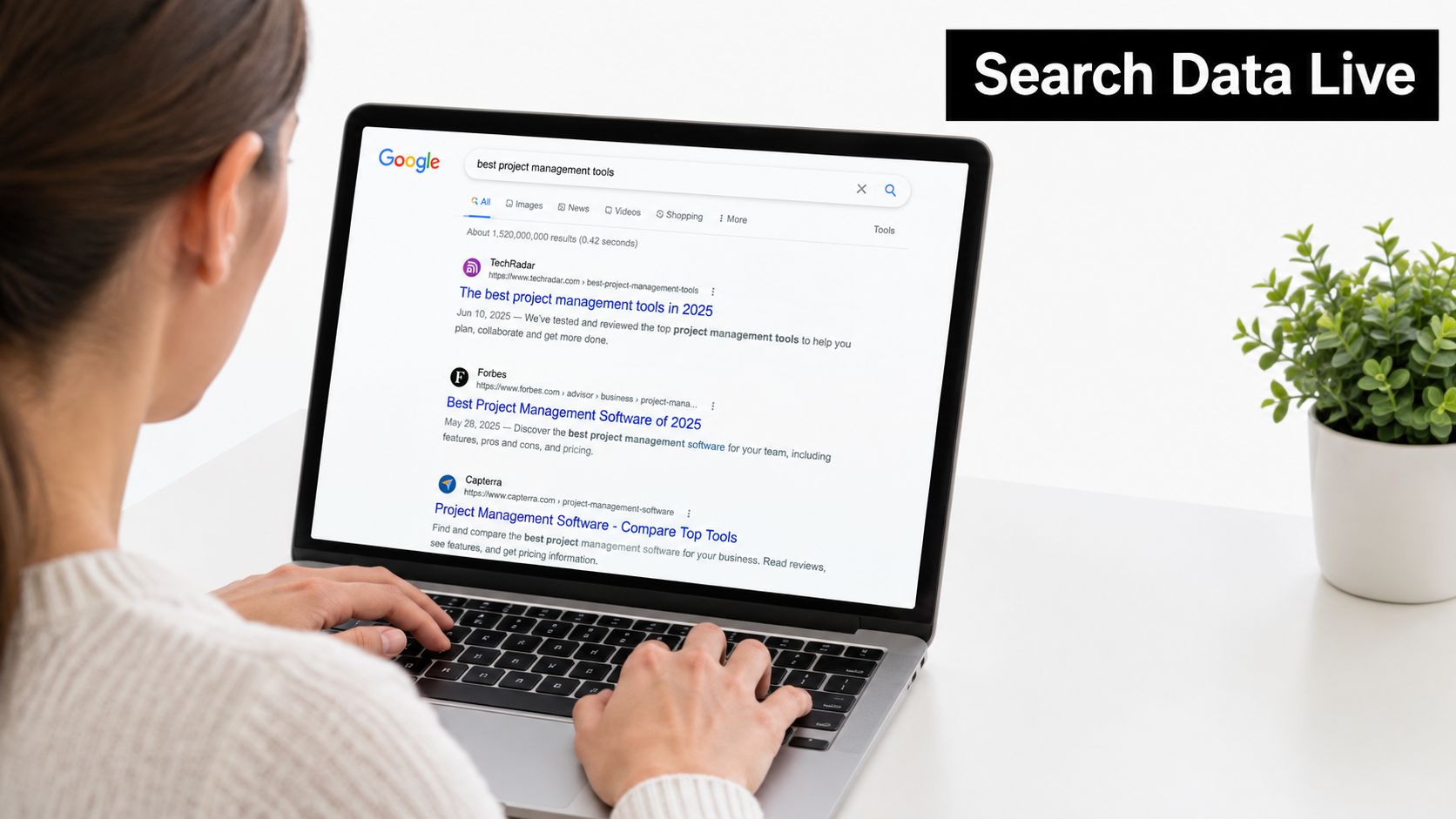
The overlay follows the research surface
The same general idea extends beyond Google Search. Keywords Everywhere supports overlays and keyword workflows across Google, YouTube, Bing, Amazon, and a curated set of publisher and analytics sites. That broader reach is useful for ecommerce and video campaigns, where the wording people use on YouTube or Amazon can differ from the wording they use in a standard Google query.
The extension can also show keyword information inside supported input fields on Google Ads, Bing Ads, and Google Search Console. Instead of copying a term into another tool, you may see related metrics beside the field where you're entering or evaluating it. This is particularly convenient during early campaign construction, although it shouldn't be confused with full campaign management.
Coverage isn't universal. A supported site may show the widget on one page type and remain blank on another, and settings can control which sources are active. That's why a first-day complaint such as “nothing appears” doesn't always mean the extension failed. The account may not be configured, the site may not be supported in that view, or the relevant source toggle may be off.
Trends add context, not certainty
Trend charts help answer whether interest appears steady, seasonal, or changing over time. The product timeline says version 8.4, released on May 19, 2020, introduced trend charts in Google and YouTube with historical search volumes reaching back to 2004. An earlier update on April 6, 2020 added trend data, traffic metrics, and keyword data for all URLs, according to the Keywords Everywhere product-news timeline.
That history is valuable for direction, but it doesn't replace account data, conversion tracking, or auction analysis. A rising trend can still describe low-quality traffic. A flat trend can still contain a profitable niche. Treat the chart as context for a decision you've already grounded in the SERP and the account.
The extension's visual layer is best when you're browsing, checking competitors, and collecting initial ideas. It becomes less useful when the job changes from discovery to bulk classification.
Here's a quick look at the kind of workflow it supports in practice:
Installing the Extension and Getting Useful Data on Day One
Installation is straightforward, but the useful part depends on a few settings that new users often skip. Follow the setup in this order so you can distinguish a configuration problem from a coverage gap.
Install and pin the extension. Add Keywords Everywhere from the Chrome Web Store, then pin its icon to the browser toolbar. A visible icon makes it easier to check account status, credits, and active settings without searching through the extensions menu. The listing shows active maintenance, with version 11.54 updated on September 3, 2026, as recorded in the Chrome Web Store listing.
Create the account and add the API key. Open the Keywords Everywhere account dashboard, copy the API key, and paste it into the extension popup. The extension can remain effectively inactive until this connection is complete, so a blank Google result page often starts here rather than with a browser bug. The step-by-step guide to installing Chrome extensions is useful if your browser setup needs a broader walkthrough.
Choose the country and currency deliberately. Select the credit country and currency from the available dropdowns before you begin collecting data. The region affects how the volume figures are matched to the database, and changing it later can reset the historical view you've built around earlier research. Don't pick a market casually if the account serves more than one location.
Check supported-site toggles. Open settings and confirm that Google, YouTube, Amazon, and the relevant ad-platform inputs are enabled. If you're researching ecommerce, leaving Amazon disabled can make the product look incomplete even though the setting is off.
Refresh before changing anything else. Return to a Google results page, refresh it, and look for the widget. Test one ordinary query before troubleshooting advanced features. If the overlay appears there, you've confirmed that the API connection and primary browser integration are working.
The cleanest setup habit is to test one market, one browser, and one supported page first. Expanding the configuration after that makes it much easier to identify which setting caused a missing widget.
The Free Layer, the Paid Layer, and How Credits Really Work
The confusing part of Keywords Everywhere isn't installing it. It's understanding the difference between being free to install and being free to use for every data point. The official FAQ says the extension is free to install on Chrome, Firefox, and Edge, while search volume, CPC, competition, and trend data require the paid layer. That distinction is laid out in the Keywords Everywhere FAQ.
The commercial shift happened on October 1, 2019, after four years of free availability. The extension and Firefox add-on moved to a paid model, and the release notes say automatic retrieval of volume, CPC, and competition data stopped for all keywords on that date. Related keywords and “people also ask” terms continued to appear in Google-side widgets, so discovery remained available even as the core metrics became selective and credit-driven.
What the free experience can and can't do
The free layer is most useful for browsing ideas and seeing the product's interface. It doesn't provide the full paid dataset because the extension is installed. Historical metrics and broader platform data belong to the paid credit model, so a user who expects every overlay to populate immediately will likely read the product as broken.
The pricing experience can also be difficult to interpret. Credit consumption, expiration rules, request limits, regional pricing tiers, and the difference between on-page credits and API access all matter to the buying decision. Those details should be checked inside the account before a team commits to a recurring research habit, especially when several people are using the same workflow.
| Feature | Free? | Cost per Query | Site Coverage |
|---|---|---|---|
| Basic discovery and related terms | Partly | Depends on the account and data request | Supported search workflows |
| Search volume, CPC, and competition | Paid layer required | Credit-based | Supported sites |
| Trend and historical metrics | Paid layer required | Credit-based | Google, YouTube, and supported surfaces |
| Bulk keyword and competitor research | Paid workflow | Credit-based | Available product surfaces |
| API access for third-party tools | Separate concept | Depends on the API arrangement | External integrations |
The table is deliberately cautious because the extension's free installation status doesn't tell you how many paid lookups your workflow will consume. A light researcher can assess whether the free discovery layer is enough. A PPC operator checking dozens of terms every day should monitor credits from the beginning instead of assuming installation equals unlimited access.
Budget reality: Decide whether you need keyword ideas or repeated metric lookups. Those are different use cases, and the credit model treats them differently.
A decade of continuity helps explain why the product still appears in current workflows. Independent extension-history data records a Chrome creation date of November 6, 2015, while the Chrome listing records an earlier publication date of October 22, 2015. The product has survived multiple browser and market shifts, but longevity doesn't remove the need to audit whether its current economics fit your account.
Privacy, Permissions, and What the Extension Sees
A browser extension that reads pages and inserts widgets deserves a permission review before you install it across a client team. Chrome limits extensions to the privileges declared in the manifest, and Manifest V3 distinguishes core permissions from optional permissions that can be granted later. The Chrome permissions documentation explains the roles of permissions, optional_permissions, host_permissions, optional_host_permissions, and content-script match patterns.
Access depends on the page
In practical terms, an extension such as Keywords Everywhere needs enough access to read keyword text on approved pages and place metric elements into the page. A narrowly scoped host list is preferable to unrestricted browsing access because it limits where the script can run and reduces the exposure created by broad permissions. Chrome's security guidance on Manifest V3 and extension permissions makes that least-privilege approach the sensible baseline.
The important distinction is between reading the query or keyword visible on a supported page and collecting your entire browsing history. Those are not the same activity. The permission model should also be reviewed alongside the Chrome Web Store privacy disclosure, because the manifest tells you what the extension can access while the privacy statement explains how the publisher says that information is handled.
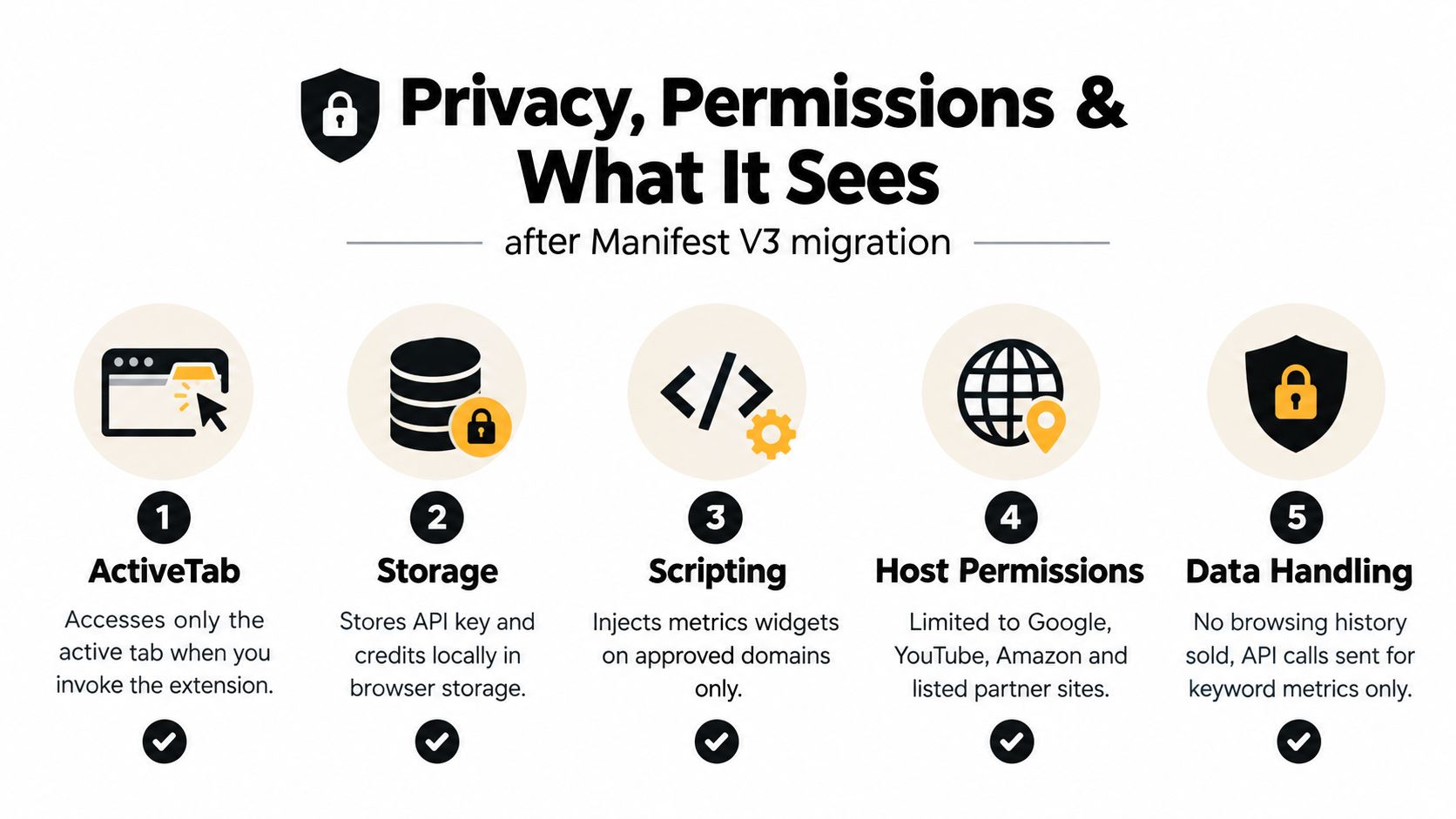
What leaves the browser matters
For metric lookup, keyword strings may be sent to the Keywords Everywhere API so the service can return volume, CPC, competition, or trend information. Account information may also be involved in synchronizing credits, while usage counters can support service operation. That doesn't mean the extension should be given access to unrelated account data.
A sensible PPC policy is to install it only in a browser profile used for marketing research, review the requested domains, and remove access you don't need. Keep client email, personal browsing, and sensitive administrative work in a separate profile. Browser extensions can inject content into search pages, so the residual risk never becomes zero because the tool is popular or actively maintained.
The same caution applies to Google Ads. A keyword overlay beside an input field isn't permission to assume the extension can manage campaigns, read every account detail, or inspect email. Confirm what the manifest requests, what the privacy disclosure says, and whether the extension's access remains proportionate to the task you're asking it to perform.
Where Keywords Everywhere Stops and a PPC Workflow Tool Begins
Keywords Everywhere is strongest at the top of the workflow. You search a phrase, inspect the results, notice a competitor angle, and use the overlay to check whether the idea has enough commercial context to pursue. That's a fast research loop, and forcing it into a spreadsheet-first process would remove much of its value.
The handoff happens when you have a list and need to make account decisions. A browser overlay doesn't automatically decide which terms belong together, which queries should become negatives, or how a set of keywords should be distributed across campaigns without creating conflicts. Those tasks require structure rather than another metric.
The practical division of labor
| Job to Be Done | Keywords Everywhere | Workflow Tool, such as Keywordme |
|---|---|---|
| Validate a keyword while browsing | Strong fit | Usually downstream |
| View volume, CPC, competition, and trends | Core use case | May use imported data or support planning |
| Generate match-type versions in bulk | Limited fit | Built for bulk handling |
| Mine large search-term reports | Not the primary role | Built for repeatable report workflows |
| Build negative-keyword lists | Requires manual judgment and handling | Can support organized negative management |
| Group keywords by intent | Useful for ideas | Better suited to structured campaign preparation |
| Detect cross-campaign conflicts | Not the extension's main function | More appropriate for account-level workflow |
A Google Ads operator can use the extension to identify a promising phrase, then move that phrase into a workflow designed for match-type assignment, negative-keyword curation, grouping, and campaign hygiene. Keywordme is one example of that downstream category, with a Chrome plugin that works inside the Google Ads Search Terms Report to remove junk terms, add negatives, apply match types, and build keyword groups.
That combination avoids a common mistake: expecting one lightweight overlay to perform the work of a campaign-management system. Keywords Everywhere helps you decide what deserves attention. A PPC workflow tool helps turn the decision into repeatable account actions.
The useful handoff: Research beside the SERP, classify inside the account, and keep the two jobs separate.
For operators managing only a small number of campaigns, manual handling may remain perfectly reasonable. Once search-term reviews become repetitive, the cost isn't just time. Inconsistent naming, missed negatives, and careless match-type changes can make the account harder to defend. The right tool is the one that removes the repetitive formatting and sorting while leaving the final judgment with the operator.
A broader comparison of options is available in this guide to Google Ads Chrome extensions for PPC. The important point isn't to replace Keywords Everywhere. It's to stop asking a research overlay to perform account-architecture work it wasn't designed to handle.
Picking the Right Combo for Your Account Size
The right setup depends on how much research you do, how many campaigns you manage, and whether a person still reviews search terms manually. Ad spend is a useful starting signal, but operational complexity usually determines when the extension needs help.
A solo freelancer or small account running under $5,000 per month can often get substantial value from Keywords Everywhere alongside a Google Ads account. The extension supplies quick SERP context, while native search-term reports and campaign tools handle the account-side work. Pay-as-you-go research is easier to justify when you only check terms during planning or occasional optimization.
For accounts between $5,000 and $50,000 per month, the argument for pairing tools becomes stronger. Manual exports and repeated match-type formatting become less attractive as campaign count grows, particularly when several people touch the account. Use the extension for competitive checks and idea validation, then use a workflow layer for bulk handling, negative lists, and cross-campaign consistency.
Teams above $50,000 per month may keep Keywords Everywhere as a lightweight browser companion rather than a central research system. Enterprise operators typically need deeper governance, shared processes, broader data management, and account-level controls. The extension can still be useful for a quick Google check, but it shouldn't carry the burden of the whole keyword operation.
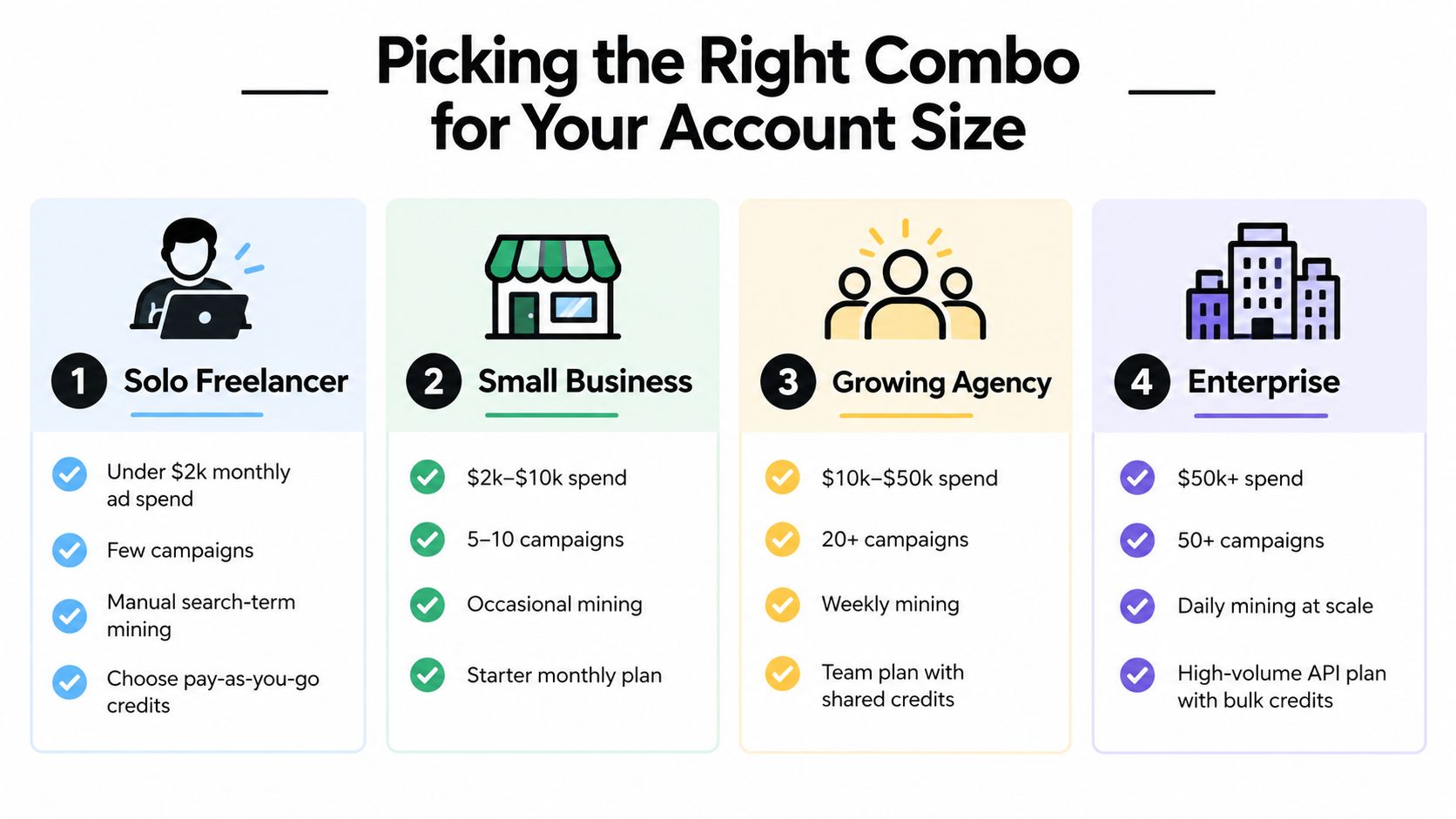
A quick decision checklist
- Research frequency: If you check terms only during planning, the extension may be enough. If you review search terms daily, look for structured automation.
- Campaign complexity: A few focused campaigns can tolerate manual sorting. Multiple campaigns with overlapping themes need stronger negative and conflict controls.
- Team behavior: One operator can maintain a clean process manually. Shared accounts benefit from consistent rules and repeatable actions.
- Data expectations: If you need quick volume and CPC context, an overlay fits. If you need audits, bidding, reporting, and governance, add a broader platform.
- Credit discipline: Monitor how often your team requests paid metrics before committing to a larger credit pattern.
The best combination isn't the one with the most features. It's the one that gives each tool a clear job. Keywords Everywhere can stay close to the SERP, while the account workflow handles the work that begins after you've decided a keyword is worth keeping.
Keywordme works inside Google Ads to help you clean irrelevant search terms, add negative keywords, apply exact, phrase, and broad match types, and build organized keyword groups without repetitive copy-and-paste work. If your research is outgrowing manual account cleanup, visit Keywordme and see whether its Chrome-based workflow fits the way your team manages search terms.
.svg)