
How to Remove Keyword From Google Search: A Simple Guide
How to Remove Keyword From Google Search: A Simple Guide


Tired of a weird search from last year popping up every time you type? Or maybe you're watching your ad budget vanish on clicks that just don't convert. It's a common problem, but thankfully, a solvable one.
When we talk about removing a keyword from Google, we're really talking about two very different things. For your personal searches, it's about deleting it from your search history to stop those pesky autocomplete suggestions. For businesses, it's about adding it as a negative keyword in a Google Ads campaign so you stop paying for irrelevant traffic.
Your Guide to Removing Unwanted Google Keywords

Whether you’re just trying to tidy up your own search bar or you're a PPC pro trying to optimize a campaign, dealing with the wrong keywords is a massive headache.
For most of us, it’s a personal annoyance. That one-off search for a weird recipe or a random celebrity fact keeps haunting your autocomplete, getting in the way of what you’re actually looking for. It's all about cleaning up your digital space and making your daily searches a little smoother.
But for anyone running ads, the stakes are way higher. Unwanted keywords in a Google Ads campaign are a direct hit to your bottom line. Every single click from someone searching for something you don't offer is money straight out of your pocket, tanking your ROI and bringing the wrong people to your site.
The Two Paths to Keyword Removal
This guide walks you through both fixes. I'll show you exactly how to wipe those annoying predictions from your personal search history. Then, we’ll jump into the world of Google Ads and get familiar with negative keywords—easily the most powerful tool you have for protecting your ad spend.
Think of it like this: managing your personal search is like decluttering your home office for better focus. Managing your ad keywords is like putting a bouncer at the door of your business to keep out the time-wasters. Both are crucial.
So, which one do you need?
Sometimes, a quick side-by-side comparison makes it easiest to see which path is the right one for you.
Keyword Removal Methods at a Glance
Each approach is designed for a completely different purpose, but both give you more control over your Google experience. Let's get started.
Cleaning Up Your Personal Search Experience

Let's be real—Google's memory can be a bit too good. That one-off search for a weird gift or a topic you're no longer interested in can haunt your search suggestions for ages. A clean slate not only feels good but also makes your day-to-day searching way more relevant.
This is all about personal search hygiene. The goal is to show you exactly how to remove a keyword from Google search on a personal level, clearing out the clutter and taking back control of your search bar. It’s less about complicated SEO and more about simple, practical housekeeping.
Getting Rid of Individual Search Predictions
The quickest fix is to tackle those annoying autocomplete suggestions right as they appear. This is perfect for zapping a one-off search you’d rather forget.
When you start typing and that unwanted prediction pops up:
- Just use your arrow keys to highlight the suggestion you want to remove.
- On your keyboard, press Shift + Delete (or Fn + Shift + Delete on some laptops).
- And just like that, it's gone.
This little trick is fast, but it only removes that specific suggestion. For a much deeper clean, you’ll need to dive into your Google Activity.
This simple keyboard shortcut is your first line of defense against cringey search history. It’s immediate and satisfying, but it's only treating the symptom. The root cause is your saved search activity.
Clearing Your Google Search History
For a more permanent fix, you'll want to head over to your "My Activity" page. This is Google’s central hub for pretty much everything you’ve searched, visited, or watched while logged into your account.
You have a few options here for a really thorough cleanup:
- Delete by Date: You can easily wipe your history from the last hour, last day, or a custom date range. This is great if you just went down a research rabbit hole you'd rather not have saved.
- Delete Specific Items: Search your activity for a particular keyword and you can delete every single instance of it.
- Set Up Auto-Delete: This is the best option for long-term cleanliness. You can tell Google to automatically delete your activity after 3, 18, or 36 months. Set it and forget it—it's a game-changer.
Using Negative Keywords to Protect Your Ad Budget
If you’re running Google Ads, you know that irrelevant keywords are more than just a nuisance—they’re a direct hit to your wallet. Every time someone searching for something you don't sell clicks your ad, you've just paid for a lead that will never convert. That's money down the drain.
This is where you learn how to remove a keyword from Google search in a way that actually saves you money. Your most powerful weapon against wasted ad spend? The humble negative keyword.
Think of a negative keyword as a bouncer for your ad campaigns. It’s a list you give Google telling it exactly what search terms you don't want your ads showing up for. This simple list of exceptions is what separates a money-pit campaign from a profitable one.
Why a Negative Keyword List is Non-Negotiable
A well-maintained negative keyword list is the foundation of any successful pay-per-click (PPC) strategy. Let’s say you sell "premium dog food." You absolutely do not want to be paying for clicks from people searching for "free dog food samples" or "dog food recall lawsuit."
By adding "free" and "lawsuit" to your negative keyword list, you instantly filter out that unqualified traffic. This is the difference between just spending money and investing it. You ensure your ads are only seen by people who are actually looking to buy what you’re selling. In fact, effective Google Ads management is built on this kind of precise targeting to stop budget leaks before they start.
The scale of this issue is staggering. In 2023 alone, Google had to remove 5.5 billion ads and suspend a whopping 12.7 million advertiser accounts, often because of issues stemming from poor keyword choices. And while the average business can make $8 for every $1 spent on Google Ads, that ROI disappears fast when irrelevant keywords are eating up your budget.
Understanding Negative Match Types
To really get this right, you need to know the three main "match types" for negative keywords. Each one gives you a different level of control over what gets blocked.
- Broad Match: This blocks your ad if all the negative keywords are in the search query, regardless of the order. It’s the widest net.
- Phrase Match: This one is more specific. It blocks your ad if the search contains your exact negative keyword phrase, in the same order.
- Exact Match: The most precise of the three. It only blocks your ad if the search query is the exact negative keyword, with no other words before or after.
Getting a handle on these is the key to building an ironclad defense for your campaigns. To really dig into the specifics, check out our guide on the fundamentals of Google Ads negative keywords.
How to Find and Remove Junk Keywords from Your Campaigns
Time to roll up your sleeves. The single best place to find keywords that are silently draining your ad budget is hiding in plain sight: the Search Terms Report inside your Google Ads account.
This isn't just a list of the keywords you're bidding on. Think of it as a truth serum for your campaigns, showing you the actual, real-life search queries people typed into Google right before they clicked your ad. This report is where you'll have those "aha!" (and sometimes "oh no...") moments, spotting the costly, low-converting, and sometimes downright bizarre terms that are triggering your ads.
It's the raw data you need to make genuinely smart decisions. For a more detailed walkthrough of its features, we've got a full guide on the Google Ads Search Terms Report that covers all the nuances.
Now, a quick heads-up: Google has made this a bit trickier over the years. One major shift was the removal of the 'num=100' search parameter, which used to let us see deeper into search results. One study even found that 87.7% of sites experienced a drop in reported impressions after this change, making it tougher to catch every single irrelevant term.
Identifying and Acting on Bad Keywords
Alright, so you’ve got your Search Terms Report open. What are you actually looking for? Keep an eye out for search queries that are:
- Completely irrelevant: You sell premium dog food, but you're getting clicks from people searching for "cat food recipes."
- Low-intent or informational: These often include words like "free," "jobs," "pictures," or "how to." If you're selling a product, these clicks rarely convert.
- Competitor brand names: Unless you have a very specific, well-thought-out strategy to bid on your competition, these clicks can be expensive and ineffective.
When you spot one of these budget-wasters, just tick the little checkbox next to it and select "Add as negative keyword." Google will then ask you to pick a match type.
This is where you need to be strategic. The match type you choose determines how aggressively Google blocks similar terms in the future.
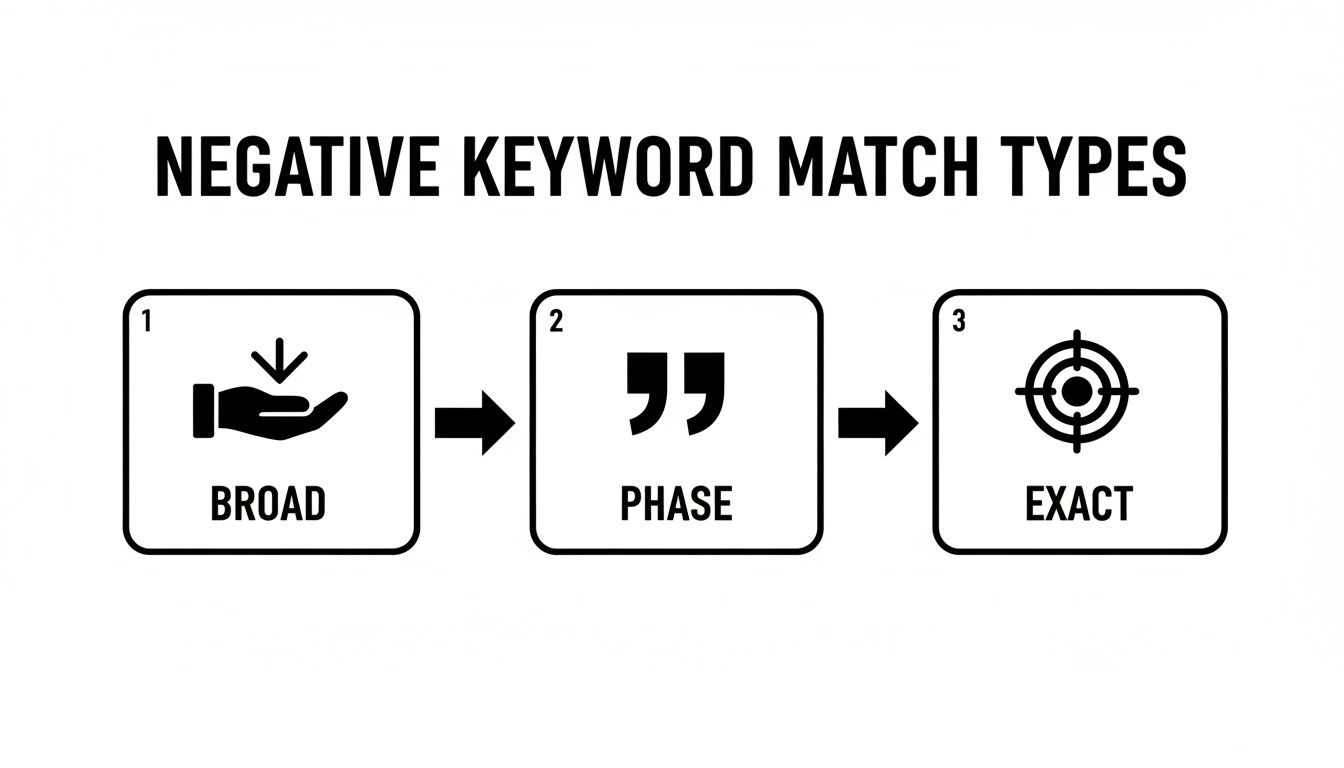
Getting this right is crucial. You want to block the junk without accidentally shutting the door on genuine potential customers.
This cleanup isn’t just a cost-saving exercise. It's a direct investment in your campaign's health. When your ads are shown for highly relevant searches, your click-through rate (CTR) goes up, your performance metrics improve, and Google's algorithm starts to favor you.
This kind of regular maintenance is non-negotiable for a healthy account. Understanding concepts like What Is Quality Score & How Does It Affect Google Ads? is key here, because trimming away irrelevant keywords is one of the fastest ways to give your Quality Score a serious boost. It's a fundamental part of running an efficient, profitable campaign.
Let a Tool Do the Heavy Lifting: Automating Keyword Cleanup

Let's be honest: nobody enjoys manually sifting through thousands of search terms in a spreadsheet. It’s a tedious, eye-glazing task that’s ripe for human error, and it’s a massive time sink as your campaigns grow. It's time to ditch the copy-paste grind and get smart about it.
This is where a dedicated tool like Keywordme can be a total game-changer. Imagine swapping hours of exporting data and wrestling with spreadsheets for an intuitive Chrome plugin that analyzes your search term reports right inside Google Ads. You can spot junk terms and build powerful negative keyword lists with just a single click.
A Smarter, Faster Workflow
Keywordme is designed to take the manual labor completely out of the equation. It handles the annoying stuff for you, like applying the correct match types and making bulk changes without a fuss. More importantly, it helps you uncover those high-converting keywords that are buried deep in your data.
Suddenly, a multi-hour chore becomes a quick, strategic task you can knock out in minutes.
With Google processing over 8.5 billion searches daily, that kind of efficiency isn't just nice to have—it's essential. The competition is insane. We know that longer, more specific queries tend to have higher click-through rates, which makes weeding out broad, irrelevant terms a top priority. This is especially true when you consider that over 58% of searches are just single words that often bring in low-quality traffic.
As AI continues to drive more unique and conversational queries, aggressive, ongoing refinement is the only way to stay ahead. If you're curious about the latest numbers, you can dive into these Google search statistics and trends.
It's Not Just About Deleting Bad Keywords
True optimization isn't just about what you cut; it's also about what you find. While you're cleaning up the junk, Keywordme helps you spot and expand upon the search queries that are actually making you money.
Automation isn't a luxury in PPC anymore; it's a necessity for staying competitive and profitable. It frees you up to focus on high-level strategy instead of getting bogged down in repetitive, manual tasks.
This process allows you to build stronger, more tightly-themed ad groups based on what's already proven to work. Want to see how this applies beyond just cleanup? Our guide on how to automate keyword research breaks down the benefits in more detail.
Still Wondering About Keyword Removal?
Got a few more questions rattling around? You're in good company. It's totally normal to have some lingering thoughts when you're figuring out how to remove a keyword from Google search.
Whether you're deep in the weeds of a massive Google Ads account or just trying to tidy up your personal browser, the same questions tend to crop up. Let's tackle them so you can get back to work.
Can I Actually Stop My Website from Ranking for a Keyword?
This is the big one, isn't it? The short answer is no—you can't just flip a switch and tell Google's organic search to stop showing your site for a certain keyword. If Google’s algorithm thinks your content is a good match for a search, it's going to show it.
But you're not powerless. You just have to work at it indirectly:
- Rework Your Content: The most effective route is to edit your website. If you don't want to rank for a term, remove it or shift the focus of your pages. Once your content is no longer a strong match, your ranking will naturally fade over time.
- Use the Removals Tool: For a faster, but temporary, fix, you can use the Removals tool inside Google Search Console. This lets you hide a specific URL from search results for a while, which is great for emergencies but doesn't fix the underlying issue.
The bottom line is this: for organic search, you control your content, not Google's index. If you’re tired of showing up for "cheap widgets," you need to make it crystal clear that your site is all about "premium widgets."
How Often Should I Be Updating My Negative Keyword Lists?
When it comes to Google Ads, managing your negative keyword list is definitely not a set-it-and-forget-it task. You need to be in there, checking your Search Terms Report and adding new negatives on a regular basis.
The right frequency really depends on how much traffic you're running:
- High-Volume Accounts: If you’re spending a lot and getting tons of clicks, a weekly check-in is probably smart. You’re collecting data fast, which means you can spot and block budget-draining keywords before they do too much damage.
- Low-Volume Accounts: For smaller accounts, a bi-weekly or monthly review is usually fine. You need to let enough data build up to make good decisions, otherwise, you might overreact to a handful of irrelevant clicks.
I always tell my clients to think of it like weeding a garden. A little bit of maintenance on a regular schedule keeps your campaigns healthy and profitable. If you let it go for too long, you'll come back to a huge mess that costs a lot more time and money to clean up.
Ready to stop wasting time on manual keyword cleanup and start saving your ad budget? Keywordme provides the tools you need to automate your negative keyword workflow, find high-converting terms, and optimize your campaigns up to 10x faster. Try it for free.
.svg)