
Google Shopping Campaign Setup That Actually Works
Google Shopping Campaign Setup That Actually Works


“Raise your bids” is popular advice for a quiet Google Shopping campaign. It's also a good way to spend more without fixing anything. If the wrong product variant is attracting clicks, purchase tracking has broken, or your inventory isn't eligible to serve, a bigger bid addresses the wrong problem.
Start with the catalog, then check measurement and budget allocation. Only change bids when you can explain which eligible, relevant auctions you're missing and why those auctions are worth buying.
What a Google Shopping Campaign Is
A Google Shopping campaign advertises products through tiles that show an image, title, price, and store name. Google pulls that information from product data submitted through Merchant Center, rather than from a targeting keyword list you type into the campaign.
Say you sell shirts and turn on Shopping ads. A shopper looking for a medium navy shirt clicks your product, but the landing page opens on a different size. They leave, you pay for the click, and the campaign looks inefficient.
Your first instinct might be to lower the bid. But inspect the variant first: does the submitted item describe the medium shirt, does its image match, and does its URL open the right selection? A bid adjustment won't repair a confusing product handoff.
The basic relationship looks like this:
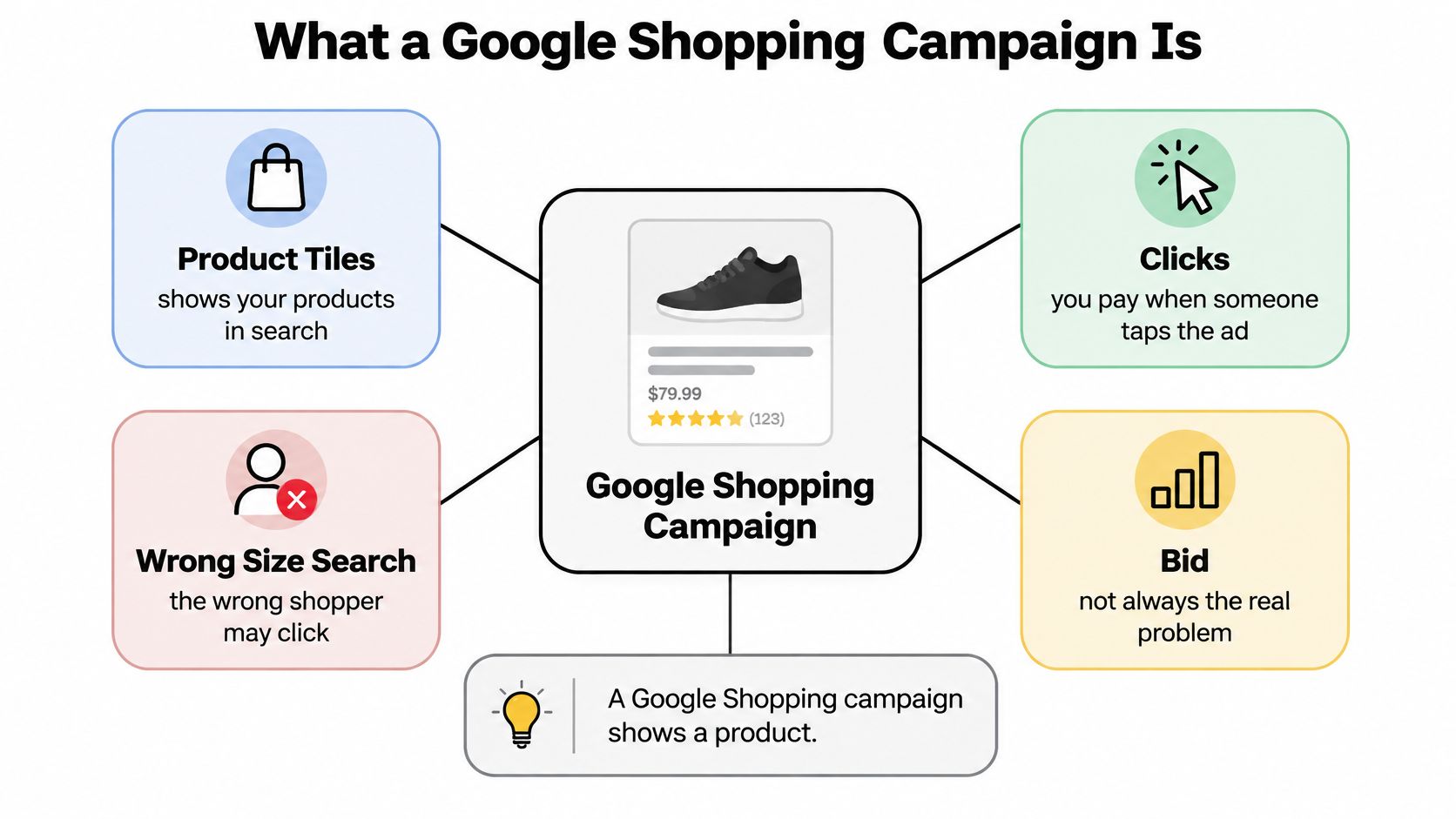
The catalog comes before the auction
Think of Merchant Center as the product-information layer and Google Ads as the advertising-control layer. You need both, but they solve different problems.
- Merchant Center: Supplies the product information Google uses to understand inventory and assess whether it can advertise.
- Google Ads: Controls campaign spending, bidding, inventory selection, and performance reporting.
- Your store: Must deliver the item and buying experience described in the ad.
An approved item isn't guaranteed impressions. Approval establishes eligibility, while relevance, auction competition, and campaign settings influence whether it appears.
For a practical companion to catalog cleanup, NanoPIM's guide to product feed optimization for better sales offers a useful place to organize the work before changing media settings.
Why feeds and bids both matter
According to the Google Shopping history, Google launched Froogle in December 2002 as a free, crawler-based product index, renamed it Google Product Search in April 2007, and announced the paid Google Shopping model on May 31, 2012, completing the U.S. transition in October 2012. That shift helps explain today's setup: structured product information and paid auction participation work together.
Shopping isn't just a text-ad campaign with pictures attached. You're advertising a catalog, including its variants, stock changes, prices, and commercial limitations.
Practical rule: Check whether the right item can show before deciding what you're willing to pay for its click.
For the shirt retailer, that means correcting the size and landing-page selection before testing a different bid. Otherwise, you're just changing the price of the same bad visit.
What You Need Before the First Auction
Before opening the bidding settings, check the account connection, inventory selection, product accuracy, and purchase measurement. Those are launch requirements, not cleanup tasks to leave until advertising has started.
Go-live checks for a Google Shopping campaign
| Requirement | What Google expects | If you skip it |
|---|---|---|
| Linked Merchant Center | Campaign uses products from a linked account | No inventory is eligible to advertise |
| Feed label | Selects which products from that account may serve | Campaign points at the wrong or empty pool |
| Data freshness | Submit current product data at least every 30 days | Items can stop serving after the feed goes stale |
| Shopping policies | Content must meet Shopping ads policies, separate from standard Google Ads policies | Disapprovals even if Search ads are fine |
| Stable product ID | Prefer the SKU, up to 50 characters, unchanged between updates | Broken item history and duplicate products |
| Price and availability | Feed must match the landing page and checkout | Preemptive item disapprovals |
| Vehicle feed, if used | Only when Merchant Center already has approved vehicle offers | Vehicle ads have nothing eligible to pull |
Google's Shopping campaign requirements specify current product submissions at least every 30 days and compliance with Shopping ads policies, which are separate from standard Google Ads policies. Treat that interval as a minimum requirement, not an appropriate update schedule for fast-moving stock.
Connect the right inventory
Google's campaign creation guidance explains that campaigns use a linked Merchant Center account and that feed labels select the eligible inventory pool. It also limits the optional vehicle-feed setup to Merchant Center accounts containing approved vehicle offers.
That feed-label detail is easy to miss. Your Merchant Center catalog can look full while a campaign points at a label containing none of the products you intended to promote.
Before publishing, inspect the actual selected products rather than assuming the account connection proves everything is included. Check exclusions and product-group subdivisions too.
A small-catalog launch walkthrough
Say a homewares shop has 40 SKUs. That's a hypothetical catalog, not a recommended size threshold.
The owner links Merchant Center, assigns the intended primary-feed label, and previews the inventory available to the campaign. Each item keeps its existing SKU-based identity, including when the shop publishes localized versions of the same product.
Next, the owner compares product pages with submitted prices and stock status. A sale-price mismatch gets fixed in the underlying store integration, rather than patched manually in a way the next feed refresh will overwrite.
The owner then checks Shopping policy issues and confirms that shipping and checkout information are consistent. The vehicle-feed row is marked not applicable because the store sells homewares, not approved vehicle inventory.
Purchase measurement needs its own test. Use the Google Ads conversion tracking guide to review the purchase action, value reporting, and implementation before allowing automated bidding to depend on those signals.
Finally, assign an owner to feed maintenance. Someone needs to notice failed submissions, integration changes, newly unavailable products, and checkout changes after launch.
Setup isn't finished when the campaign goes live. If a row in the checklist fails, fix that dependency before looking for a bidding shortcut.
How Product Data Picks the Query
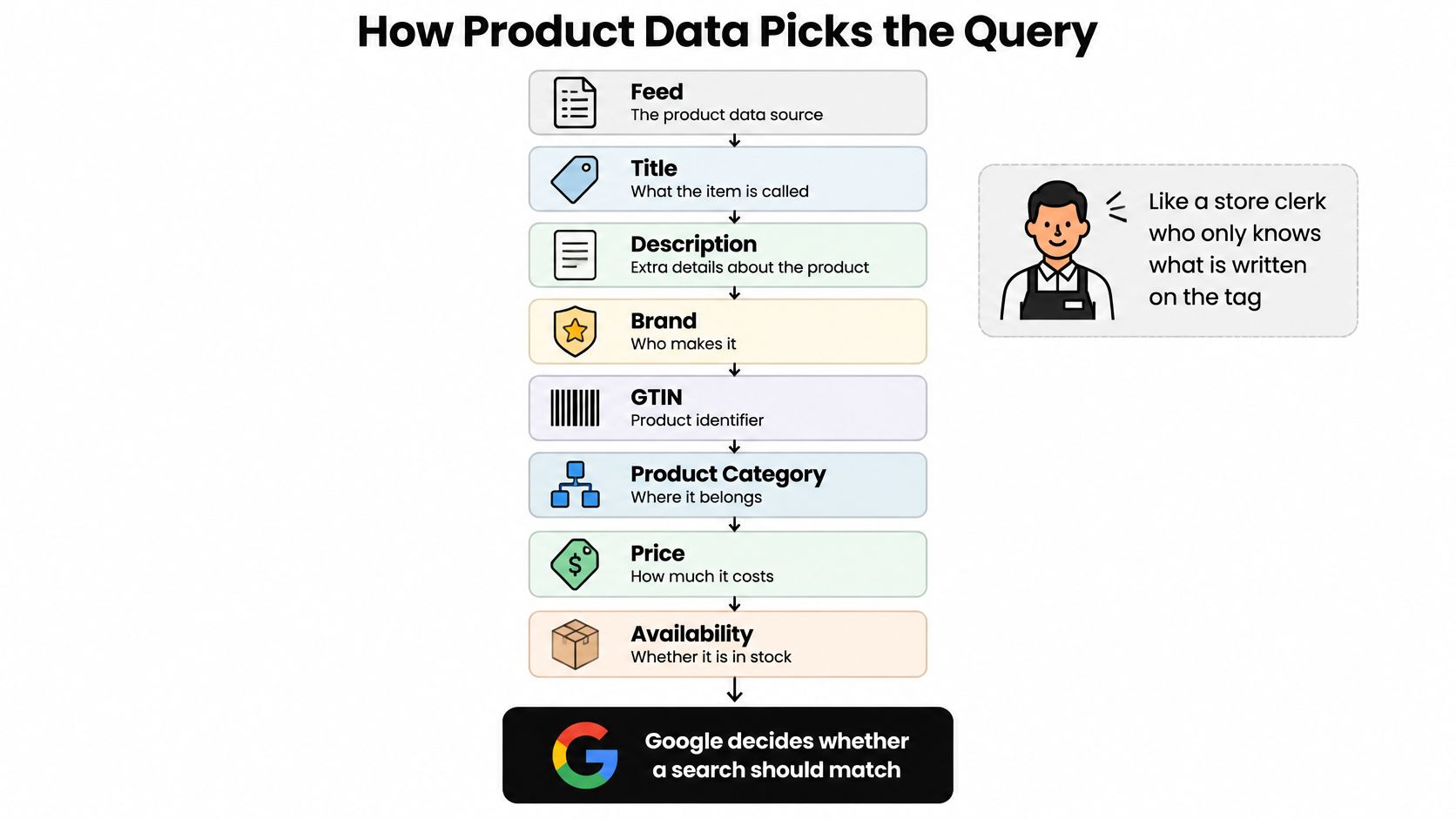
Think of Google as a store clerk who only knows what's written on the product tag. If the tag says “Blue Shirt,” the clerk has little information to distinguish an office shirt from a sports jersey.
Google's product data specification describes attributes including titles, descriptions, identifiers, price, availability, shipping, and product categorization. It also specifies a stable product ID of up to 50 characters, kept consistent between updates and across countries or languages for the same product.
Those fields aren't administrative decoration. They provide the information Google needs to connect a product with a relevant search.
Give the item a useful name
Compare these hypothetical titles:
- Too vague: Blue Shirt
- More specific: Men's Oxford Button-Down Shirt, Navy, Medium, Cotton
The specific version identifies product type, intended wearer, color, size, and material. It gives Google more relevant information and helps a shopper recognize the item before clicking.
That doesn't mean the longer title automatically wins an auction. It means you've removed ambiguity that a higher bid couldn't solve.
Use an order that makes sense for the category. For apparel, product type and distinguishing attributes matter; for a replacement component, brand compatibility and the correct identifier may deserve earlier placement.
The feed-to-query relationship works like this:
Borrow shopper language without stuffing titles
Search-term reports help you notice vocabulary your catalog team missed. If relevant shoppers consistently describe a cotton overshirt using a legitimate product synonym, consider whether that language belongs in the title or description.
Don't add a phrase just because it generated impressions. Confirm that it accurately describes the product and that the landing page supports the claim.
A search term is evidence to interpret, not an instruction to rewrite the catalog around every click.
There's no positive keyword list to upload that replaces Shopping's product matching. Use query analysis to improve accurate product language and identify irrelevant searches for exclusion.
A useful cleanup process separates the jobs:
- Relevant language: Pass it to whoever maintains product titles and attributes.
- Impossible intent: Review it for negative keywords.
- Relevant query, poor results: Investigate price, variant selection, and the product page before excluding it.
Images deserve the same attention
Google reports more than 20 billion monthly Lens searches, with one in four having commercial intent, in its retail marketing insights. That's a reason to take visual product information seriously, not a promise that changing an image will produce a particular lift.
Use clear photos, consistent presentation, and variant-specific imagery when the appearance differs. A navy shirt shouldn't inherit a photo of the white variant just because both belong to the same parent product.
For a related perspective on machine-readable retail information, SellerAI's explanation of how AI assistants rank shopping offers can help frame a broader catalog review. Keep the practical priority simple: accurate descriptions, useful identifiers, and images that show what the buyer will receive.
Use the go-live checklist for identity, price, and stock validation. Title improvements shouldn't distract you from those operational checks.
Bids and Product Groups That Fit the Catalog
A traffic drop is a diagnosis before it is a bid problem. Check whether products are eligible to serve, whether conversion value is being recorded correctly, and whether another campaign or catch-all group is absorbing the budget. The catalog decides whether an ad can show; bidding only changes how hard eligible items compete.
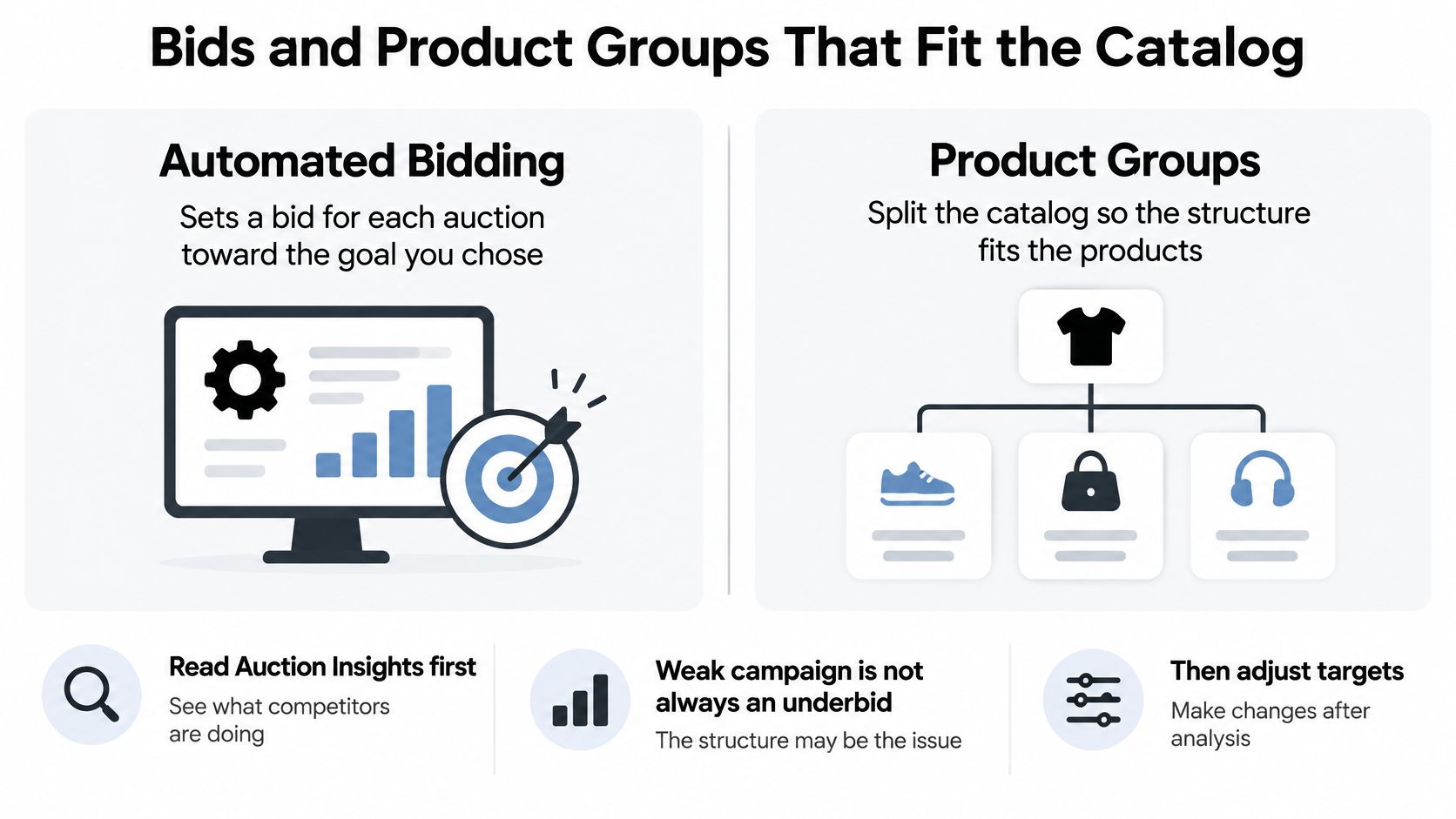
Start with Auction Insights. Google's Auction Insights documentation identifies impression share, overlap rate, and outranking share for Shopping campaigns, giving you a way to assess auction coverage and competitor presence.
Read those measures beside conversion value and cost. Low coverage with strong value points toward budget limits or an efficiency target that is too strict. Healthy coverage with weak sales points toward the offer, the feed, or the page.
Separate limited reach from weak traffic
| What the account suggests | Sensible next investigation |
|---|---|
| Low impression share and strong conversion value | Budget restrictions, item eligibility, or an overly demanding efficiency target |
| Healthy impression share and weak conversion value | Feed relevance, price competitiveness, landing-page experience, and query intent |
| Competitors frequently appear alongside you | Compare the offer, shipping, price, and auction coverage before increasing bids |
| A product group spends heavily without useful value | Inspect its items and searches rather than changing the entire campaign |
Low impression share alone does not prove that more spend will be profitable. Look for evidence that the product already converts at an acceptable commercial return, then ask whether the campaign is being held back by budget, target, or eligibility.
A higher return on ad spend can still hide a poor business outcome if the target keeps profitable products out of auctions. ROAS is revenue relative to ad spend, not profit margin.
The relationship between bidding and catalog structure is easier to see visually:
Organize around commercial differences
Google has offered product-level controls in Shopping since the Product Listing Ads era. The useful principle is straightforward: treat items differently when their economics are different.
Say a hypothetical apparel retailer has 200 SKUs. It organizes bestsellers, seasonal stock, and the remaining catalog into product groups, keeping a catch-all so newly introduced items do not disappear from its structure.
Those groups improve visibility, but product groups do not create independent campaign budgets or separate campaign-level ROAS targets. If high-margin products and low-margin accessories need different targets, the campaign structure must support that distinction.
Before splitting anything, compare performance by item ID, product group, brand, price tier, and search-term intent. Reddog Consulting Group's a retail brand's margin-first advertising playbook is a useful companion when translating commercial margins into advertising decisions.
Choose a strategy your campaign type supports
Shopping bid starts by catalog situation
| Situation | Start with | When it backfires |
|---|---|---|
| Enough conversion history and a clear margin goal | Target ROAS with separate targets for high- and low-margin inventory where campaign structure permits | One target across the catalog can restrict valuable products or overspend on cheap add-ons |
| Still learning, thin conversion data | Maximize conversion value where supported, such as Performance Max, with a controlled budget | An aggressive ROAS target can restrict auction participation before useful evidence develops |
| Small catalog you can watch by hand | Manual CPC on a few Standard Shopping product groups | You can miss opportunities or respond too slowly once volume becomes steady |
Confirm the strategy is available in the campaign type you plan to run. Choose the campaign type and bidding option together, because the same goal behaves differently under Standard Shopping and Performance Max.
Keep deliberately managed Standard Shopping inventory distinct from Performance Max inventory when you need clear steering and diagnosis. For overlapping Standard campaigns, understand how Shopping campaign priority settings steer traffic rather than assuming priority controls every interaction across campaign types.
After a substantial edit, give the account a fair observation window. Change structure or targets, and keep the other variable steady long enough to explain what moved.
Plans by Business Size
The right campaign structure is one your team can maintain. A solo owner checking ads between packing orders needs a different workload from an agency managing client accounts.
For a small retailer, consistent catalog checks usually deserve attention before another campaign split.

Pick a workable operating plan
The catalog sizes below are illustrative planning scenarios, not platform requirements or performance thresholds.
Shopping plan by business size
| Business size | Campaign shape | Weekly routine |
|---|---|---|
| One-person shop, under about 50 SKUs | One Standard campaign with three managed product groups plus a catch-all for unassigned items | Check price and stock mismatches against the live page |
| Mid-size catalog, a few hundred SKUs | Split by category or brand where margins justify different treatment | Check that sale prices match the site |
| Agency with many client accounts | Separate account per client, segmented in reporting by item ID | Maintain a reviewed junk-query library and stagger major changes |
For the solo shop, those managed groups might be best-margin products, proven sellers outside that group, and the remaining established inventory. Keep them mutually exclusive, with the catch-all covering new or otherwise unassigned products.
Don't split campaigns just because a product group had a quiet day. Wait until its sales and costs support a commercial decision, and make sure any new campaign can receive enough budget to be useful.
For a mid-size store, assign the sale-price check to someone who knows the promotion calendar. Compare the submitted sale offer, product page, and checkout rather than assuming the feed integration handled every promotional change.
Scale the routine before the structure
An agency needs reusable procedures, but reusable negatives require care. A query that's junk for a furniture retailer might be valuable for a spare-parts seller, so a shared library should be reviewed for each client rather than applied blindly.
Stagger major account changes so the team can monitor them properly. Keep an edit log recording the reason, affected inventory, expected result, and condition that would justify reversing the change.
Use this video alongside the account review, with your own catalog and budget open:
For weekly query cleanup, keep the decisions narrow: exclude searches the store can't satisfy, and collect accurate shopper language for product information. Don't turn a routine review into a full campaign rebuild.
Before adding a campaign, write down who will maintain it and which distinct budget or target it needs. If nobody can answer those questions, leave the structure alone.
The Google Ads budgets guide can help you work through spending allocation before dividing a modest budget across more campaigns. Choose the operating plan that fits the account today, not the organization you hope to become.
Why Approved Products Suddenly Go Quiet
Your products are approved. They had impressions yesterday, and today they barely show. The first useful question isn't “How much should I raise bids?” It's “What changed between eligibility, measurement, allocation, and the auction?”
Approval is a starting point, not a guarantee of delivery. Inspect the affected item and campaign together before deciding which control to touch.
Shopping traffic drops and the first check
| What you see | Check first | Do not do yet |
|---|---|---|
| Item disapproved | Price or availability mismatch, broken links, redirects, robots.txt restrictions, slow or inconsistent pages | Raise bids or rebuild the campaign |
| Approved, almost no impressions | Feed label, submission freshness, shipping, GTIN, brand, and ID stability | Switch bid strategy |
| Impressions fell right after a big edit | Learning status and time since the change | Make another target or structure change immediately |
| Impression share looks fine, value is weak | Titles, competitor pricing, landing page, and wasteful queries | Add more budget |
| Low impression share, value is strong | Budget cap or an efficiency target that's too restrictive | Rewrite all titles |
| One product spends the budget, others go quiet | Item-level allocation and whether the hero needs a separate budget | Raise bids across everything |
Establish whether the item can actually serve
Google's Merchant Center troubleshooting guidance covers serving problems associated with product-data inconsistencies and website access issues. Price or availability mismatches can trigger preemptive disapprovals; broken links, problematic redirects, robots.txt restrictions, and slow or inconsistent pages can also interfere with serving.
Check the latest item status, not an old export or a reassuring account-level total. Open the submitted URL and verify the exact variant, including what happens when a buyer proceeds toward checkout.
A successful feed submission doesn't prove every submitted attribute is correct. Inspect an affected item beside a similar item that still receives impressions, then compare labels, exclusions, shipping information, and landing-page behavior.
Don't fix an access problem with a bid change. If Google can't reliably reach or reconcile the offer, auction aggressiveness isn't the missing ingredient.
Verify the purchase signal before judging efficiency
Next, compare store orders with Google Ads purchase reporting. They won't necessarily reconcile perfectly because attribution and reporting timing differ, but an abrupt disappearance deserves investigation.
Check the purchase action's status, recent implementation changes, consent handling, and whether order value is still being passed correctly. If appropriate, run a controlled test purchase and verify it through your measurement tools.
A tracking failure doesn't necessarily remove impressions immediately. It can, however, leave automated bidding without the signals it needs, making a new efficiency target a poor substitute for repairing measurement.
Keep operational repairs separate from performance experiments. Otherwise, you won't know whether the recovery came from restored tracking, refreshed inventory, or changed bidding.
Allow learning, then inspect allocation
Major bidding or structural edits can return automated bidding to learning. Google Ads support-community guidance recommends allowing up to two conversion cycles or about 14 days before judging performance, but treat that as an observation guideline rather than a guaranteed recovery deadline.
During that window, fix broken implementation and eligibility issues. What you should avoid is repeatedly changing targets because daily results feel uncomfortable.
Then examine where the money went. A bestselling item can absorb much of a campaign's spend while eligible products receive little exposure; overlapping Performance Max inventory can also complicate the account-level picture.
Distinguish actual budget sharing from a shared business allowance. Separate campaigns may have separate daily budgets while still consuming the same retailer's overall advertising funds.
For a Monday traffic drop, a safe investigation looks like this:
- Confirm submission health: Check that scheduled updates completed and affected inventory remains selected.
- Inspect representative products: Compare a hypothetical sample of three affected SKUs with their live pages.
- Validate purchases: Confirm that recent real orders still produce the intended measurement signal.
- Read the change history: Identify edits that could explain learning or altered inventory coverage.
- Review allocation: Find whether spend concentrated on a hero product or another campaign.
Only then use auction coverage to decide whether additional budget or a less restrictive target is justified. A product-group split helps reporting and control, but a separate campaign may be necessary when the actual requirement is a protected budget.
Your Next Move This Week
Give the account an ordered review rather than a collection of unrelated tweaks. Keep a short change log open, and record evidence before making each decision.
Follow the diagnosis before touching bids
Open Merchant Center. Inspect your hero products, their current approval status, recent feed submissions, and the exact offers on their landing pages. Start with the products that matter commercially, not whichever warning is easiest to dismiss.
Stop at the first eligibility failure. Repair incorrect inventory selection, stale integrations, or mismatched product information before duplicating campaigns or changing targets. Use the traffic-drop table to choose the next check rather than trying every available setting.
Confirm purchase tracking. Verify that Google Ads still receives purchases and usable order values. If the signal is broken, repair it before interpreting automated bidding performance.
Check the change history and learning status. Separate a recent intervention from a genuine deterioration in demand. Leave a sound test alone long enough to evaluate it, while continuing to fix operational faults.
Investigate auction coverage and spending allocation. Consider additional budget only where eligible products already generate acceptable value and lack coverage. If another item consumes the available spend, address that allocation instead of increasing every bid.
Review search terms for clear waste. Exclude searches your products can't satisfy, taking care not to block useful broader intent. Keep title improvements in a separate task list so query cleanup doesn't become an uncontrolled feed rewrite.
Make the smallest defensible change
Choose the intervention you can explain in a sentence: the feed label excluded the inventory, the purchase action stopped recording, or a commercially strong product lacks budget. If you can't name the failure, you're not ready to choose the fix.
Leave bids untouched until eligibility, measurement, and the observation window point to the auction as the actual problem. The aim isn't to make the account look busy this week. It's to make the next decision less of a guess.
Keywordme runs AI scans to extract negative keywords through a plugin that works inside Google Ads, so you can review Shopping query waste without leaving the account. Visit Keywordme to sign up for the free trial and get instant access to the Chrome plugin, then use it for search-term cleanup after your feed and purchase tracking checks pass.
.svg)