
Google Ads Scripts: How to Write, Run and Test Safely
Google Ads Scripts: How to Write, Run and Test Safely


Monday morning, second coffee, and the same export you ran last Monday: search terms, sorted by cost. You paste it into a sheet, scroll past the terms you already handled, and start typing negatives into the account by hand. Around row 200 you stop reading carefully and start pattern-matching, which is exactly when a decent term gets killed.
That job is what Google Ads Scripts were built for, and it's the one most accounts try first. The automation isn't the hard part. The hard part is building it so a mistake can't reach live spend at scale, and so you can reconstruct what happened three weeks later when someone asks why a campaign changed.
The scripts that survive in an account and the ones that get deleted after a panicked Friday look like the same JavaScript. The difference is whether the thing was built as a change-control system: previewed before it edits, staged by campaign, logged line by line, and designed to fail safely halfway through.
What Google Ads Scripts Actually Do for Your Account
Scripts live inside your account. They're small JavaScript programs stored in Google Ads and executed on Google's cloud, so there's no server to babysit and nothing to install. They arrived in a limited release on June 14, 2012, under the name AdWords Scripts, and could already read campaigns, ad groups, ads and keywords, send email, write to Google Sheets and call external HTTP services, as the 2012 launch announcement laid out. They launched free and without a developer token, which removed the main reason small teams ignored them.
Usage is wide but shallow. In 2024, 19% of advertisers reported using no Google Ads scripts at all, while 63% used between one and five, according to PPCSurvey.com data published by Search Engine Land. Very few teams run dozens, and the ones who do are usually agencies with a shared script library.

Where scripts earn their keep is repetition: bid rules, keyword and negative operations, reporting pulls, and monitoring that emails you when something drifts. They're a poor fit for large custom applications, which is what the Ads API is for. The honest cost is maintenance. You need to read code, test against real data, and accept that a scheduled script can move money while you're in a meeting.
Here's the quick test for whether your account needs one. Do you make the same change more than once a week? If the answer is yes and the change involves search terms, scripting the negative keyword workflow is the natural first build.
Script Limits to Design Around Before You Code
The fastest way to ruin a good script idea is to design it for the account you wish you had. Google's documented limits for Google Ads Scripts describe the box you're working inside, and every one of them changes how the code should be shaped.
A single advertiser account gives a script 30 minutes before Google cancels it. Manager account scripts start with the same 30 minutes, but executeInParallel with a callback extends the total run to as much as 60 minutes and processes up to 50 child accounts in parallel. That's the feature large agencies lean on, and it's also the one that turns a single bad rule into fifty accounts changed at once.
Below that sit the volume ceilings. The default iterator returns 50,000 entities, and reports and search queries are exempt from that cap. Bulk uploads take files up to 50 MB and as many as 1,000,000 rows, and one user can authorize up to 250 scripts. None of that is trivia. Those numbers decide whether keyword expansion, negative processing and bid management run across a manager hierarchy or only on one tidy account.
The limits that decide your architecture
| Limit | Value | What it means for your script |
|---|---|---|
| Single account script run time | 30 minutes | Google cancels the run after this, so split large jobs |
| Manager script with executeInParallel and callback | Up to 60 minutes | Runtime can stretch when a callback is used |
| Parallel child accounts per manager run | Up to 50 | Plan batches for agency hierarchies |
| Default iterator limit | 50,000 entities | Reports and search queries are exempt |
| withIds() selector | 10,000 IDs | Batch larger ID lists |
| Bulk upload file size | 50 MB | Split large edit files |
| Bulk upload row count | 1,000,000 rows | Upload in chunks for very large edits |
| Authorized scripts per user | 250 scripts | Keep an inventory of scripts |
| Read best-practice threshold | More than 1,000,000 entities | Use reports instead of full entity fetches |
| Daily edit best-practice threshold | More than 100,000 entities | Stage edits by campaign |
Read the last two rows as a warning rather than a target. Once a job crosses those volumes, the answer isn't a longer run or a cleverer loop. The answer is changing what the script asks for.
That's why a selector that filters beats a selector that fetches everything and sorts afterwards. A script that pulls every keyword and filters in JavaScript wastes runtime on rows it will throw away, and on a large account it will hit the ceiling before it reaches the interesting part. Filtering in the selector, batching writes by campaign, and pushing the big reads into reports are all decisions you make before the first line of logic.
Design around selectors, batching and reports in the first draft. Retrofitting them into a script that already works is the expensive version of the same job.
How to Write and Deploy Your First Script
The loop is short: create the script, authorize it, preview it against real data, then run it. Steps four and five are where it goes wrong, and they're the two people skip when they're in a hurry.
Here's the path in one picture.
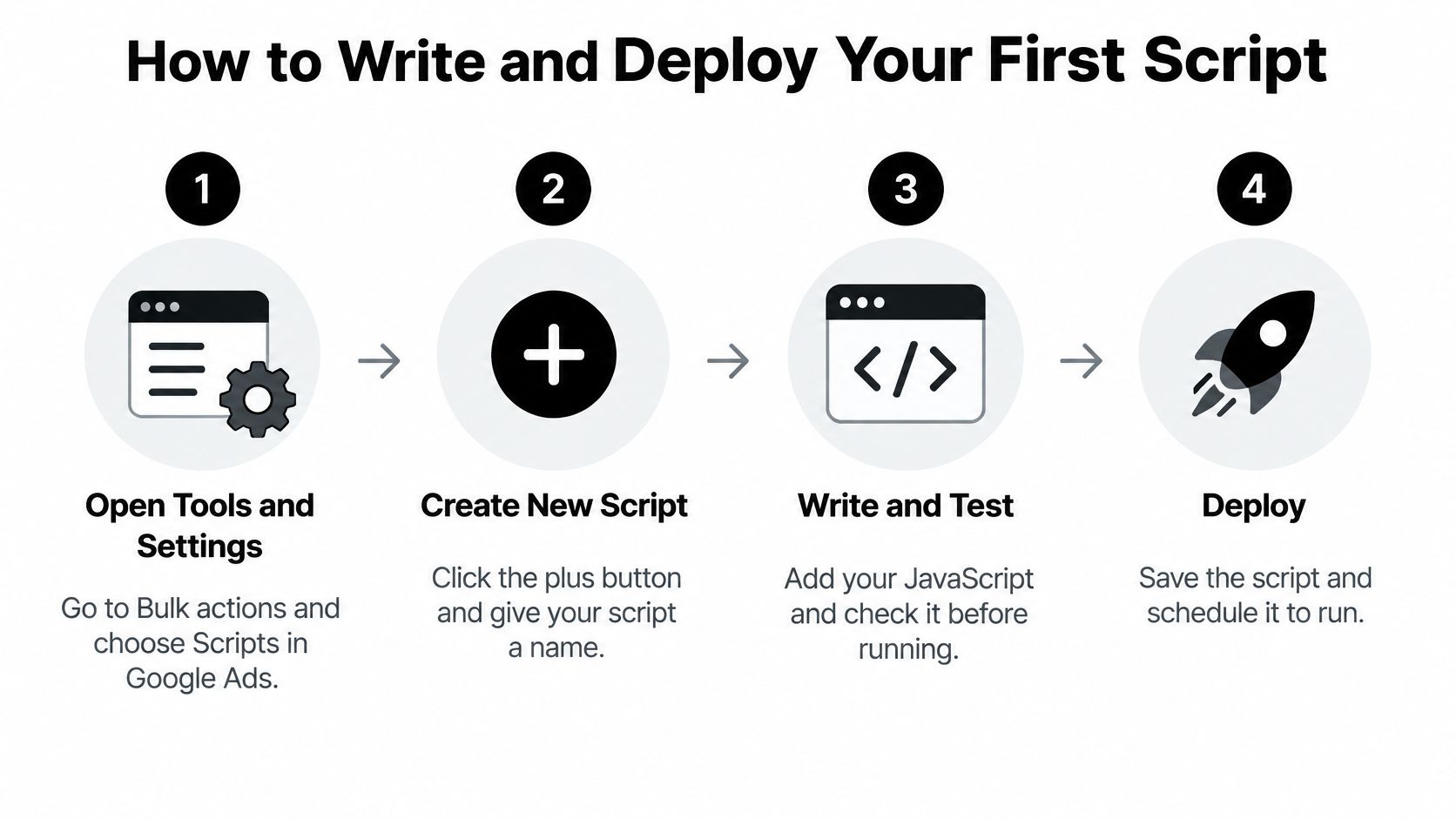
Seven steps from a blank editor to a live script
- Find the Scripts page. In Google Ads, open Tools and Settings, then Bulk actions, then Scripts. That's also where scheduled runs and their history live, which is the screen you'll visit most often afterwards.
- Create the script and name it for whoever inherits it. Click the plus button and build a name from the job and the date, something like
Negatives - Search - 2026-03. A list of scripts called Test 1 through Test 9 tells you nothing in six months. - Paste the code and replace every placeholder. Campaign names, click thresholds, sheet URLs and email addresses all need to be yours. The most common bad edit is leaving an account-wide selector in place when you meant one campaign.
- Click Authorize and read what you're granting. Scripts act independently on your behalf, so Google requires permission before a script can read account data or change anything. The prompt appears the first time you preview or run a script and can return if authorization expires, as Google's authorization documentation explains.
- Preview, then read the log line by line. Preview runs the logic without applying changes. If the log lists 400 keyword additions and you expected four, stop and fix the filter before anything else happens.
- Check one campaign in the UI before trusting the rest. Compare the preview's numbers against what that campaign reports in the interface. This step catches date-range mistakes, currency confusion and off-by-one errors in thresholds.
- Run once by hand, then schedule. A manual run in a quiet hour lets you watch the result land in the account. Only after that does a schedule make sense.
Seeing the editor once before you paste anything is worth ten minutes, and this walkthrough covers the same ground.
What a clean run looks like in the log
A clean first run reads like a receipt: counts that match what you expected, one line per campaign, and no skipped records you can't explain. Ambiguous rows are fine as long as they're labelled ambiguous and parked somewhere a person will read. What you don't want is a summary that says 12,000 entities processed and nothing else.
Design the log before you design the change. Write every planned mutation with the account, campaign, entity and old value, then apply it. Months later that log is the only record of what the script did and, more usefully, what it decided not to do.
How to Schedule and Test Scripts Without Surprises
Test before you schedule, never after. Run the script on a low-spend campaign or a test account first, check the output against what you expected, and only then widen it to the rest of the account. If you're already running structured experiments on that campaign, you'll know what normal looks like, which makes an odd result much easier to spot.
Frequency is a risk decision, not a convenience one. The Scripts screen lets you choose hourly, daily, weekly or monthly. Daily at a quiet hour is usually right for bid changes, because every run is another chance for a mistake to reach live spend and an hourly job hands you 24 of those chances a day. Reporting scripts can run more often, since they only read.
Then build four habits into every script you keep.
- One script, one job. A script that cleans negatives and adjusts bids fails in two places and logs neither clearly. Split it.
- Name with purpose first, version second.
PMax-Budget-Guard-v3survives a year of edits better thannew script copy. - Put a kill switch at the top. A single boolean that returns early before any write. When something looks off, you flip one line instead of hunting for the loop that's misbehaving.
- Snapshot before bulk edits. Read the current values of the entities you're about to change and write them to a sheet. Rollback then means reapplying the old values instead of guessing.
The gate that matters: never schedule a script you haven't previewed on real data at least once. A preview that matches your expectations is the cheapest test you'll ever run.
Each habit costs about ten minutes on the first build. Each one has saved somebody an entire afternoon.
Reporting and Search Term Scripts with GAQL
Reporting is the half of a search-term script that decides whether the rest is safe. Google Ads Scripts reporting is backed by the Google Ads API and uses GAQL to define the fields, metrics and conditions you want, so the script asks for a slice instead of hauling the account into memory, as Google's reporting documentation for scripts sets out.
Keep extraction and mutation as two separate steps. Query only the search-term dimensions and metrics you need, filter by date range, campaign and conversions, then classify each term with your business rules. Deduplicate against the keywords and negatives that already exist before anything gets written. Group the surviving mutations by campaign, and record each one as created, skipped, failed or ambiguous.
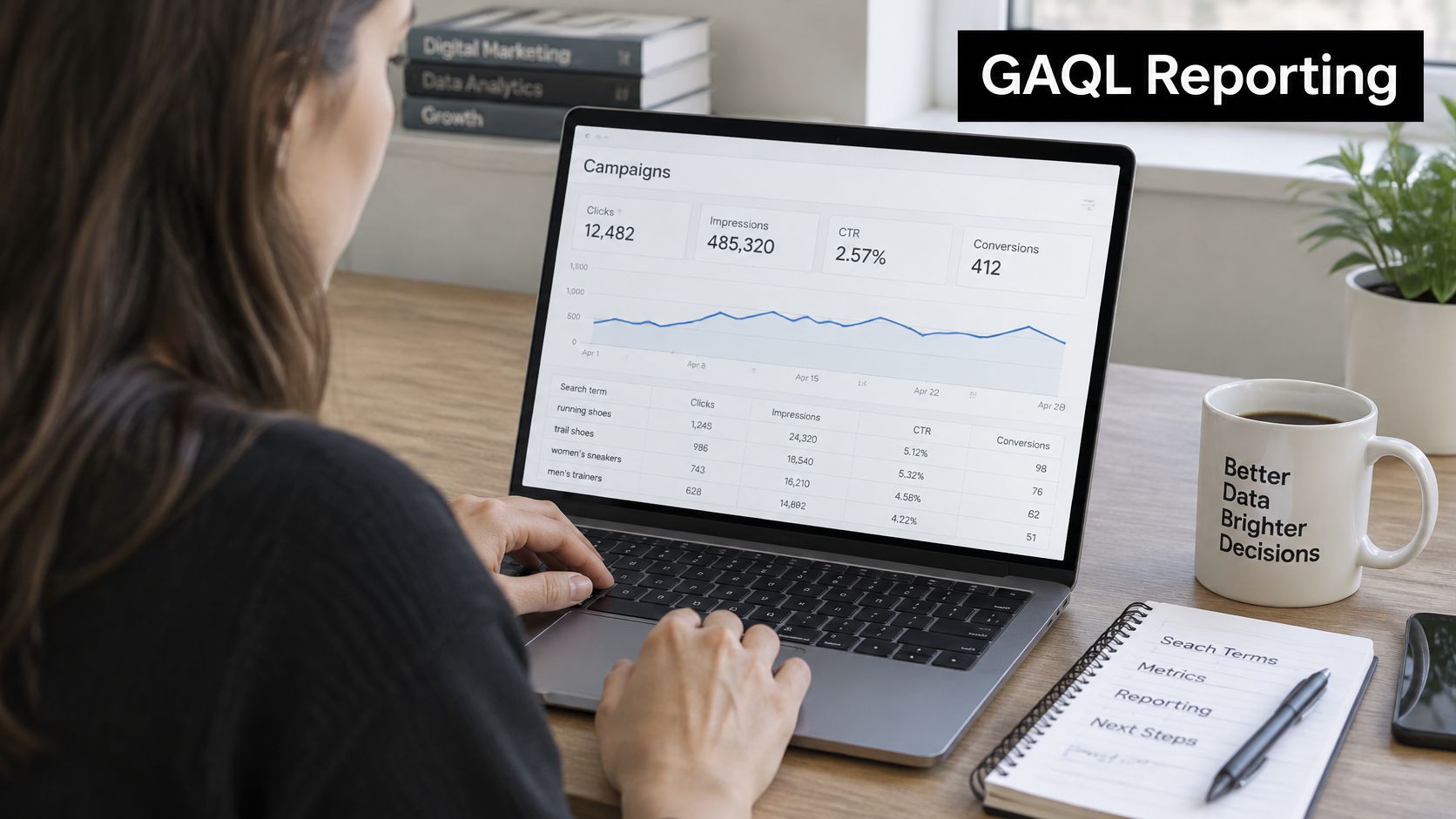
That separation is what prevents the classic failure: a broad entity selector used for a job that should have been a query. Anything that walks entity by entity has a ceiling, and reports don't work that way. The ID route has its own cap, which is why long ID lists belong in batches rather than one enormous call.
The rule set I'd write before touching a live campaign
Say your thresholds are three conversions in 30 days before a term becomes an exact-match keyword, and 50 clicks with zero conversions before it becomes a negative. Those two rules handle most of a search terms report on their own. Write them as explicit conditions in the code, and add a third: anything that clears neither bar goes to a review sheet.
Then decide scope. Account-level negatives affect every campaign you run, so they need stronger evidence than campaign-level ones. A term that wastes money on a prospecting campaign can be your best converter on brand, and a global exclusion kills both.
Timing matters as much as thresholds. Google's common-issues guidance for scripts notes that the data a script needs may not be available yet, so a rule that fires on yesterday's conversions is reading an incomplete picture. Build the review queue with that lag in mind and let a low-volume term sit another week rather than judging it on three days of data.
Finally, watch the clock. AdsApp.getExecutionInfo().getRemainingTime() tells the script how long it has left, and a well-built one stops before the deadline and saves its place for the next run.
Automate the clear cases and route the unclear ones to a person. That split, not the JavaScript, is what keeps a negative-keyword script from eating profitable traffic.
The same logic applies to how you read the data in the first place. If your search terms report review is already a documented process, the script just executes it faster and more consistently.
Troubleshooting Timeouts, Errors and Stalled Runs
Timeouts are the failure everyone meets first, and they're the least dramatic. A run that stops partway leaves the changes it already made in place and the later work undone, so the account ends up in a state nobody designed. Here's how the usual symptoms map to causes and fixes.
| Symptom | Likely cause | Fix |
|---|---|---|
| Run stops at 30 minutes | Single-account job is too large | Split work by campaign and filter selectors |
| Only some changes applied | Timeout hit mid-run | Save unfinished work and resume on the next run |
| Missing results on a large account | Default iterator limit of 50,000 reached | Pull the data with a GAQL report |
| withIds() call fails | More than 10,000 IDs passed | Batch IDs into groups of 10,000 or fewer |
| Log output cut off | Log exceeds 100 KB | Write summaries to a sheet or external log |
| Script stops running with no error | Original author removed from the account | Have a current account user reauthorize |
| Authorization prompt returns | Authorization expired | Preview the script and reauthorize |
Fixes that cost an afternoon and fixes that cost a redesign
Some of these are a single edit. Splitting a job by campaign, batching an ID list, or having a current account user reauthorize takes an hour at most.
Others tell you the design is wrong. If a script keeps hitting the time limit even after you narrow the selectors, the job needs a persisted queue: write the work items to an external store, process a chunk per run, mark each item done, and let the schedule carry the rest. That's a redesign, and it beats a script that half-finishes every night and leaves you reconciling by hand.
Log capacity is its own trap. Google truncates log output at 100 KB, as the Google Ads Scripts documentation notes, and a verbose bulk job will blow through that long before it finishes. Write a summary line to a Google Sheet or an external log, and keep the in-editor log for headline counts and errors.
When a report comes back with missing rows on a large account, stop fetching entities and pull the data as a report instead. Google's scripts best practices point large pulls toward reports with GAQL for performance and quota reasons alike.
Then there's the habit that catches everything above: open the run history after every scheduled run and look for runs that ended early. Set an email alert for the summary and read it. A script that failed without notice on Tuesday is still failing on Friday.
Confirm Your Setup Before You Scale Up
Before a script touches real spend, run a short go or no-go check. Every line should be a yes.
- Previewed on real data, with numbers that matched the campaign UI.
- Limits respected, with work split so no run needs to approach the time or entity ceiling.
- Authorization current, held by someone still on the account.
- A kill switch exists at the top of the code and someone knows where it is.
- Every change is logged with the account, campaign, entity and old value.
- A person reviews the ambiguous queue, and the queue gets read.
If any answer is no, the script stays in preview. That isn't a delay, it's the difference between automation and an incident report.
The next step is smaller than it sounds. Pick one repetitive task you did last week, such as adding negatives from a search terms report, and rebuild it as a script that only previews for two weeks. Compare the preview log against what you did by hand, fix every mismatch, then switch writes on. If the manual formatting is the bottleneck rather than the logic, the Keywordme plugin works inside Google Ads so the report and the negative list stay in one tab, and live chat support is there when a filter misbehaves.
Scripts pay off when the task repeats, the rules are clear and the logs are readable. If one of those is missing, fix the rules before you write a line of code.
Keywordme handles the part of this workflow that never needed code in the first place: one-click negative keyword lists built from the search terms report, instant match type changes, and bulk keyword handling without the copy-paste layer between tabs. If you'd rather spend your script budget on bid logic and monitoring than on formatting keyword lists, that's the trade worth making. Start a seven-day free trial at Keywordme and see how much of the manual work disappears before you write anything.
