
Enhanced Conversions Google Ads: Setup Guide That Works
Enhanced Conversions Google Ads: Setup Guide That Works


Your Google Ads report looks tidy until you compare it with the numbers in your CRM. Leads are coming in, sales are closing, and revenue is moving in the right direction, yet the ad account claims fewer conversions than the business can explain. The problem usually isn't that Google Ads suddenly stopped working. It's that the measurement layer lost the connection between the ad click and the eventual customer.
That's where enhanced conversions Google Ads implementations earn their keep. They supplement existing conversion tags with consented, hashed first-party data, helping Google recover conversion signals that cookie-dependent tracking can miss. Google says the feature was rolled out in beta to all eligible advertisers on September 30, 2021, specifically against a privacy-first measurement backdrop with fewer cookies (Google's enhanced conversions documentation).
The Day You Realize Your Conversion Data Is Lying to You
The campaign manager had pulled a two-year comparison report because the account looked weaker than the business felt. Google Ads showed a sharp drop in tracked revenue, while the finance report showed continued growth. Nothing in the landing pages, checkout flow, or sales process explained the gap.
The first instinct is usually to blame the ads. Then someone checks the browser mix. Safari restrictions, Firefox tracking protection, mobile WebKit behavior, ad blockers, and delayed purchases all create places where the original click identifier can disappear before the customer converts. A person can click on Monday, return later, and buy after the browser has stopped preserving the connection Google Ads needed.
That's the symptom: the business has a sale, but the ad platform has no reliable way to recognize it as an ad-assisted sale.
A similar issue appears in lead generation. Someone submits a form, changes devices, speaks with sales, and becomes a customer later. If the conversion tag only depends on browser storage or a surviving click parameter, the journey can break into disconnected fragments. The CRM knows the person, while Google Ads sees an incomplete event.
Practitioner's rule: Treat enhanced conversions as a way to repair missing attribution signals, not as a decorative upgrade to an already healthy tag.
Enhanced conversions can use information the customer provided, such as an email address, phone number, or address. Google hashes that first-party data before upload and uses it for matching, allowing conversions that would otherwise remain unobservable to contribute to reporting and bidding. If your account has broader tracking problems, start with this conversion tracking issue checklist, then add enhanced conversions to a sound baseline rather than using it to mask broken fundamentals.
What Enhanced Conversions Actually Does Behind the Scenes
The easiest client explanation is simple: the website records a conversion, securely transforms customer-provided identifiers, and sends the transformed information with the conversion event so Google can look for a match.
The process has several moving parts:
- A customer completes a meaningful action, such as a purchase or lead form.
- The Google tag or server workflow receives identifiers that the customer supplied.
- Those identifiers are normalized and hashed using SHA-256 before transmission, as described in Google's enhanced conversions overview.
- Google compares the hashed information with eligible signed-in Google account signals.
- Google reports matched conversions in aggregate and uses the improved signal to support measurement and bidding.
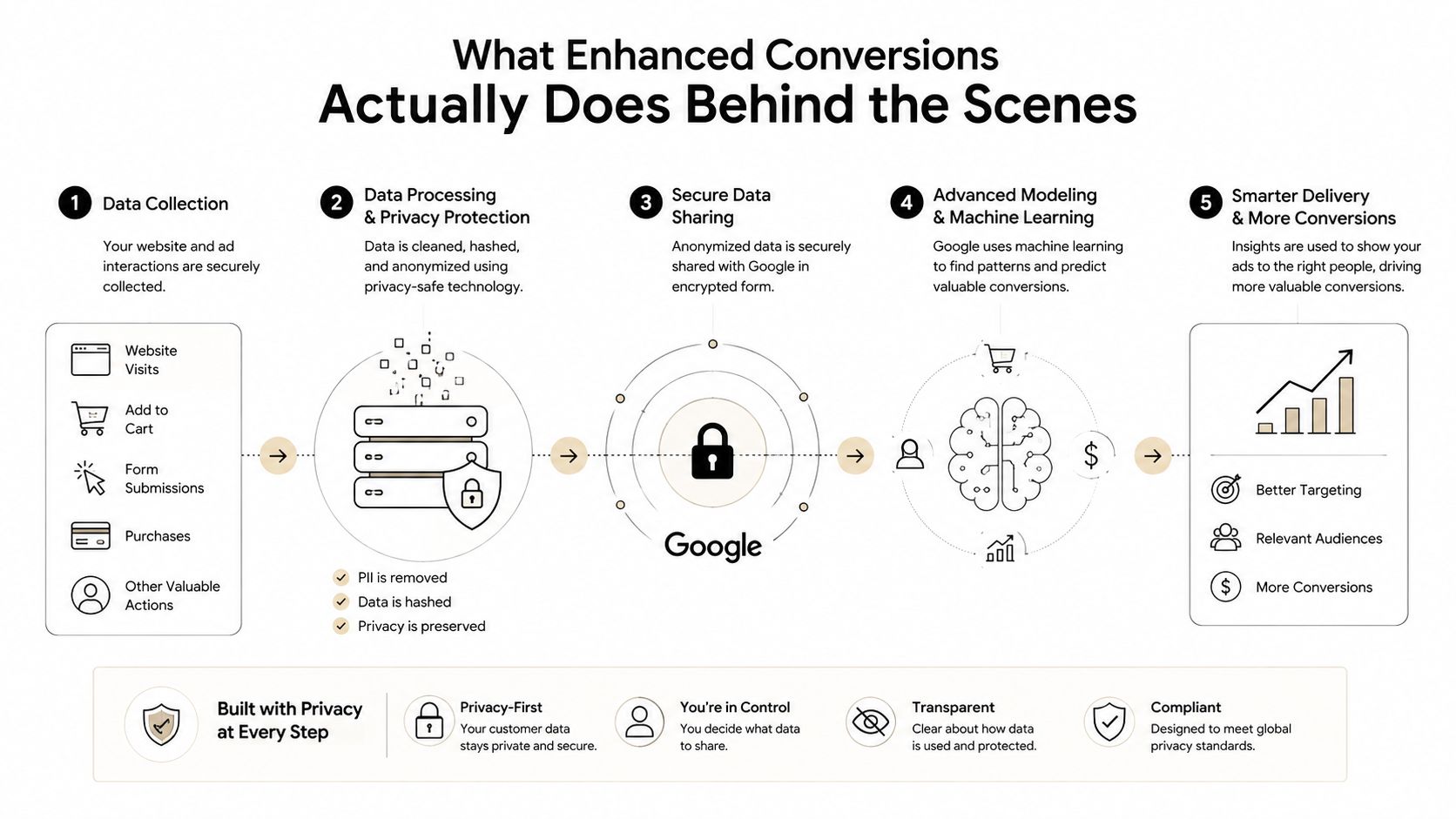
The data can include an email address, phone number, full name, or address, but only when the customer really provided it during the conversion flow. You can't manufacture a value, append a guessed identifier, or send a generic placeholder and expect useful matching. Normalization matters too. Extra spaces, inconsistent casing, country formatting, and malformed phone values can reduce the quality of the match.
Web versus leads
Enhanced conversions for web applies when the conversion happens directly on your website, usually through an online purchase, registration, or form submission. The website tag sends the conversion event and the permitted user-provided data.
Enhanced conversions for leads connects lead information captured on the site with later lead outcomes, often through imported offline events or a server-based workflow. It's suited to businesses where the initial form submission isn't the final commercial result.
Conversion modeling still has a role. When consent is denied or a direct match isn't available, Google may model some measurement gaps. Modeling is additive, not a substitute for real first-party matches. The strongest setup sends clean, consented data at the point where the customer converts and lets modeling supplement what cannot be observed directly.
Prerequisites You Need Before Touching a Single Tag
A reliable deployment starts outside the conversion tag. If consent, form capture, identifiers, or transport security are incomplete, changing a setting in Google Ads won't rescue the implementation.
Start with consent, not code
For advertisers operating in the European Economic Area and the UK, consent signals deserve attention before any user-provided data is configured. Google identifies ad_user_data as the consent type required for measurement use cases that include enhanced conversions and tag-based conversion tracking (Google's Consent Mode reference).
Your consent management platform must pass the appropriate granted or denied state into Consent Mode. Enhanced conversions for web also won't begin collecting user-provided data until the applicable terms have been accepted in Google Ads or Google Analytics. Google states that if a destination hasn't accepted those terms, the tag won't collect or process the data (Google's user-provided data terms guidance).
Confirm the site captures real identifiers
Look at the actual conversion point. For a lead, that might be the successful form submission event. For ecommerce, it's usually the purchase confirmation event. The email, phone number, or address must exist in the page context or data layer at the moment the conversion tag fires.
A form that visually contains an email field isn't enough. Your implementation needs to expose the submitted value to the tagging system, while respecting the consent state and your privacy obligations. Test valid submissions, validation failures, empty fields, and users who decline consent.
Build deduplication into the event
Use a stable transaction ID or event identifier wherever your stack sends the same outcome through more than one route. Google's API documentation specifically calls for correct tagging and transaction-ID matching to avoid duplicate counting (Google Ads API guidance for online conversion uploads).
This is particularly important when Google Ads, GA4, offline imports, and server-side tagging all touch the same conversion. A clean identifier gives you a way to compare records and prevent a browser event and an imported event from becoming two conversions.
Check HTTPS and the route you'll maintain
Every page carrying the relevant conversion setup should use HTTPS. Then choose the implementation path based on your team's operating reality, not on the most complex diagram you've seen.
| Scenario | Recommended path | Main trade-off |
|---|---|---|
| Solo marketer with one landing page | Global site tag | Fast launch, but limited governance and variable control |
| Agency or in-house team with an existing container | Google Tag Manager | Better mapping and version history, with more setup discipline |
| Dev-heavy team with maintained server infrastructure | Server-side tagging | More control over the data path, but higher maintenance responsibility |
The global site tag works well when the page is simple, the conversion flow is stable, and nobody needs a complex data layer. It becomes awkward when several forms, domains, or conversion actions share one implementation.
Google Tag Manager is the practical default for most agencies and internal teams. It gives you variables, data layer mappings, preview mode, version history, and a controlled way to update tags without repeatedly editing site code. If URL parameters and attribution persistence are also under review, document them alongside your Google tracking URL setup.
Server-side tagging, including a maintained GTM server container or Google Tag Gateway setup, can suit teams dealing with browser restrictions or stricter first-party data requirements. It won't fix missing consent or absent form data, though. Moving a weak client-side setup to the server usually creates a more expensive weak setup.
The terms acceptance step is the quiet failure point. A tag can look enabled in the interface while Google refuses to process the user-provided data because the relevant terms weren't accepted. Check it before debugging JavaScript.
Setting It Up in Google Tag Manager the Right Way
GTM implementations fail less often when the data layer contract is explicit. Don't begin by clicking through tag settings. First identify the event that represents a valid conversion and the exact variables available at that event.
Create the data layer event
Your form or checkout system should push the user-provided values before the Google Ads conversion tag fires. A typical structure might use keys such as email, phone_number, and address, or custom keys for values that your system hashes before the tag receives them.
The important point isn't the naming convention by itself. The GTM variable must match the key pushed by the site. A variable named email won't populate if the form sends customer_email, and a custom hash variable won't help if the hash is created after the conversion event.
Map the variables in GTM
In the web container, create Data Layer Variables for the identifiers your conversion flow provides. Then create the Google Ads user-provided data variable and map the available fields, including email, phone, name, and address where they are legitimately captured.
In the Google Ads conversion tag:
- Enable enhanced conversions: Turn on the user-provided data option in the conversion tag settings.
- Choose the source: Select manual configuration when you need explicit control over the mappings.
- Map the fields: Connect each customer data field to the corresponding GTM variable.
- Preserve consent: Make sure the tag honors the consent state passed by your consent implementation.
- Check the linker: Enable the Conversion Linker and configure
all_linkeror the specific domains required by the customer journey.
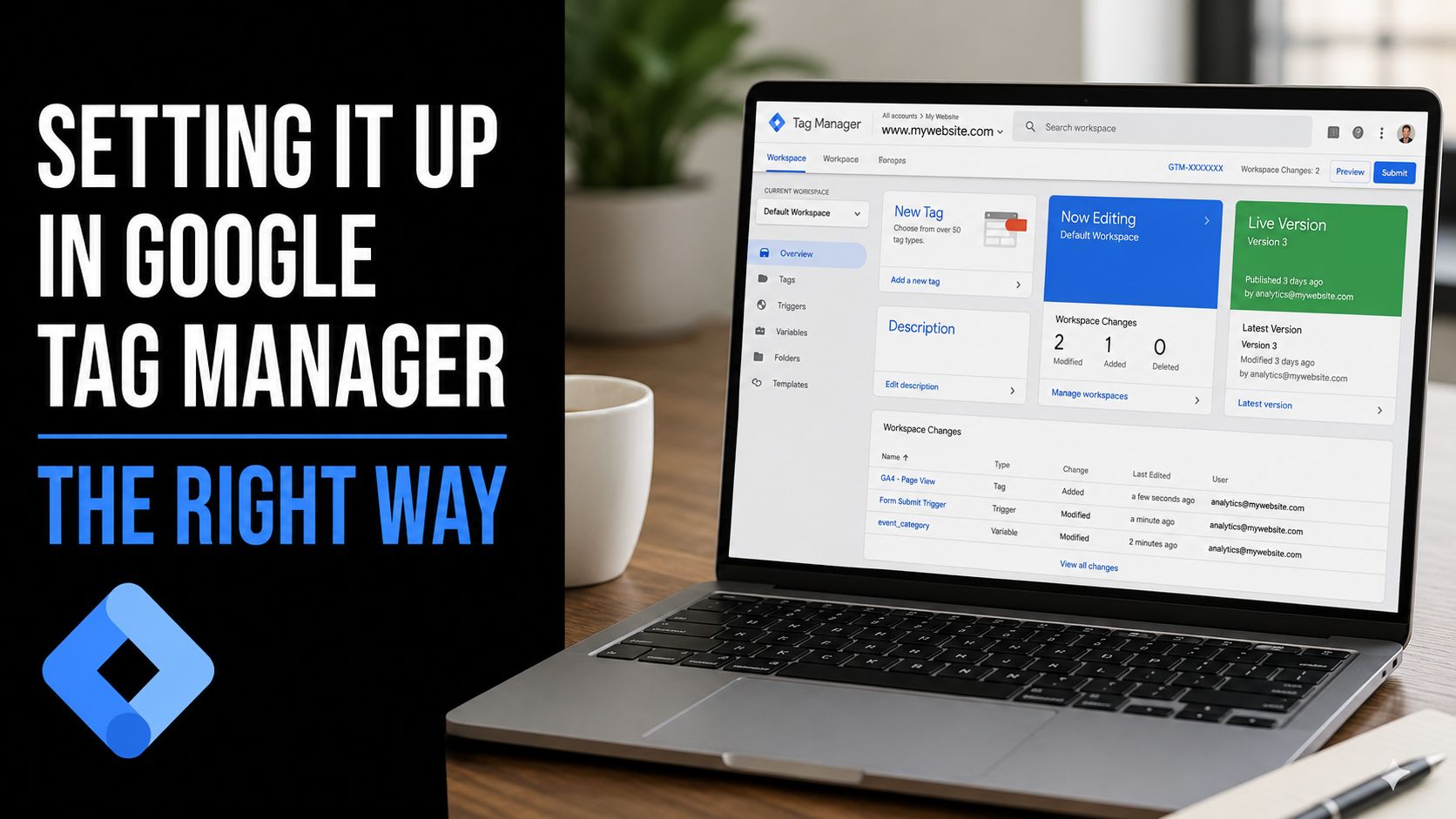
The order of operations is where many otherwise correct deployments fall over. The dataLayer.push containing the customer data must happen before the conversion tag evaluates its variables. If the push arrives afterward, the tag sends an empty value and diagnostics will show no useful enhanced conversion activity.
Use GTM Preview to submit a real test form, inspect the event timeline, and verify that the data layer values are present on the conversion event itself. Don't rely on seeing the values on an earlier page view. A value can exist somewhere in the session and still be unavailable when the conversion tag runs.
Validating That the Data Is Flowing
Start with the enhanced conversions affected percentage in Google Ads diagnostics. If it stays low after a real test conversion, investigate missing identifiers, consent restrictions, or tag timing before trusting the setup. Google's reported averages suggest the feature can improve conversion rates, but those results are not a forecast for an individual account.
Read the metric as a health signal, not a performance trophy. A mature account with very few affected conversions may have a data-layer or firing problem. A perfect-looking match rate also needs review because repeated identifiers or overly broad mappings can hide variation in the customer data.
Use the browser tools together
Tag Assistant should show the conversion tag firing with the expected consent state and user-provided data attached. Its consent preview helps distinguish a valid denied-consent result from a technical failure.
Use GA4 DebugView when GA4 participates in the route. Confirm that the event arrives, the conversion identifier is the intended one, and the transaction ID remains consistent. A mismatch often becomes clear at this stage.
Chrome DevTools provides the lower-level check. Inspect the conversion request for the consent parameter and hashed fields. If Tag Assistant looks inconclusive, the network request shows what left the browser.
Run a real form submission, purchase, or lead test in a clean session, then trace the same event through the consent decision, tag request, and Google Ads diagnostics. Do not treat a value found on an earlier page view as proof that the conversion tag received it.
For a broader framework for checking data pipelines rather than trusting dashboard labels, use this practical data observability reference. A separate workflow for testing whether conversions are firing can help isolate trigger and request failures.
The 2026 Consolidation Most Guides Are Skipping
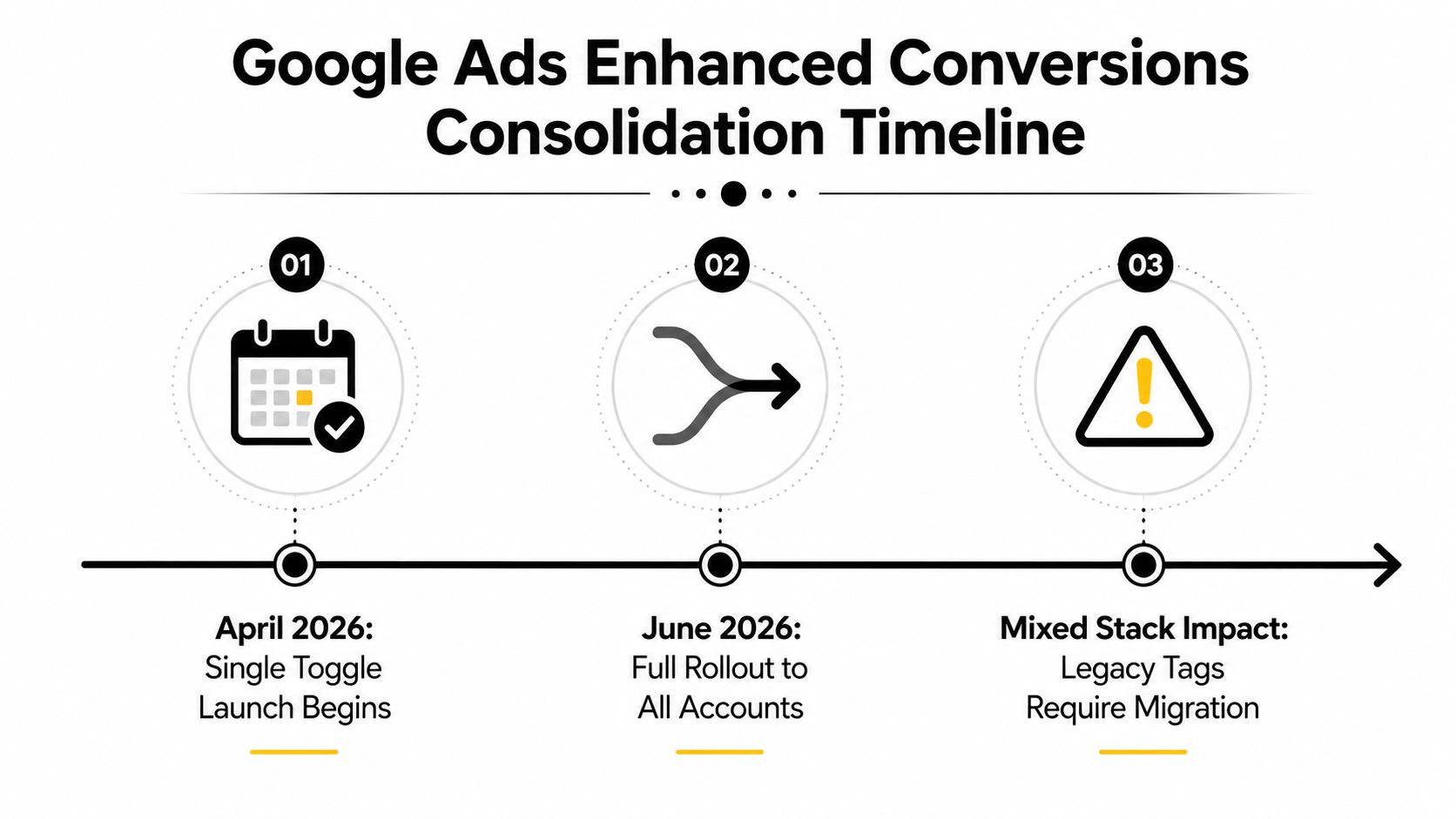
The major enhanced conversions story in 2026 isn't a cleaner checkbox. Google says enhanced conversions for web and leads will be combined into one on/off setting beginning in April and June 2026, with existing users automatically migrated. Google also says offline conversion imports and enhanced conversions for leads uploads will be blocked in the Google Ads API and moved to the Data Manager API (Google's 2026 consolidation guidance).
That matters because many accounts don't have one implementation. Agencies often have a global site tag on one template, GTM on another, server-side routing for selected events, and API uploads owned by a separate engineering team. A single toggle can reduce configuration friction while making ownership and validation less obvious.
The migration questions that deserve answers are operational:
- Attribution continuity: Will conversion actions retain a comparable event definition after reclassification?
- Consent behavior: Has the migrated path been tested for denied and granted consent states?
- API workflow: Which jobs, permissions, monitoring, and retry logic move to Data Manager API?
- Agency QA: Who checks every account when Google moves the configuration automatically?
Prepare before the rollout window:
- Inventory each account's conversion actions and current enhanced conversion method.
- Document tag firing order, data layer keys, consent dependencies, and transaction IDs.
- Test web, lead, offline, and server-side paths separately.
- Choose a pilot account with a representative mixed stack.
- Record pre-migration diagnostics so you can compare post-migration behavior.
The assumption that breaks hardest is that pre-2026 setups will carry over untouched. They may continue to report conversions, but continuity of reporting isn't the same as continuity of data quality.
Troubleshooting and Keeping It Healthy Long Term
Most failures leave a recognizable trail. Diagnose the symptom first, then inspect the event and consent state instead of repeatedly toggling the feature.
Enhanced Conversions Troubleshooting Matrix
| Symptom | Likely Cause | Fix |
|---|---|---|
| Zero enhanced conversions in diagnostics | Terms not accepted, consent denied, or user data never reaches the event | Check the Google Ads terms, inspect consent parameters, and verify the data layer push on the conversion event |
| Partial matching | Null fields, malformed normalization, or inconsistent identifier capture | Inspect email and phone values before hashing, remove empty fields, and test multiple valid customer paths |
| Hash errors from client-side hashing | The value was hashed incorrectly or hashed more than once | Confirm the expected normalization process and send the correctly formatted hashed value only once |
| Duplicate conversions | Browser and server or offline events use different identifiers | Add stable transaction IDs and reconcile the conversion action across every upload route |
| Conversion lag spikes after a GTM publish | Tag sequencing changed or the conversion tag fires before the data push | Compare the published version with the previous version, then restore event ordering and retest in Preview |
| Attribution falls after a domain change | Conversion Linker doesn't cover the full customer journey | Review linker domain settings and test the click, landing page, and conversion path together |
A two-minute pre-publish check prevents more damage than a heroic post-launch investigation. Open Tag Assistant, run a consenting test conversion, confirm the data layer values, inspect the conversion tag sequence, and verify that the request contains the expected hashed payload.
Set a recurring review that checks Google Ads diagnostics, user-data availability, conversion action status, transaction IDs, and recent GTM versions. Keep a written rollback plan for migrations. It should identify the previous container version, the owner who can publish it, and the checks required before campaigns return to normal bidding.
For larger accounts, a structured Google Ads conversion audit can help separate tag problems from conversion-action design problems. That distinction matters because a technically valid tag can still feed the wrong action into bidding.
Before escalating: Attach the conversion action ID, affected event name, timestamps, consent state, GTM version, Tag Assistant export, and relevant diagnostic messages. Support can investigate a reproducible event far faster than a description that only says tracking is broken.
Keywordme belongs in the wider PPC workflow, not in the tagging layer. It helps teams research search terms, build negative keyword lists, assign match types, and handle campaign changes from real query data, while your conversion setup supplies the cleaner feedback loop. Visit Keywordme to see how it can fit alongside your Google Ads measurement and optimization process.
.svg)