
10 Best Native Google Ads Tools for Campaign Optimization in 2026
This guide ranks the 10 best native Google Ads tools for campaign optimization, covering only tools that live inside Google Ads or are published by Google for it. Each tool is judged on research, search term cleanup, bulk changes, testing, and automation, plus where its limits are, so you can get more from the platform before adding another subscription.


You're running Google Ads and want to squeeze everything out of the platform before adding another subscription to the stack. This list is for marketers, freelancers, and agency owners who want to know what Google already gives you. It covers only tools that live inside Google Ads or are published by Google for it. Each one is judged on how much it helps with research, search term cleanup, bulk changes, testing, or automation, and on where it runs out of road. A quick note on terms: a keyword is what you bid on, while a search term is the actual query someone typed.
Quick Comparison of the Native Tools
- Keyword Planner: best for building the first keyword list on a new campaign; free; the only one that gives pre-campaign ideas and cost forecasts from Google's own data.
- Search Terms Report: best for finding wasted spend and new keyword ideas; free; the only first-party view of what people actually typed before clicking.
- Negative Keyword Lists: best for multi-campaign accounts that need consistent exclusions; free; one list maintained once and applied to many campaigns.
- Google Ads Editor: best for bulk builds and large batch edits; free; large-scale edits across campaigns and accounts in one offline session.
- Performance Planner: best for planning budget changes before spending; free; scenario forecasts built from your own campaign history.
- Recommendations and Optimization Score: best for quick audit prompts; free; account-specific suggestions generated from Google's own signals.
- Experiments: best for testing bidding or setting changes; free; controlled split tests without duplicating campaigns by hand.
- Auction Insights: best for explaining impression share shifts and new competitors; free; the only first-party view of competitor overlap by domain.
- Automated Rules: best for simple repeatable tasks; free; no-code scheduled changes in the standard interface.
- Google Ads Scripts: best for agencies and advanced advertisers; free; custom logic and alerts that rules cannot handle.
1. Keyword Planner
Keyword Planner is Google's free keyword research and forecasting tool, built for anyone who needs to decide what to bid on before a campaign goes live. Its edge over everything else here is that it works before you have any data. Every other tool on this list needs existing campaigns or traffic to say anything useful.

- Discovers keywords from seed terms or a website URL, so you can start from a competitor's or client's page.
- Shows search volume ranges and trends, which helps you spot seasonality before you commit budget.
- Forecasts clicks and cost for a keyword set, giving you a rough budget conversation starter with clients.
- Provides bid range estimates so you can sanity-check whether a keyword fits your CPA.
- Groups keywords into ad group ideas, which saves time on first-pass structure.
Setup is minimal: it comes with a Google Ads account, and keyword plans can be saved or exported into Google Ads campaigns or, via export, Google Ads Editor. Whoever builds campaigns usually runs it.
The limits matter. Volumes are shown as ranges, not exact numbers, and the ranges can be broad for accounts with little or no active spend (as of writing, verify the current rules in Google Ads Help, since Google has changed them before). It also tells you nothing about intent. A keyword with big volume can still attract the wrong audience, so treat the output as a list of candidates, not a verdict. It is free with a Google Ads account, though ad spend still applies once you launch.
Best for: Building the first keyword list for a new campaign.
2. Search Terms Report
The Search Terms Report shows the actual queries that triggered your ads, which makes it the most honest feedback loop in the account. Keywords are what you chose; search terms are what people typed. The gap between the two is where wasted spend and fresh opportunities hide, and no other native tool shows it.

The report lists queries with clicks, cost, and conversions, plus the match type that triggered each ad. From there, you can add a term as a keyword or exclude it as a negative keyword directly from the report. Filtering and segmenting let you isolate expensive, zero-conversion queries, and download options let you take the data into a spreadsheet.
- Query-level cost and conversion data tells you exactly which phrases burn budget.
- Match type shown per term helps you diagnose whether a broad keyword is drifting off-topic.
- Add-as-keyword and exclude actions let you act without leaving the report.
- Filters and segments narrow thousands of rows down to the ones worth a decision.
- Downloads support offline analysis or client reporting.
It connects to your campaigns, ad groups, and negative keyword lists, and the person managing the account usually reviews it weekly. The real drawbacks are visibility and speed. Google hides some queries, typically low-volume ones that don't meet its privacy thresholds, so you never see the full picture. And in large accounts, handling terms one at a time through the native interface is slow. Some advertisers use a third-party Chrome extension such as Keywordme, which adds one-click actions inside this same report, but the report itself is the native piece.
It's free with a Google Ads account.
Best for: Finding wasted spend and new keyword opportunities.
3. Negative Keyword Lists
If you've ever added the same "free" or "jobs" exclusion to twelve campaigns by hand, Negative Keyword Lists are the fix. They are reusable lists of excluded terms, kept in the shared library, that you apply across multiple campaigns. Edit the list once and every attached campaign picks up the change.
Negative keywords stop your ads from showing on matching searches, the opposite of positive keywords, which trigger ads. Lists support broad, phrase, and exact negative match types. Campaign-level and ad group-level negatives are also available when an exclusion should apply narrowly.
- Shared lists keep exclusions consistent across every campaign you attach them to.
- Three match types let you block a whole topic or just one precise query.
- Central editing in the shared library means no hunting through campaigns to update a term.
- Campaign and ad group negatives cover the exceptions a shared list shouldn't handle.
They feed naturally from the Search Terms Report, and you can manage them in Google Ads Editor too. Check which campaign types support shared lists, since support varies (verify per campaign type, as of writing). Setup takes minutes.
The catch is that lists only store exclusions. They don't find junk queries for you. Also, negatives do not match close variants the way positive keywords can, so misspellings, plurals, and other variants need their own entries. Skip the tool if you run one small campaign, where campaign-level negatives are enough. It's free with a Google Ads account.
Best for: Keeping wasted spend out of multi-campaign accounts.
4. Google Ads Editor
Google Ads Editor is a free desktop application for making bulk changes to one or more accounts offline. It's built for people who maintain big structures: agencies, ecommerce accounts with many ad groups, anyone who has ever clicked the same field forty times in the browser.
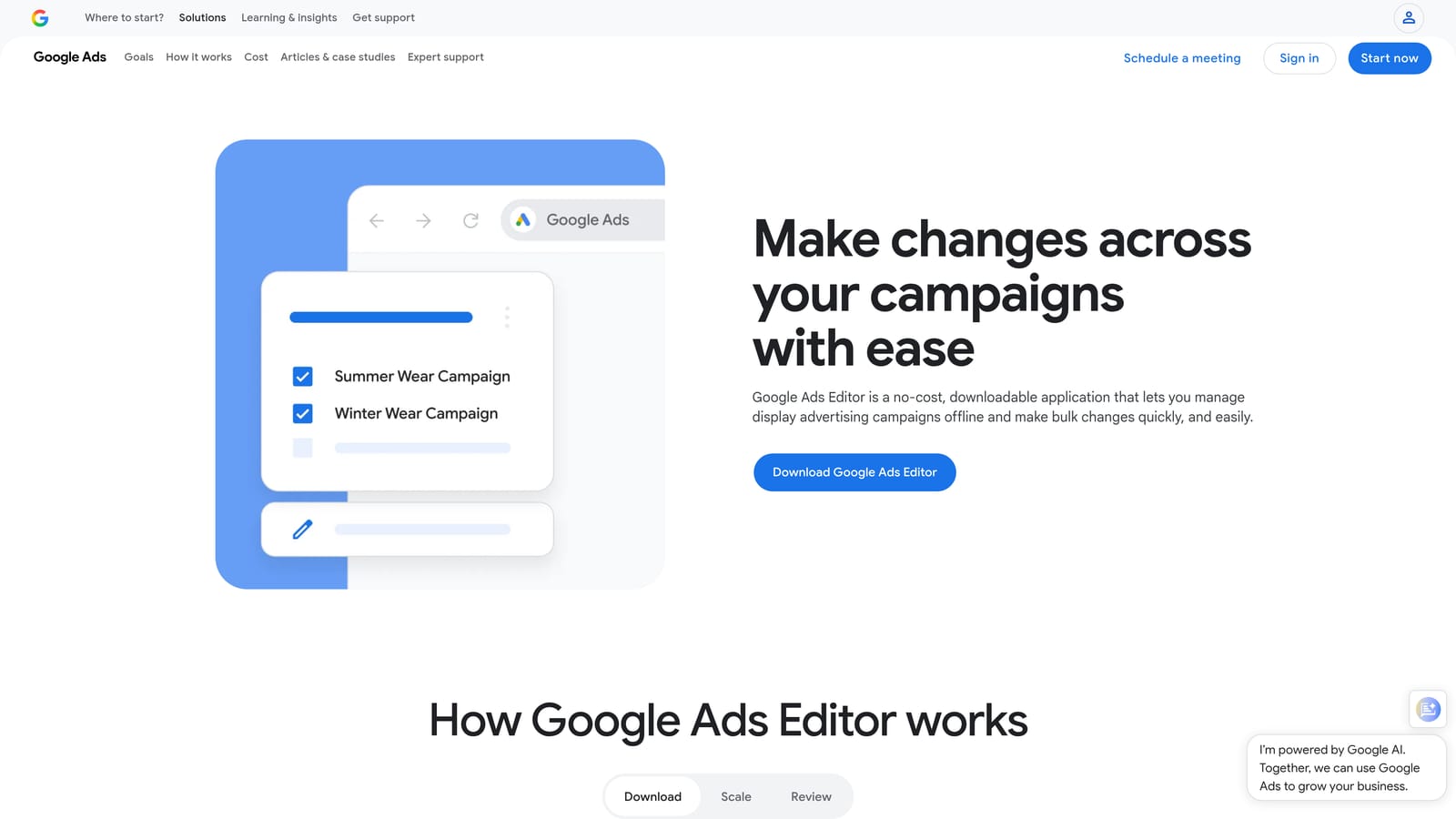
What it does better than the rest of the list is scale. You download an account, make hundreds of edits, review them, and post everything in one go.
- Bulk editing and copy-paste across campaigns lets you replicate structure in minutes instead of hours.
- Offline work means you can draft changes on a plane and post them later.
- CSV import and export connects it to spreadsheets for mass builds and audits.
- Multi-account management lets agencies work across clients in one app.
- Change review shows what will be posted before it goes live.
It connects to your Google Ads accounts and works with CSV and spreadsheet files. Setup means downloading and installing the app, signing in, and syncing accounts. A dedicated account manager or specialist typically owns it.
Limitations are real. It isn't the live interface, so you work from a downloaded copy and must sync to avoid editing stale data. Mistakes also scale quickly: a bad find-and-replace across 5,000 keywords is still a bad find-and-replace. It's overkill for small accounts with a handful of edits a month. It's free.
Best for: Bulk structure builds and large batch edits.
5. Performance Planner
Performance Planner is a forecasting tool that estimates how budget and target changes may affect results. Where Keyword Planner forecasts for a brand-new keyword set, Performance Planner builds scenarios from your own campaign history, which makes it more relevant once you're spending.
- Forecasts clicks, conversions, and conversion value so you can see the likely shape of a budget change.
- Budget and target scenarios let you test "what if we raise budget by a third?" before doing it.
- Plans span multiple campaigns, so you can weigh where extra spend would go furthest.
- Suggested changes come with the plan, and you apply them manually, keeping you in control.
It depends on your campaigns and conversion tracking, so it's only as good as your setup. Whoever owns the budget, whether in-house or at an agency, usually runs it, often ahead of quarterly planning or client reviews.
It needs enough history and conversion data to produce a plan, so new or low-volume accounts may not qualify (check the current requirements in Google Ads Help). Forecasts are estimates, not guarantees, and they won't account for things Google can't see, like a product launch or a competitor's sale. Use them as one input for a budget conversation, not as a promise to a client. It's free with a Google Ads account, though any spend you decide on still counts.
Best for: Planning budget changes before committing spend.
6. Recommendations and Optimization Score
Start with the caveat for Recommendations and Optimization Score: a score of 100% does not mean your account performs well. It's Google's estimate of how fully the account follows its suggestions, and those suggestions are generated from Google's signals, not from your profit margins.
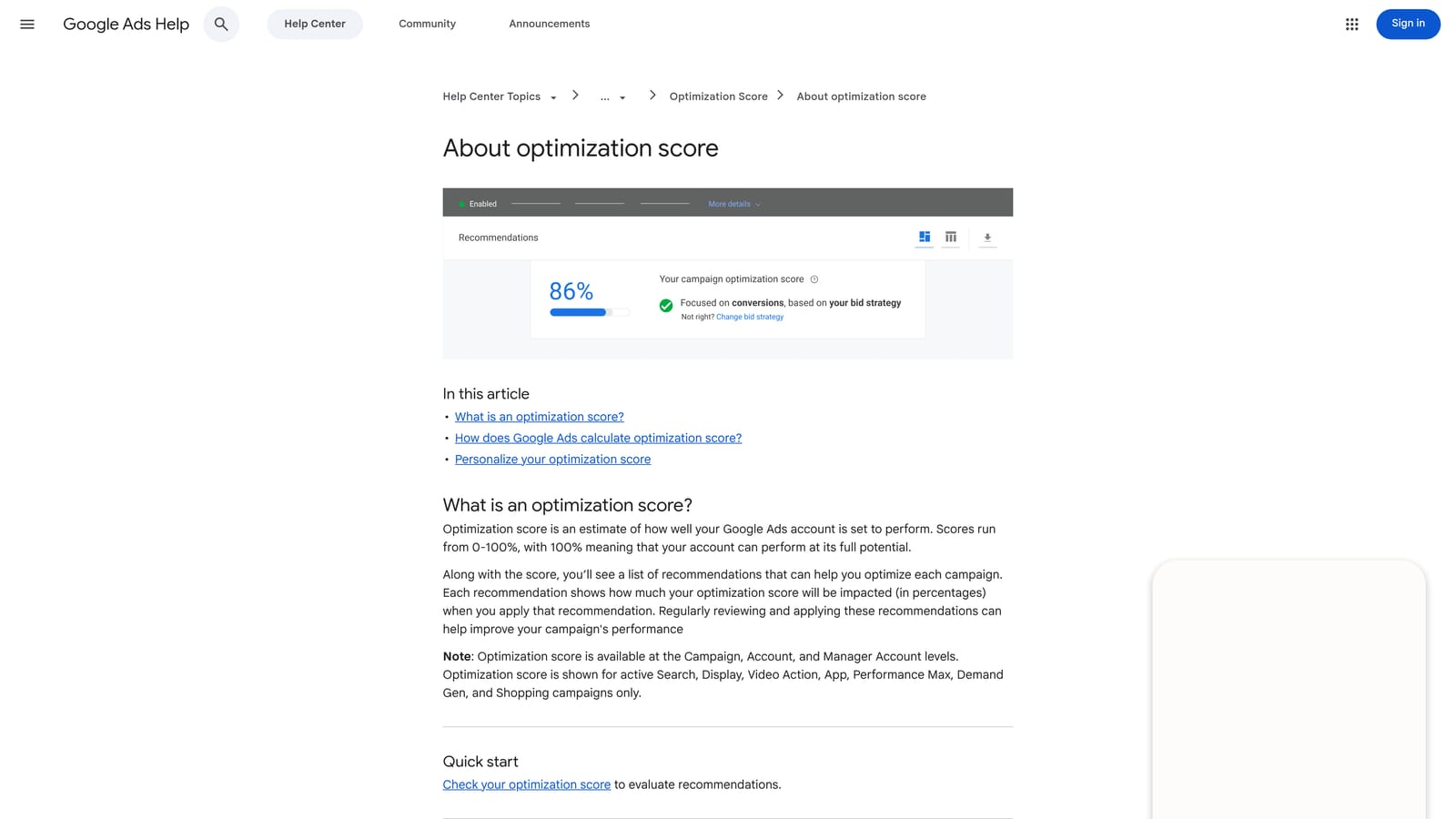
The Recommendations page lists suggested changes by campaign type, and the optimization score shows a percentage for how many are applied. Used well, it's a prompt list for a quick audit, something to review against your own goals.
- The Recommendations page surfaces account-specific ideas you may have missed, like new keyword or bidding suggestions.
- Optimization score gives a fast, if crude, sense of how much is outstanding.
- Apply or dismiss lets you accept useful items and reject the rest, which also teaches the system your preferences.
- Auto-apply options exist for some recommendation types, but they remove your manual check.
- Categories vary by campaign type, so the suggestions stay relevant to what you actually run.
It touches bidding, ads, and keyword settings, and there's no setup beyond opening the page. Who uses it is the key question: someone who can judge each suggestion, not someone chasing the score.
The limitations are the reason for caution. Suggestions may not match your goals and can lean toward spending more. Auto-apply is not harmless, since changes go live without review. Check which auto-apply options are currently available in your account. Free with a Google Ads account.
Best for: Quick audit prompts to review against your own goals.
7. Experiments
Experiments is Google Ads' built-in A/B testing. You create a trial version of a campaign with one change, split traffic between the original and the trial, and compare results. The big win is avoiding the old workaround of duplicating campaigns manually, which muddies data and splits budget unevenly.
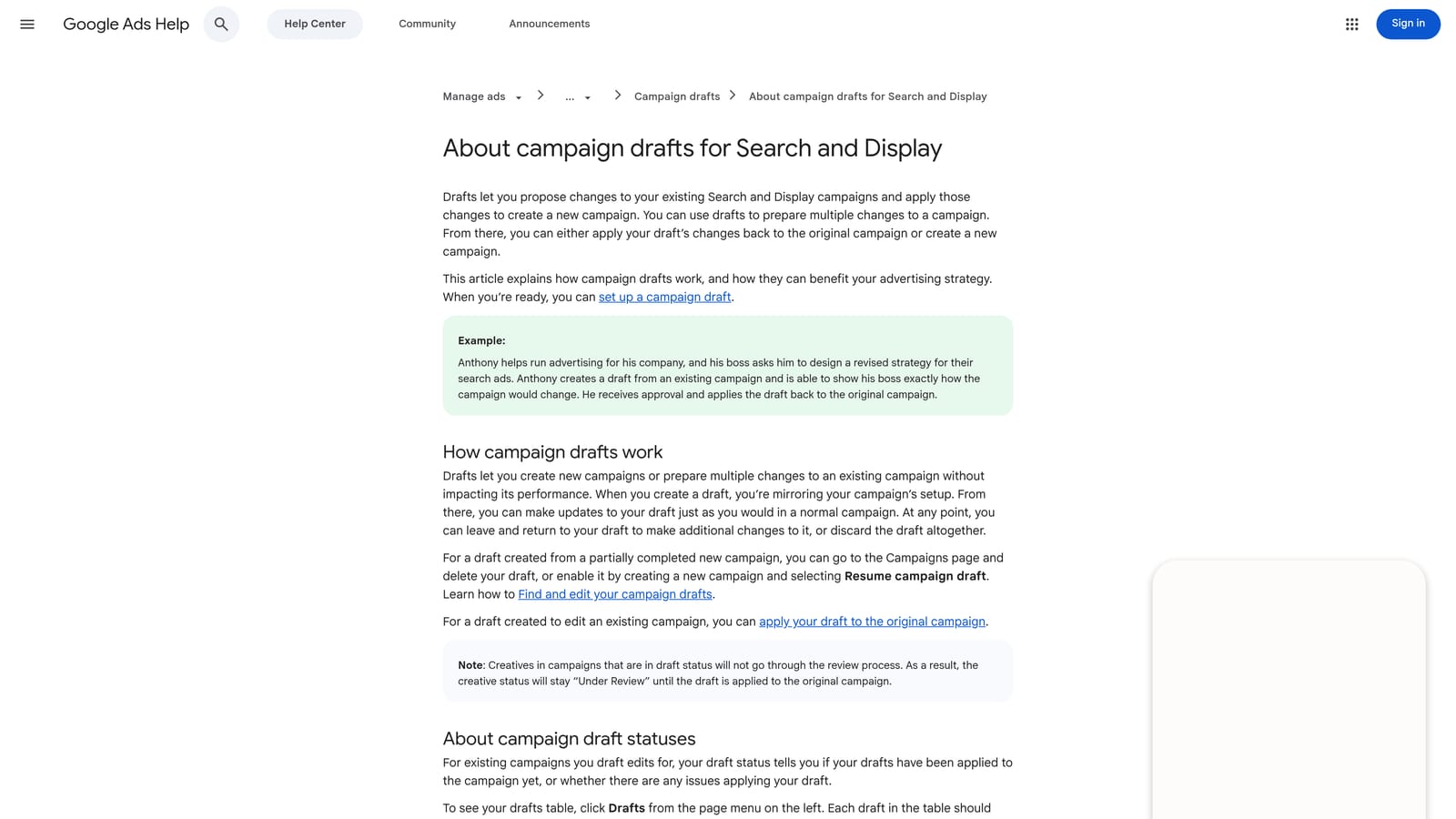
Before Experiments, most advertisers changed a setting and hoped. Here, you get a controlled comparison.
- Traffic split between original and trial keeps the test fair.
- Custom experiments and ad variations cover both campaign-level changes and ad text tests.
- Side-by-side results show how the trial stacks up against the original on your chosen metrics.
- Apply or end gives you a clean decision: roll the change out, or walk away.
It works with Search and other campaign types, though support differs by type (verify supported types, as of writing), and it covers bidding strategy changes, a common use. A campaign manager sets it up and watches it over weeks, not days.
Patience is the cost. Low-volume accounts may take a long time to reach clear results, and a test that ends early on thin data proves nothing. Change one thing at a time or you won't know what moved the numbers. It's free with a Google Ads account.
Best for: Testing bidding or setting changes before rolling them out.
8. Auction Insights
Auction Insights compares your auction performance with other advertisers competing in the same auctions. It is the only first-party view of competitor overlap by domain, so when impression share drops and you don't know why, this is the first place to look.
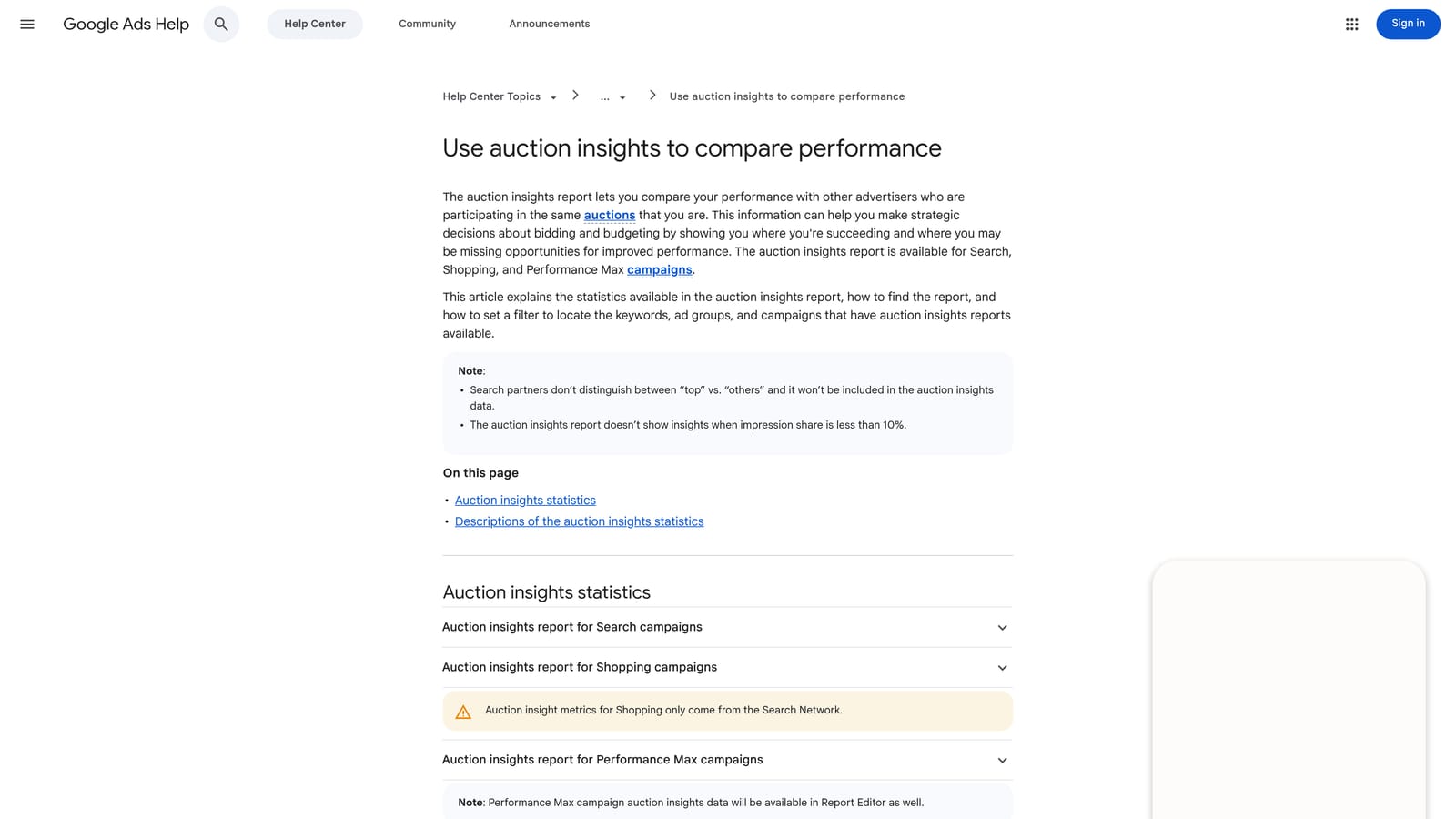
- Impression share shows how often your ads appeared out of the auctions you were eligible for.
- Overlap rate tells you how often another advertiser's ad showed alongside yours.
- Position above rate shows how often a competitor ranked higher when both of you appeared.
- Top of page rate shows how often each advertiser's ad was at the top of results.
- Outranking share shows how often you ranked above a competitor or showed when they didn't.
You'll find it in campaign, ad group, and keyword views within Google Ads, so there's no setup. Anyone reporting to a client or boss will use it to answer "who's new in the auction?"
Its limits are firm. The data is aggregated and shows nothing about competitor budgets, ad copy, or strategy. Thresholds may also hide some advertisers, so the list is not guaranteed to be complete. It explains symptoms rather than prescribing fixes. Free with a Google Ads account.
Best for: Explaining impression share changes and new competitors.
9. Automated Rules
Automated Rules let you schedule or trigger actions that change campaigns without manual work. They sit in the standard interface and need no code, which makes them the easiest entry point into automation for a busy marketer.
A typical use: pause keywords that spent over a set amount with zero conversions. Other common jobs are enabling seasonal campaigns on a date or adjusting budgets on a schedule.
- Pause or enable campaigns, ad groups, ads, or keywords to handle routine on/off tasks.
- Adjust budgets or bids on a schedule for predictable patterns like weekday spend changes.
- Condition-based triggers act when a metric crosses a threshold you set.
- Email notifications keep you informed when a rule runs.
It works across campaigns, ad groups, ads, and keywords, and setup takes a few minutes per rule. One person should own the rule list so nobody forgets what's running.
Conditions are simple, so anything needing multi-step logic is out of reach (that's where scripts come in). More importantly, rules run unattended. A badly set threshold can pause good keywords or drain a budget before you notice, so test with notifications first and review results after the first runs. It's free with a Google Ads account.
Best for: Simple repeatable tasks like pausing high-spend, no-conversion keywords.
10. Google Ads Scripts
Google Ads Scripts are JavaScript programs that run inside a Google Ads account. They handle logic that Automated Rules cannot: custom checks, cross-account reporting, and alerts tailored to how you work. This is the most powerful native option and the one that most demands care.
What it can do
- Custom JavaScript automation lets you encode your own rules, such as flagging a campaign whose spend pacing is off.
- Scheduled runs mean scripts execute hourly, daily, or weekly without you.
- Reports to Google Sheets feed dashboards and client updates.
- Account-level alerts and checks catch broken URLs, budget overruns, or sudden drops.
- Manager account support lets an agency run one script across many client accounts.
What it costs you in effort
It connects to Google Sheets, Gmail, and manager accounts. Setup involves pasting or writing code in the account's scripts area, authorizing it, and scheduling it. Someone with JavaScript skill has to write, review, and maintain it, and Google Ads changes can break old scripts.
Skip it if no one on your team codes. A faulty script can make wrong changes at scale, so start with read-only scripts that report or alert before letting any script edit the account. It's free with a Google Ads account.
Best for: Agencies and advanced advertisers who need custom automation.
Which Native Tool to Reach For, and Where Outside Help Fits
Match the tool to the job:
- New campaign research: Keyword Planner, then Performance Planner once you have data.
- Search term cleanup: Search Terms Report feeding Negative Keyword Lists.
- Bulk edits: Google Ads Editor.
- Testing: Experiments, one change at a time.
- Automation: Automated Rules first, Scripts when rules run out.
If you only adopt two, make them the Search Terms Report and Negative Keyword Lists. Cleanup pays back fastest, and it's a habit rather than a project.
One honest note: Keywordme is not a native tool. It's a Chrome extension that works inside the Search Terms Report, adding one-click actions for removing junk search terms, adding keywords, and applying match types. If native search term review feels too slow in your accounts, that's the gap it fills. If it doesn't, the free tools above are enough.
Optimize Google Ads Campaigns 10X Faster. Without Leaving Your Account. Keywordme lets you remove junk search terms, build high-intent keyword lists, and apply match types instantly, right inside Google Ads. No spreadsheets, no switching tabs, just quick, seamless optimization. Start your free 7-day trial (then just $12/month) and take your Google Ads game to the next level.
