
8 Best In-Interface Google Ads Tools for Faster Optimization
This guide ranks eight in-interface Google Ads tools that reduce the export-clean-reupload cycle by letting you act on search terms, keywords, and bulk changes where you already work. Most picks are Google's own features, plus one browser extension, and each is compared on native-UI depth, pricing transparency, and fit for solo advertisers versus agency teams.


If you run Google Ads, you know the tab-switching tax: export the search terms report, clean it in a spreadsheet, then re-upload or re-enter the changes by hand. This list is for marketers, freelancers, and agency owners who want to cut that round trip. Tools were chosen by how much of the work happens in the native interface, how clearly they handle search term and keyword tasks, how transparent the pricing is, and whether they fit a solo advertiser or an agency team. Few third-party tools truly live inside the UI, so most of this list is Google's own features plus one browser extension.
Quick Comparison of the Tools
- Keywordme: freelancers and agencies doing frequent search term cleanup; $12/month per user; acts on rows directly in the native Search Terms Report.
- Google Ads Editor: large account restructures and bulk copy changes; free; reviewable bulk edits across multiple accounts, with offline work.
- Google Ads Recommendations and Auto-Apply: quick account health checks; free; Google-generated suggestions surfaced in context.
- Google Ads Scripts: technical advertisers wanting custom automation; free; unlimited custom automation without a subscription.
- Google Ads Automated Rules: simple budget and status safeguards; free; the simplest no-code automation inside the UI.
- Google Ads Bulk Actions and Uploads: occasional large imports of keywords or negatives; free; spreadsheet-driven changes with nothing to install.
- Shared Negative Keyword Lists: accounts with repeated exclusion themes; free; one list governs many campaigns at once.
- Google Ads Search Terms Report and Insights: baseline search term review on small accounts; free; first-party query data straight from Google.
1. Keywordme
Keywordme is a Chrome extension that adds one-click search term and keyword actions inside the Google Ads Search Terms Report. A quick vocabulary check helps here: a search term is the actual query someone typed, while a keyword is what you bid on. Keywordme sits at the point where you turn the first into the second, or exclude it as a negative keyword so your ads stop showing for it.
What sets it apart on this list is that it acts directly on rows in the native report. You don't export, you don't paste into a sheet, and you don't re-upload. Keywordme describes its approach as helping users optimize up to 10x faster; that is the company's own claim, and your speedup will depend on your account and habits.
- Add a search term as a keyword with the match type you choose, in one click.
- Add a search term as a negative keyword without leaving the report.
- Keyword clustering groups related terms so you can handle themes instead of single rows.
- Bulk editing lets you apply an action to many terms at once.
- Multi-account and team support helps agencies manage several clients with more than one person.
Setup is a Chrome extension install, and the person doing search term reviews day to day is the one who uses it. It works with Google Ads only.
The limits are real. Keywordme is focused on search terms and keywords. It is not a bidding, reporting, or ad copy tool, and it only runs in Chrome. You still make every decision; it speeds up the clicking, not the judgment, and it doesn't guarantee savings.
Pricing is $12/month per user, with a 7-day free trial (as of October 2026; confirm on the Keywordme site). Cost scales with the number of users, not ad spend or accounts.
Best for: Freelancers and agencies doing frequent search term cleanup.
2. Google Ads Editor
Google Ads Editor is Google's free desktop application for bulk editing campaigns. One thing to be upfront about: it is not in-interface in the strict sense. It's a separate app you download and sync with your accounts. It earns its place because it's first-party and built for changes the web UI handles awkwardly.
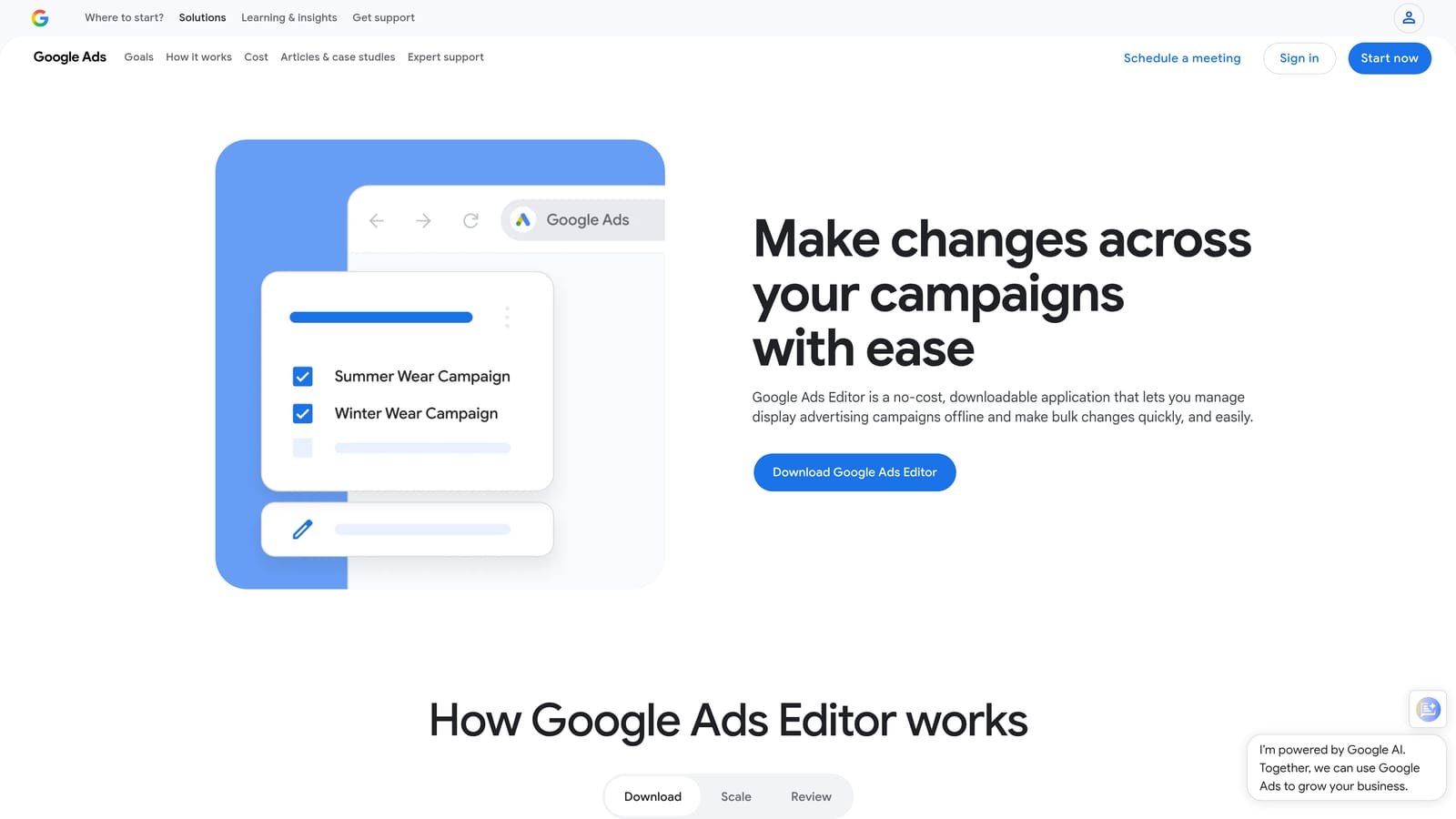
Its real strength is reviewable, large-scale structural edits. You make changes offline, look over everything in a pending state, and only then post them to the account. That review step matters when you're touching hundreds of ad groups across several accounts.
- Bulk edits across campaigns and accounts save you from repeating the same change in each one.
- Offline editing lets you build out changes without a live connection.
- Review changes before posting so you can catch mistakes before they go live.
- Copy and paste between campaigns speeds up cloning structures and settings.
- CSV import and export covers spreadsheet-based workflows when you need them.
It connects to your Google Ads accounts, and someone comfortable with account structure should run it. Setup is a download and an account sync, which takes more effort than a web feature but isn't heavy.
It doesn't suit search term triage. There's no workflow built around reviewing queries and acting on them quickly, and you're working in a desktop app instead of the web interface. If your main pain is junk queries, it's the wrong tool for that job.
Pricing is free.
Best for: Large account restructures and bulk copy changes.
3. Google Ads Recommendations and Auto-Apply
The Recommendations page in Google Ads is the built-in suggestions area, with an optimization score and optional auto-apply settings. It shows up right where you work, which makes it the lowest-effort option here.
Its distinguishing trait is that suggestions are generated by Google and surfaced in context, with estimated impact attached. For a fast health check on an account you haven't opened in a while, that's handy.
A common misconception deserves correcting: auto-apply is not always a good idea. Recommendations reflect Google's priorities, which don't always match yours, so treat each card as a suggestion to evaluate. Reviewing before you apply is the safer habit, and if you turn on auto-apply, check what you've enabled and revisit it periodically. Exact options and menu paths can change, so confirm them in Google Ads Help as of October 2026.
- The optimization score gives a quick read on how many open suggestions an account has.
- Recommendation cards describe specific changes so you can judge each on its merits.
- Manual apply or dismiss keeps you in control of what changes.
- Auto-apply settings let you choose recommendation types to apply automatically if you want that.
- Impact estimates help you prioritize, though they are estimates, not promises.
There's no setup and no extra cost. Whoever manages the account can use it. It's a poor fit for anyone who wants a controlled, goal-specific workflow, since it's not designed for deliberate search term or keyword management.
Pricing is free.
Best for: Quick account health checks.
4. Google Ads Scripts
Google Ads Scripts lets you write JavaScript that runs inside your Google Ads account on a schedule. It's the most flexible entry here, and the only one that's effectively a blank canvas.
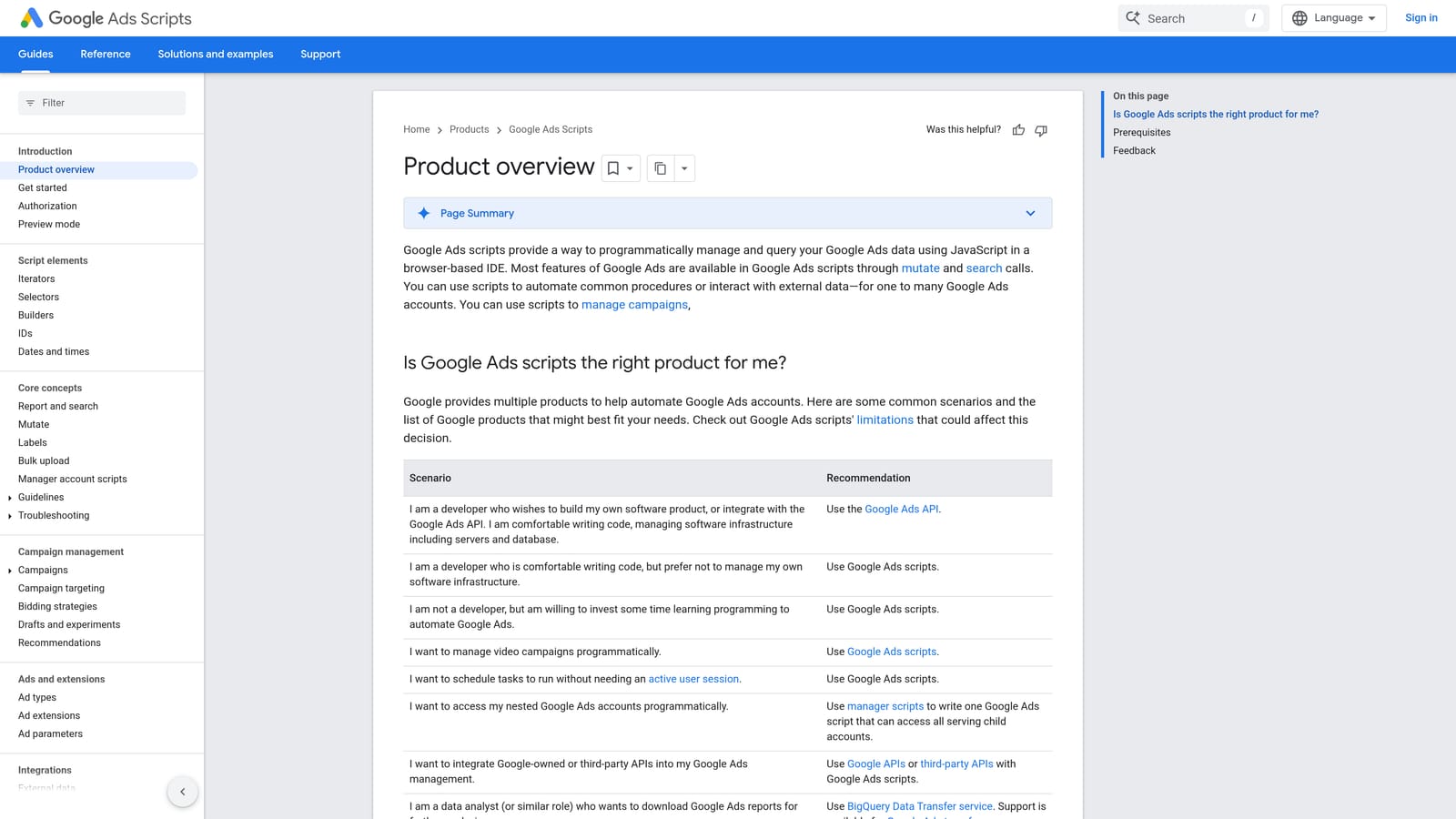
Its standout trait is unlimited custom automation without a subscription. If you can describe the logic, such as a nightly report of high-spend, zero-conversion search terms, you can often script it.
What you can build
- Scheduled runs execute your script hourly, daily, or on another cadence.
- Custom reports and alerts tell you when something drifts out of range.
- Account-level automation handles repetitive changes across campaigns.
- Preview mode lets you see what a script would do before it makes changes.
- Access to the Google Ads API through scripts gives you data and controls beyond the standard UI.
What it costs you in effort
Scripts connect with Google Ads, Google Sheets, and Gmail, so reporting and email alerts are straightforward to wire up. But someone has to write, test, and maintain the code. A buggy script can change many things quickly, so use preview mode and test on a small scope first.
If nobody on your team writes JavaScript, skip this one. It's powerful and not beginner friendly, and it doesn't offer a ready-made interface for search term review.
Pricing is free.
Best for: Technical advertisers wanting custom automation.
5. Google Ads Automated Rules
Automated rules are no-code, condition-based rules that change campaign elements on a schedule. Think "pause this ad group if cost passes X" or "email me when this happens." They're the simplest automation inside the UI.
You set a condition, an action, and a schedule, and Google Ads does the rest. Because there's no code, anyone running the account can set them up in minutes.
- Condition-based triggers fire only when your metrics meet the threshold you set.
- Scheduled runs keep checks going without you remembering.
- Email notifications flag when a rule has acted.
- Pause or enable items covers basic status control for campaigns, ad groups, and ads.
- Adjust bids and budgets applies simple changes automatically when conditions hit.
The logic is basic, and that's the main limit. Rules can react to numbers, but they can't judge whether a search query is relevant to your business, so they won't replace human search term review. Think of them as safety nets, not optimization engines. Available actions vary by campaign type, so check Google Ads Help for current options as of October 2026.
Pricing is free.
Best for: Simple budget and status safeguards.
6. Google Ads Bulk Actions and Uploads
Bulk actions and uploads live in the Tools menu of the web interface and let you push changes in volume. If you already keep keyword or negative lists in a spreadsheet, this is how you get them in without installing anything.
Its advantage is exactly that: spreadsheet-driven changes with nothing extra to install, inside the browser UI you already use.
- Bulk uploads apply many changes in a single operation.
- Spreadsheet or paste import lets you work from a file or copied data.
- Bulk rules help apply consistent changes across selected items.
- Scripts access sits in the same area, so automation is one menu away.
- Upload previews show what will change before you commit.
The catch is that you still depend on spreadsheet prep, which is the very round trip many readers want to avoid. You identify the junk terms elsewhere, format them to match the required template, and then upload. It's fine for occasional large imports and slower for the daily cleanup rhythm.
It works with Google Ads plus CSV and spreadsheet files. Pricing is free.
Best for: Occasional large imports of keywords or negatives.
7. Shared Negative Keyword Lists
Shared negative keyword lists are native, reusable lists of negative keywords that you can apply across campaigns. A negative keyword tells Google not to show your ad for matching searches, and match types control how broadly that exclusion applies.
The standout benefit is governance: one list can cover many campaigns at once. If every campaign should exclude "free," "jobs," or a competitor you don't want to bid against, you maintain that in one place.
- Reusable negative lists save you from re-entering the same exclusions per campaign.
- Apply to multiple campaigns so a single list protects many at once.
- Edit once, update everywhere, which keeps exclusions consistent as you refine them.
- Support for match types on negatives lets you choose how tightly each term blocks traffic.
- Account-level organization helps keep themed lists tidy as an account grows.
The limitation is plain: it stores negatives but does nothing to help you find them. You still need a search term review process to discover what belongs on the list. Pairing it with a faster way to add negatives is the logical combination. Note that list limits and campaign-type support can change, so check Google Ads Help as of October 2026.
Setup is minimal, and it's usually managed by whoever owns account hygiene. Pricing is free.
Best for: Accounts with repeated exclusion themes across campaigns.
8. Google Ads Search Terms Report and Insights
The Search Terms Report is the native report listing the queries that triggered your ads, with built-in actions to add terms as keywords or exclude them. It's the baseline every other tool here builds on, and the only one with first-party query data straight from Google.

Alongside the list, search term insights group queries into categories, which helps you spot themes without reading every row.
- Search terms list with performance metrics shows which queries cost money and which convert.
- Add as keyword or negative lets you act on a row without leaving the report.
- Search term insights categories surface patterns across many queries.
- Filtering and segmentation narrow the list to what you want to review.
- A download option gets the data out when you need it elsewhere.
Its weakness is scale. With limited bulk action tools, large accounts turn review into a slog, which is the problem the extension at the top of this list targets. Also, some queries are hidden from the report for privacy reasons, so you won't see every term that triggered an ad.
There's nothing to set up, and the person running the account uses it. Pricing is free.
Best for: Baseline search term review on small accounts.
Which In-Interface Option Fits Your Situation
If you're a solo advertiser or an agency doing frequent search term cleanup, Keywordme is the most direct fit, since it works on the rows in the report you already open. Developers who want custom automation should look at Google Ads Scripts, with Automated Rules as the no-code step down for simple safeguards.
If you're sticking to native features on a budget, combine the Search Terms Report with Shared Negative Keyword Lists, and use Editor or bulk uploads when you need volume. Review Recommendations before applying anything.
The strongest setup is usually a mix: the native report and shared lists as the foundation, with an extension speeding up the repetitive clicking on top. Whatever you choose, keep a human making the final call on what counts as junk.
Optimize Google Ads Campaigns 10X Faster. Without Leaving Your Account. Keywordme lets you remove junk search terms, build high-intent keyword lists, and apply match types instantly, right inside Google Ads. No spreadsheets, no switching tabs, just quick, seamless optimization. Start your free 7-day trial (then just $12/month) and take your Google Ads game to the next level.
.svg)