
How to Apply Keyword Match Types Quickly: 5 Pro Methods
How to Apply Keyword Match Types Quickly: 5 Pro Methods


Staring at a messy search terms report is a familiar kind of PPC misery. You spot good queries, bad queries, duplicate intent, and wasted spend all at once. Then the grind starts: adding winners, excluding junk, deciding whether a term belongs in exact, phrase, or broad, and doing it fast enough that the account improves this week instead of next month.
That's the underlying problem behind how to apply keyword match types quickly. The syntax is easy. The workflow usually isn't. Teams frequently don't struggle because brackets and quotation marks are hard. They struggle because applying match types at scale turns into repetitive UI work, spreadsheet shuffling, and delayed optimization.
Why Managing Match Types Manually Is a Time Sink
Google Ads makes the basic setup simple. Broad match is the default, phrase match uses quotation marks, and exact match uses square brackets. Google also explains that these match types affect how closely a keyword must match a search query, with broad match being the most wide-ranging and exact match offering the most control in Google Ads keyword match type guidance.
That simplicity is deceptive.
The formatting itself takes seconds. The decision-making and repetition take the time. You review search terms, identify intent, check where the query should live, confirm whether you need a negative, and then repeat the same action again and again. On a small account, that's annoying. On a growing account, it becomes a bottleneck.
A lot of advertisers think the slow part is “keyword work.” It isn't. The slow part is manual handling. Every extra click delays the primary job, which is steering traffic toward tighter relevance and away from waste. If you're still doing too much of this by hand, this breakdown of manual Google Ads tasks that take too long will probably feel familiar.
Where the manual drag shows up
- Search term triage: You find a query that deserves promotion, but turning it into the right match type still means more clicks than it should.
- Repeated formatting: Broad to phrase to exact is easy in theory. In practice, people still waste time editing the same root keyword in multiple versions.
- Slow reaction time: Bad queries keep spending until someone gets back into the account and adds negatives.
- Inconsistent structure: One person adds exact match from search terms. Another adds phrase. A third leaves broad running without cleanup.
Practical rule: If your process for adding a keyword takes longer than your process for judging its intent, the workflow is the problem.
The fix is not “work harder in the UI.” The fix is choosing the right method for the size of the task. Some changes belong in the native interface. Some belong in bulk tools. Some belong in automation.
The Native UI Grind and a Few Time-Saving Tricks
The native Google Ads interface is a common starting point, and for small edits it still has a place. If you're adding a few terms from yesterday's search report, checking ad group context, and making one-off calls, the UI gives you the most visibility. You can see the query, the keyword, the campaign, and the surrounding negatives without leaving the account.
That said, it's slow. Painfully slow once the task moves beyond a handful of keywords.
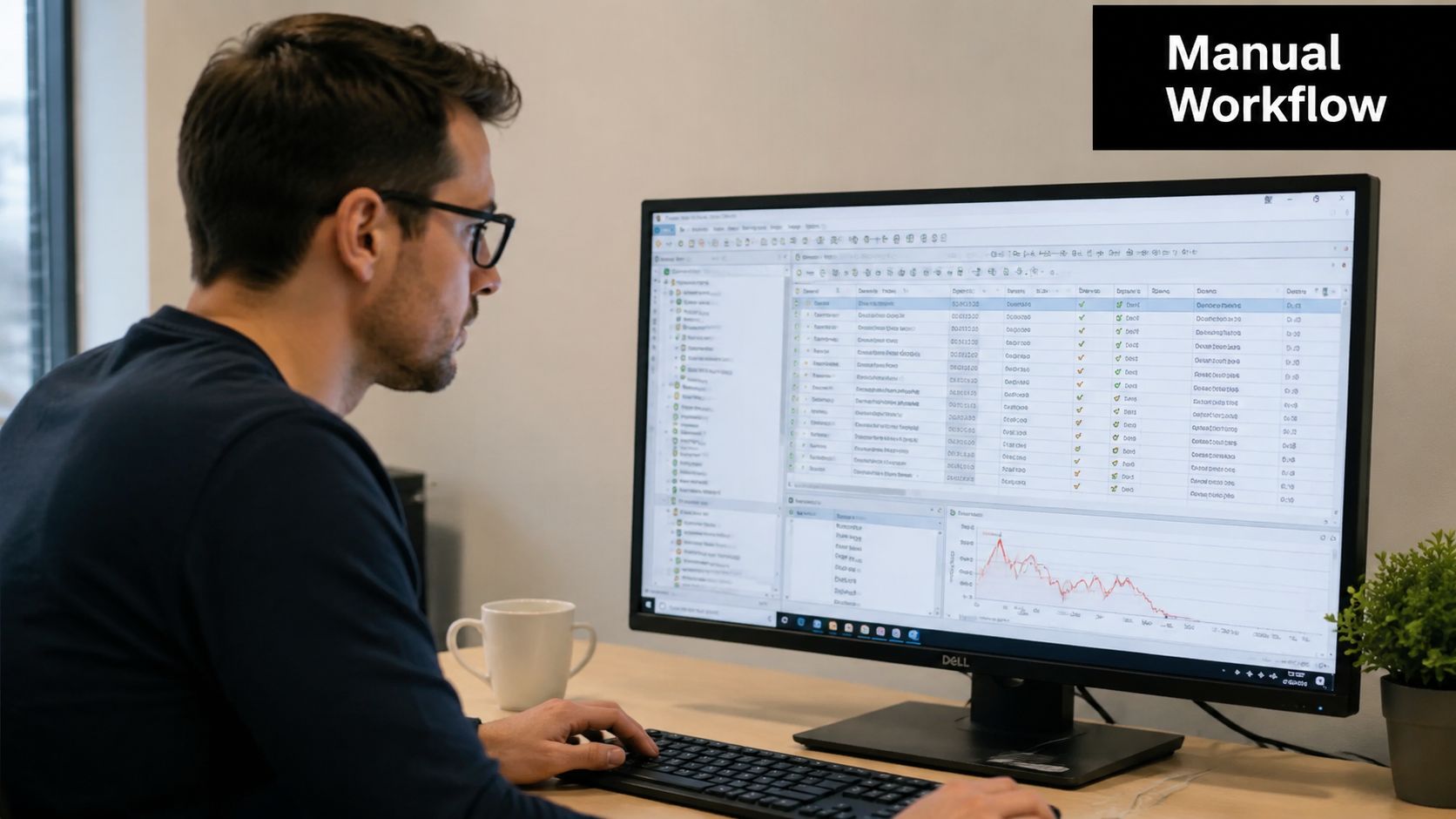
What the standard UI workflow looks like
The default process usually goes like this:
- Open the search terms report.
- Filter for a campaign, ad group, or date range.
- Pick a search term worth adding.
- Create a new keyword.
- Format it as broad, phrase, or exact.
- Repeat.
- Go back and add negatives for the leftovers.
That works when you're cleaning up a tiny set. It falls apart when you're trying to process a meaningful chunk of search data before spend keeps drifting.
A few UI habits that save real time
You won't turn the native UI into a bulk tool, but you can make it less painful.
- Use filters before you edit: Don't scroll raw reports. Filter by campaign, non-brand themes, or obvious junk patterns so you're only making decisions on terms that matter.
- Lean on labels: If your team reviews terms in stages, labels help separate “reviewed,” “promote to exact,” and “negative candidate” buckets.
- Use multi-edit when the intent is clear: If several terms belong to the same action, batch them while you're already in that view.
- Keep naming consistent: If your ad groups are loosely named, match-type work gets slower because every addition needs extra verification.
The native UI is good for judgment. It's bad for repetition.
When the UI still makes sense
There are times when the click-by-click method is the right choice:
| Situation | Use the native UI? | Why |
|---|---|---|
| Single keyword correction | Yes | Fast enough and low risk |
| New campaign QA | Yes | You need context, not volume |
| Daily light cleanup | Yes | Fine for small batches |
| Large search term promotions | No | Too much repeated work |
| Match type restructuring across ad groups | No | Bulk tools are safer |
The main trade-off is simple. The UI gives high control and low setup friction, but speed collapses once volume rises. It's useful baseline knowledge because every faster method still depends on the same core judgment: what gets exact, what gets phrase, what gets broad, and what gets blocked.
Level Up Speed with Bulk Edits and Sheets
The first real leap in efficiency comes when you stop thinking one keyword at a time. Bulk edits change the whole posture of the task. Instead of reacting term by term inside the browser, you move decisions into a list, clean them up in batches, and publish changes together.
That's where Google Ads Editor and spreadsheet uploads start to earn their keep.

If you're still managing large keyword changes by hand, bulk workflows are the first thing to fix. This overview of bulk editing features for PPC gets into why teams outgrow manual updates so quickly.
Google Ads Editor for controlled bulk work
Google Ads Editor is still one of the cleanest ways to make match-type changes without touching the live account until you're ready.
The usual workflow is straightforward:
- Download the account
- Filter to the campaigns or ad groups you need
- Export or copy the keyword set
- Duplicate rows and change formatting for match type
- Check for mistakes offline
- Post changes in one batch
Editor shines when you need to rebuild structure, duplicate high-intent terms into exact match, or standardize naming across ad groups. It also reduces the stress of live editing because you can review everything before pushing it.
The downside is friction. You still have to move in and out of the account, sync changes, and keep the file current. For some teams, that's fine. For others, it's one more layer between the search term insight and the action.
Sheets and CSV uploads for scale
Spreadsheets are uglier, but they're fast when the task is mostly mechanical. If you have a clean set of queries and know exactly which match type each one needs, a sheet can turn a long afternoon into a short batch upload.
A simple workflow looks like this:
- Pull the search terms or keyword list
- Sort by intent cluster
- Create match-type variants with consistent formatting
- Upload the file back into Google Ads
- Validate the preview before applying
Here's a simple CSV-style template you can copy into a sheet:
| Campaign | Ad Group | Keyword | Match Type | Final URL |
|---|---|---|---|---|
| Brand Search | Core Terms | keyword example | Exact | https://example.com |
| Brand Search | Core Terms | keyword example | Phrase | https://example.com |
| Non-Brand Search | Service Terms | keyword example | Broad | https://example.com |
A few practical notes matter here:
- Exact match: Put the keyword in brackets before import if your workflow requires explicit formatting.
- Phrase match: Use quotation marks consistently.
- Broad match: Leave it unquoted and unbracketed.
- Keep campaign and ad group names exact: Small naming mismatches create upload errors fast.
Workflow note: Bulk sheets are fastest when the decision is already made. They are slow when the sheet becomes the place where you're still figuring out intent.
The trade-off with bulk methods
Bulk tools are faster than the native UI, but they ask more from the operator.
| Method | Speed | Control | Risk |
|---|---|---|---|
| Native UI | Slow | High | Low for small edits |
| Ads Editor | Faster | High | Medium if structure is messy |
| Sheets upload | Fast for scale | Medium | Medium if formatting slips |
Bulk editing is the sweet spot for agencies and in-house teams with recurring cleanup cycles. It's not elegant, but it works. Once you've built a habit around exports, formatting, and uploads, match type management gets much more repeatable.
The catch is that you're still doing a handoff. The insight happens in the account. The action happens elsewhere. That gap is where delays and errors creep in.
The Expert Route with Google Ads Scripts
Scripts are where match-type management stops being a task and starts becoming a system. They're not for everyone, but if you're comfortable with rules, logic, and testing, they can remove a lot of repetitive work.
Value isn't “automation” as a buzzword. It's consistency. A script can check search terms on a schedule, look for recurring patterns, and take the same action every time without anyone forgetting a step.
What scripts are good at
A solid script-based workflow often follows a search-term-driven expansion loop. You mine query reports, group recurring language patterns, and map those clusters to the right match type based on intent and performance. Adalysis specifically recommends n-gram analysis to surface patterns for negatives and new ad groups in its guidance on steps to take before using broad match keywords.
That logic fits scripts well because a script can:
- pull search term data on a schedule
- identify repeated word combinations
- flag terms that deserve promotion
- suggest or apply negatives
- route proven themes into tighter keyword structures
If you want a practical sense of how PPC teams build those workflows, this guide on how to use scripts to manage keywords is a good place to start.
A useful script logic pattern
You don't need to write a giant automation suite to get value. Even a narrow script can help.
A practical example:
- Review search terms from a defined window.
- Group repeated phrases with n-gram logic.
- Exclude known junk patterns.
- Flag strong recurring queries for promotion into exact match.
- Leave broader exploratory terms in phrase or broad until more evidence builds.
That approach is especially helpful when broad or phrase traffic starts surfacing repeat intent that deserves tighter control.
If a term keeps proving itself, don't leave it floating in a loose match type forever. Promote it.
Why scripts are powerful and why many teams still avoid them
Scripts offer the most customization of any method in this article. You can adapt them to your naming conventions, review cadence, and account structure. They're ideal for teams that want repeatable rules instead of ad hoc cleanup.
But there's a reason a lot of good PPC managers never go all in on scripts.
- The setup barrier is real: Someone has to write, test, and maintain the logic.
- Bad rules scale bad decisions: Automation doesn't fix poor judgment. It amplifies it.
- Account nuance matters: A script can miss context that a human would catch in seconds.
Scripts make sense when you already know your process and want to speed it up. They're a poor fit when the process itself is still shaky.
The One-Click Workflow with Keywordme
There's a point where exporting to sheets and tinkering with scripts starts to feel like overkill for a job that should happen directly inside the search terms workflow.
That's where a browser-layer tool is useful.
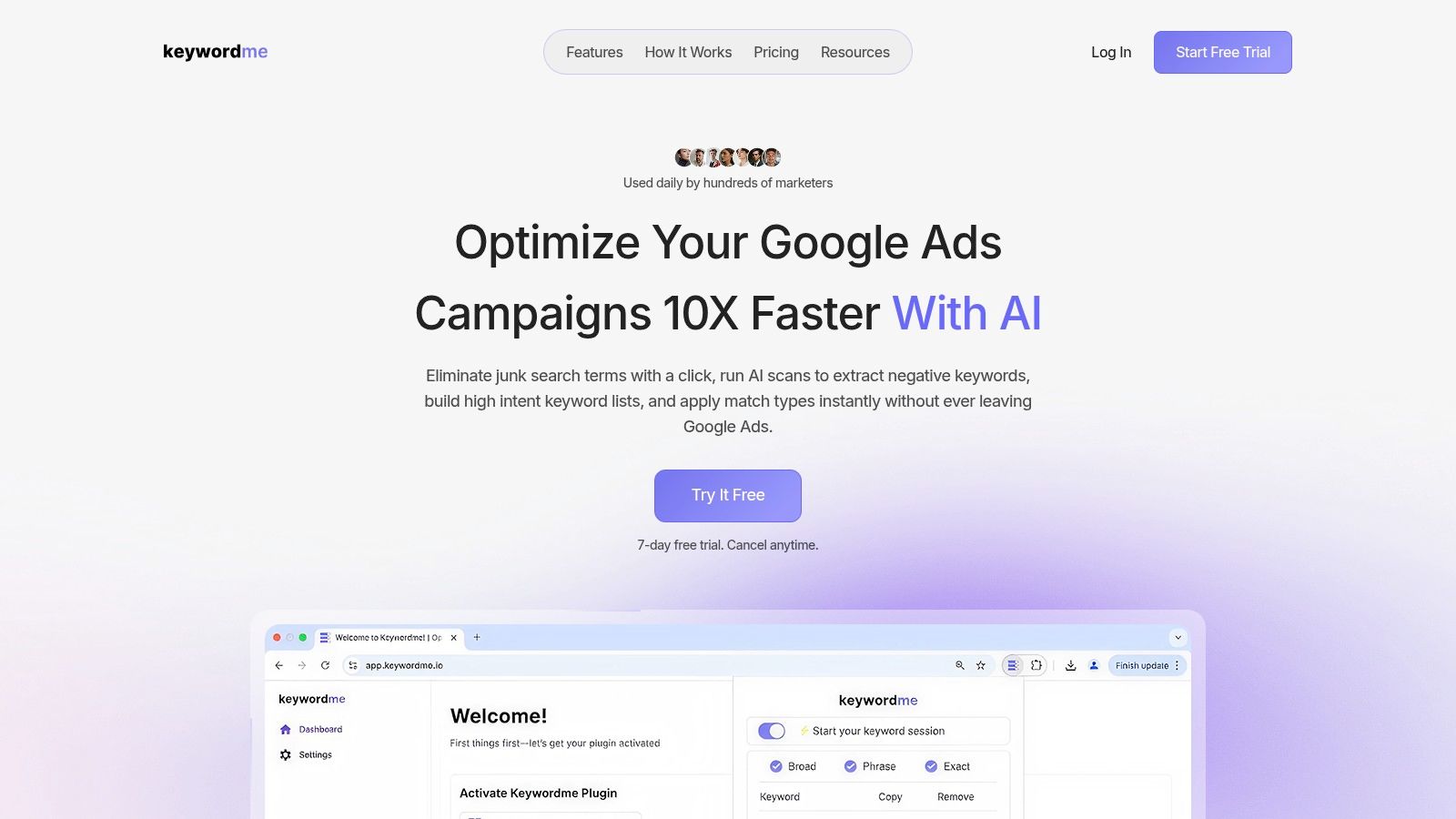
When the job is “review a search term and apply the right match type now,” the cleanest workflow is the one that removes copy-paste steps. Keywordme does that through a Chrome plugin that works inside the Google Ads search terms workflow, so you can turn search terms into keywords and apply exact, phrase, or broad without bouncing to spreadsheets or building a script.
That matters because most match-type work isn't strategically difficult. It's operationally annoying. The faster you can convert a real search query into the right keyword format, the easier it is to keep the account tight.
Why this workflow feels different
The advantage isn't just speed. It's fewer handoffs.
With the manual and bulk methods, you're constantly moving between places:
- report to editor
- report to sheet
- sheet back to upload
- report to script output
A one-click workflow cuts out that middle layer. You review the term where it appears, decide the match type, and apply the action.
That's especially useful for accounts that rely on frequent search term cleanup instead of occasional heavy restructuring.
The fastest workflow is usually the one with the fewest tool changes, not the one with the most features.
A short product walkthrough helps make that concrete:
Where one-click tools fit best
This approach is a strong fit when:
- your team lives in the search terms report every week
- you want less spreadsheet handling
- you don't want to maintain scripts
- your main bottleneck is repetitive formatting and entry
It's less about replacing every advanced method and more about removing unnecessary friction from the most common task in PPC search management.
If your account needs deep structural changes, Editor still has value. If you need complex rules, scripts still matter. But for the routine act of applying match types quickly, direct in-workflow execution is hard to beat.
Choosing Your Method and Best Practices
The right method depends on the size of the job, the skill of the operator, and how often you need to do it. A singular method is rarely effective indefinitely. Instead, a strategic stack is required. Native UI for tiny edits. Bulk tools for larger pushes. Automation when the same task keeps coming back.
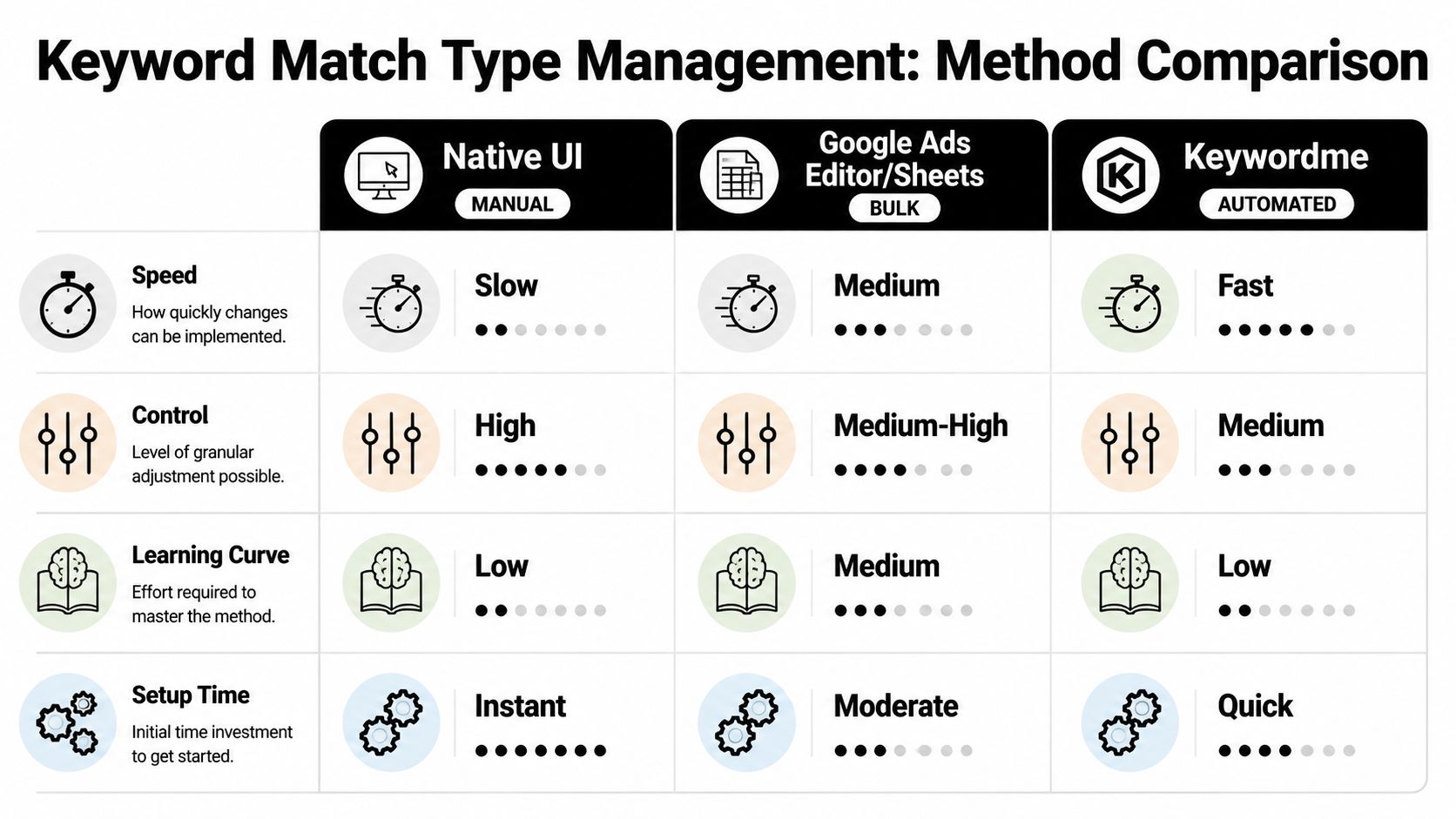
Keyword Match Type Methods Compared
| Method | Speed | Best For | Skill Level |
|---|---|---|---|
| Native UI | Slow | Small edits, QA, one-off keyword changes | Low |
| Google Ads Editor or Sheets | Medium | Bulk updates, restructuring, repeated account cleanup | Medium |
| Keywordme | Fast | Search-term-based keyword additions and quick match-type application | Low |
Which match type should you start with
For most accounts, a controlled starting point still makes the most sense. An Adalysis industry study recommends starting with exact match for top keywords, then expanding to phrase match if exact can't absorb the budget, while using broad match sparingly in its analysis of match type performance by bid method.
That lines up with how experienced PPC teams usually work in practice.
- Start with exact match when the keyword is core, high intent, or commercially important.
- Expand to phrase match when you want more reach without giving up too much control.
- Use broad match carefully when you need coverage, discovery, or faster launch velocity, but only if you're prepared to review search terms and negatives consistently.
Best practices that hold up
- Promote proven queries: If a search term keeps showing up with the right intent, graduate it into tighter targeting.
- Keep a review cadence: Match types only work as a system if someone is regularly checking what Google matched.
- Don't let broad run unattended: Broad can reduce keyword list-building work, but unmanaged broad creates cleanup debt fast.
- Match method to account reality: Small, messy accounts usually need simpler workflows. Large, repeatable accounts benefit more from bulk and automation.
Broad match is useful when speed and coverage matter. It becomes expensive when nobody is steering it.
The fastest workable setup is the one you'll maintain. Plenty of advertisers build a complex process they never stick to. A simpler workflow done consistently usually beats a clever one that only happens twice a quarter.
If you want a faster way to turn search terms into properly formatted keywords without exporting files or managing scripts, Keywordme is worth a look. It keeps the work inside your Google Ads workflow, which makes match-type application easier to do consistently.
.svg)